💡Duo Security Authentication Integration Guide

 Zyxel Employee
🛡️Duo Security and USG FLEX H Integration Overview
This document describes the steps to integrate USG FLEX H series remote access VPN and SecuExtender VPN client authentication with Duo Security’s two-factor authentication solution. This integration uses an existing NPS server installed on a domain controller that also contains the Duo Security Authentication Proxy.
USG FLEX H series integration with Duo Security - How it works?
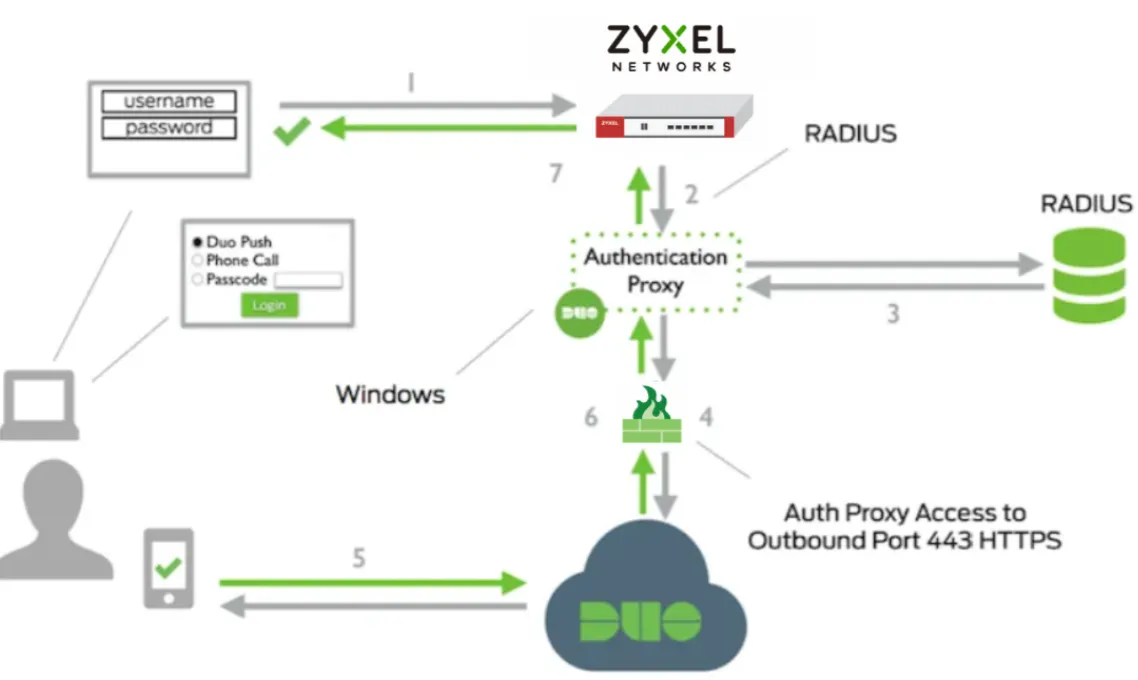
- A user initiates primary authentication to the USG FLEX H.
- The USG FLEX H sends an authentication request to the Duo Security Authentication Proxy.
- The Authentication Proxy completes primary authentication using RADIUS.
- The Authentication Proxy establishes a secure connection with the Duo Security service.
- The Duo Security service completes the secondary authentication.
- The Authentication Proxy receives a secondary authentication result from the Duo Security service.
- The USG FLEX H grants the user access.
💡Test Topology
Below diagram showcases the test topology:
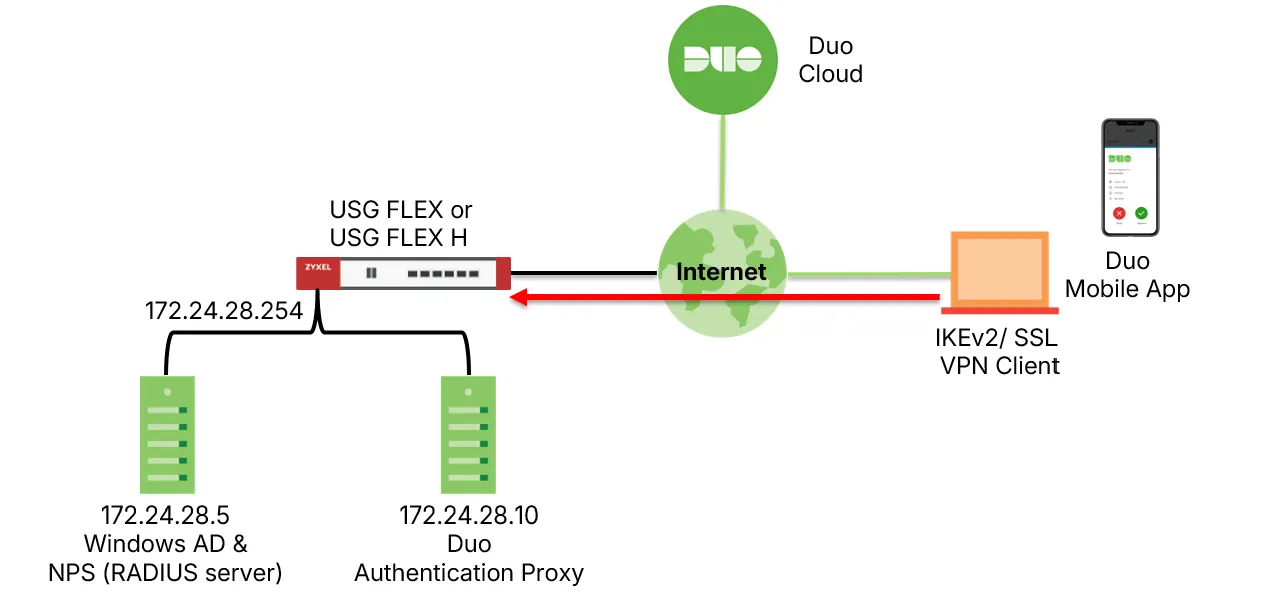
📝Platform and Software
The hardware and software used in this integration include:
Component | Product and Version |
|---|---|
VPN Firewall | USG FLEX H (uOS 1.36) or USG FLEX (ZLD 5.40) |
Microsoft AD Domain | Windows 2025 server Domain Controller & NPS (RADIUS server) |
Duo Security |
|
VPN Client | SecuExtender IPSec/SSL VPN Client |
🛠️Configuration
To complete this integration, you must have:
- Duo account
- Duo Security Authentication Proxy
- RADIUS server (NPS)
- Active Directory Domain Services with user and group configured
- USG FLEX H (or USG FLEX) series firewall
Use the Duo account to log in to the Duo Service. The Duo Security Authentication Proxy acts as a bridge. It communicates with the RADIUS server, the Duo Security service in the cloud, the USG FLEX H firewall, and the Duo mobile app. The integration uses the RADIUS server for primary user authentication.
In our configuration, the Duo Security Authentication Proxy and the RADIUS server (Microsoft NPS) are located on the same subnet.
⚙️Configure Microsoft NPS Server
- On the Windows server, run Server Manager.
- Select Tools > Network Policy Server. The Network Policy Server console opens.
- Select RADIUS Clients and Servers > RADIUS Clients.
- Right-click RADIUS Clients, then select New. The Duo Proxy Properties dialog box opens.
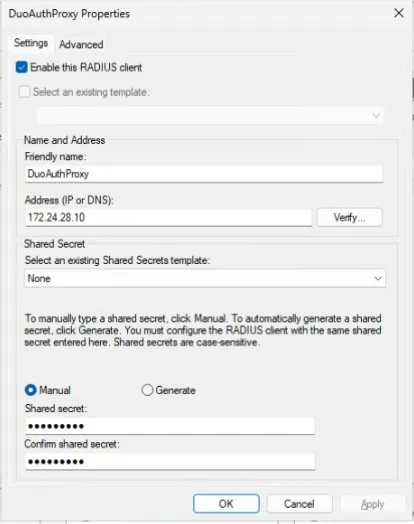
- In the Friendly Name text box, type a name.
- In the Address (IP or DNS) text box, type the IP address of the Duo Authentication Proxy. In our example, we use 172.24.28.10.
- In the Shared Secret and Confirm Shared Secret text boxes, type a shared secret key. This key is used to communicate with the Duo Authentication Proxy.
Remarks. You must use the same shared secret key when you configure Duo Authentication Proxy for Primary Authentication.
8. Click OK. The RADIUS Clients section shows the added details.
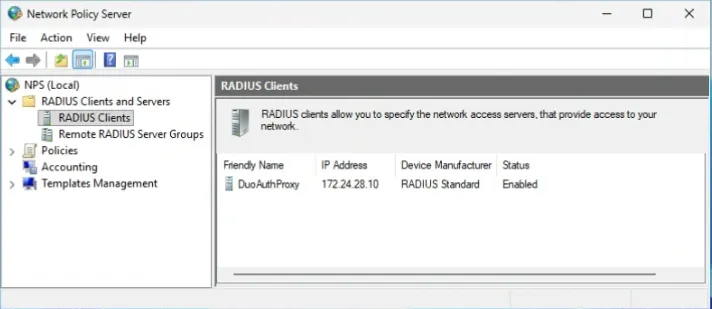
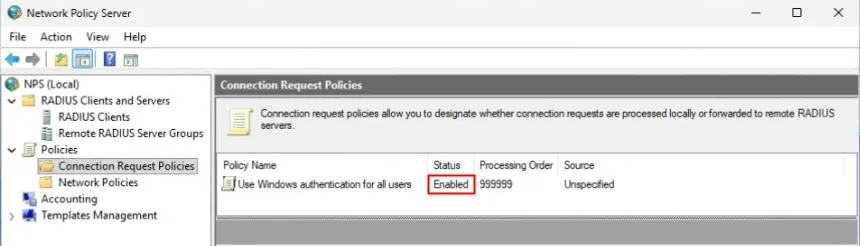
9. Select Polices > Connection Request Policies. Make sure the default policy is enabled.
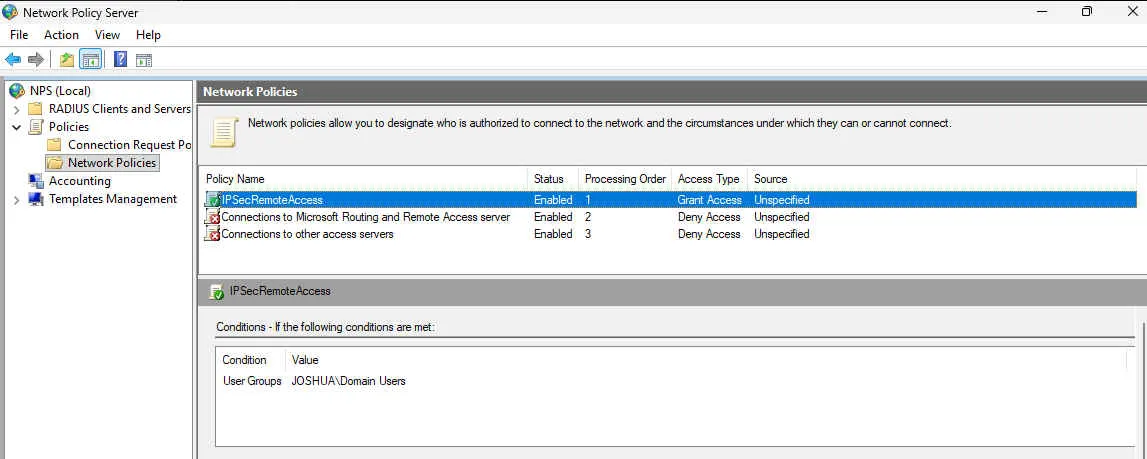
10. Right-click Network Policies, then select New. The New Network Policy page opens.
11. In the Policy Name text box, type a name for this policy. In our example, we use IPSecRemoteAccess.
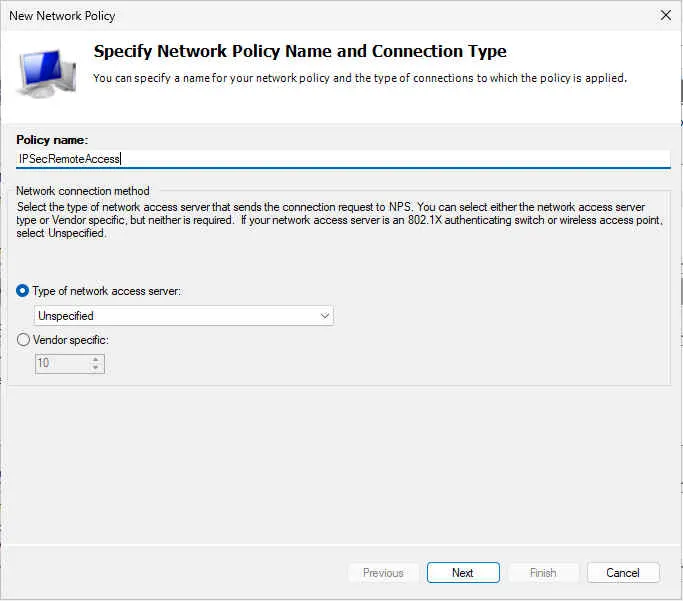
12. Click Next.
13. From the Specify Conditions section, click Add.
14. Select User Groups, then click Add.
15. Click Add Groups.
16. In the Enter the Object Name to Select text box, type the group name. The name of this group must be the same as the name of the Active Directory group your users belong to.
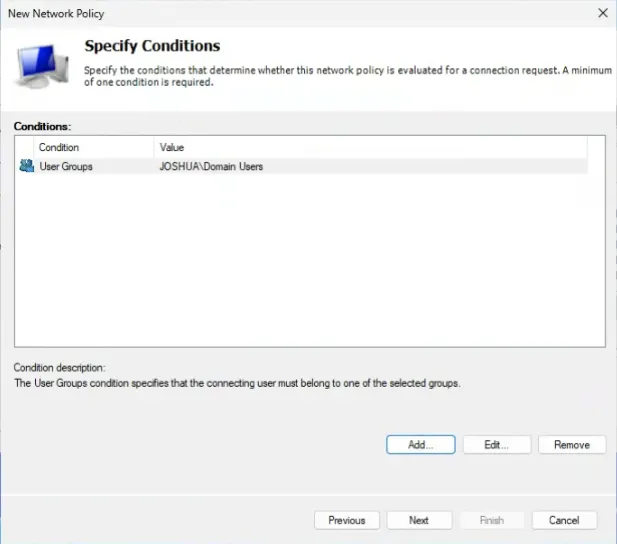
17. Click Next.
18. From the Configure Authentication Methods section, select the Unencrypted Authentication (PAP, SPAP) check box.
19. Add EAP Types and select Microsoft: Secured password (EAP-MSCHAP v2).
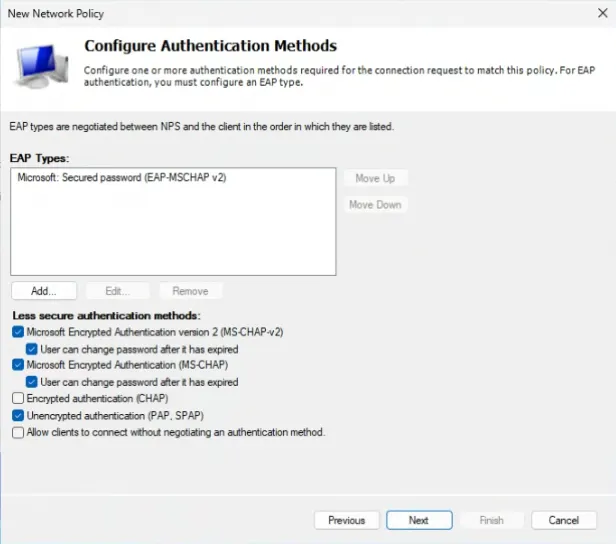
20. Click Next.
21. Click Next to proceed.
22. Click Finish.
⚙️Configure USG FLEX H
To configure the USG FLEX H firewall, you must:
- Configure RADIUS Authentication
- Configure Remote Access VPN
👉Configure RADIUS Authentication
To configure RADIUS authentication, log in to local GUI:
- Go to User & Authentication > User Authentication.
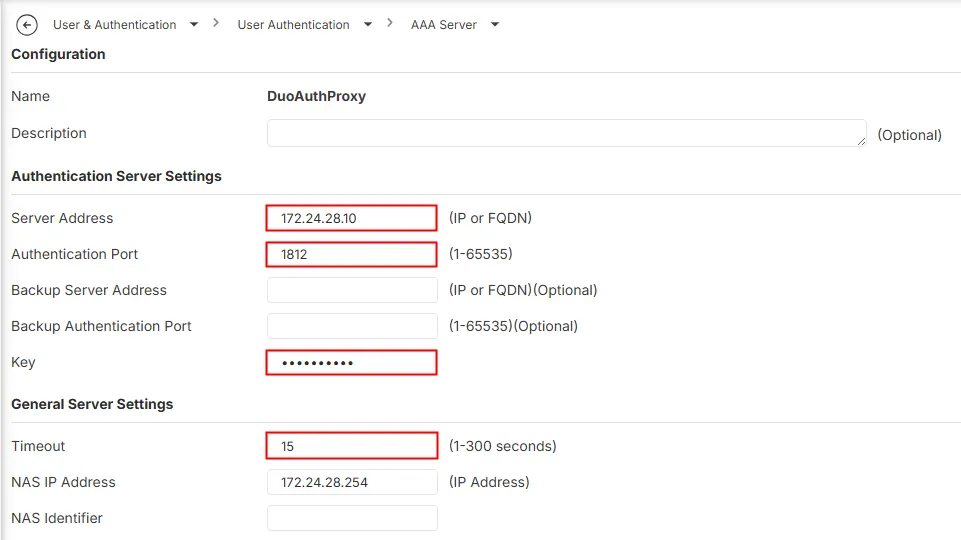
- Under RADIUS Server table. Click Add to setup RADIUS server.
- Configure RADIUS Server using the following values:
Name: the server object name, e.g. DuoAuthProxy
Server address: the IP address of Duo Authentication Proxy, e.g. 172.24.28.10
Authentication port: the RADIUS service port of Duo Authentication Proxy, e.g. 1812
Key: the RADIUS secret
Timeout: recommend to set it to 15 seconds
👉Configure Remote Access VPN with IPSec/IKEv2
To configure Remote Access VPN, log in to local GUI:
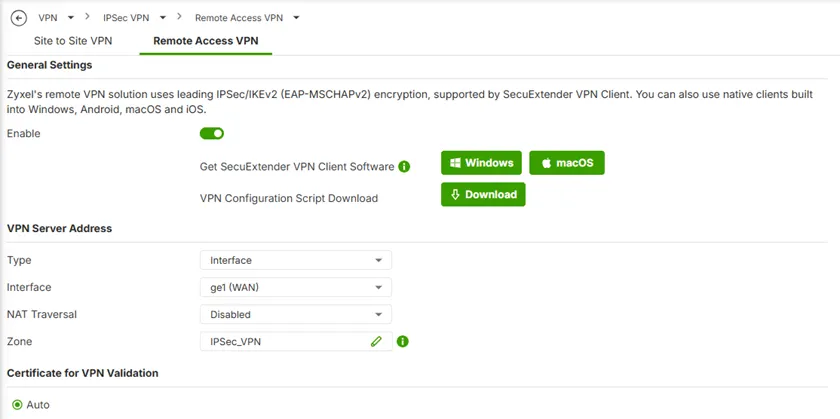
- Go to VPN > IPSec VPN > Remote Access VPN. Enable and select the WAN interface to service the VPN client’s inbound connection.
- Scroll down to Authentication section. Change the Primary Server to the RADIUS server object (e.g. RADIUS / DuoAuthProxy).
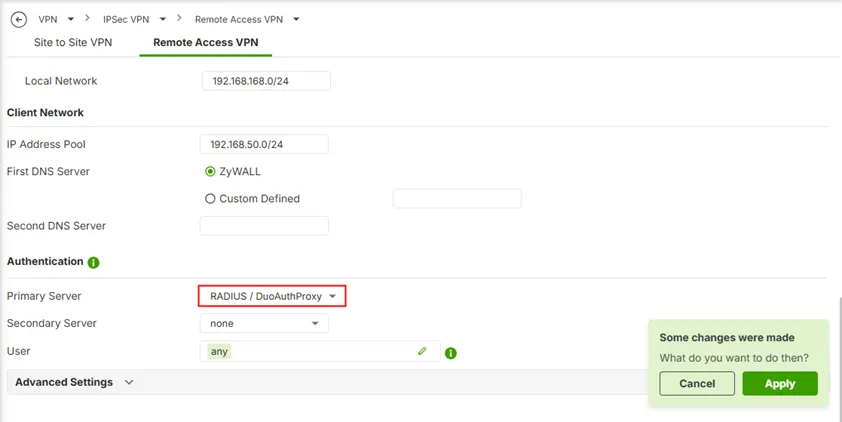
- Click Apply.
⚙️Configure Duo
To configure Duo, complete these steps:
- Setup an Application
- Configure the Duo Authentication Proxy
- Configure the Duo Authentication Proxy to Work with the USG FLEX H
- Start the Duo Authentication Proxy
- Bind the User with the Duo Mobile Application
👉Set Up an Application
- Sign up for a Duo account.
- Log in to the Duo Admin Panel, then select Applications.
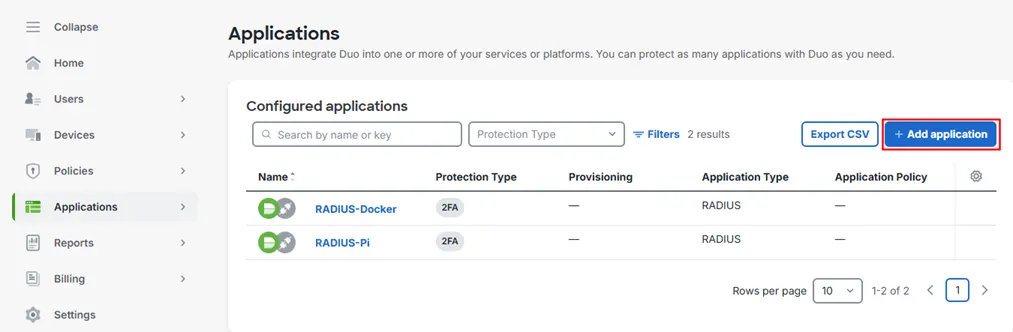
- Click Add application.
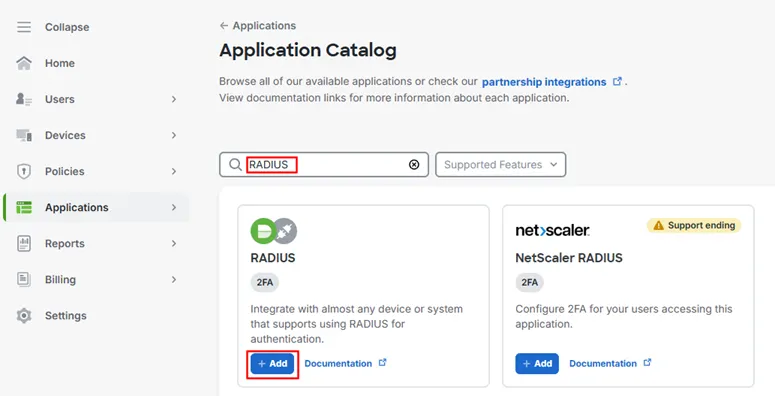
- In Application Catalog, search RADIUS and then click Add.
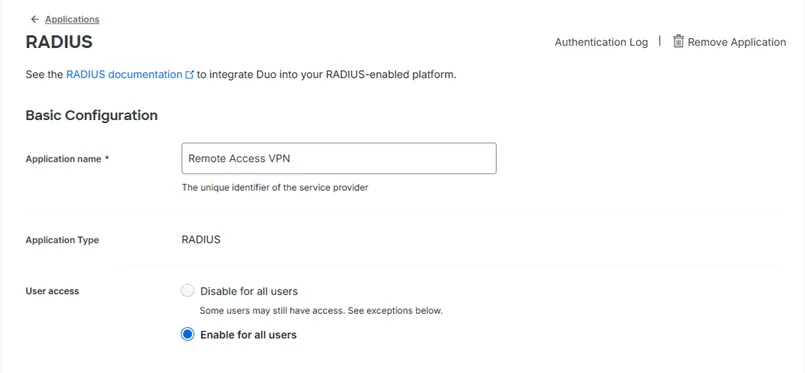
- In Application settings, enter the application name. Configure User access to Enable for all users.
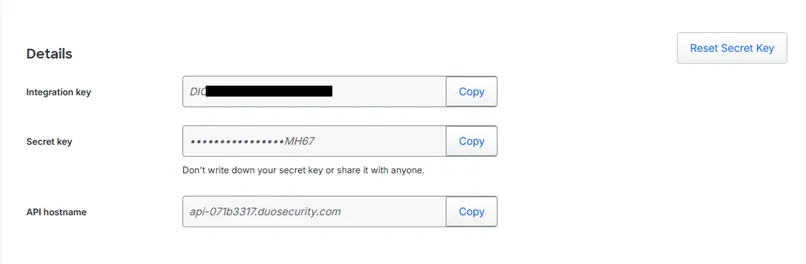
- Scroll down to view the values for the Integration Key, Secret Key, and API Hostname. Copy these values because you will use them in the Configure the Duo Authentication Proxy section.
- Click Save to finish.
⚙️Configure the Duo Authentication Proxy
The Duo Authentication Proxy is the system that validates the user password. In most cases, you must configure the Proxy to communicate with a RADIUS server.
Please refer to the installation guide of Duo Authentication Proxy in the Duo documentation.
To configure the Duo Authentication Proxy:
- Open Duo Authentication Proxy Manager.
- Configure the authproxy.cfg file. These are the sections of the file:
- [radius_client]: To configure the proxy, you must specify the values of these properties:
Required Properties | Description |
|---|---|
host | The IP address of your Microsoft NPS server |
secret | A shared secret between the Proxy and the RADIUS server, which was configured in your Microsoft NPS server. |
For information about other optional properties, go to Duo Two-Factor Authentication with RADIUS and Primary Authentication in the Duo documentation.
👉Configure the Duo Authentication Proxy to Work with the USG FLEX H
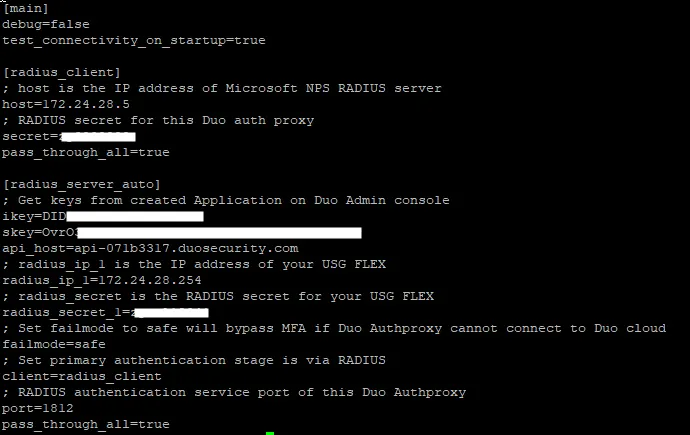
To configure the Duo Authentication Proxy to work with the USG FLEX H, create a [radius_server_auto] section in the authproxy.cfg file.
This table provides a list of the properties that you must configure in the [radius_server_auto] section of the authproxy.cfg file:
Properties | Description |
|---|---|
ikey | The Integration key, as referenced in the Set Up an Application section of this document. |
skey | The Secret key, as referenced in the Set Up an Application section of this document. |
api_host | The API hostname, as referenced in the Set Up an Application section of this document. |
radius_ip_1 | The IP address of the USG FLEX H firewall that is connected to the Proxy. |
radius_secret_1 | The RADIUS secret configured in the RADIUS server object of your USG FLEX H firewall. |
client | Set this value to radius_client, so that the Proxy uses RADIUS for primary authentication. |
port | The RADIUS service port of this Duo Authentication Proxy. |
For information about optional properties, go to Duo Two-Factor Authentication with RADIUS and Primary Authentication in the Duo documentation.
This is an example of a complete configuration file:
👉Start the Duo Authentication Proxy
Upon finished configuration, remind to restart the Duo authentication proxy to take effect.
👉Bind the User with the Duo Mobile Application
After the process to sync users from Active Directory into Duo, bind the user with your mobile phone.
For detailed instructions about how to bind the user with your mobile phone, go to Activating Duo Mobile in the Duo documentation.
For your user to setup Duo Mobile, please check for more details.
💡Test the Integration
In this example, we show the push authentication method (users receive a push notification in the mobile app that they must approve to authenticate).
- Open Zyxel SecuExtender VPN client application.
- Go to Configuration, and select “Get from Server”.
- Enter the IP or FQDN of the VPN server (i.e. your USG FLEX H firewall), VPN username & password. After that the VPN profile will be downloaded to the client automatically.
- The new profile will appear in the list. Double click on the new profile, then enter your VPN username & password.
- Approve the DUO push authentication request on your mobile phone.
- You are logged in successfully.
💭 Already using the USG FLEX H Series?
We invite you to explore this Duo Security integration for remote access VPN.
Let us know how it works in your environment and what additional authentication features you would like to see in future releases.
Categories
- All Categories
- 442 Beta Program
- 3K Nebula
- 229 Nebula Ideas
- 130 Nebula Status and Incidents
- 6.6K Security
- 661 USG FLEX H Series
- 359 Security Ideas
- 1.8K Switch
- 86 Switch Ideas
- 1.4K Wireless
- 56 Wireless Ideas
- 7.1K Consumer Product
- 305 Service & License
- 497 News and Release
- 95 Security Advisories
- 31 Education Center
- 10 [Campaign] Zyxel Network Detective
- 5K FAQ
- 34 Documents
- 89 About Community
- 110 Security Highlight