1.37 uOS - error selecting UDP port and saving it from Nebula




 Guru Member
Hello everyone,
if you add a new UDP port to Services on a H series:

When you save that it saves a TCP port:

If you create that from On-Premise UI there is no issue:
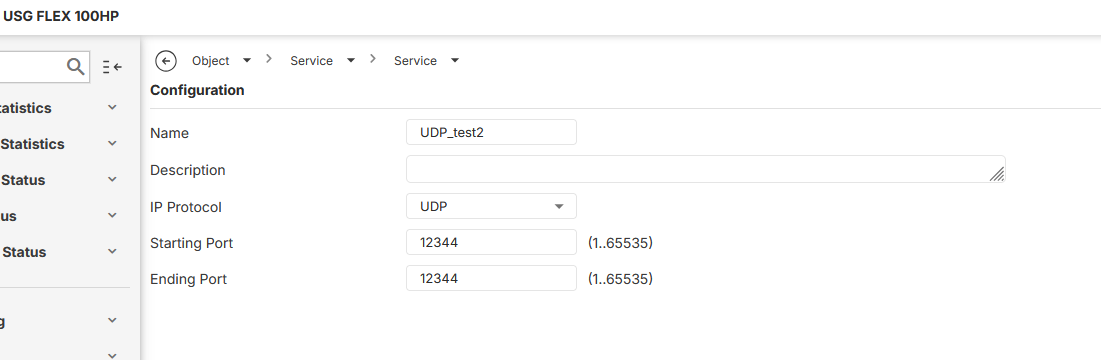
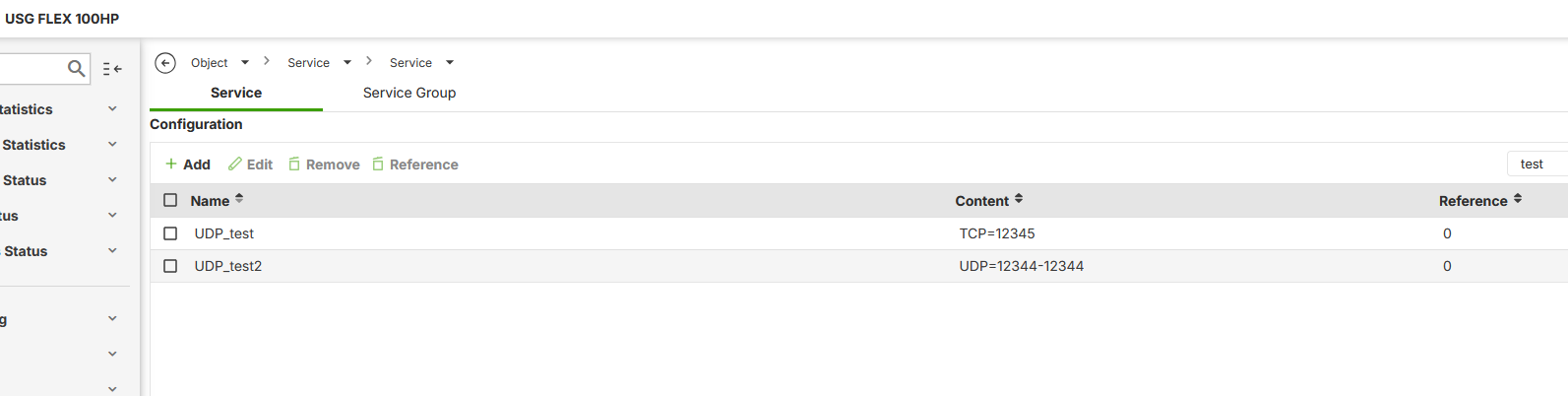
Why you cannot edit that Service port from Nebula?
As you can see there is no pencil:

So you have to fix this issue from On-Premise UI:
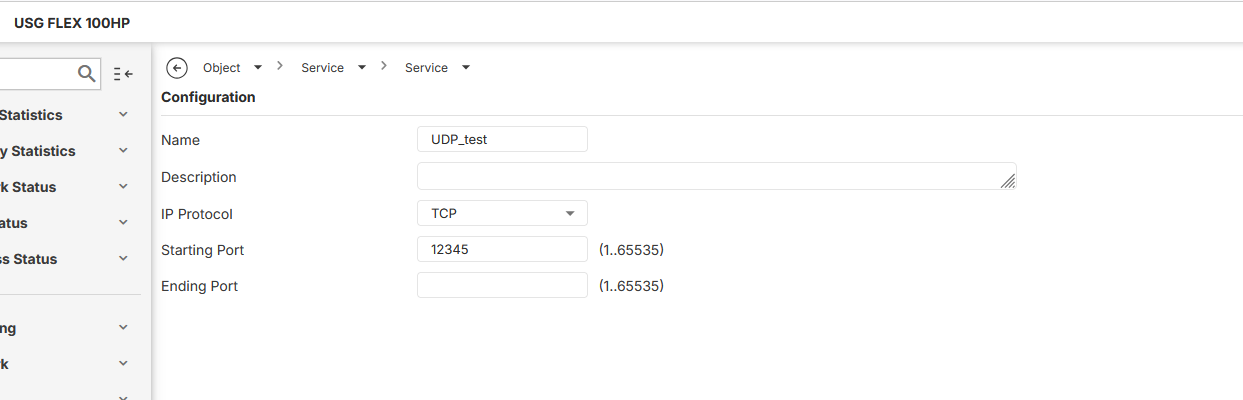
selecting UDP from menu.
The other problem is that when you click on that Edit function and select UDP:
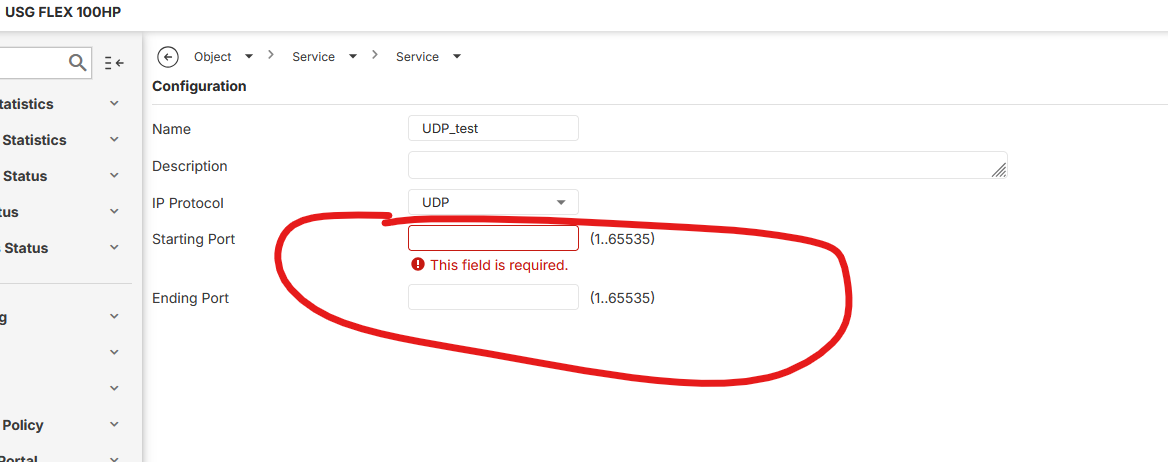
the firewall looses the number of port and you have to enter it again, instead of just changing the type of port
All Replies
-
Hi @GiuseppeR,
Thank you for bringing this to our attention. It appears you're encountering an issue where newly added UDP service ports on your USG FLEX H series are incorrectly saved as TCP ports in Nebula, and you're unable to edit them directly within the Nebula Control Center (NCC).
Based on the information provided, here are the steps to address this:
Correcting the Service Port Protocol: Since the Nebula UI does not currently allow editing the protocol type for service objects after creation, you will need to correct the protocol from the USG FLEX H series' local GUI.
- Access the local GUI of your USG FLEX H series firewall.
- Navigate to
Object > Service > Service. - Locate the service object that was incorrectly saved as TCP.
- Edit the service object and change the "IP Protocol" from TCP to UDP.
- Save the changes.
Understanding Nebula Object Management for H Series: The Nebula Control Center (NCC) allows for the creation, editing, and management of various objects for USG FLEX H series firewalls, including Zone, Address, and Address Group objects. While port and interface management is available, there might be specific limitations or behaviors concerning service object protocol editing that differ from the local GUI.
To help us further investigate this discrepancy and improve the Nebula experience, please provide the following information:
- Device Model: (e.g., USG FLEX 100H, USG FLEX 200H)
- Firmware Version of your USG FLEX H series device.
- Screenshots of the service object configuration in both the Nebula UI and the local GUI, specifically highlighting the protocol type and the absence of the edit icon in Nebula.
- Nebula Organization and Site Name: This will allow our support team to access and review your device's configuration directly in the Nebula cloud environment, which can significantly shorten troubleshooting time. To enable Zyxel Support Access, please navigate to
Help > Support Requestin your Nebula console and enable "Zyxel Support Access."
This AI response aims to provide initial troubleshooting steps and identify information needed for further diagnosis. Feel free to share additional details based on the suggestions above — this will help community members offer more targeted assistance.
If you have feedback or idea about this AI assistant, share them in Community Feedback.0 -
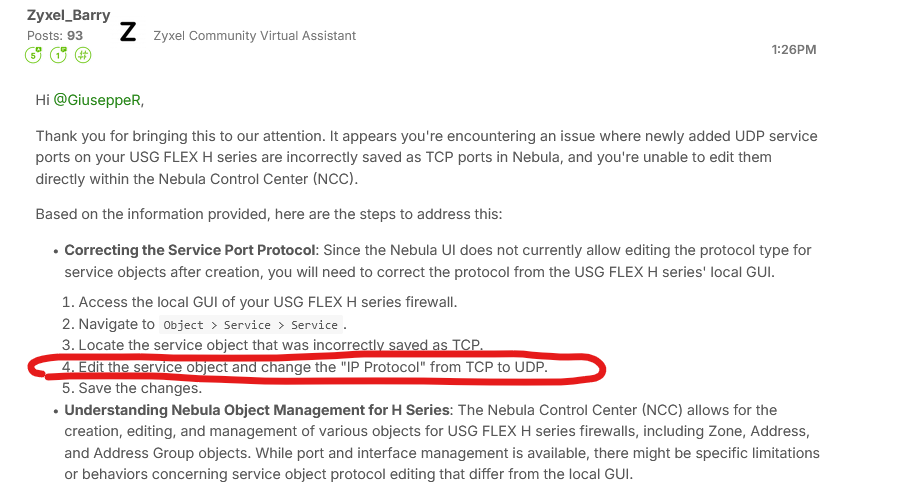
Also the nice @Zyxel_Barry thinks that it should be sufficient to edit TCP to UDP from menu:
 0
0 -
Hi @GiuseppeR
The behavior should be the same between local GUI and Nebula. I have clarifying with our team, and I will update you once I get further info.
Zyxel Melen0



 Zyxel Community Virtual Assistant
Categories
- All Categories
- 442 Beta Program
- 3.1K Nebula
- 243 Nebula Ideas
- 6.8K Security
- 781 USG FLEX H Series
- 387 Security Ideas
- 1.8K Switch
- 87 Switch Ideas
- 1.5K Wireless
- 58 Wireless Ideas
- 7.2K Consumer Product
- 324 Service & License
- 527 News and Release
- 101 Security Advisories
- 31 Education Center
- 10 [Campaign] Zyxel Network Detective
- 5.3K FAQ
- 34 Documents
- 91 About Community
- 121 Security Highlight