How to Configure 802.1x Enterprise WiFi for ZLD-Managed APs Using an External RADIUS Server

 Zyxel Employee
Scenario Overview
When Zyxel Access Points are centrally managed by a ZLD firewall in Managed Mode, you can configure WPA2/WPA3-Enterprise authentication for wireless clients.
There are two possible RADIUS authentication paths:
Internal RADIUS Server Type — Controller-Based Authentication
Wireless Client → Managed AP → ZLD Firewall/AP Controller → External RADIUS Server
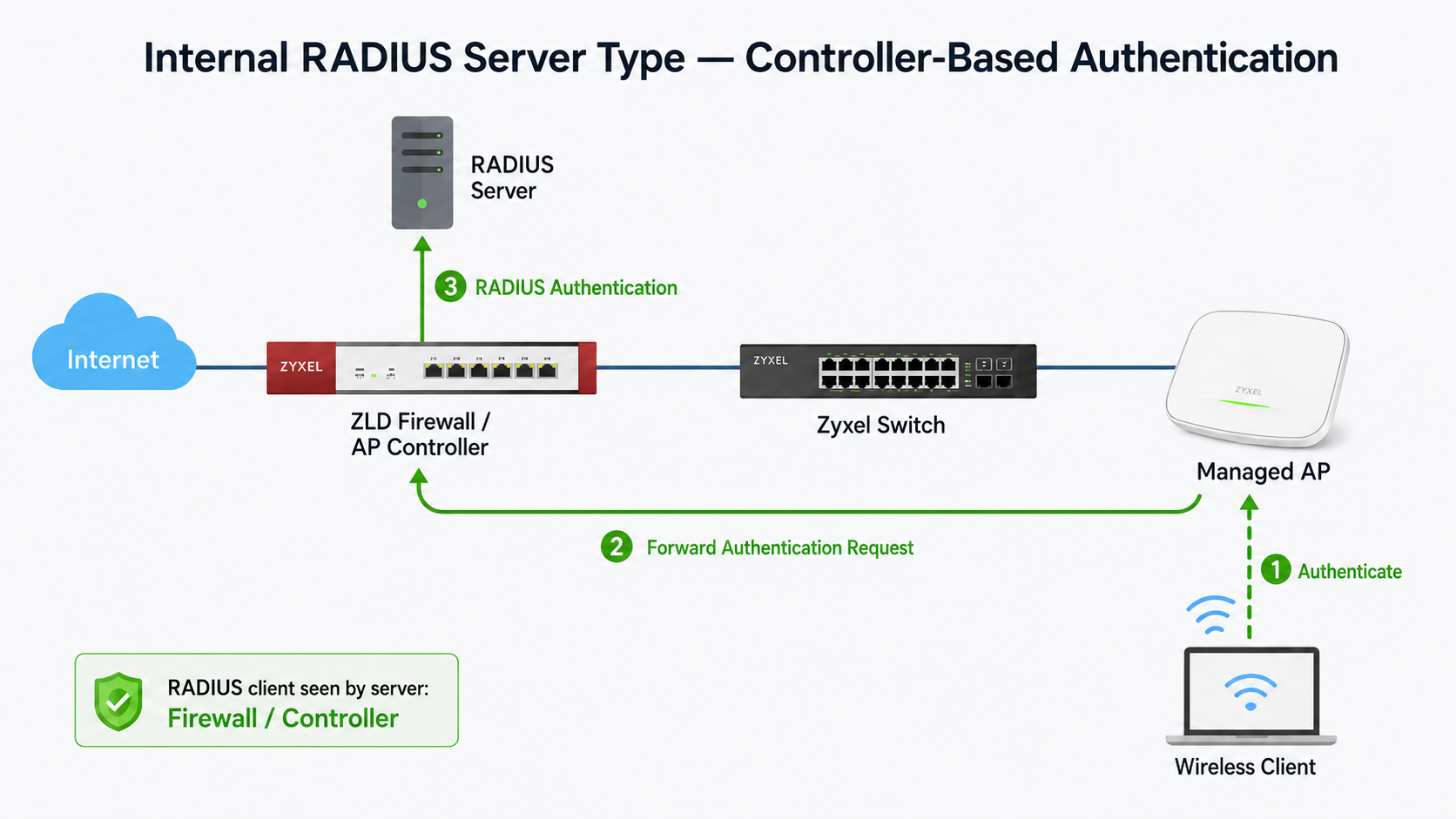
The managed AP sends the authentication request to the ZLD firewall’s built-in RADIUS service. The firewall then uses the configured Authentication Method to validate the credentials against an external RADIUS server, such as Microsoft NPS or FreeRADIUS.
In this mode, the external RADIUS server must trust the firewall/controller IP address used to reach the RADIUS server.
External RADIUS Server Type — AP Direct Authentication
Wireless Client → Managed AP → External RADIUS Server
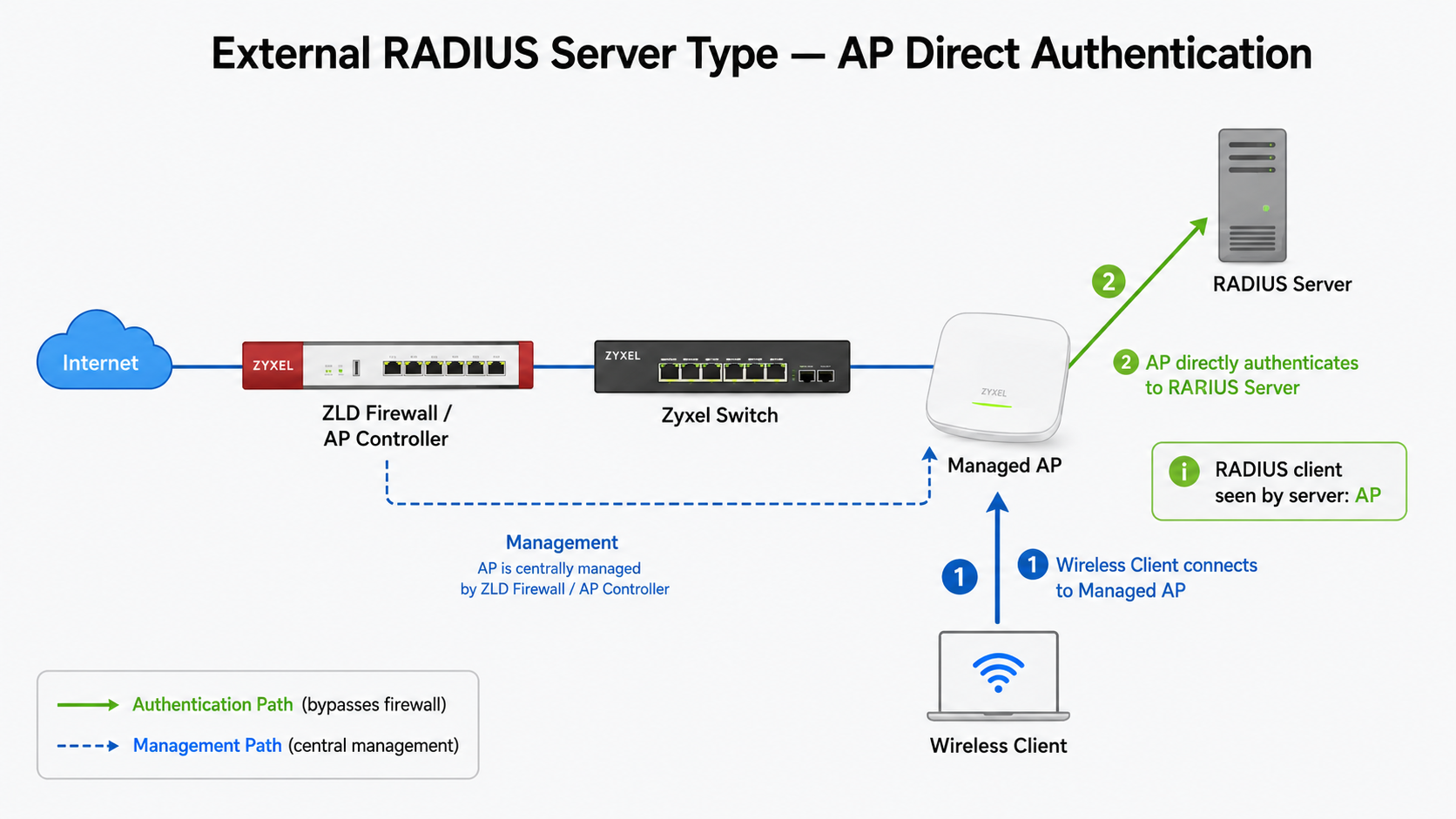
The managed AP sends the authentication request directly to the external RADIUS server.
In this mode, the external RADIUS server must trust the management IP address of each AP.
This FAQ primarily uses the Internal RADIUS Server Type, where authentication is handled through the ZLD firewall/AP Controller.
Prerequisites and Important Notes
RADIUS Server Information
Prepare the following information:
- RADIUS server IP address
- Authentication port, normally UDP 1812
- Accounting port, normally UDP 1813, if accounting is enabled
- RADIUS Shared Secret
- Supported EAP authentication method
RADIUS Client Configuration
The RADIUS client configured on Microsoft NPS, FreeRADIUS, or another external RADIUS server depends on the selected RADIUS Server Type.
RADIUS Server Type | Device to Add as RADIUS Client |
|---|---|
Internal | ZLD firewall/controller source IP |
External | Management IP address of each managed AP |
The Shared Secret configured on the RADIUS server must match the Shared Secret configured on the corresponding Zyxel device.
When the firewall has multiple interfaces, use the firewall IP address that appears as the source address of the RADIUS request. This can be confirmed from the RADIUS server logs or a packet capture.
Network Connectivity
For Internal mode:
- The ZLD firewall must be able to reach the external RADIUS server.
- Allow UDP 1812 and, when required, UDP 1813 from the firewall to the RADIUS server.
For External mode:
- Each managed AP must be able to reach the external RADIUS server.
- Allow UDP 1812 and, when required, UDP 1813 from the AP management network to the RADIUS server.
Proxy by Controller Directly — Optional
Proxy by controller directly, also known as EAP Proxy or EAP Passthrough, is used with the Internal RADIUS Server Type.
When disabled, the firewall/controller handles the supported EAP tunnel and uses the selected Authentication Method to validate the credentials.
When enabled, the firewall/controller forwards the complete EAP exchange to the external RADIUS server. Enable this option when the external RADIUS server must process the EAP exchange directly, such as for EAP-TLS certificate authentication.
Feature and EAP-method support may depend on the firewall model and firmware version.
Configuration Steps
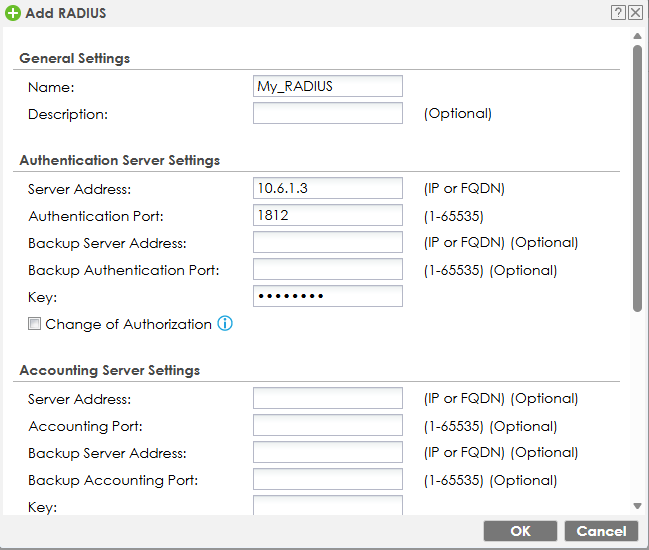
Step 1: Create a RADIUS Server Object
- Log in to the firewall Web GUI.
Configuration > Object > AAA Server- Select the RADIUS tab and click Add.
- Configure the following:
- Name: Enter a name, such as
My_RADIUS. - Server Address: Enter the RADIUS server IP address.
- Authentication Port: Enter
1812, unless the server uses another port. - Secret: Enter the Shared Secret configured on the RADIUS server.
- Name: Enter a name, such as
- Click OK.
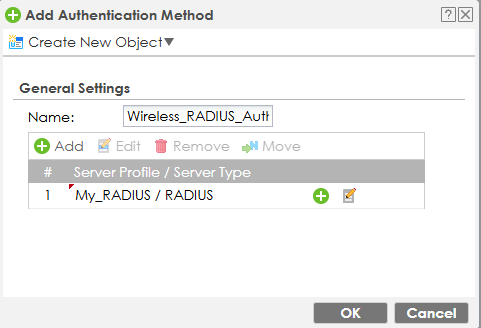
Step 2: Create an Authentication Method
This step is required when using the Internal RADIUS Server Type with an external RADIUS server.
Configuration > Object > Auth. Method- Add a new Authentication Method or edit an existing one.
Wireless_RADIUS_Auth- Add the RADIUS server or RADIUS group created in Step 1 to the authentication method.
- Click OK.
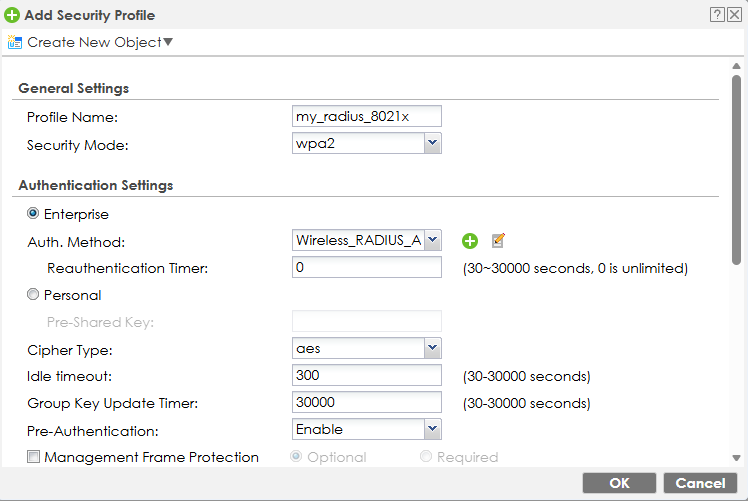
Step 3: Create a Security Profile
Configuration > Object > AP Profile > SSID- Select the Security List tab and click Add.
- Configure the following:
- Profile Name: Enter a name, such as
my_radius_8021x. - Security Mode: Select a supported Enterprise security mode, depending on the AP model, firmware, and client compatibility.
- Authentication Settings: Select
Enterprise. - RADIUS Server Type: Select
Internal. - Auth. Method: Select
Wireless_RADIUS_Auth.
- Profile Name: Enter a name, such as
- Click OK.
Alternative: External RADIUS Server Type
To let each managed AP communicate directly with the external RADIUS server:
- Select My_RADIUS as the Primary RADIUS Server.Add each AP management IP address as a RADIUS client on the external RADIUS server.Ensure that every AP can reach the RADIUS server through UDP 1812 and, if used, UDP 1813.

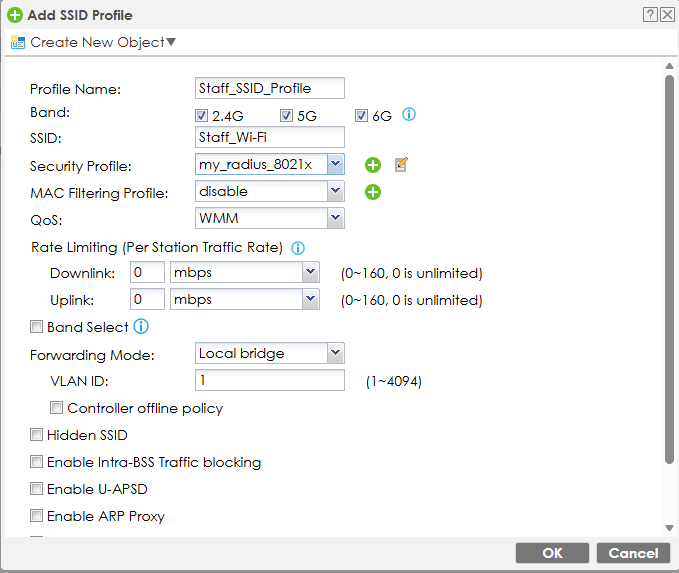
Step 4: Create an SSID Profile
- On the same page, select the SSID List tab and click Add.
- Configure the following:
- Profile Name: Enter a name, such as
Staff_SSID_Profile. - SSID: Enter the wireless network name, such as
Staff_Wi-Fi. - Security Profile: Select the created security profile
my_radius_8021x.
- Profile Name: Enter a name, such as
- Configure the VLAN (optional).
- Click OK.
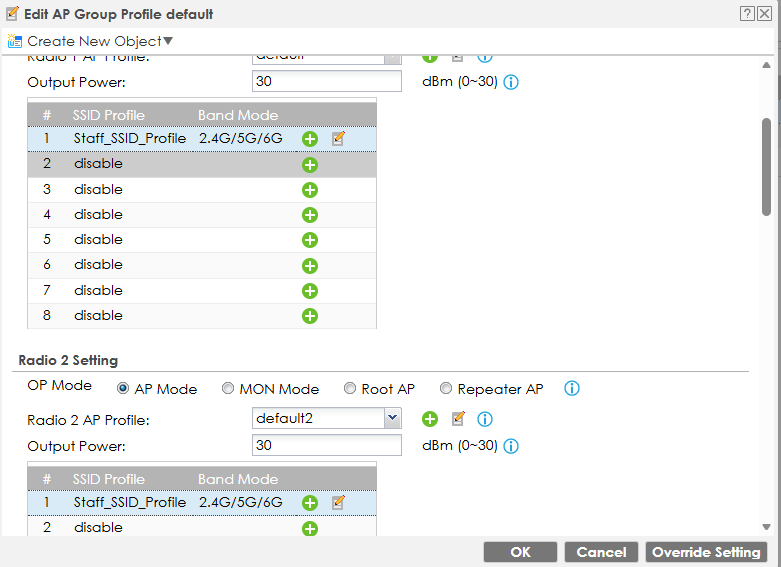
Step 5: Apply the SSID to an AP Group
Configuration > Wireless > AP Management > AP Group- Edit the active AP group, here use
defaultAP group for example. - Under the Radio 1 and Radio 2 settings, assign
Staff_SSID_Profileto the required radios. - If required, select the option to override the member AP settings.
- Click OK.
The controller will provision the SSID and security settings to the managed APs.
External RADIUS - Microsoft NPS Basic Configuration
Microsoft Network Policy Server for example, if Microsoft NPS server is used as the external RADIUS server, confirm the following settings on the NPS server:
NPS > RADIUS Clients and Servers > RADIUS Clients- Internal RADIUS Server Type: Add the ZLD firewall/AP Controller source IP.
- External RADIUS Server Type: Add the management IP address of each managed AP.
- Configure the same RADIUS Shared Secret used on the Zyxel device.
- Create a Network Policy that:
- Grants access to the required Active Directory users or groups.
- Uses an authentication method that matches the wireless clients, such as PEAP with EAP-MSCHAP v2 or EAP-TLS.
- Includes a valid server certificate when required by the selected EAP method.
- Ensure that UDP port 1812, and UDP port 1813 when accounting is enabled, are allowed between the Zyxel device and the NPS server.
Event Viewer > Custom Views > Server Roles > Network Policy and Access Services
Microsoft NPS References
Network Policy Server (NPS) Overview
Provides an overview of NPS and the main concepts involved when using it as a RADIUS server.Configure RADIUS Clients
Explains how to add a firewall, access point, or other network access server as a RADIUS client in NPS and configure the Shared Secret.Configure Network Policies
Explains how to create an NPS Network Policy and configure permitted Active Directory groups, authentication conditions, and optional VLAN attributes.Configure Certificate Templates for PEAP and EAP
Explains the certificate requirements for PEAP-MS-CHAP v2, PEAP-TLS, and EAP-TLS authentication.For detailed Microsoft NPS configuration, including RADIUS clients, Network Policies, certificates, and troubleshooting, refer to the official Microsoft NPS documentation.
Verification
After applying the configuration:
- Connect a wireless client to the Enterprise SSID.
- Enter valid user credentials or select the required client certificate.
- Check the external RADIUS server logs.
The source of the RADIUS request should match the configured mode:
- Internal: The request should originate from the firewall/controller IP.
- External: The request should originate from the AP management IP.
- Confirm that the RADIUS server returns an
Access-AcceptorAccess-Rejectresponse. - Verify that an authenticated client receives the expected VLAN and network access.
Common Troubleshooting Checks
If authentication fails, verify the following:
- The correct firewall or AP IP has been added as a RADIUS client.
- The Shared Secret matches on both sides.
- UDP 1812 and UDP 1813 are permitted.
- The selected EAP method is supported by the firewall, AP, client, and RADIUS server.
- The client trusts the appropriate server certificate.
- The firewall and RADIUS server have synchronized system time.
- The selected Authentication Method contains the correct RADIUS server.
- The RADIUS server policy allows the user, group, SSID, and authentication method.


Categories
- All Categories
- 442 Beta Program
- 3.1K Nebula
- 243 Nebula Ideas
- 6.8K Security
- 783 USG FLEX H Series
- 389 Security Ideas
- 1.8K Switch
- 87 Switch Ideas
- 1.5K Wireless
- 58 Wireless Ideas
- 7.2K Consumer Product
- 325 Service & License
- 527 News and Release
- 101 Security Advisories
- 31 Education Center
- 10 [Campaign] Zyxel Network Detective
- 5.3K FAQ
- 34 Documents
- 91 About Community
- 122 Security Highlight