How to upload and apply a Configuration File on a ZLD Firewall (ATP / USG FLEX)?
Options

Zyxel_Judy
Posts: 2,789


 Zyxel Employee
Zyxel Employee
in Maintenance
Scenario
If you're replacing an old ATP200 with a new ATP200 of the same model, or simply want to apply one ATP200's configuration to another ATP200, you can migrate the settings by uploading the old device's configuration file instead of reconfiguring everything manually.
This FAQ explains how to upload and apply a configuration file on ZLD-based firewalls (ATP series, USG FLEX series).
Steps
- Go to MAINTENANCE > File Manager > Configuration File.
- Click Browse and select the configuration file you want to upload. Note: the file must have a .conf extension.
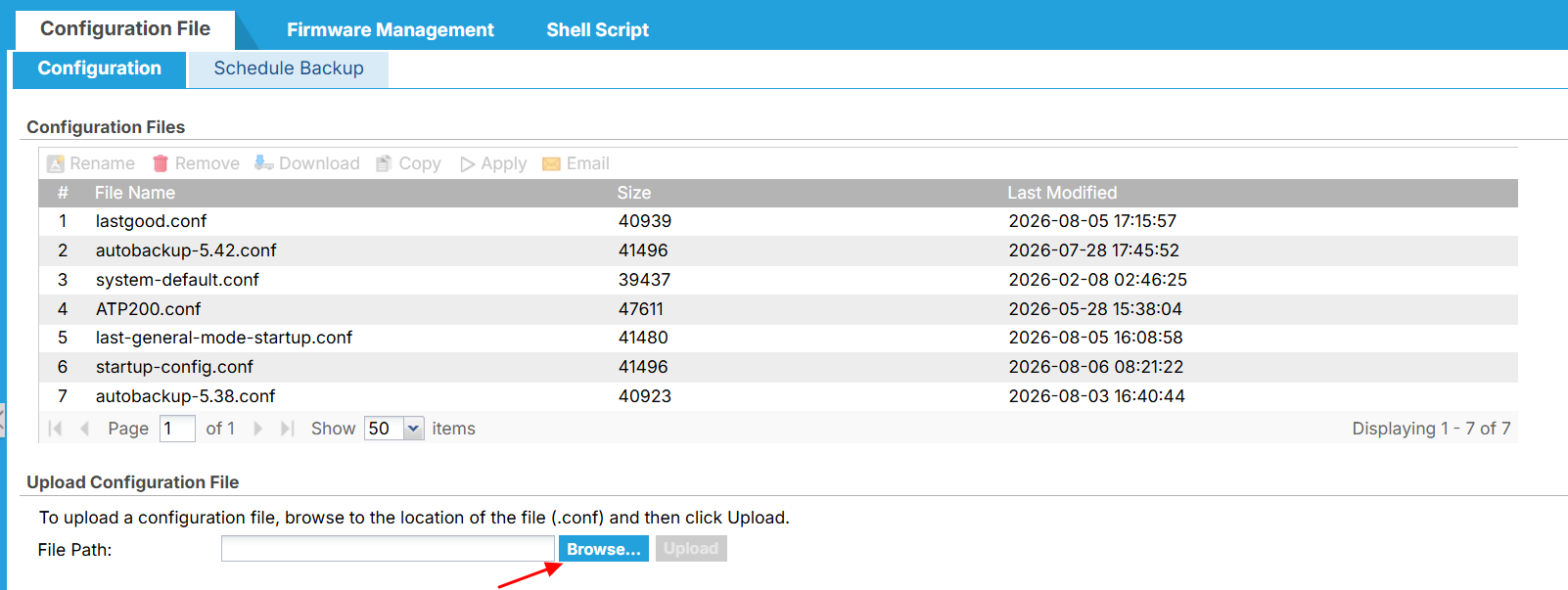
- Click Upload.
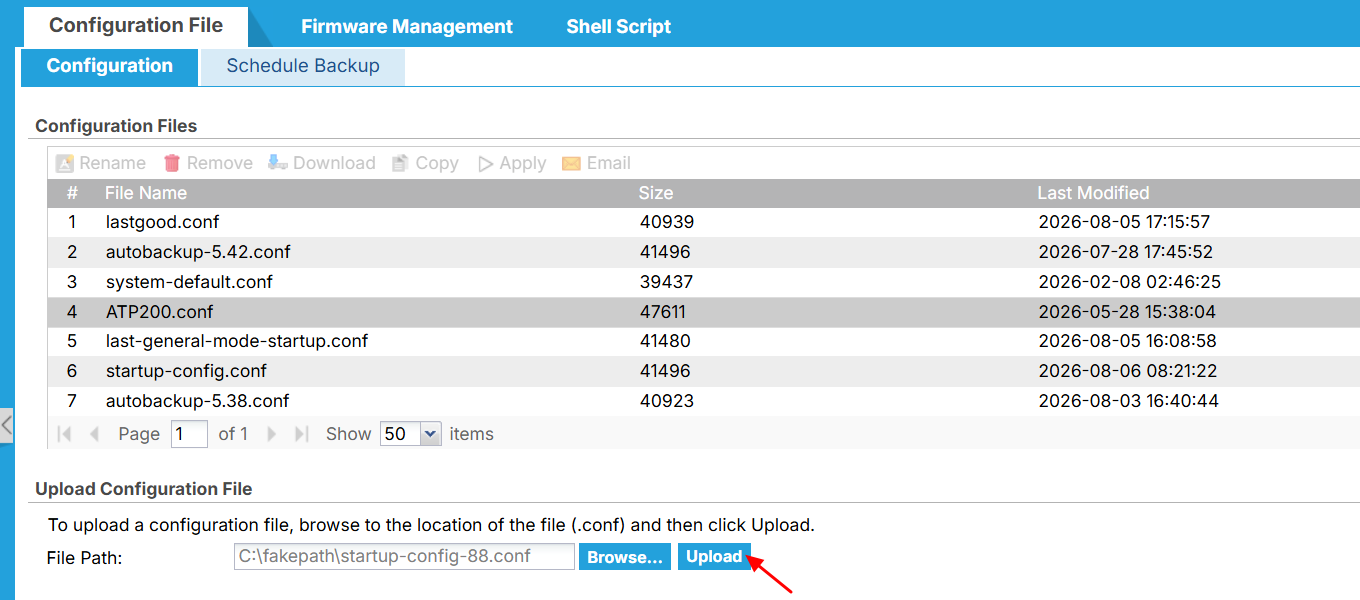
- Once uploaded, select the file from the list and click Apply.
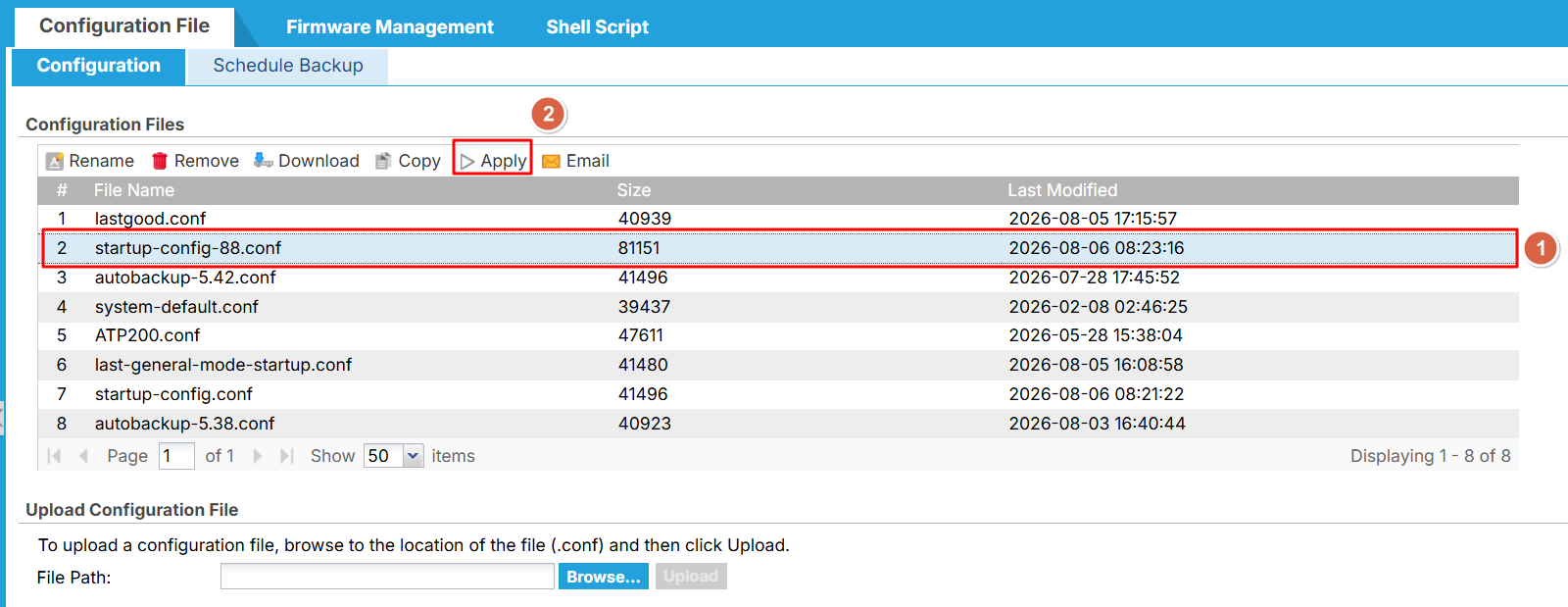
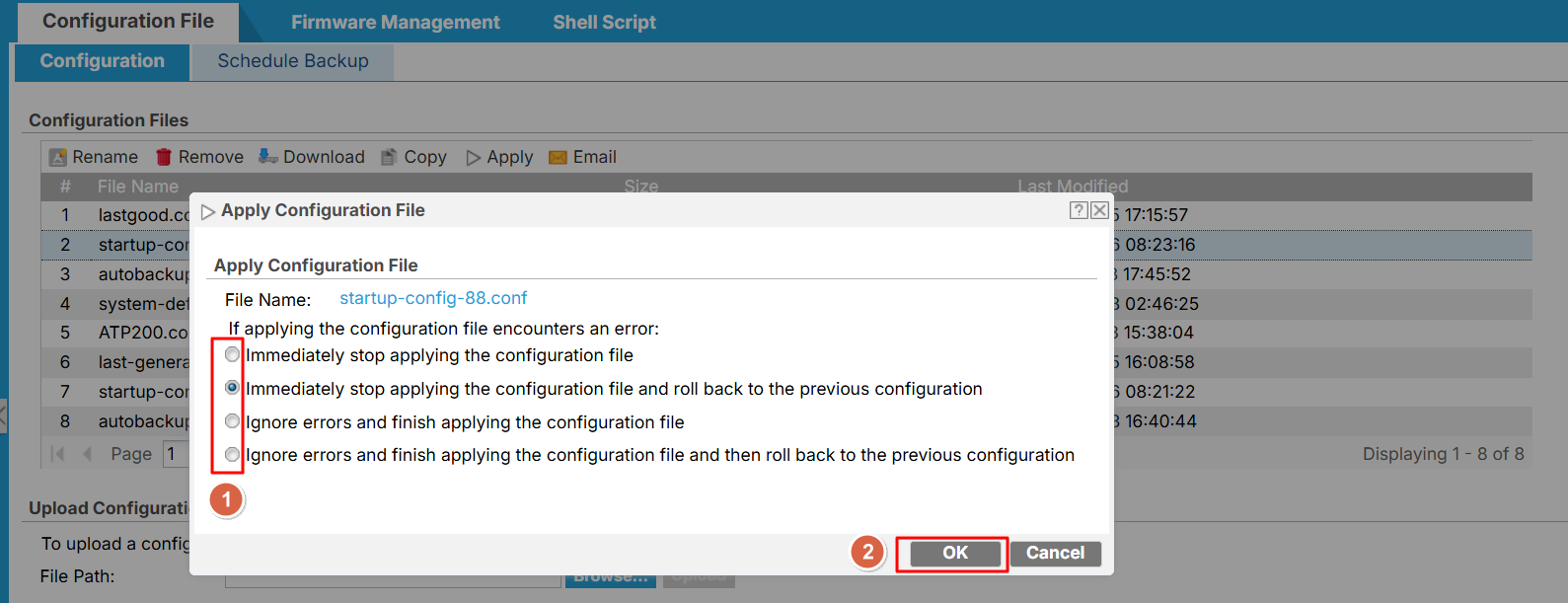
- If prompted, choose how the device should handle an error during the apply process, then click OK. Note: Option 2 is the default, but you may choose any option that fits your needs.
- Wait for the apply process to complete.
Note: If an error occurs during the apply process, go to MONITOR > Log > View Log to review the details.
Zyxel_Judy
0
Categories
- All Categories
- 442 Beta Program
- 3.1K Nebula
- 243 Nebula Ideas
- 6.8K Security
- 783 USG FLEX H Series
- 389 Security Ideas
- 1.8K Switch
- 87 Switch Ideas
- 1.5K Wireless
- 58 Wireless Ideas
- 7.2K Consumer Product
- 325 Service & License
- 527 News and Release
- 101 Security Advisories
- 31 Education Center
- 10 [Campaign] Zyxel Network Detective
- 5.3K FAQ
- 34 Documents
- 91 About Community
- 122 Security Highlight