Configuring a new Flex 100


 Freshman Member
I'm trying to set up a Flex 100 to connect to a Vodafone fibre broadband service. I've registered it on Nebula and am trying to configure it through there. My first issue is that Nebula is not showing all the options I'm expecting to see. How do I configure objects, for example? Secondly, the connection isn't working, I am expecting some trial and error to get it going, but since it isn't connecting I can't tweak the connection in Nebula as I have no Internet. The only way I can see to configure it is to remove it from Nebula and use its local configuration pages, but that detracts from having firewall and access points (plus maybe switches at a later point) all configured from the same site. How does anyone else setup that first Internet connection?
Best Answers
-
Hi @DerekM,
Regarding your first question, we sincerely apologize for any inconvenience caused. There are differences between the standalone local Web GUI of the USG FLEX series and the Nebula management interface (for example, how "Objects" are handled), as Nebula is designed to provide a more intuitive and user-friendly experience. However, this does not affect the core functionalities of the firewall.
Regarding your second question, for initial deployment, we typically connect to the USG FLEX 100's local Web GUI (default IP: 192.168.1.1), select Nebula management mode, and configure the initial network settings to bring the device online. For detailed instructions, please refer to page 33 of the User Guide:
https://download.zyxel.com/USG_FLEX_100/user_guide/USG FLEX 100-UG.pdf
However, according to our records, your USG FLEX 100 has already successfully connected to Nebula previously (via your old router) and switched fully to Nebula Cloud Mode.
Based on your current situation(The device is offline on Nebula.), we recommend updating your WAN settings using the following steps:
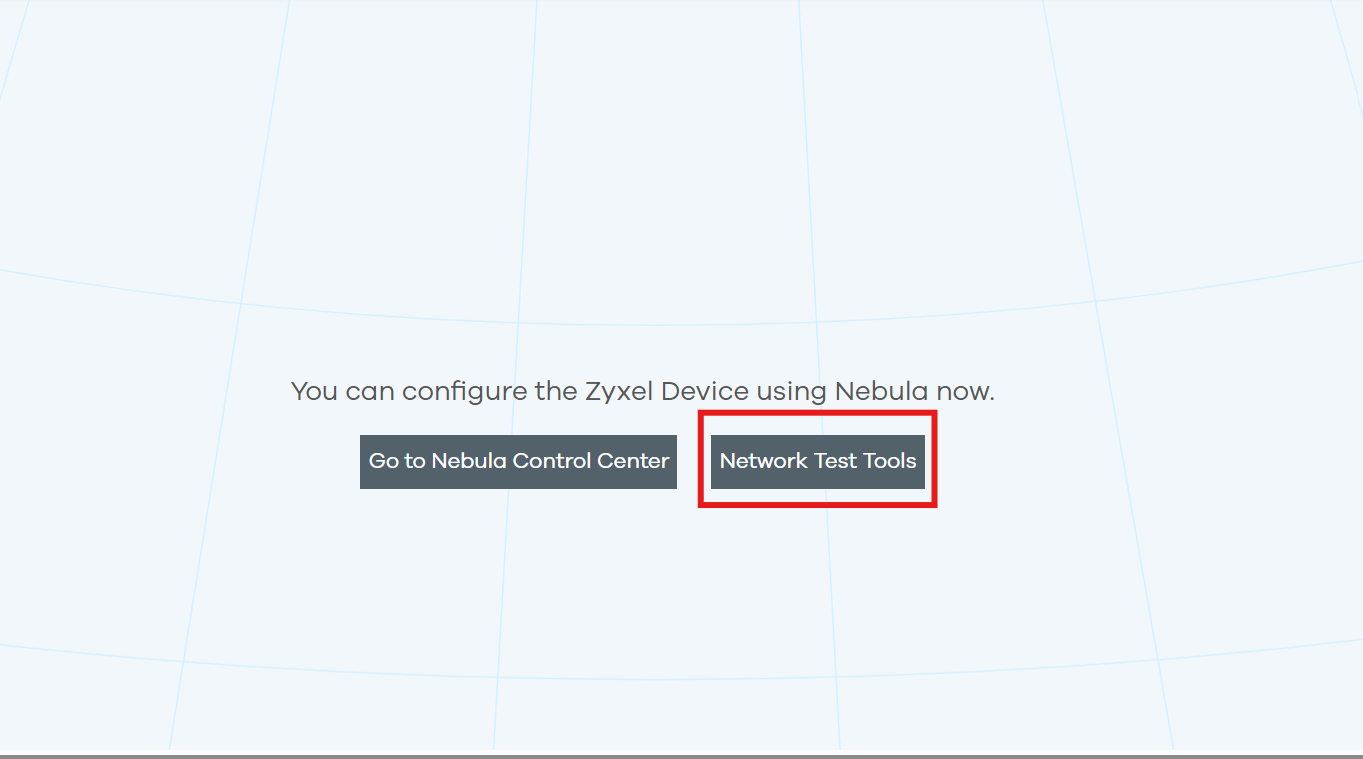
1.Connect to the local Web GUI using the LAN IP, then click Network Test Tools on the right side.
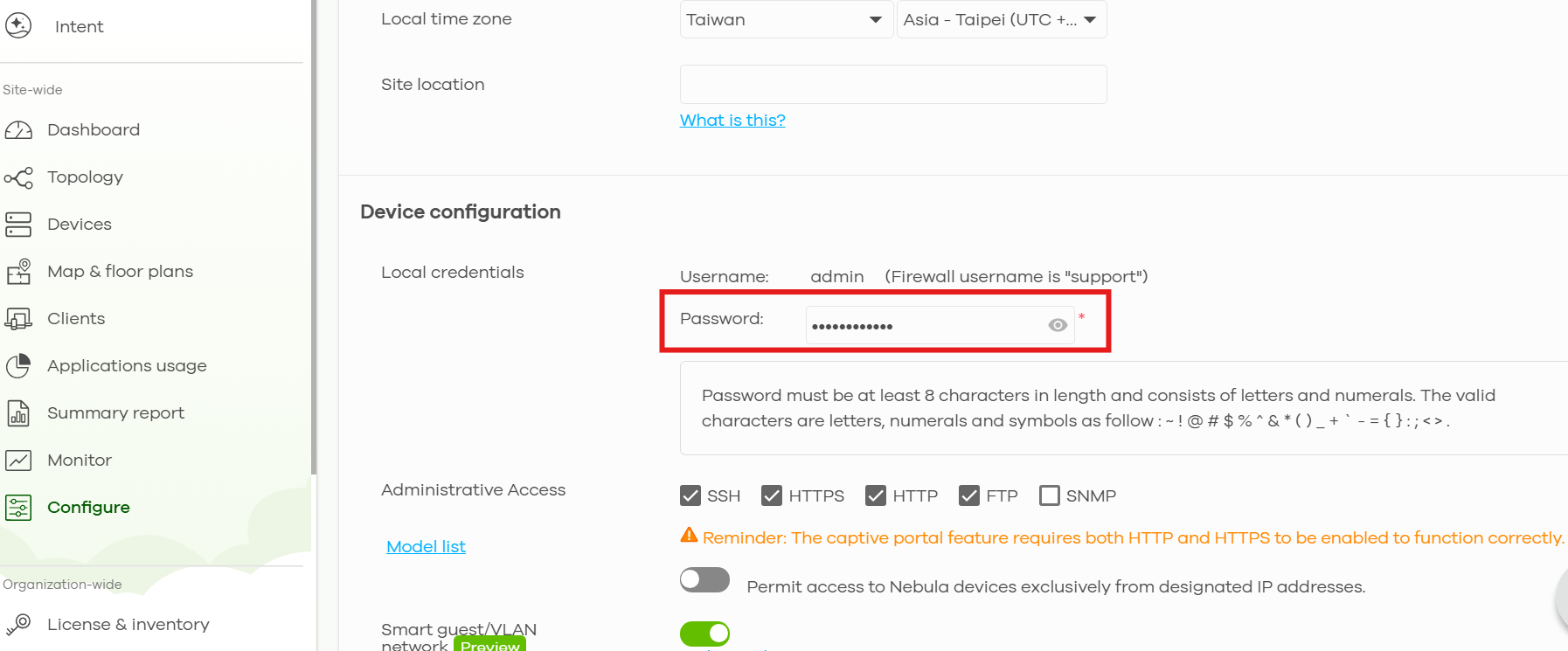
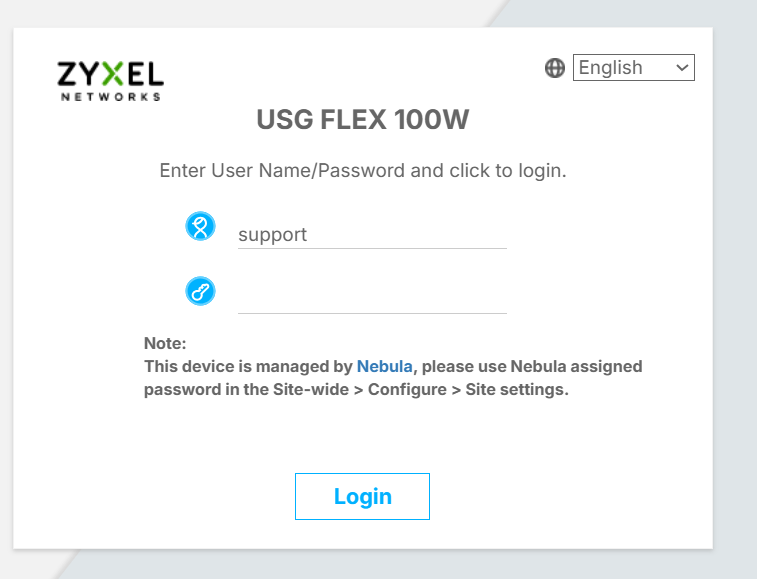
2.The login password can be viewed and configured in the Nebula Control Center under Site-wide > Configure > Site settings.
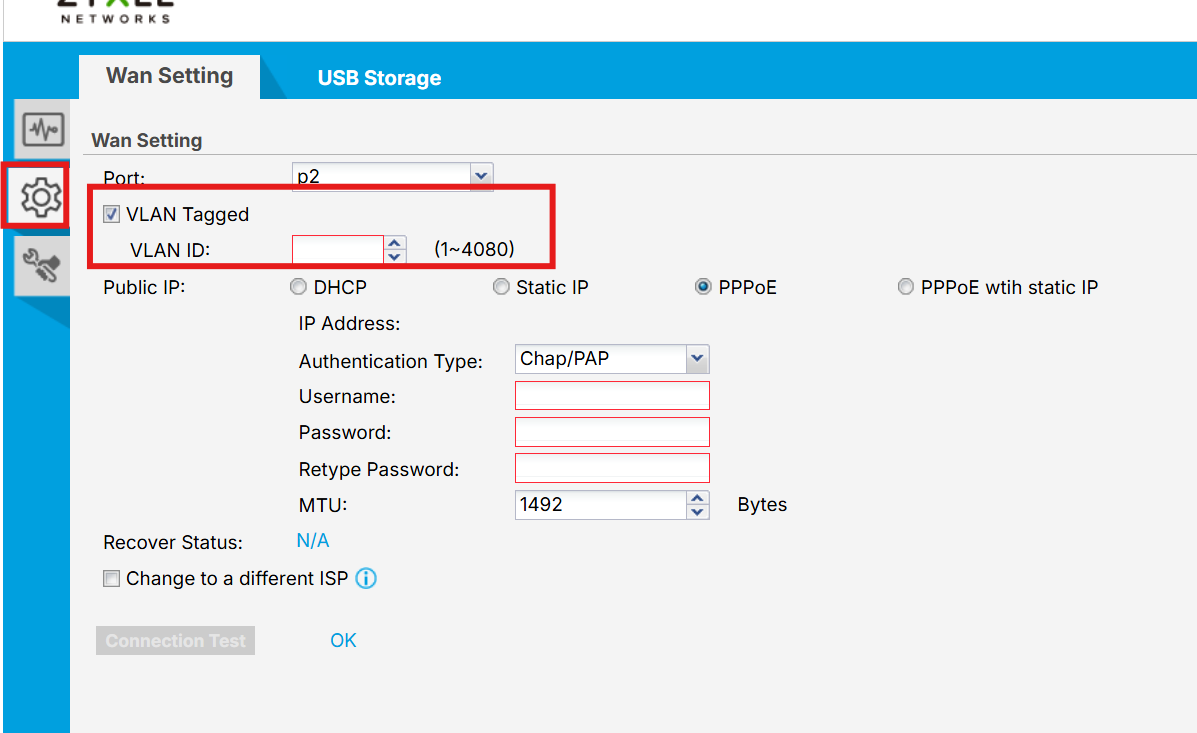
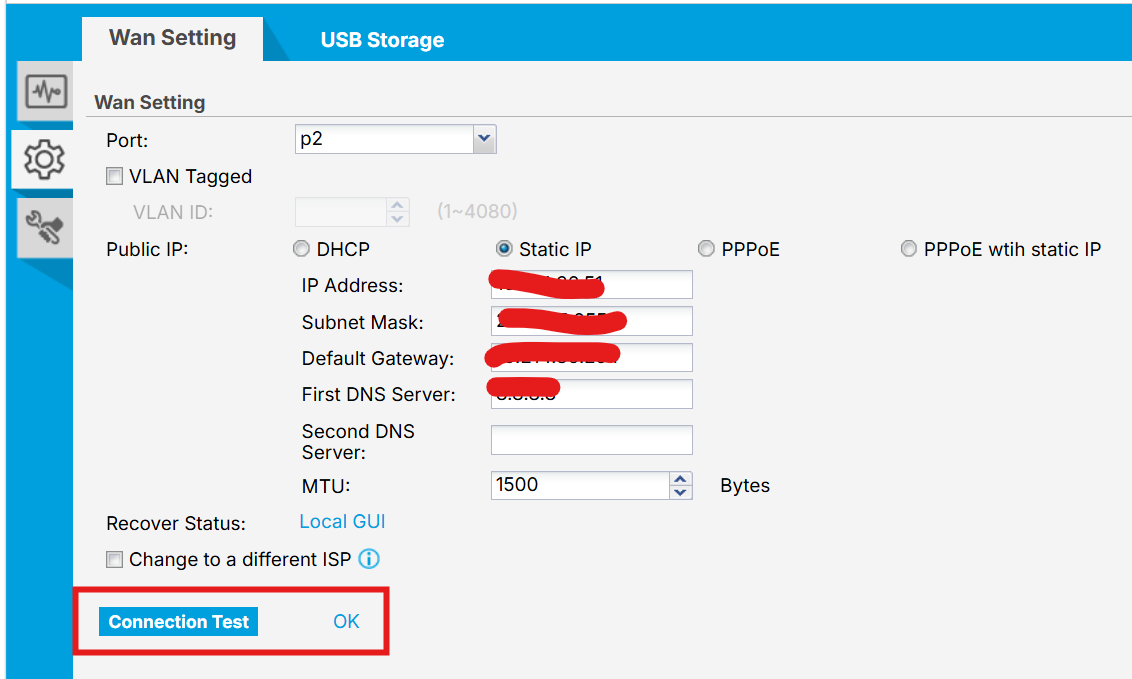
3. After logging in, click the gear icon to enter the WAN settings and ensure that the VLAN ID required by Vodafone has been configured. The settings configured on this local web interface will first change the device settings, and the settings will be pushed to the cloud (Nebula) after your "Connection test" is successful.
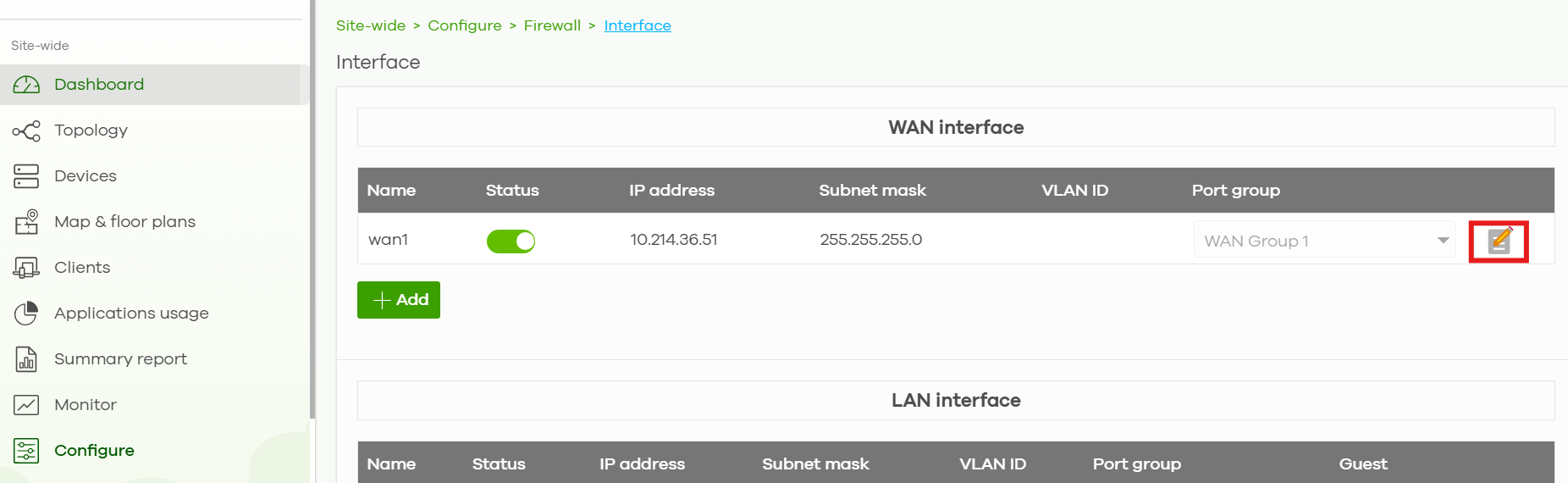
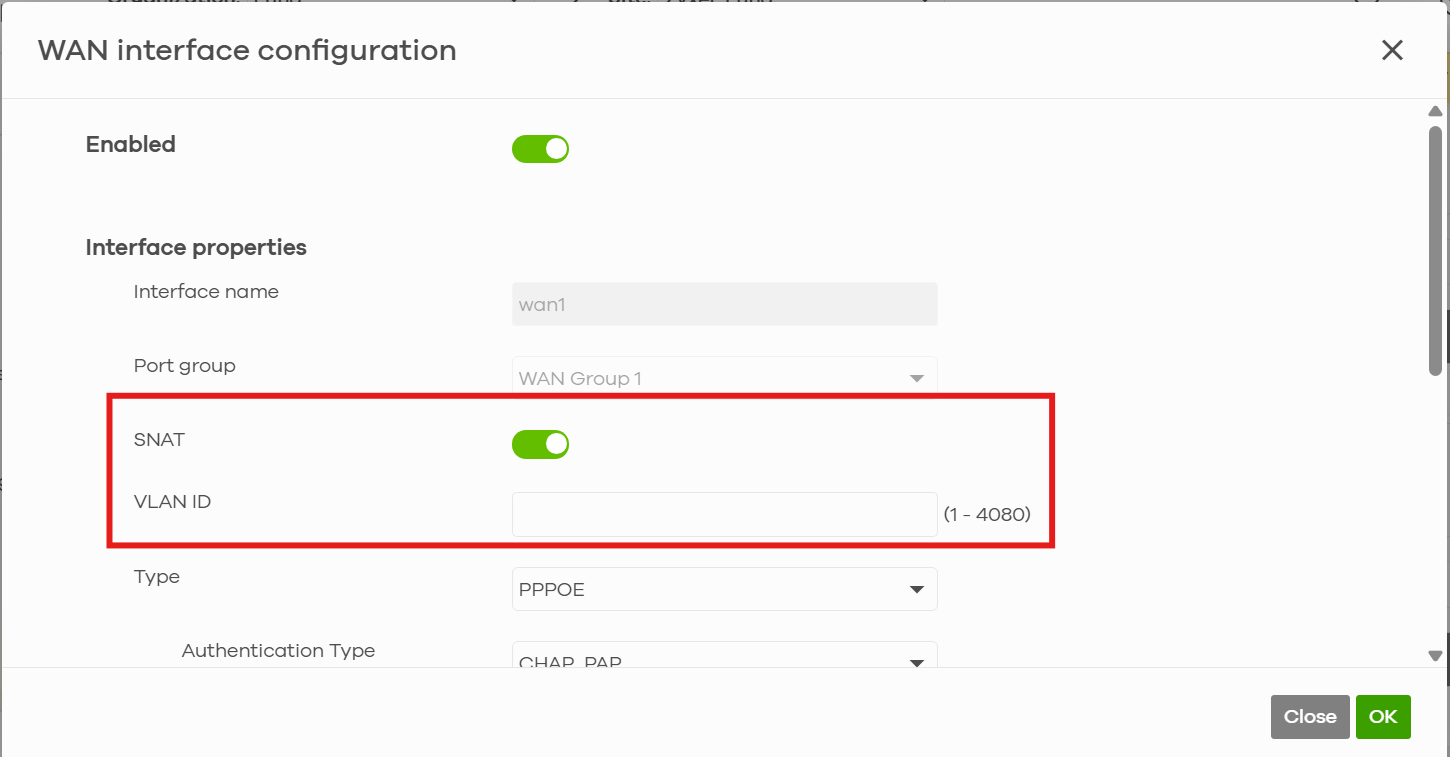
If the device still cannot connect to the Internet after completing the steps above, you can temporarily connect the USG FLEX 100 to an active uplink network (such as your old router), then go to Site-wide > Configure > Firewall > Interface in the Nebula Control Center to verify whether the configuration is correct and ensure that the SNAT feature is enabled.
The Nebula management interface is designed to streamline configuration and simplify the user experience. While the way certain settings — such as Objects — are presented may differ from the standalone local Web GUI, the underlying capabilities are largely equivalent. Please feel free to describe the specific configuration you need in more detail, and we'll be happy to help you find the right way to set it up in Nebula.
0 -
Thank you, that has worked and I now have the USG connected to the Internet. My next issue is to set up a trunk port; I have several VLANs on the network from Zyxel access points, I was hoping for the USG to provide Dhcp for them all but so far they are all getting their IP addresses from VLAN 1.
0



 Zyxel Employee
All Replies
-
The FLEX H model are a bit easier as they are both standalone and Nebula.
From what I know of the old ZLD models it should of been that you connect a PC to the LAN and WAN to ISP you log in locally and to get the internal working download new firmware for it to be registered so you should have LAN to WAN internet so I'm not sure what went wrong?
Is it a new out of the box FLEX 100? and never registered to anyone else?
Also Nebula has a very different layout to where stuff is and some options as not all listed like standalone.
1 -
It is a new USG Flex 100. I currently have an Internet connection through an old router, so I have connected the Flex to my network, registered it, and am trying to configure it to replace the old router. This means setting it up to talk to Vodafone's fiber ONT. So I set up a PPOE WAN connection, unplug the old router and plug in the Flex. It doesn't come online - I can connect to Nebula through my phone so I can see that it's offline, so I can't change the configuration bug I also can't get to the logs to see why the connection is failing. The issues from my perspective is that if you register the Flex, to give me a single pane of glass to all my Zyxel devices, I can't get to it's local GUI to do any troubleshooting, and even if I could Nebula doesn't seem to give me all the options that the local GUI does. The instructions I have from a Web post to set up a Vodafone connection involve setting up some objects, but Nebula doesn't allow that.
0 -
Hello @DerekM
The USG Flex should be available over LAN. In my case the USG Flex has 192.168.10.1 as local IP. If I try to connect to it it shows this:
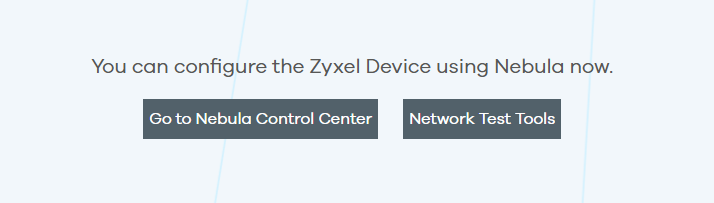
Select Network Test Tools. Username is: support. The password should have been set on nebula for local access. Once connected you can go to Configuration. You will see some basic settings you can apply to the wan port.
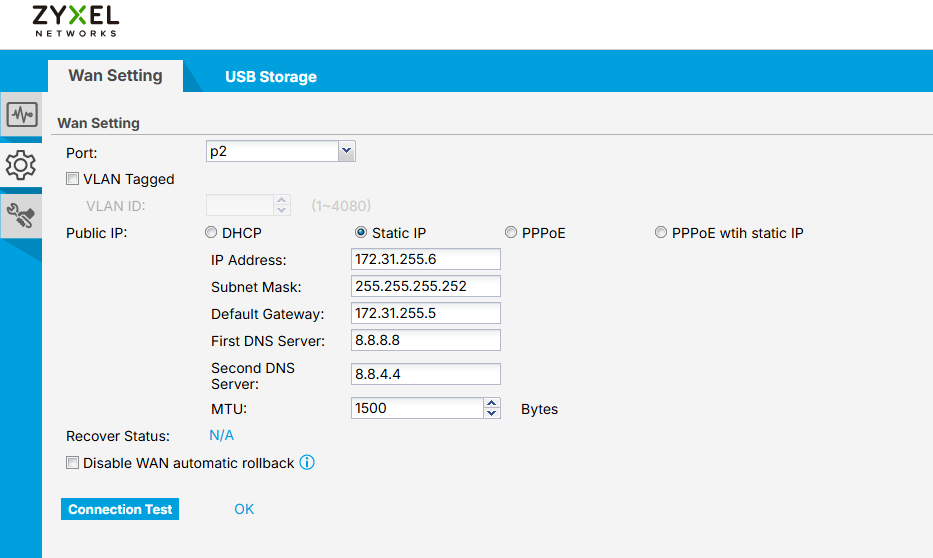
I guess, you'll need to figure out what IP-Address the Fibre ONT is using and configure Static IP.
0 -
Hi @DerekM,
I don't know where you live, but you're sure that is not required a VLAN over PPPoE?
For example, I live in Italy and I use Telecom Italia as operator.
Telecom require the VLAN 835 over PPPoE to establish the connection.I see that Vodafone IT require a VLAN 1036.
0 -
Hi @DerekM,
Regarding your first question, we sincerely apologize for any inconvenience caused. There are differences between the standalone local Web GUI of the USG FLEX series and the Nebula management interface (for example, how "Objects" are handled), as Nebula is designed to provide a more intuitive and user-friendly experience. However, this does not affect the core functionalities of the firewall.
Regarding your second question, for initial deployment, we typically connect to the USG FLEX 100's local Web GUI (default IP: 192.168.1.1), select Nebula management mode, and configure the initial network settings to bring the device online. For detailed instructions, please refer to page 33 of the User Guide:
https://download.zyxel.com/USG_FLEX_100/user_guide/USG FLEX 100-UG.pdf
However, according to our records, your USG FLEX 100 has already successfully connected to Nebula previously (via your old router) and switched fully to Nebula Cloud Mode.
Based on your current situation(The device is offline on Nebula.), we recommend updating your WAN settings using the following steps:
1.Connect to the local Web GUI using the LAN IP, then click Network Test Tools on the right side.
2.The login password can be viewed and configured in the Nebula Control Center under Site-wide > Configure > Site settings.
3. After logging in, click the gear icon to enter the WAN settings and ensure that the VLAN ID required by Vodafone has been configured. The settings configured on this local web interface will first change the device settings, and the settings will be pushed to the cloud (Nebula) after your "Connection test" is successful.
If the device still cannot connect to the Internet after completing the steps above, you can temporarily connect the USG FLEX 100 to an active uplink network (such as your old router), then go to Site-wide > Configure > Firewall > Interface in the Nebula Control Center to verify whether the configuration is correct and ensure that the SNAT feature is enabled.
The Nebula management interface is designed to streamline configuration and simplify the user experience. While the way certain settings — such as Objects — are presented may differ from the standalone local Web GUI, the underlying capabilities are largely equivalent. Please feel free to describe the specific configuration you need in more detail, and we'll be happy to help you find the right way to set it up in Nebula.
0 -
Thank you, that has worked and I now have the USG connected to the Internet. My next issue is to set up a trunk port; I have several VLANs on the network from Zyxel access points, I was hoping for the USG to provide Dhcp for them all but so far they are all getting their IP addresses from VLAN 1.
0 -
Hi @DerekM,
it depens on how you configure your interfaces.
Can you give details about the interfaces configuration on USG and the configuration of the VLANs?
You need to configure an interface on every VLAN that you've defined.But:
but so far they are all getting their IP addresses from VLAN 1
seems that all of your devices are configured on VLAN 1 (by default is the management VLAN)
0 -
Hi @DerekM ,
Glad to hear the internet connection is working!
To help you resolve the VLAN and DHCP issue, could you please clarify your network setup with a bit more detail?
Topology: Are the APs connected directly to the USG FLEX ports, or is there an intermediate switch between the USG FLEX and the APs? (If there is a switch, please ensure the link ports are configured with the corresponding VLANs as Tagged/Trunk).
USG FLEX Configuration: Have you created the respective VLAN Interfaces (with specific VLAN IDs and their own DHCP pools) under the port on the USG FLEX?
AP Configuration: Are the SSIDs configured to tag traffic with the specific VLAN IDs?
Additionally, could you please provide screenshots of your current configuration (remember to mask any sensitive/private information) so we can assist you further?
0



 Guru Member


 Master Member
Categories
- All Categories
- 442 Beta Program
- 3.1K Nebula
- 243 Nebula Ideas
- 6.8K Security
- 782 USG FLEX H Series
- 387 Security Ideas
- 1.8K Switch
- 87 Switch Ideas
- 1.5K Wireless
- 58 Wireless Ideas
- 7.2K Consumer Product
- 324 Service & License
- 527 News and Release
- 101 Security Advisories
- 31 Education Center
- 10 [Campaign] Zyxel Network Detective
- 5.3K FAQ
- 34 Documents
- 91 About Community
- 121 Security Highlight