[USG FLEX H] How to setup Captive Portal for redirect wireless clients connecting to managed APs?


 Zyxel Employee
Scenario
When using a USG FLEX H Series firewall to manage wireless APs, you can configure a captive portal for wireless clients through the firewall's built-in Web Authentication feature.
Unlike an AP-based captive portal, this method uses the firewall to redirect wireless clients to an authentication page before granting network access.
Note: Wireless client traffic must pass through the USG FLEX H Series firewall for the captive portal authentication to work properly. This means that the IP addresses obtained by clients are assigned by the USG FLEX H, or the SSID must be configured for tunnel mode.
Configuration Steps
Step 1: Create Local User
This account will be used when the captive portal requires users to sign in with credentials.
Navigate to User & Authentication > User/Group > User.
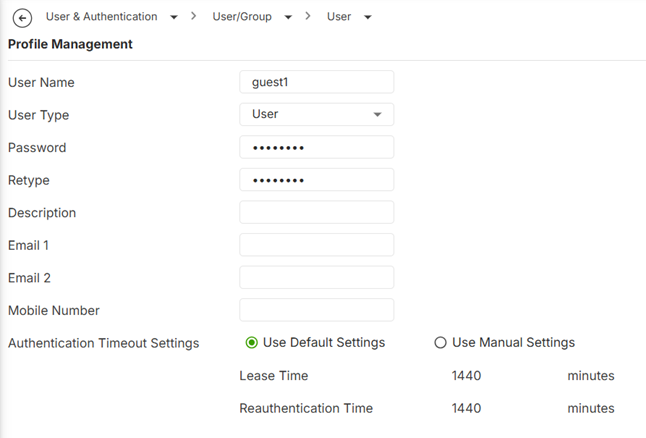
- Add a new user account.
- Enter the username and password (e.g., guest1).
- Configure the authentication timeout settings if necessary.
Step 2: Create an Address Object
Navigate to Object > Address > Address.
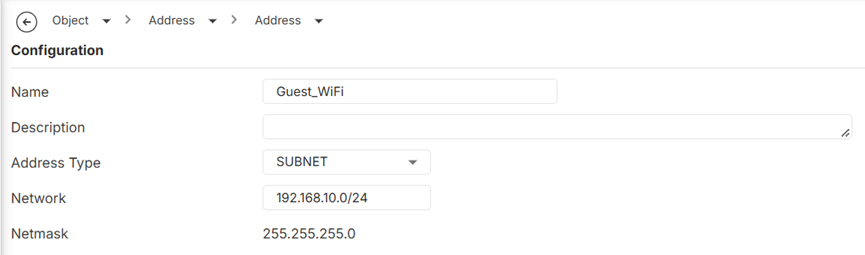
- Create a new address object (e.g., Guest_WiFi).
- Set Address Type to SUBNET.
- Enter the subnet used by wireless clients (e.g., 192.168.10.0/24).
Step 3: Create a Service Group
Navigate to Object > Service > Service Group.
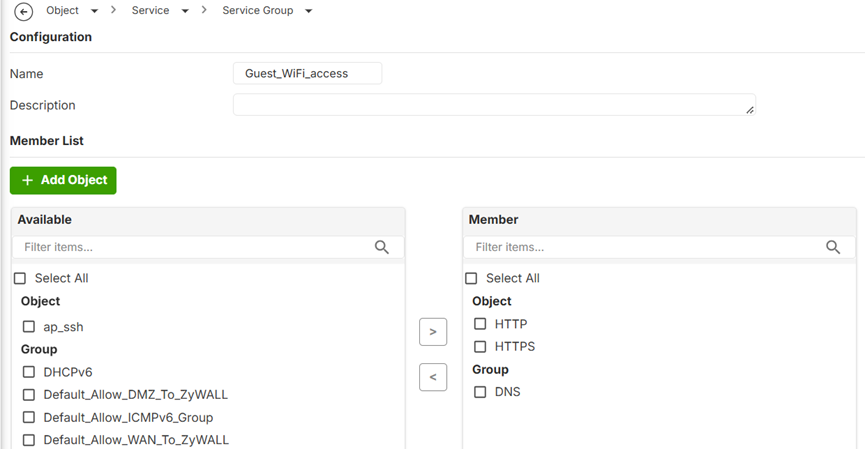
- Create a new service group (e.g., Guest_WiFi_Access).
- Add the following services:
- HTTP
- HTTPS
- DNS
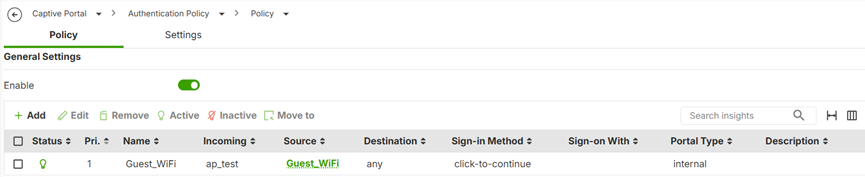
Step 4: Configure the Captive Portal Authentication Policy
Navigate to Captive Portal > Authentication Policy.
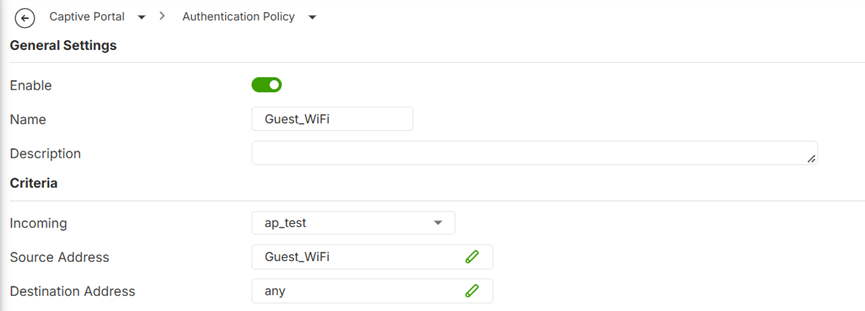
- Enable the authentication policy and enter a name (e.g., Guest_WiFi).
- Configure the following criteria:
- Incoming: Select the interface used by wireless clients (e.g., ap_test).
- Source Address: Guest_WiFi
- Destination Address: any
- Select the preferred Sign-in Method:
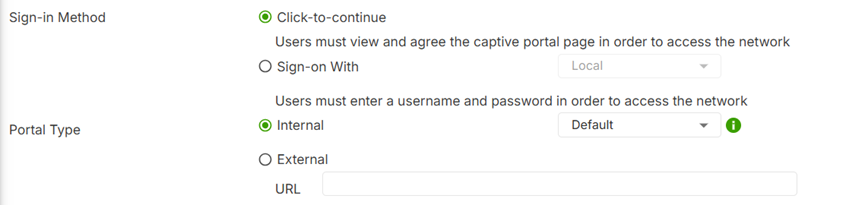
- Click-to-continue: Users must view and accept the captive portal page before accessing the network.
- Sign-on With (Local): Users must enter their local username and password to access the network.
4. Select the Portal Type:
- Internal: Use the firewall's built-in captive portal page.
- External: Specify the URL of an external captive portal page.
5. Save the policy and ensure it is enabled.
Step 5: Configure the Security Policy
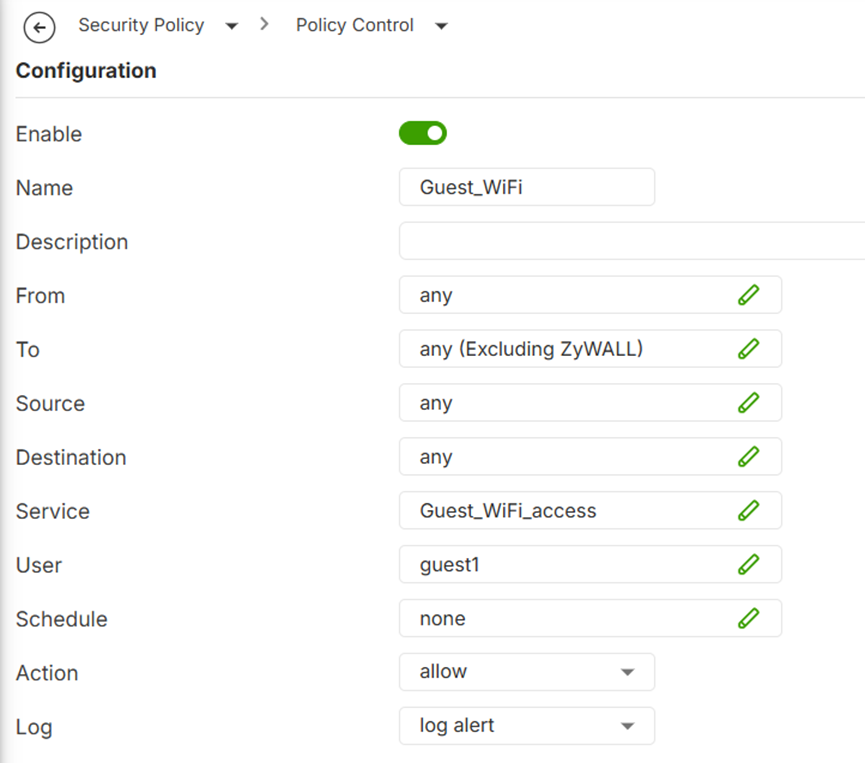
Navigate to Security Policy > Policy Control.
Create a new security policy with the following settings:
Verification
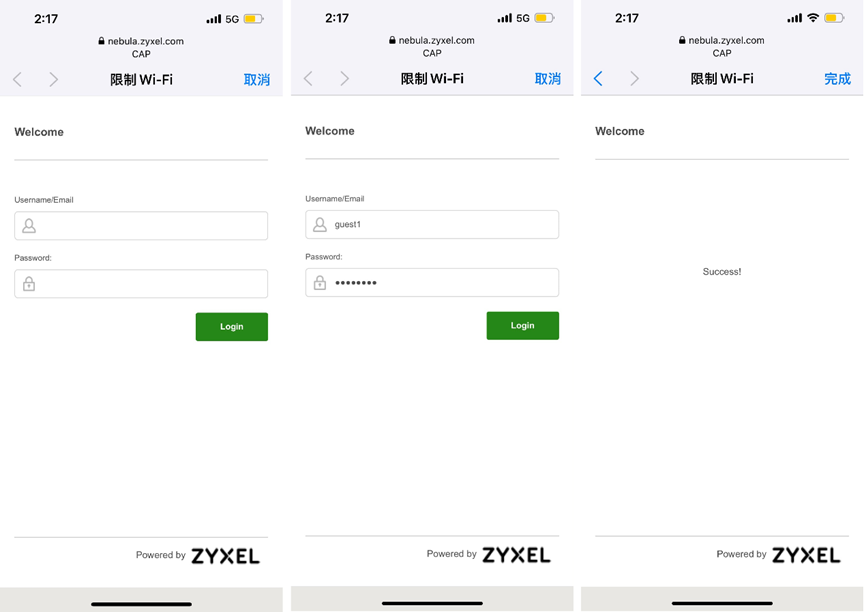
- Connect a wireless client to the SSID broadcast by the controller-managed AP.
- Open a browser and access an HTTP website to trigger the captive portal redirection.
- Verify that the firewall's captive portal page appears.
- Complete the click-to-continue process or enter the configured user credentials.
- Confirm that the client can access the network after successful authentication.
Categories
- All Categories
- 442 Beta Program
- 3.1K Nebula
- 243 Nebula Ideas
- 6.8K Security
- 783 USG FLEX H Series
- 389 Security Ideas
- 1.8K Switch
- 87 Switch Ideas
- 1.5K Wireless
- 58 Wireless Ideas
- 7.2K Consumer Product
- 325 Service & License
- 527 News and Release
- 101 Security Advisories
- 31 Education Center
- 10 [Campaign] Zyxel Network Detective
- 5.3K FAQ
- 34 Documents
- 91 About Community
- 122 Security Highlight