Pathfinder Wi-Fi Planning Quick Start Guide


 Zyxel Employee
Pathfinder turns floor plans into Wi-Fi planning projects. Use it to place access points (APs), switches, and gateways; review coverage by band; and check PoE power and switch-port requirements. For reliable results, set the floor scale, height, walls, and device models before reviewing the heatmap and PoE plan.
Quick Workflow
Create a project → Upload a floor plan → Set scale and height → Draw walls → Place devices → Review heatmap and PoE → Check BOM and export
1 Create a Project and Upload a Floor Plan
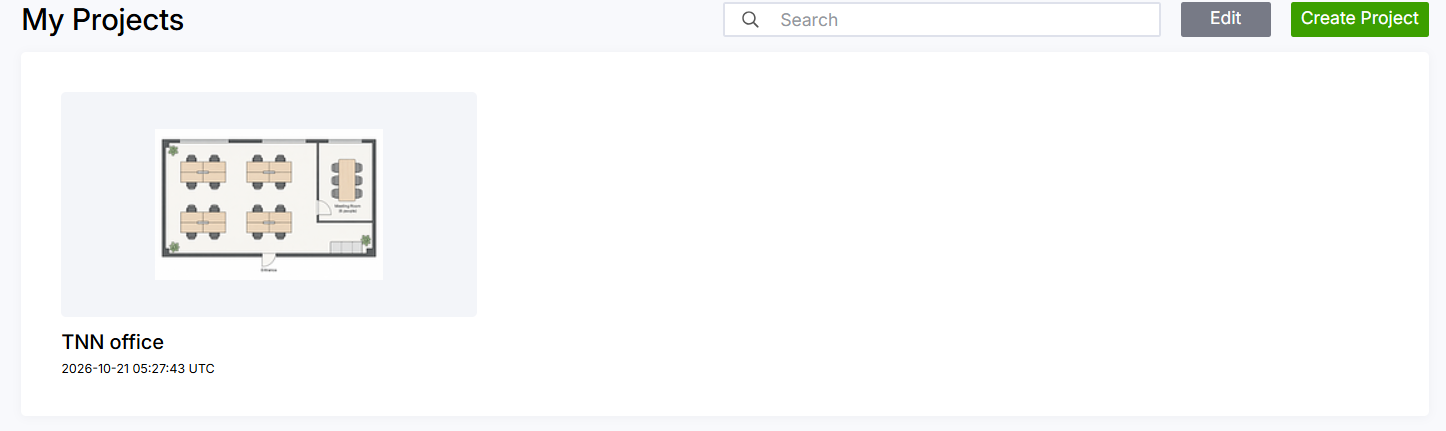
1. Open the project list > Sign in to Pathfinder. Under My Projects, open an existing project or select Create Project to start a new one.
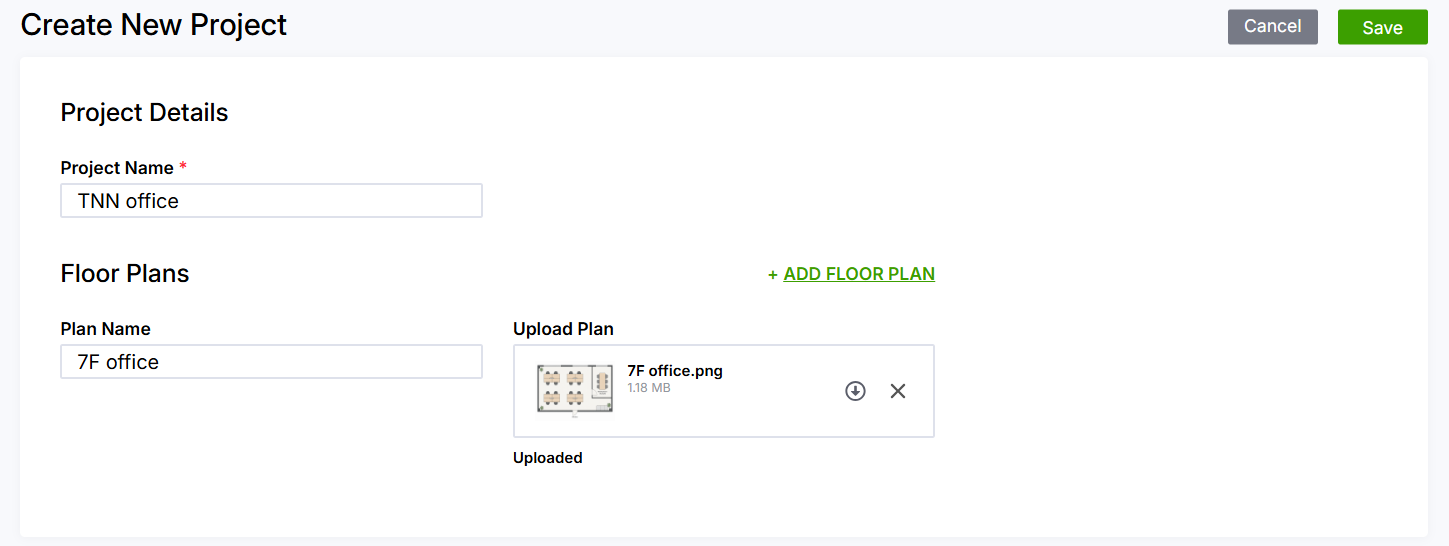
2. Name the project.
3. Add Floor plans. Enter a floor name under Floor Plans (for example, “7F office”), then select or drag and drop an image to upload it. JPG and PNG files are supported, up to 5 MB each. A project can contain up to 10 floor plans.
4. Save the project. Confirm the project and floor-plan names, then select Save. Open the project card to continue planning.
Tip: Use a clear, top-down floor plan that includes a known dimension when possible. The accuracy of the scale setting affects distance and coverage calculations.
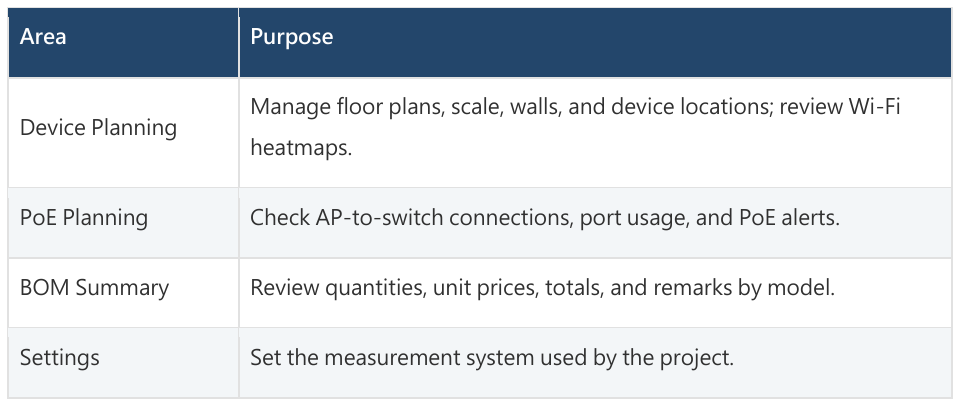
Main Project Areas
2 Set Up the Floor and Plan Wi-Fi Coverage
Select the floor you want to work on in Device Planning. The canvas displays that floor plan and its devices. Use Plan, Wall, and Device tools from the toolbar above the canvas.
Set the Scale and Floor Height
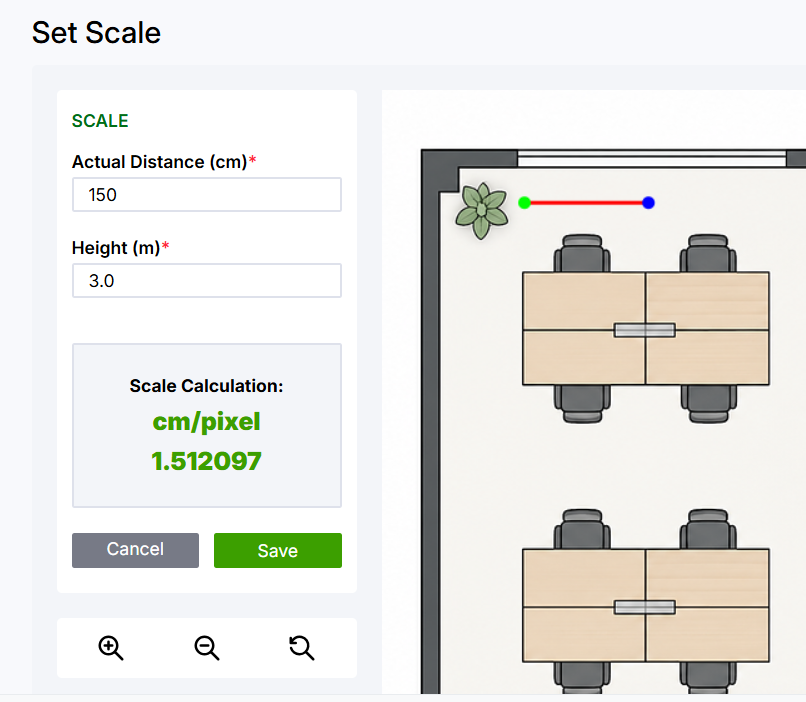
1. Open Set Scale & Height Select the floor plan, then choose Set Scale & Height.
2. Draw a reference line. On the plan, draw a line along a dimension whose real-world length you know, such as a wall or corridor.
3. Enter the real-world values Enter the line length in Actual Distance (cm), then select Save. A correct scale helps the floor plan represent real dimensions more accurately.
Draw Walls
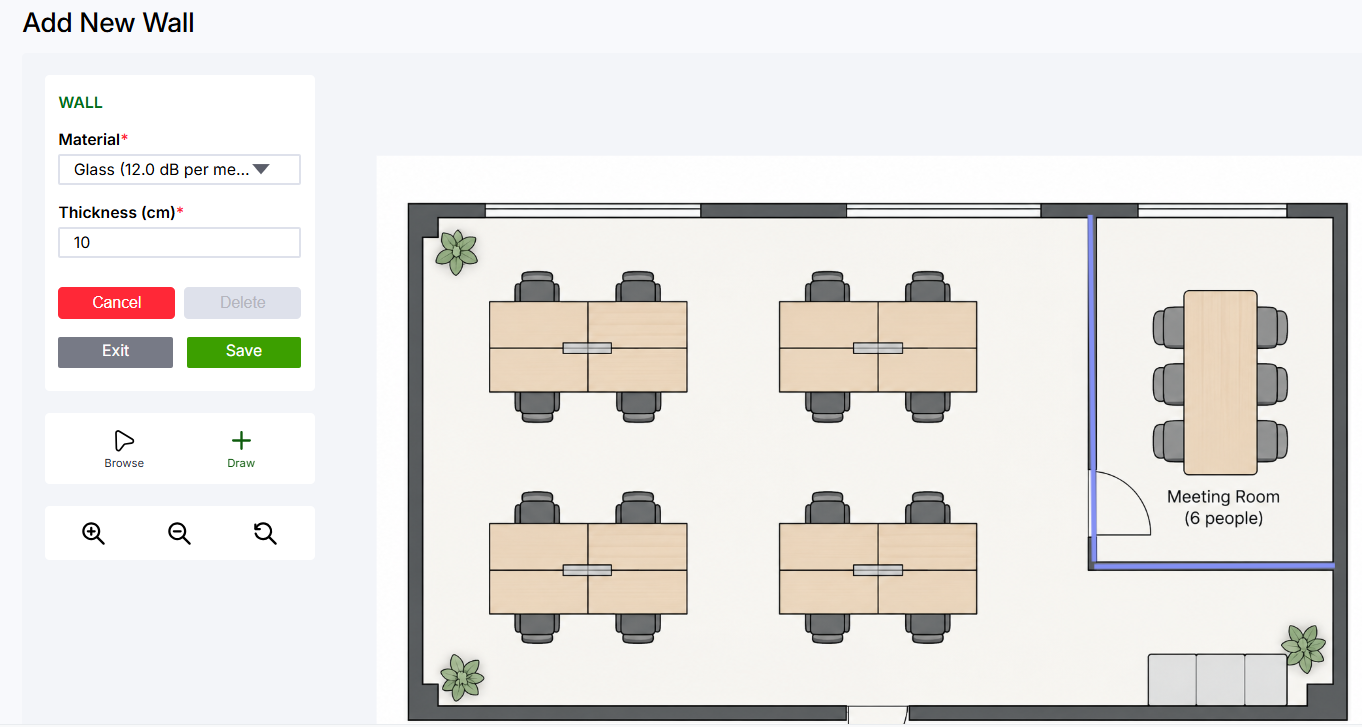
1. Open Wall. Choose a wall material and enter its Thickness (cm). Material and thickness affect the coverage estimate.
2. Draw walls on the plan Select Draw and trace walls on the floor plan. You can draw connected segments of the same material as one continuous line. To use a different material, save the current wall first, then start another.
3. Save the walls. Select Save to apply your changes. Check that the wall paths match the actual floor plan.
Place APs, Switches, and Gateways
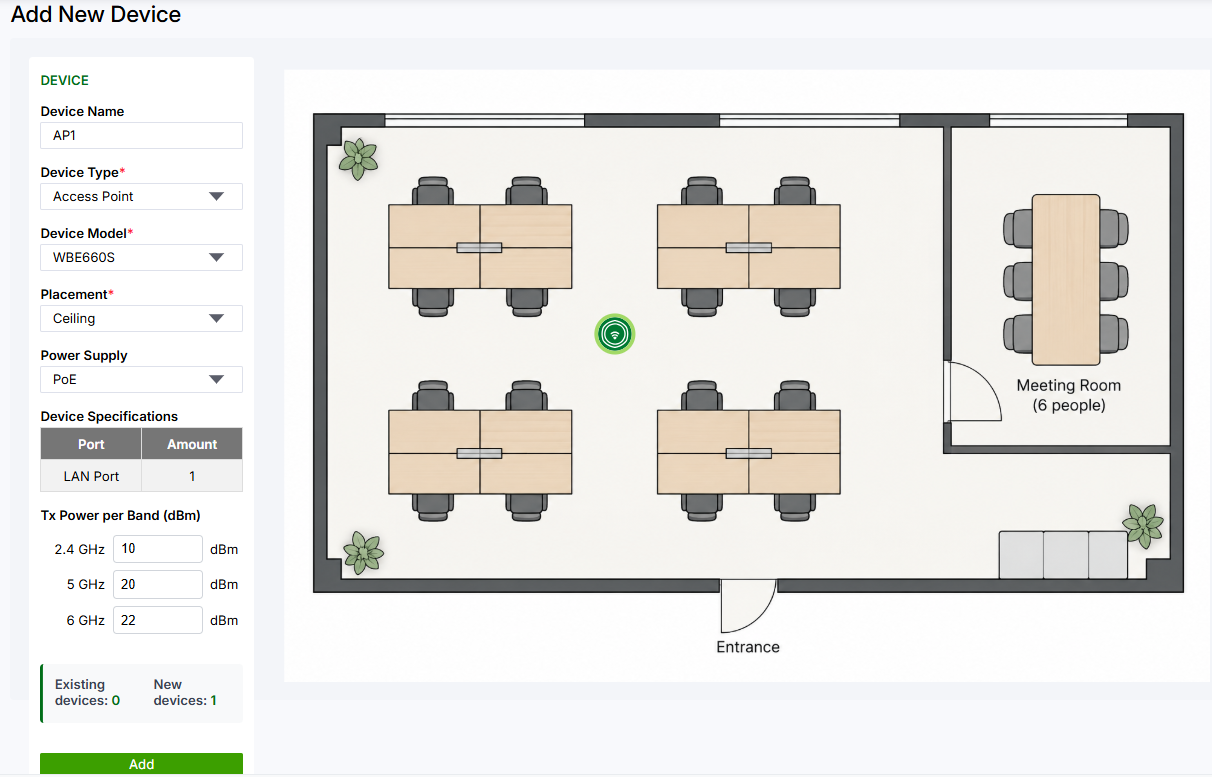
1. Open Device Choose a Device Type and Device Model. For an Access Point set the Power Supply as applicable.
2. Configure and place devices Review the device settings, including Tx Power per Band for each frequency band. Drag the device icon onto its planned location. To add more
devices with the same settings, select Add; then position each device as needed.
3. Save the devices. Select Save. Unsaved placements or changes may not be retained. Configure devices separately on each floor plan.
Review the Coverage Heatmap
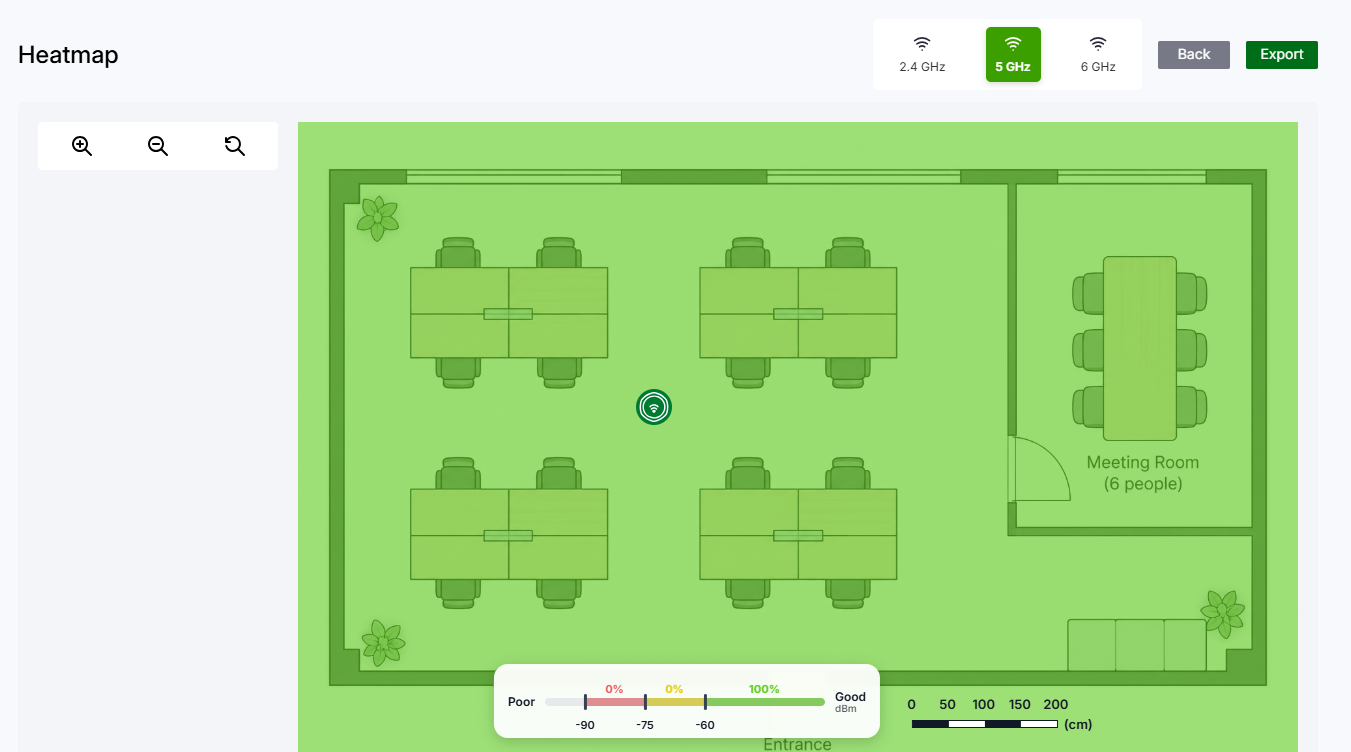
Select Show Heatmap on the canvas, then choose 2.4 GHz, 5 GHz, or 6 GHz. Each view shows estimated signal strength for one band.
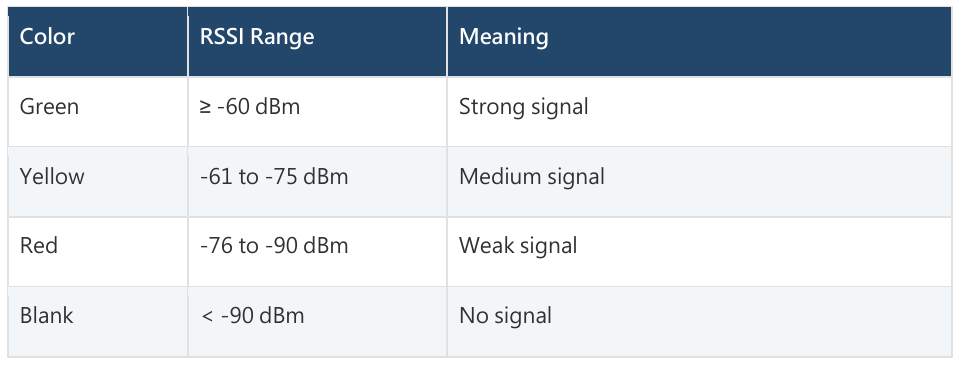
The color key uses RSSI (received signal strength):
3 Check PoE, BOM, and Export Reports
Check PoE Planning
PoE Planning generates a connection table from the devices in Device Planning. Review the AP model and quantity, PoE standard, power consumption, connected switch, switch model, and used versus total ports. Also check Port Alert and Power Alert.
- Port Alert: Indicates a port-capacity or speed-compatibility issue, such as a 2.5 Gbps AP connected to a port that does not support that speed.
- Power Alert: Indicates that the total PoE power demand exceeds the switch budget, or that a device and switch do not share a compatible PoE standard.
If an alert appears: Return to Device Planning to verify AP and switch models, quantities, and locations. Then review the connection results in PoE Planning. Adjust the device plan if needed and check the results again.
Review the BOM Summary
BOM Summary groups device quantities across the project by model. Select Edit to change Unit Price or Remarks. Total Price is calculated as unit price × quantity. Select Save when finished. If you only need quantities, you can leave unit prices unchanged.
Export Reports
1. Open Export You can open it from the planning page, PoE Planning, or BOM Summary.
2. Choose reports Select the reports you need: Device Placement, BOM, PoE Planning, or Heatmap.
3. Choose a format and export Select Export Selected, choose PDF, XLSX, or DOCX in the dialog, then select Confirm.
Before You Share the Plan
- Each floor has the correct plan image, scale, and floor height.
- Wall locations, materials, and thicknesses reflect the planning assumptions.
- AP, switch, and gateway models and locations have been saved.
- You reviewed the heatmap for the required bands and checked weak-coverage areas.
- You reviewed port and power alerts in PoE Planning.
- If the report includes pricing, BOM unit prices and remarks are up to date.
- You selected the correct reports and output format for export.
Planning note: Heatmap results depend on the floor plan, scale, wall settings, device models, and transmit-power inputs. Treat the simulation as a planning reference, then validate coverage in the actual environment after installation.
Categories
- All Categories
- 442 Beta Program
- 3.1K Nebula
- 243 Nebula Ideas
- 6.8K Security
- 783 USG FLEX H Series
- 389 Security Ideas
- 1.8K Switch
- 87 Switch Ideas
- 1.5K Wireless
- 58 Wireless Ideas
- 7.2K Consumer Product
- 325 Service & License
- 527 News and Release
- 101 Security Advisories
- 31 Education Center
- 10 [Campaign] Zyxel Network Detective
- 5.3K FAQ
- 34 Documents
- 91 About Community
- 122 Security Highlight