How to ensure devices are visible on the Nebula floor map?
Options

Zyxel_Jami
Posts: 246  Zyxel Employee




Zyxel Employee
in Other Topics
If you encounter an issue where devices are not fully visible or appear to 'jump' on your Nebula floor map, this usually indicates that devices are not correctly associated with the floor plan. Follow these steps to ensure all your devices are properly displayed on the map:
- Check existing configuration:
Navigate to Site-wide > Map & floor plans. In the "Edit floor plans" tab, verify if all desired devices are associated with the floor plan. Often, only a single device might be linked. - Reconfigure devices:
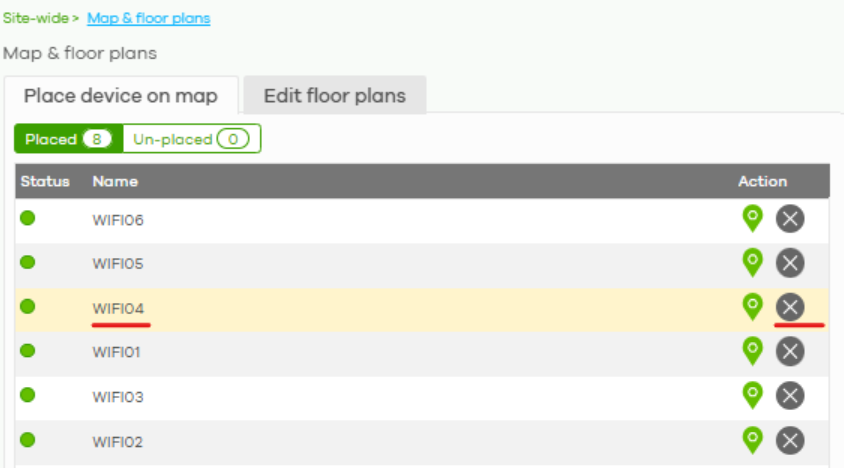
To correct this, use the "Place device on map" tab. - Place devices on the map:
If a device (e.g., "WIFI04") is already under the "Placed" tab but is not showing correctly.
Step 1. Remove it from the map.
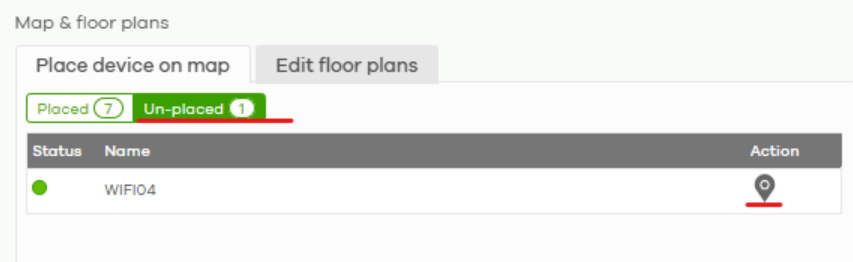
Step 2. Go to the "Un-placed" tab and drag the device back to its desired location on the map.
Step 3. After placing, click the "Floor plan" button again to confirm that the device now displays correctly.
0
Categories
- All Categories
- 442 Beta Program
- 3.1K Nebula
- 237 Nebula Ideas
- 6.8K Security
- 747 USG FLEX H Series
- 377 Security Ideas
- 1.8K Switch
- 87 Switch Ideas
- 1.5K Wireless
- 58 Wireless Ideas
- 7.2K Consumer Product
- 319 Service & License
- 512 News and Release
- 99 Security Advisories
- 31 Education Center
- 10 [Campaign] Zyxel Network Detective
- 5.3K FAQ
- 34 Documents
- 90 About Community
- 119 Security Highlight