SSLVPN authentication with Microsoft Entra ID




 Zyxel Employee
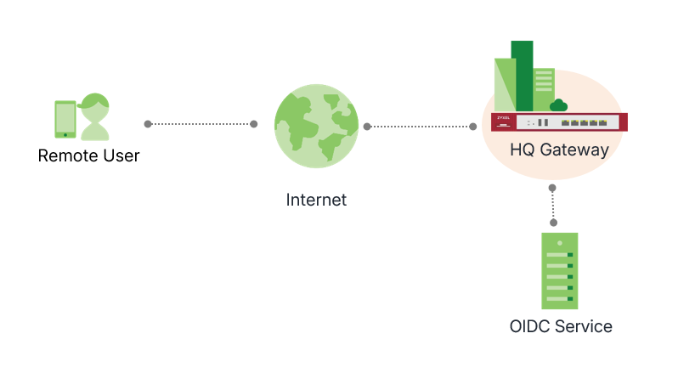
OpenID Connect (OIDC) is a modern authentication protocol built on OAuth 2.0. We now support OIDC integration with Microsoft Entra ID for SSLVPN authentication. This integration allows us to leverage their existing identity provider for a seamless login experience while centralizing account management and reducing the risks associated with traditional passwords.
Before You Begin
Before configuring the firewall, you must complete the required setup.
- Application Administrator role in your Microsoft Entra ID
- USG FLEX H Series firewall (Firmware in uOS1.37 or later)
- Valid licenses for your identity provider (Microsoft Entra ID)
- Network connectivity between your device and Microsoft Entra ID
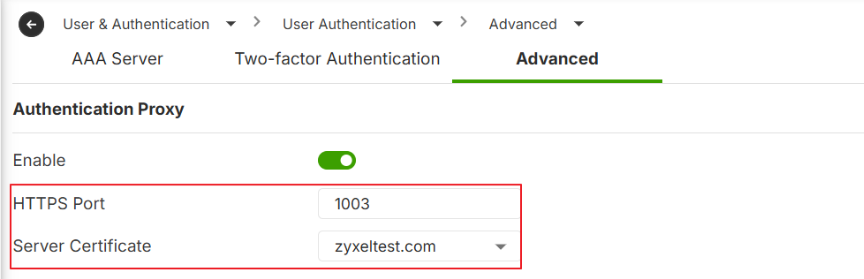
Authentication Proxy
Navigate to User & Authentication > User Authentication > Advanced
To prevent certificate warnings during the VPN client dial-up, this should be a commercial CA-signed certificate or your internal CA's certificate must be distributed to all client devices. And the Common Name (CN) or SAN (Subject Alternative Name) of the certificate should be a FQDN that can be resolve to the WAN IP of your firewall.

Register an Application in Microsoft Entra ID
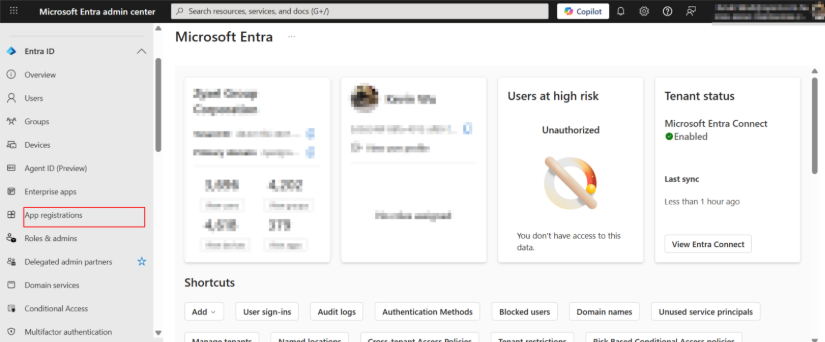
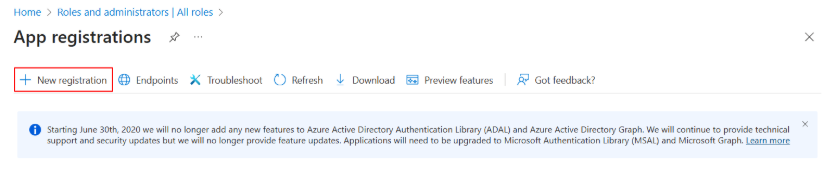
1.Go to Entra ID Portal > App registrations > New registration.
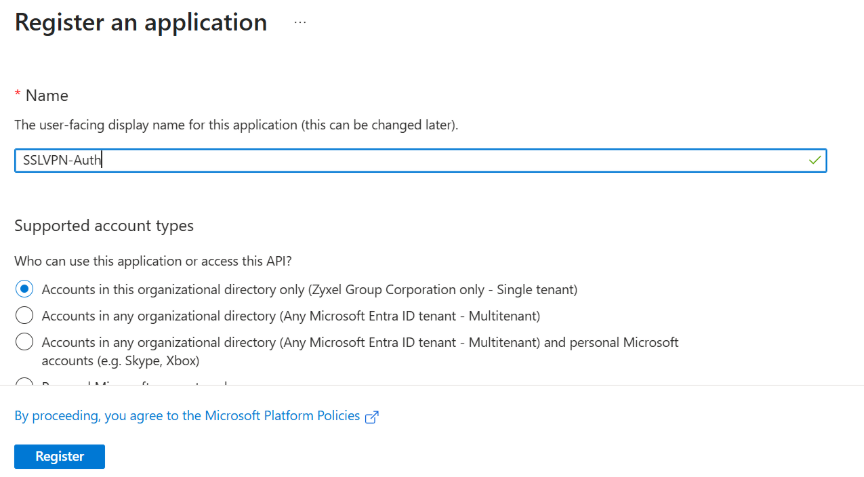
2.Enter a display name
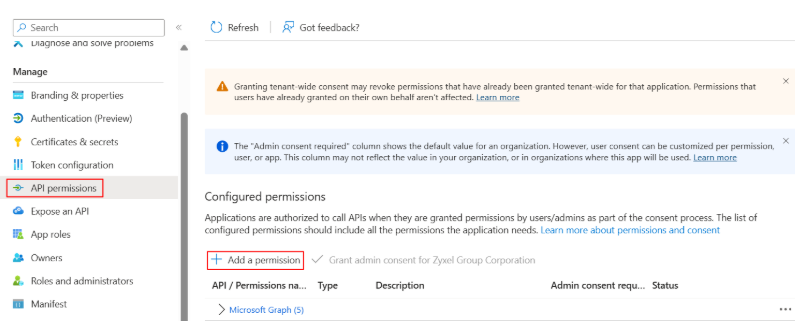
3.Navigate to Manage > API permissions > Add a permissions
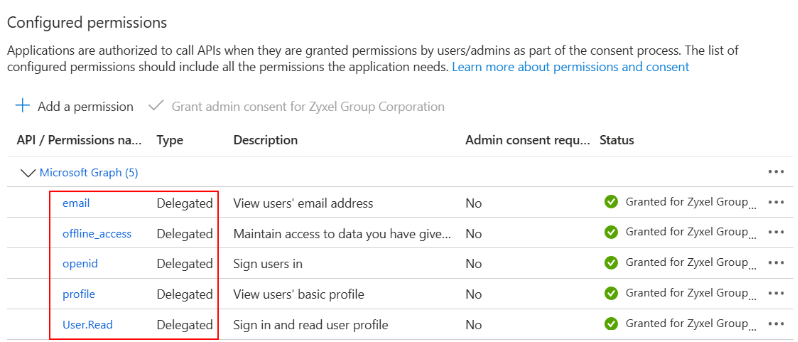
4.Please allow “email”, “offline_access”, “openid”, “profile” and “User.Read”
5.Navigate to Manage > Certificate & secret > New client secret.
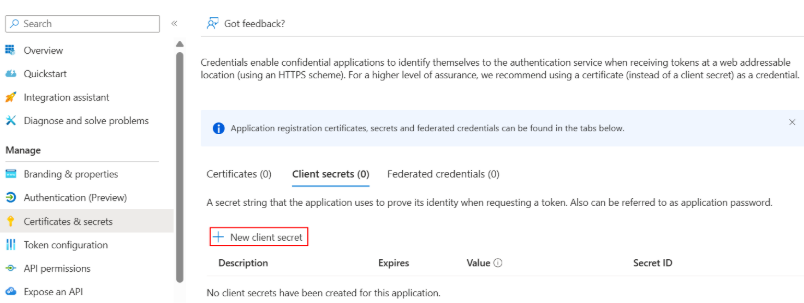
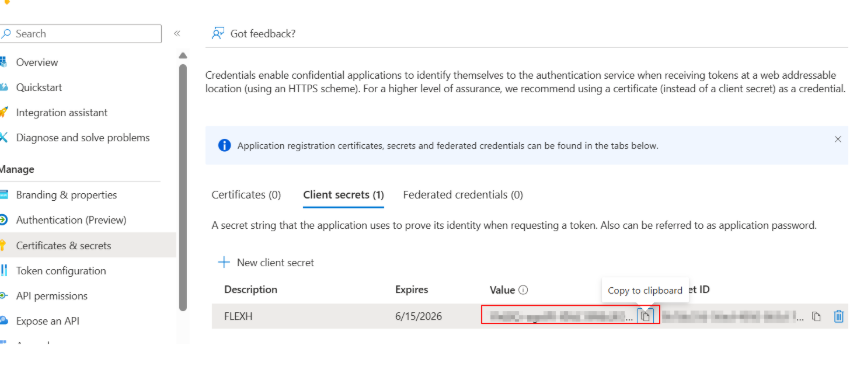
6.Create a secret and copy the Secret Value immediately. You will need this for the Firewall setup.

Create OIDC AAA Server
1. Login to the USG FLEX H and navigate to User & Authentication > User Authentication > AAA Server. Add OIDC Server.

Overview your Entra App, you need “Client ID”, “Tenant ID” for Firewall setup.
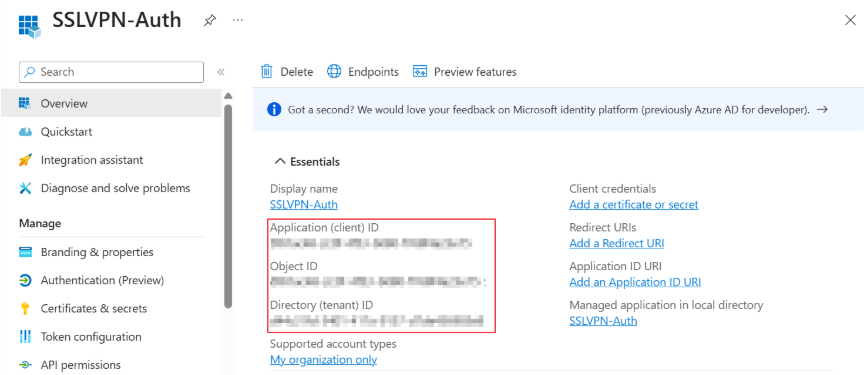
2.Fill in Server details
Issuer URL: https://login.microsoftonline.com/{Tenant ID}/v2.0
Client ID: {Client ID}
Client Secret: {You already have Secret at “Manage > Certificate & secrets”)
Redirect Address: {FQDN}

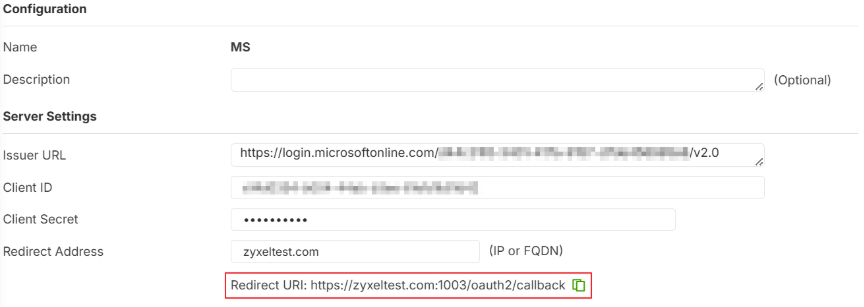
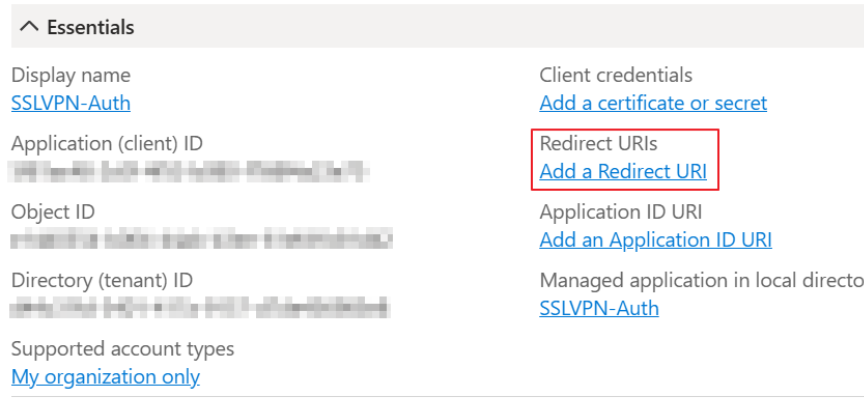
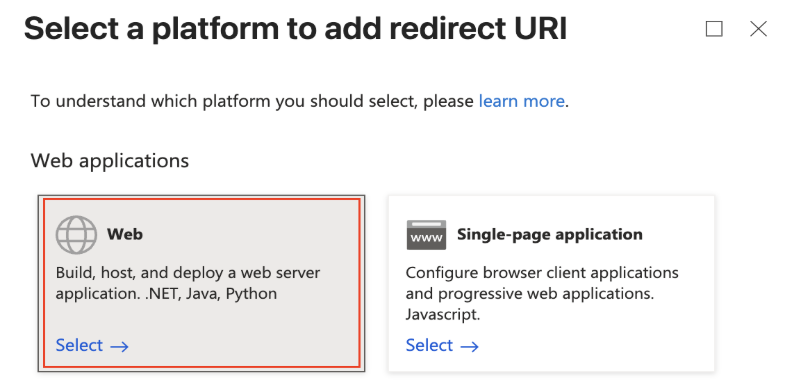
3.Copy the above “Redirect URI” and back to Entra Portal Overview > Add a Redirect URI > Add a platform > Web.
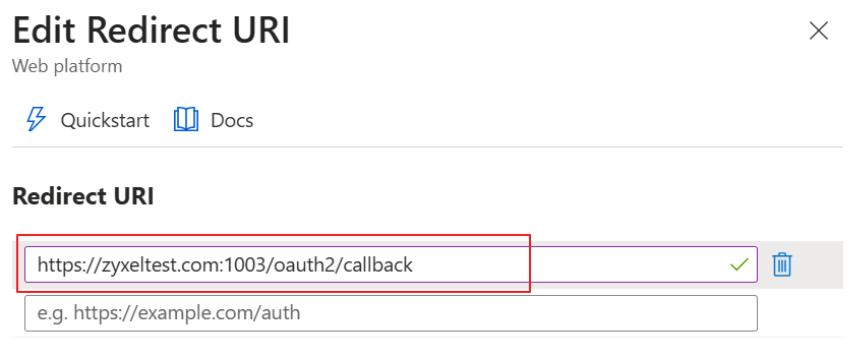
4. Paste the URI and Configure
5. Go back to the USG FLEX H, OIDC Server page, at Configuration Validation.
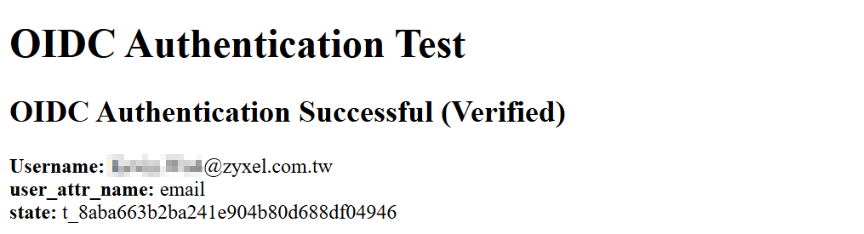
6. Click Test on the Firewall
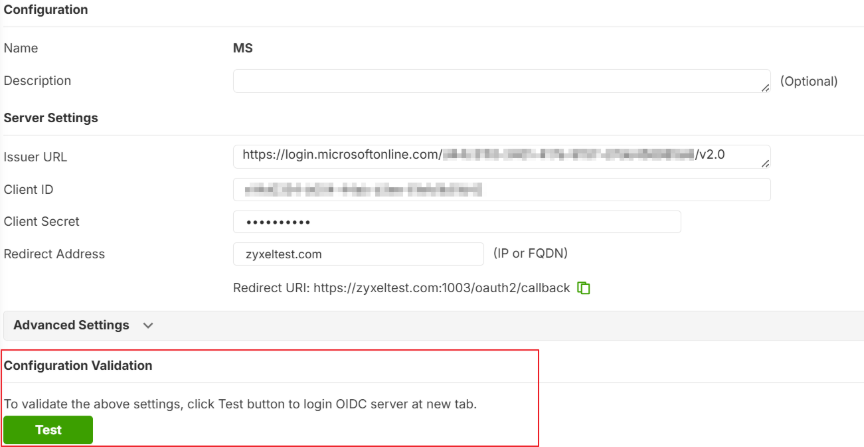
7. You should see "OIDC Authentication Successful."
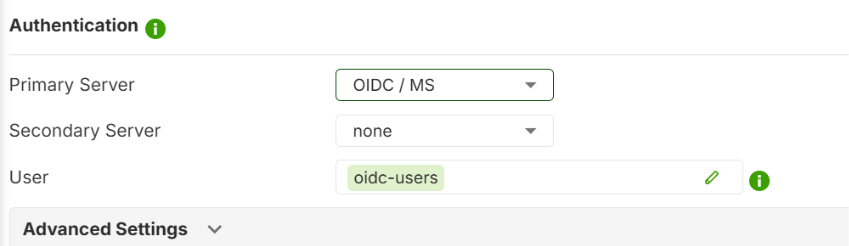
SSLVPN setting on USG FLEX H Series
1.Configure SSLVPN and set OIDC as the Primary Server and Set Allowed User to oidc-users.
Please note you cannot choose another Auth Server if you want to use OIDC.
Verification
1. Connected VPN via OpenVPN Connect Client
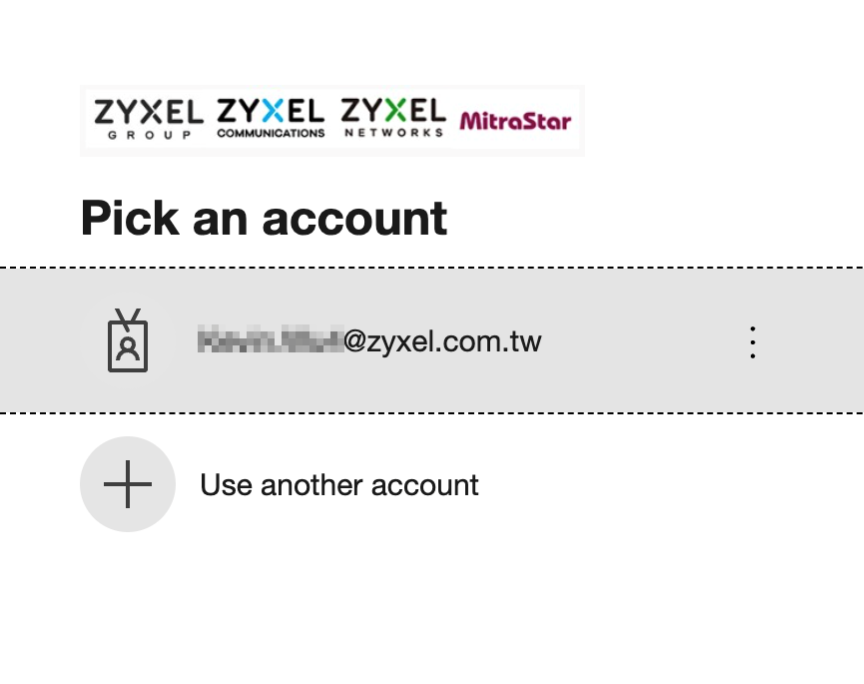
2. A browser will automatically open the Microsoft login page.
3. Authenticate with your Microsoft account
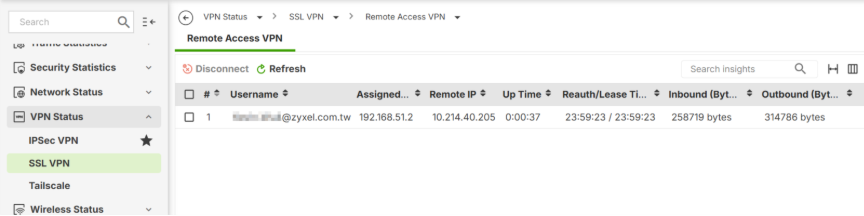
4. Check status at VPN Status > SSL VPN > Remote Access VPN.
Categories
- All Categories
- 442 Beta Program
- 3.1K Nebula
- 242 Nebula Ideas
- 6.8K Security
- 779 USG FLEX H Series
- 387 Security Ideas
- 1.8K Switch
- 87 Switch Ideas
- 1.5K Wireless
- 58 Wireless Ideas
- 7.2K Consumer Product
- 324 Service & License
- 527 News and Release
- 101 Security Advisories
- 31 Education Center
- 10 [Campaign] Zyxel Network Detective
- 5.3K FAQ
- 34 Documents
- 91 About Community
- 121 Security Highlight