How to Enable Layer 2 isolation on Access Point?



 Zyxel Employee
To enable Layer 2 isolation on your Zyxel Access Point (AP), the specific steps can vary slightly depending on your device model and firmware version. However, the general process involves configuring the SSID settings.
- Navigate to Site-wide > Configure > Access points > SSID advanced settings
- Look for Layer 2 Isolation: Enable layer 2 isolation
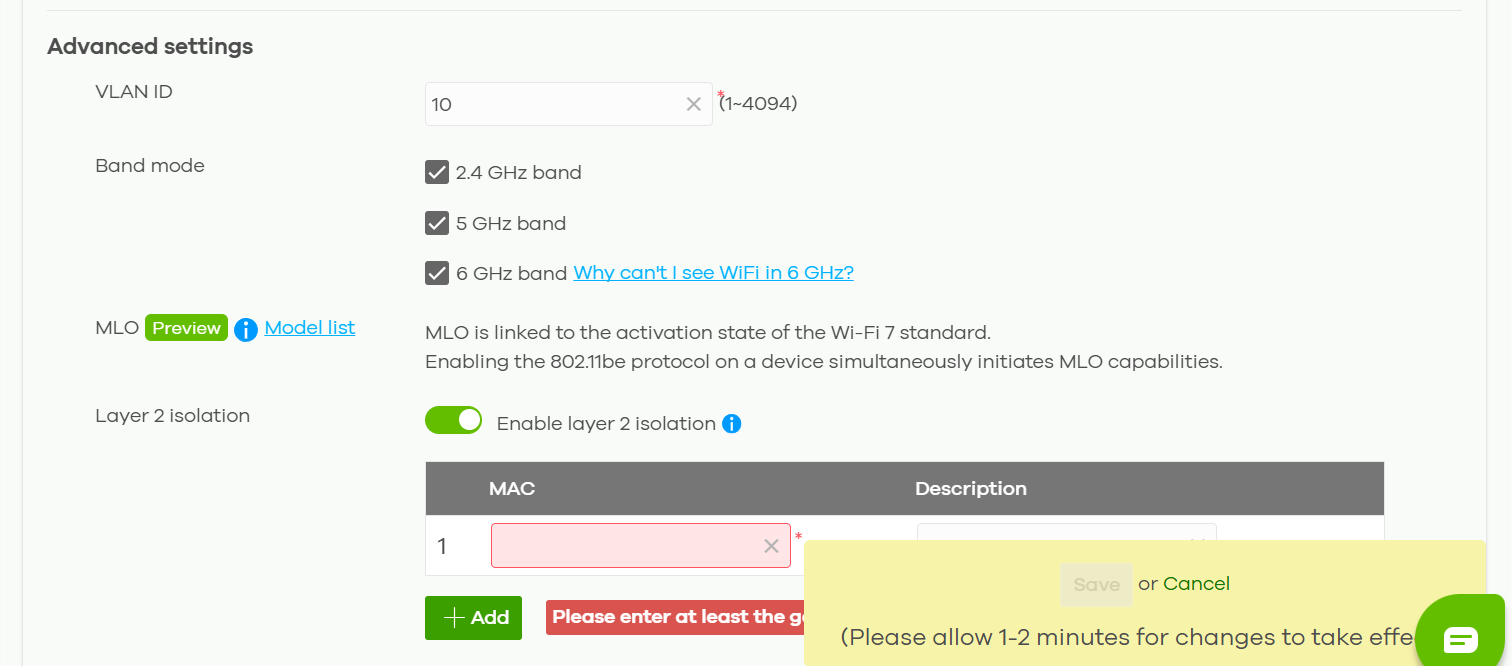
3. You may need to create a list of 'Allowed Devices'.
This list is for specific MAC addresses that you want to permit traffic to, typically for the gateway to allow internet access while isolating clients from each other.
4. You can also enable Enable Intra-BSS Traffic blocking within the SSID List under the Profile Name.
This feature is designed to prevent communication between wireless clients connected to the same SSID/BSSID.
Important Considerations:
*Layer 2 isolation is primarily used to prevent communication between clients on the same SSID/BSSID/subnet.
*The "Allowed Devices" list in the Layer 2 isolation profile is used to whitelist specific MAC addresses, often for the gateway, so clients can access the internet.
*If clients are on different subnets, additional configurations like Access Control Lists (ACLs) or firewall rules on your firewall or switch will be necessary to block traffic between them.
*Even with Layer 2 isolation enabled, some network scanning tools might still detect devices on the same subnet.
Categories
- All Categories
- 442 Beta Program
- 3.1K Nebula
- 243 Nebula Ideas
- 6.8K Security
- 781 USG FLEX H Series
- 387 Security Ideas
- 1.8K Switch
- 87 Switch Ideas
- 1.5K Wireless
- 58 Wireless Ideas
- 7.2K Consumer Product
- 324 Service & License
- 527 News and Release
- 101 Security Advisories
- 31 Education Center
- 10 [Campaign] Zyxel Network Detective
- 5.3K FAQ
- 34 Documents
- 91 About Community
- 121 Security Highlight