[Zyxel Circle] Auto-Renewal Service for USG FLEX H Series Is Now Available in Circle

 Zyxel Employee



Circle partners can now enable Auto-Renewal for supported USG FLEX H Series security licenses directly in Zyxel Circle. Once enabled, your eligible license plan can renew automatically to help reduce manual follow-up and keep service coverage running smoothly.
Why enable Auto-Renewal in Circle?
More USG FLEX H Series partners are choosing Auto-Renewal as their preferred renewal method.
Here's why:
• Automatic renewal, yearly or monthly
Ensure uninterrupted protection with no manual renewal needed.
• Flexible subscription options
Choose per device to fit real deployment needs.
• Easier multi-device setup
Select multiple USG FLEX H Series devices at once and enable Auto-Renewal in one go. No more checking out one device at a time.
• Stable pricing you can trust
No price increases. Only possible reductions. Clear monthly and yearly billing visibility.
Auto-Renewal completes the full license subscription experience for USG FLEX H Series. More flexibility. More control. Less manual effort.
How to enable Auto-Renewal for USG FLEX H Series in Circle
Step 1: Go to My Devices in Zyxel Circle and select the On-prem tab
(1) Log in to 'Zyxel Circle', go to 'My Devices' and then select the 'On-prem' tab.
(2) Select the eligible USG FLEX H series devices you would like to renew.
(3) Click the action menu and choose 'Renew Licenses'.
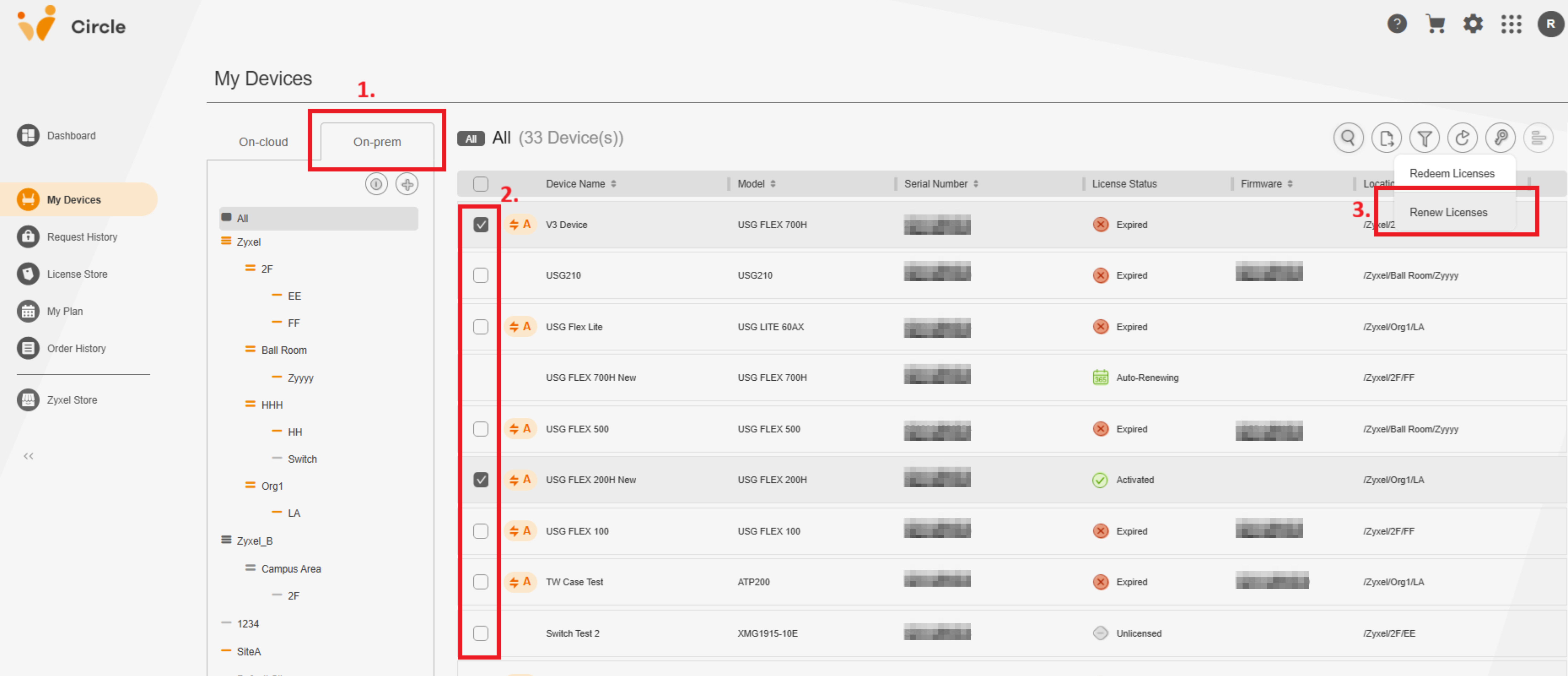
Figure 1. Go to My Devices and choose Renew Licenses
Step 2: Select your preferred Auto-Renewal license plan
• On the Renew Licenses page, review the eligible license options available for the selected device.
• Zyxel Circle will recommend an Auto-Renewal yearly plan by default to help simplify the renewal process.
• If needed, you can change it to the plan that best matches your deployment and subscription preference.
• Once selected, continue to add the license to your License Cart.
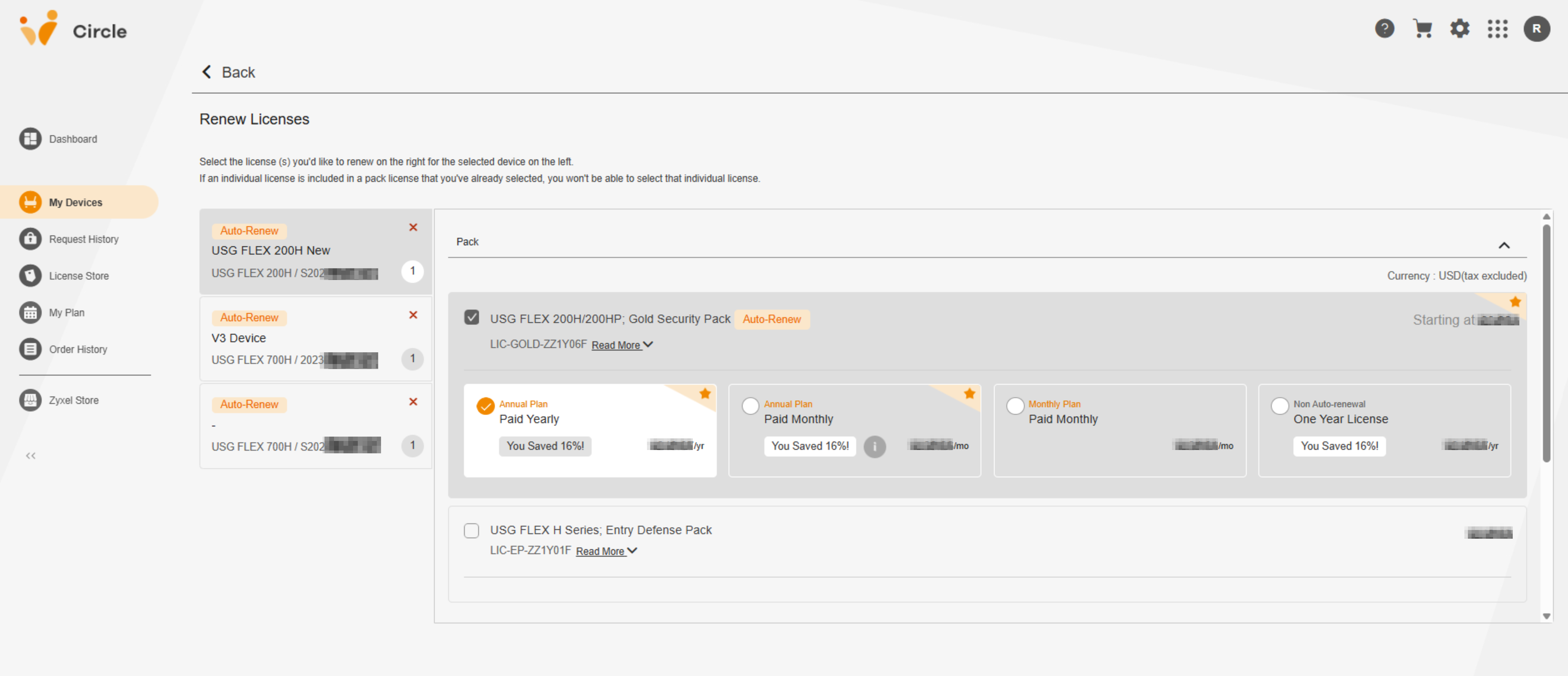
Figure 2. Select your preferred Auto-Renewal license plan
Step 3: Review the licenses added to My License Cart
• Open My License Cart to review the devices and license plans you have selected.
• Confirm the quantity, price, and subtotal for each item before placing the order.
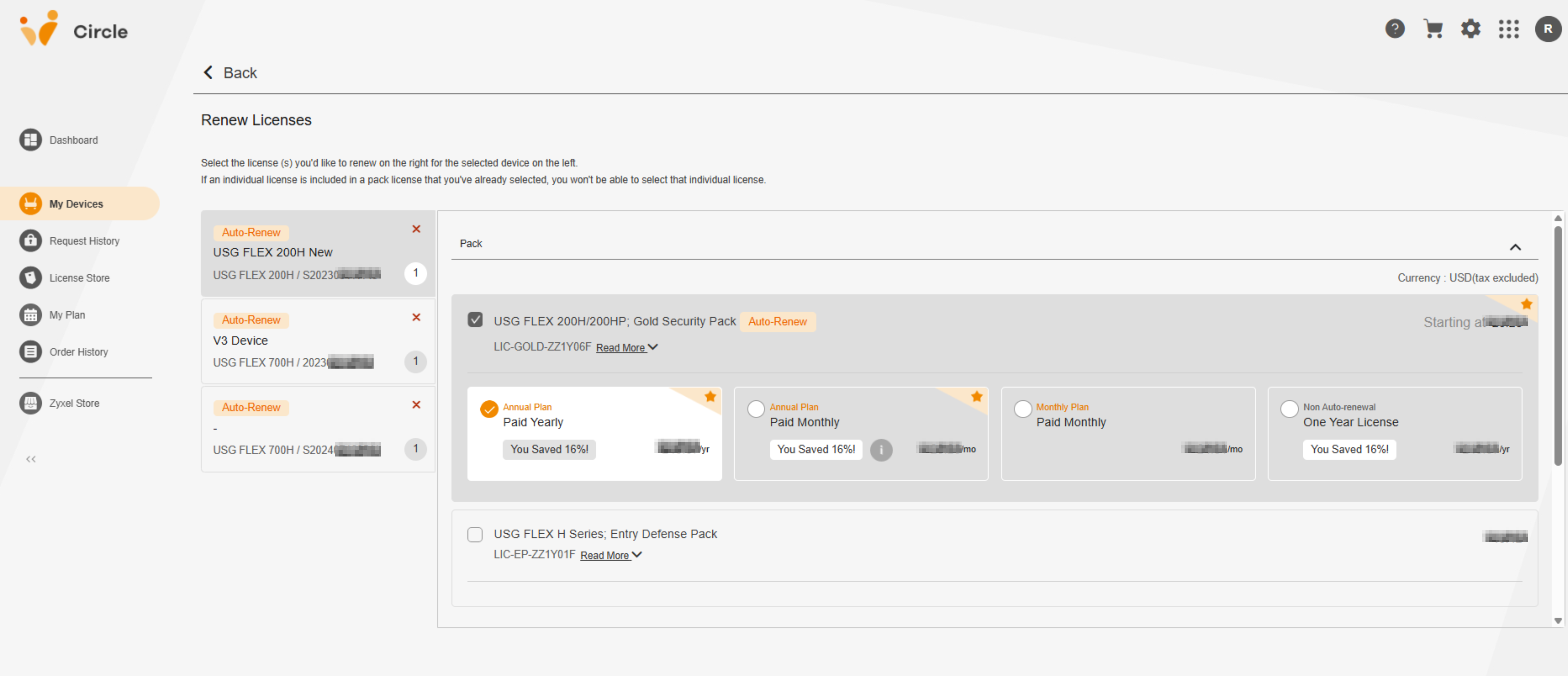
Figure 3. Review the licenses added to My License Cart
Step 4: Click Confirm Order to complete the setup
• When everything looks correct, click Confirm Order.
• After checkout is completed, the selected Auto-Renewal plan will be applied to the target device.
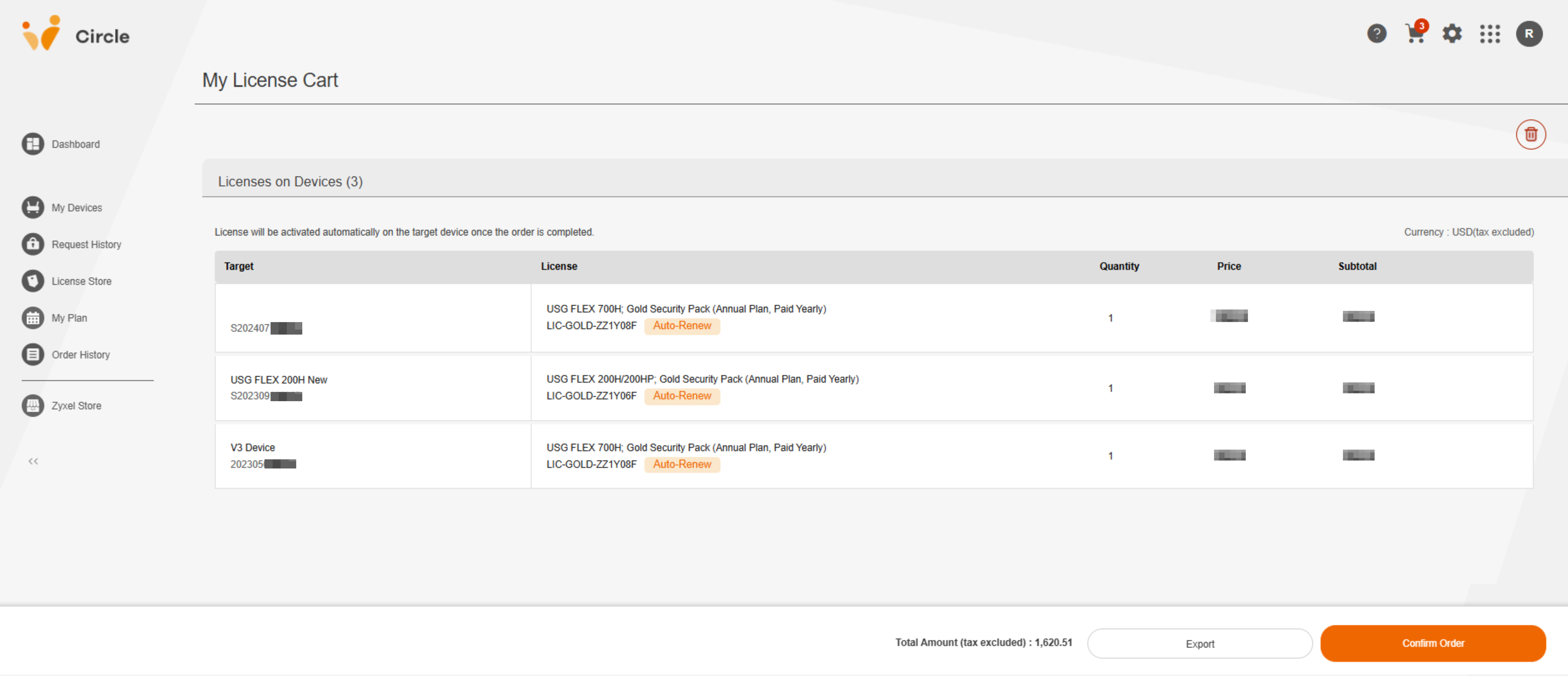
Figure 4. Click Confirm Order to complete the setup
➡️ Activate Auto-Renewal Now
Notes
The actual license options shown may vary by device model and service eligibility. Pricing, currency display, and checkout information are shown in Circle during the order process.
Categories
- All Categories
- 442 Beta Program
- 3K Nebula
- 232 Nebula Ideas
- 132 Nebula Status and Incidents
- 6.7K Security
- 691 USG FLEX H Series
- 365 Security Ideas
- 1.8K Switch
- 87 Switch Ideas
- 1.4K Wireless
- 56 Wireless Ideas
- 7.1K Consumer Product
- 312 Service & License
- 505 News and Release
- 97 Security Advisories
- 31 Education Center
- 10 [Campaign] Zyxel Network Detective
- 5.1K FAQ
- 34 Documents
- 89 About Community
- 112 Security Highlight