License Migration on NCC for H series
Options

Zyxel_Lynn
Posts: 212




 Zyxel Employee
Zyxel Employee
Technical Guide: License Migration for Zyxel H Series Firewalls
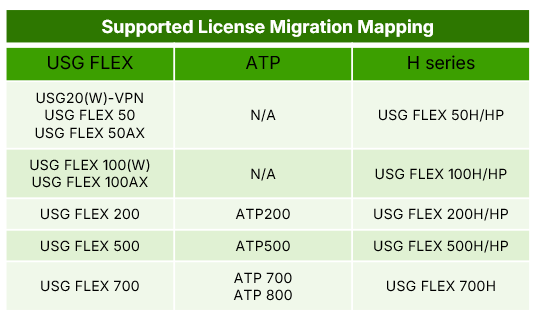
Zyxel Networks has introduced a license migration feature on the Nebula Control Center (NCC) designed to facilitate a smooth transition for users upgrading from legacy USG Flex or ATP series firewalls to the newer H series hardware. This feature allows for the transfer of remaining license durations, making the upgrade process more cost-effective.
Core Guidelines for Migration
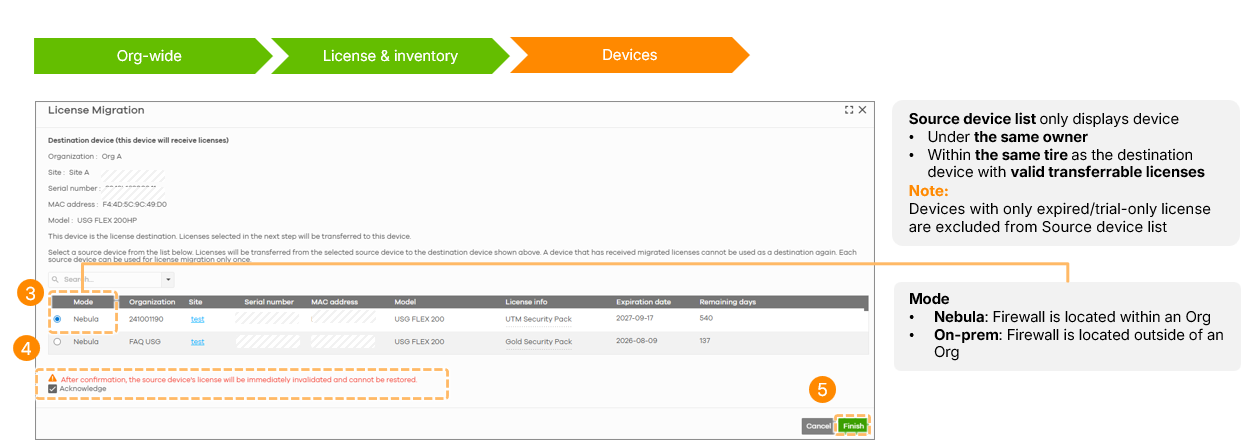
- Same Owner and Tier: Both the source (legacy firewalls) and destination (H series) devices must belong to the same account owner and be within the same device tier (e.g., USG Flex 200 to USG Flex 200H).
- One-to-One Mapping: Each H series device can receive licenses from only one source device; combining licenses from multiple units into one is not supported.
- Lifecycle Limit: Devices can typically participate in the migration process only once, with the exception of RMA scenarios where a replacement unit may be eligible for a new migration.
- Irreversibility: Once the migration is confirmed, the licenses are permanently moved to the H series device and cannot be returned to the original source.
License Eligibility and Automatic Upgrading
Eligible license types include Content Filter, UTM, Gold Security Pack (GSP), Secure WiFi, and Nebula Pro/Plus packs. Notably, Content Filter or UTM licenses from source devices are automatically upgraded to the Gold Security Pack (GSP) when migrated to the H series platform.
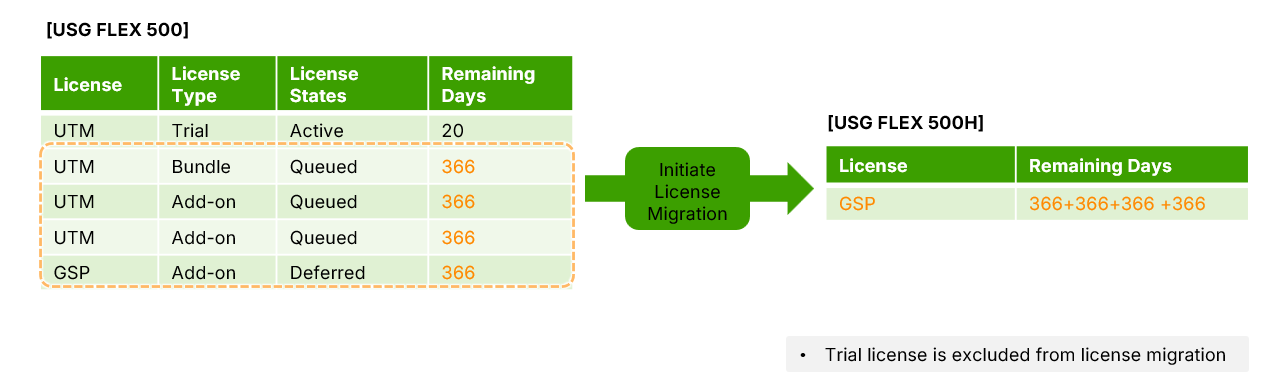
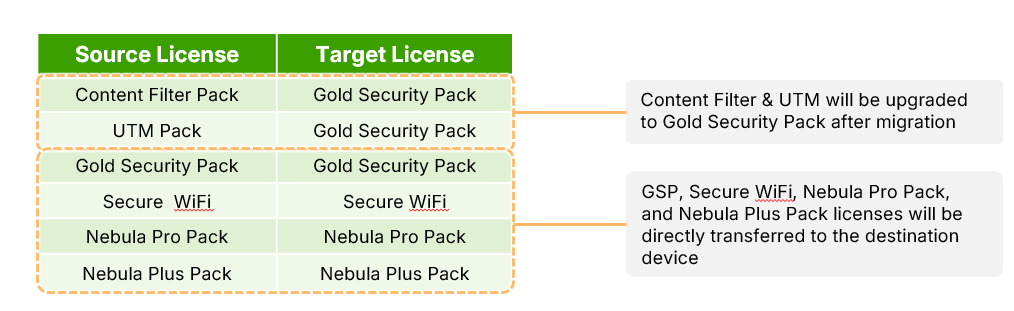 Active, deferred, and queued licenses are eligible, though trial licenses are excluded and will be reset to zero on the source device upon completion of the process.
Calculating Remaining Duration
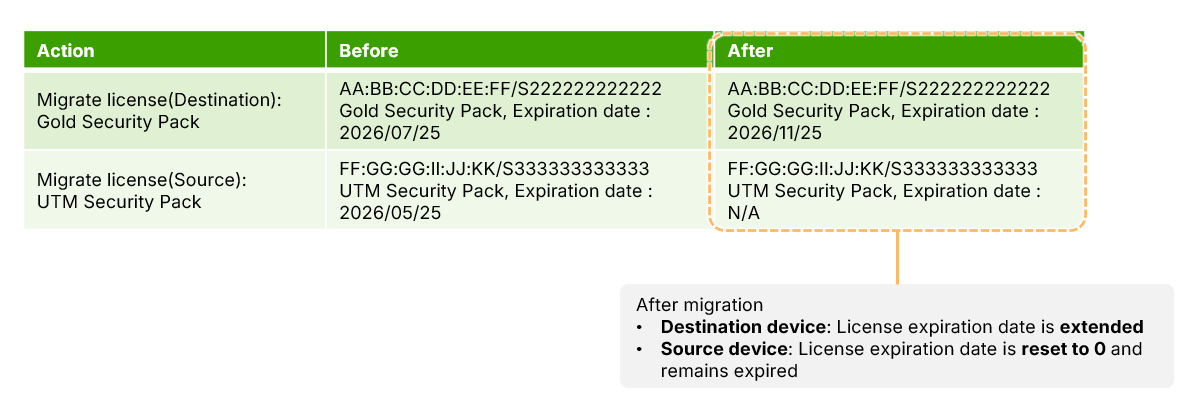
NCC employs a "maximum duration principle," where the remaining days of all eligible non-trial licenses are summed and then added to the destination device's expiration date.
Configuration Procedure
To perform a migration, navigate to Organization-wide > License & inventory > Devices. Locate and select the target H series device, then click the Action button within that device's row and select Receive license.
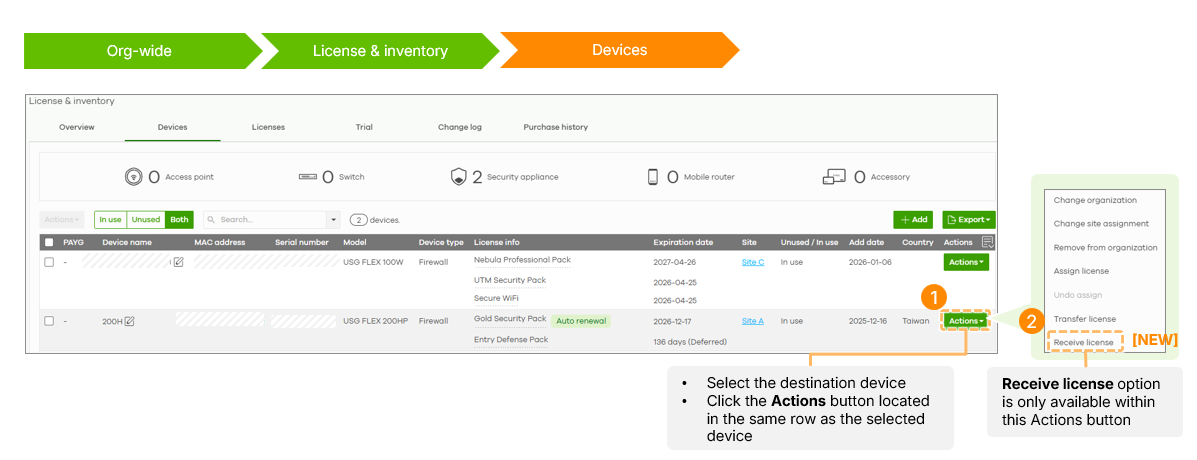
A list of valid source devices will appear; select the desired unit, acknowledge the terms, and click finish.
Post-Migration Verification
Following the transfer, the source device's licenses will reflect an expired status with zero days remaining, while the destination device will show an extended expiration date. These actions are recorded in the Change Log for both devices, detailing the specific changes in expiration dates. The feature is available to administrators with Owner or Full Organization privileges and requires no additional licensing.
0
Categories
- All Categories
- 442 Beta Program
- 3.1K Nebula
- 243 Nebula Ideas
- 6.8K Security
- 783 USG FLEX H Series
- 389 Security Ideas
- 1.8K Switch
- 87 Switch Ideas
- 1.5K Wireless
- 58 Wireless Ideas
- 7.2K Consumer Product
- 325 Service & License
- 527 News and Release
- 101 Security Advisories
- 31 Education Center
- 10 [Campaign] Zyxel Network Detective
- 5.3K FAQ
- 34 Documents
- 91 About Community
- 122 Security Highlight