How to Perform an Intranet Speed Test Using OpenSpeedTest

 Zyxel Employee
Why should I perform an intranet speed test?
An Internet speed test measures the complete path from your client device to an external test server. The result may be affected by several factors outside your local network, including:
- ISP network conditions
- Internet routing and congestion
- The location and load of the external speed test server
- WAN bandwidth and firewall performance
Therefore, a slow Internet speed test does not necessarily mean that the access point, switch, or local network is causing the problem.
An intranet speed test keeps the test traffic inside the local network. This helps determine the actual performance between a wired or wireless client and a local server, without involving the ISP or external Internet path.
Test topology
Connect the OpenSpeedTest server to the local network using a wired Ethernet connection whenever possible.
Example:
Wireless client → Access Point → Switch → OpenSpeedTest server
Using a wired server helps prevent the server-side wireless connection from affecting the test result.
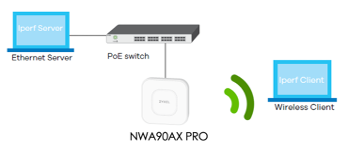
How to set up OpenSpeedTest
Step 1: Prepare the server
Use a Windows, macOS, Linux, Android, or iOS device as the OpenSpeedTest server. For more reliable results, select a device with sufficient CPU and network performance.
Step 2: Download and install OpenSpeedTest Server
Download the appropriate OpenSpeedTest Server application for your operating system from the official OpenSpeedTest website.
For Windows, select the version that matches your system architecture, such as Windows X86-64.
Step 3: Start the server
Launch the OpenSpeedTest Server application.
The application will automatically start a local speed test server and display an address similar to:
http://172.24.76.181:3001
Keep the application open while performing the test.
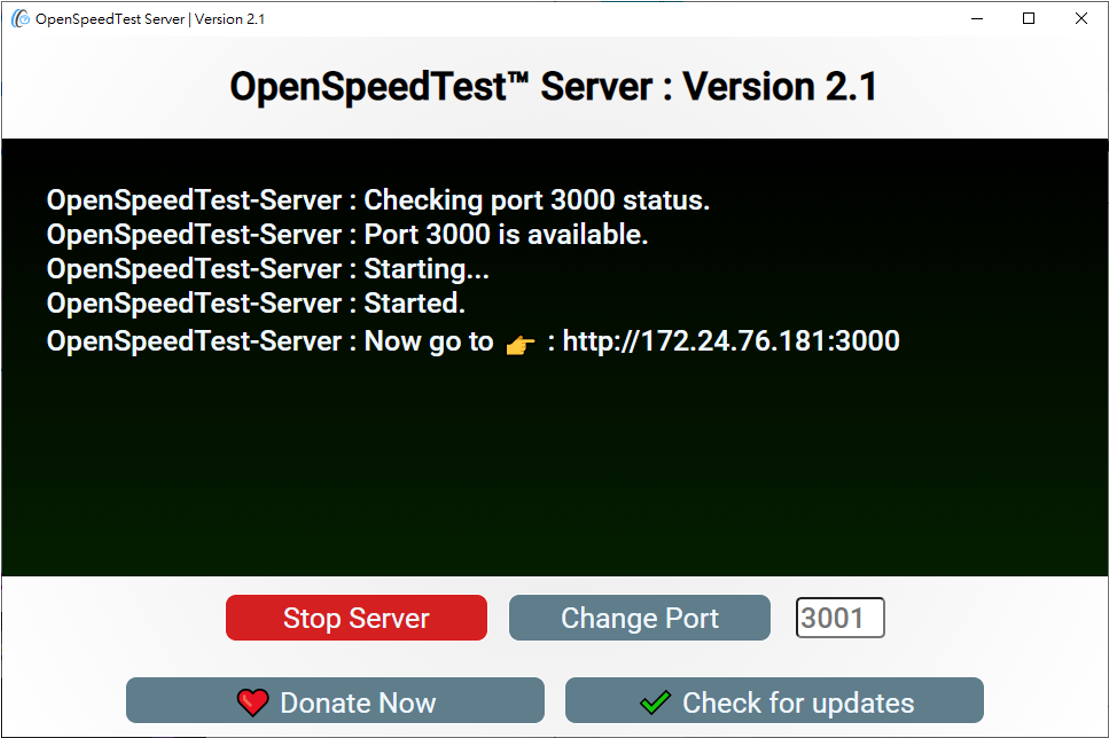
Step 4: Connect the client
Connect the client device to the network path you want to test.
For example, connect a laptop or mobile phone to the target Wi-Fi SSID when testing wireless performance.
Make sure the client can communicate with the OpenSpeedTest server. If different VLANs are used, verify that inter-VLAN routing and firewall policies allow the connection.
Step 5: Run the speed test
Open a web browser on the client device and enter the address displayed by the OpenSpeedTest Server application.
No additional client software is required. OpenSpeedTest can perform download, upload, ping, and jitter tests directly through a supported web browser.
Select Start and wait for the test to complete.
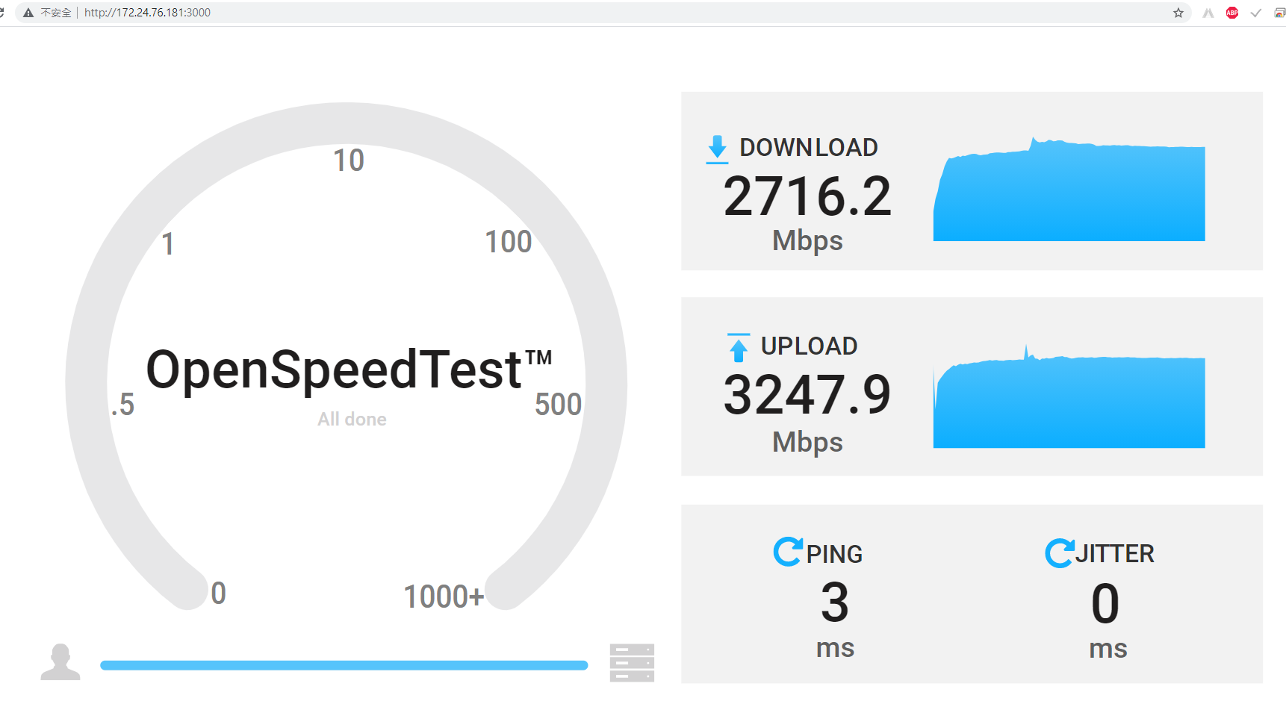
How to interpret the result
- Intranet speed is normal, but Internet speed is slow:
The local Wi-Fi and LAN connection are likely operating normally. Further investigation should focus on the WAN connection, ISP, Internet routing, firewall traffic management, or external speed test server. - Both intranet and Internet speeds are slow:
Check the client signal strength, Wi-Fi channel utilization, channel width, Ethernet link speed, cables, switch ports, VLAN configuration, and client capabilities. - Wired intranet speed is normal, but wireless intranet speed is slow:
Focus on the wireless environment, including interference, signal strength, channel selection, client radio capability, and AP placement.
Important notes
OpenSpeedTest is browser-based, so the performance of the server, client, browser, CPU, and network adapter may affect the result. Use a sufficiently powerful server, close unnecessary applications, and perform several tests for comparison.
For the most accurate troubleshooting result, test wired and wireless clients separately and compare their intranet performance before investigating the external Internet connection.


Categories
- All Categories
- 442 Beta Program
- 3.1K Nebula
- 243 Nebula Ideas
- 6.8K Security
- 783 USG FLEX H Series
- 389 Security Ideas
- 1.8K Switch
- 87 Switch Ideas
- 1.5K Wireless
- 58 Wireless Ideas
- 7.2K Consumer Product
- 325 Service & License
- 527 News and Release
- 101 Security Advisories
- 31 Education Center
- 10 [Campaign] Zyxel Network Detective
- 5.3K FAQ
- 34 Documents
- 91 About Community
- 122 Security Highlight