Troubleshoot Wi-Fi Faster with Nebula Wireless Health & Wi-Fi Aid





 Zyxel Employee
Introduction
Maintaining a stable and high-performance Wi-Fi network in a complex and constantly changing wireless environment can be an ongoing challenge. To help administrators address this, Nebula provides the powerful Wireless Health analysis tool together with Wi-Fi Aid, which helps automatically identify and troubleshoot wireless connectivity issues.
This article provides an in-depth introduction to both features and explains how you can use them to monitor, optimize, and troubleshoot your wireless network.
Version Information
The screenshots and procedures in this article are based on Nebula Control Center 19.00.
Topics Covered in This Article
Part 1: Wireless Health Analysis and Optimization
- Monitor and optimize wireless performance across the 2.4 GHz, 5 GHz, and 6 GHz bands
- Learn how Dynamic Channel Selection (DCS) and channel width adjustments can improve wireless performance
- Analyze individual client connection quality and understand the impact of Optimization Aggressiveness
Part 2: Wi-Fi Aid
- Overview of connection issues and common Wi-Fi failure scenarios
- Understand four common connectivity issues:
- Wireless authentication issues
- DHCP issues
- DNS issues
- Captive Portal issues
1. Wireless Health
Wireless Health is a powerful feature available with the Nebula Pro Pack. It continuously monitors your Wi-Fi network 24/7 and can automatically perform optimization actions when potential issues are detected, helping maintain optimal wireless connectivity.
You can think of Wireless Health as a continuously running network health assistant that proactively identifies and improves wireless conditions.
Requirements
- Required License: Nebula Pro Pack
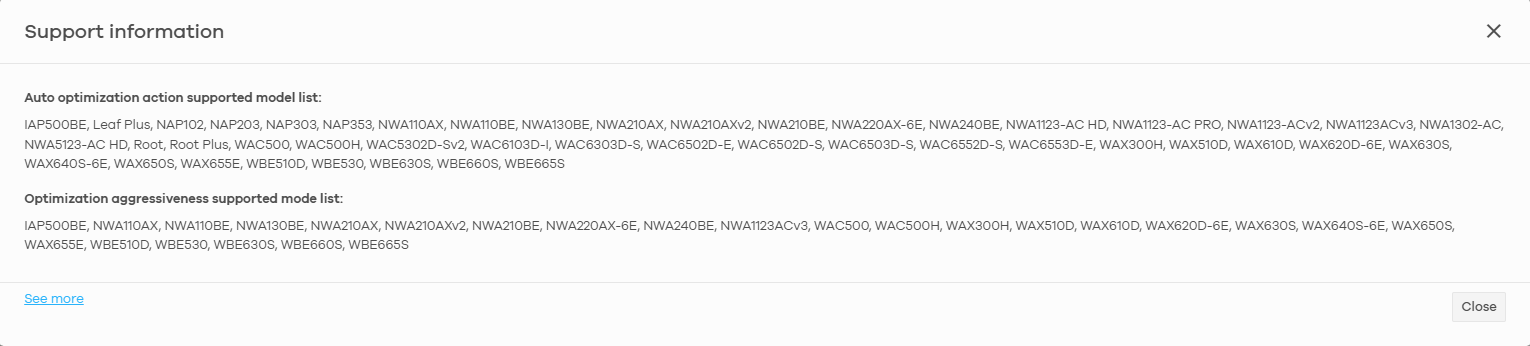
- Supported Models:
- Navigation Path:
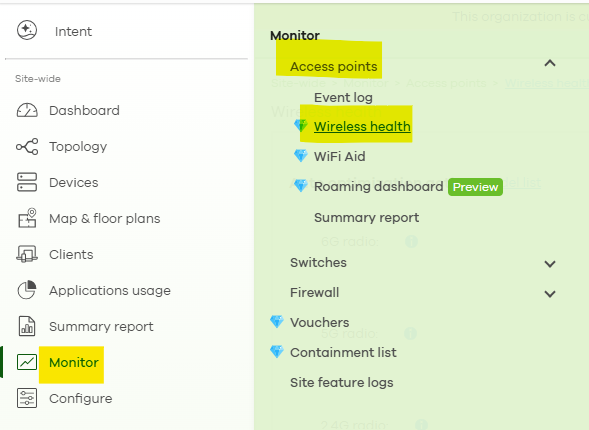
Site-wide > Monitor > Access Points > Wireless Health
1.1 Automatic Optimization Actions
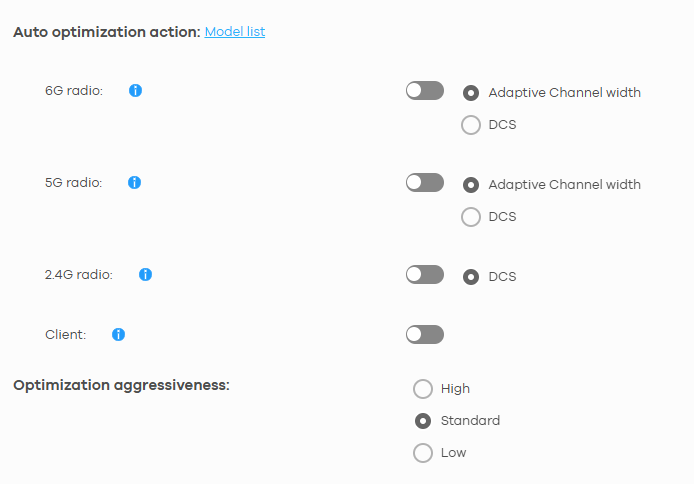
On this page, you can enable and configure the automatic optimization actions that Nebula can perform.
1. Radio Optimization
- Purpose:
This is the main control for radio optimization. You must first enable the frequency band you want to optimize, such as2.4 GHz,5 GHz, or6 GHz, before the optimization options below can take effect. - Optimization Methods (multiple options can be selected):
- Dynamic Channel Width Adjustment:
When the system detects excessive channel interference, it can automatically reduce the AP's channel width from a wider setting, such as 80 MHz, to a narrower setting, such as 40 MHz, to reduce the impact of interference. If the adjustment does not improve the wireless condition, the system can subsequently trigger DCS. - Dynamic Channel Selection (DCS):
The system scans the wireless environment and automatically selects a radio channel with lower interference for the AP.
- Dynamic Channel Width Adjustment:
2. Client Optimization
- Purpose:
When the system detects poor signal quality for a connected client, it proactively uses client steering to encourage the client to connect to another AP broadcasting the same SSID with a stronger signal. This check is performed every 30 minutes.
1.2 Optimization Aggressiveness
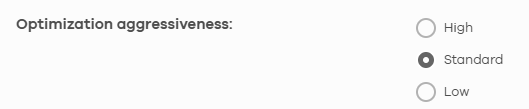
This setting determines how aggressively Nebula performs the optimization actions described above. It controls how much network activity the system tolerates before performing an optimization, helping prevent disruption during periods of high traffic.
- High — Most Aggressive
Optimization actions can be performed regardless of current network traffic. - Standard — Default
Optimization actions are performed only when network traffic is moderate or lower. The system considers the network sufficiently idle when no packet transmission is detected for 1 second. - Low — Most Conservative
Optimization actions are performed only when network traffic is very low. The system waits until no packet transmission is detected for 5 seconds, minimizing the potential impact on active users.
What Types of Issues Can Wireless Health Help Address?
When you see a Poor Wireless Health warning in the event log, it is commonly related to one or more of the following conditions. The automatic optimization functions described above are designed to help mitigate these issues:
- DHCP Issues:
Clients are unable to obtain an IP address from the DHCP server. - DNS Issues:
Clients are unable to resolve domain names properly. - Roaming Issues:
Clients experience difficulties transitioning between APs. - Channel Interference:
The wireless environment is congested or suffers from significant co-channel interference.
For additional recommendations on manually optimizing your wireless environment, refer to the following best-practice guide:
➡️ Nebula WiFi Performance Optimization:
Best Practices for Optimizing Wireless Network Performance — Zyxel Community
2. Wi-Fi Aid: Automatic Connectivity Troubleshooting
Wi-Fi Aid is an automated troubleshooting feature available with the Nebula Pro Pack. It is designed to help administrators quickly identify and locate issues that occur during the client connection process.
Note:
Wi-Fi Aid focuses specifically on identifying the causes of connection failures, such as authentication, DHCP, DNS, and captive portal issues.If the client can successfully connect to Wi-Fi but experiences poor throughput, unstable connectivity, or other performance-related problems afterward, refer to the Wireless Health feature instead.
Requirements
- Required License: Nebula Pro Pack
- Supported Models:

- Navigation Path:
Site-wide > Clients > Wi-Fi Aid
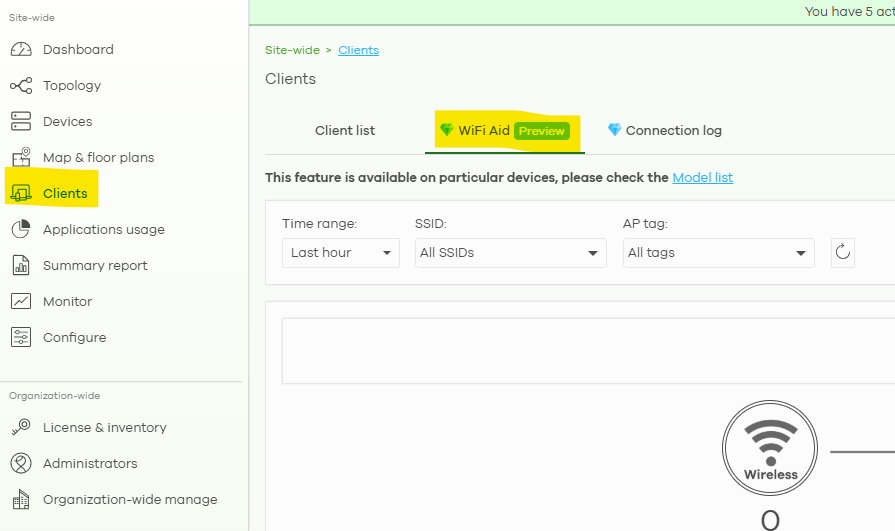
2.1 Connection Issue Overview
This is the main Wi-Fi Aid dashboard. It displays the number of client devices that encountered connectivity problems during the selected time period and categorizes them according to the last detected failure type.
How It Works
Wi-Fi Aid focuses on the final connection result.
Once a client eventually connects successfully, all previous failed connection attempts associated with that connection process are removed from the overview count.
2.2 Four Types of Connection Issues
Wi-Fi Aid categorizes connection failures into the following four types:
1. 🔏 Authentication Issues
When does this occur?
An authentication issue is recorded when a client is unable to successfully connect to the SSID due to conditions such as:
- Incorrect Wi-Fi password
- 802.1X authentication failure
- MAC filtering
- Load balancing restrictions
- Other mechanisms that prevent the client from associating successfully

2. 🌐 DHCP Issues
When does this occur?
A DHCP issue is detected when the AP successfully forwards the client's DHCP request but does not receive a DHCP ACK response from the DHCP server within 20 seconds.

3. 🔎 DNS Issues
When does this occur?
A DNS issue is detected when a client sends a DNS query but receives no response from the DNS server within 15 seconds.

Note:
If the DNS server responds with NXDOMAIN, indicating that the requested domain name does not exist, this is not considered a DNS issue because the DNS server responded successfully.
4. 🚪 Captive Portal Issues
When does this occur?
A Captive Portal issue is recorded when the client fails authentication on the captive portal page because of conditions such as:
- Incorrect username or password
- Authentication server issues
- Other portal authentication failures

Limitation:
Wi-Fi Aid cannot determine whether the client successfully displayed or reached the captive portal login page.
If a user reports that the captive portal page does not appear, ask the user to manually browse to:
neverssl.com
This can help trigger the captive portal redirection.
2.3 Historical Failure Statistics
The historical statistics tab allows administrators to review accumulated connectivity failure data from different perspectives and identify long-term trends.
- By SSID:
Identify which SSID experiences the highest number of connection issues. - By AP:
Identify which AP has the highest number of connection issues among nearby clients. - By Client:
Identify which client experiences connection failures most frequently.

2.4 Alert Notifications
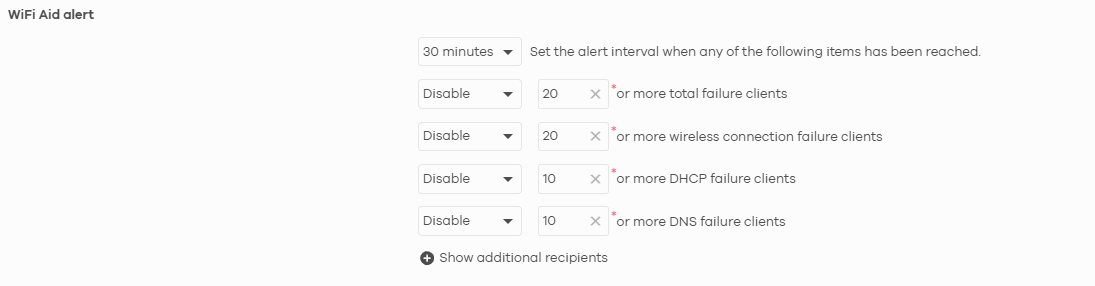
Administrators can configure alert notifications so that an email is sent when the number of occurrences of a specific event reaches the configured threshold.
By combining Wireless Health and Wi-Fi Aid, administrators can gain better visibility into both wireless performance and client connectivity issues.
Wireless Health helps continuously monitor and optimize the wireless environment, while Wi-Fi Aid provides a faster way to identify where client connection failures occur, such as during authentication, DHCP, DNS, or captive portal access.
Using these tools together can help reduce troubleshooting time, identify potential issues more efficiently, and maintain a more stable and reliable Wi-Fi experience for users.
Zyxel Nebula Support
Categories
- All Categories
- 442 Beta Program
- 3.1K Nebula
- 243 Nebula Ideas
- 6.8K Security
- 783 USG FLEX H Series
- 389 Security Ideas
- 1.8K Switch
- 87 Switch Ideas
- 1.5K Wireless
- 58 Wireless Ideas
- 7.2K Consumer Product
- 325 Service & License
- 527 News and Release
- 101 Security Advisories
- 31 Education Center
- 10 [Campaign] Zyxel Network Detective
- 5.3K FAQ
- 34 Documents
- 91 About Community
- 122 Security Highlight