NCAS Passkey Support for Biometric Authentication





 Zyxel Employee
Enhanced Security with NCAS Passkey Support
Zyxel Networks has introduced passkey support for the Nebula Cloud Authentication Service (NCAS), allowing users to sign in using biometric sensors like Face ID or fingerprint scanners on their devices. This provides a secure, passwordless login experience for NCC services.
Key Guidelines and Limitations
- Account Binding: Passkeys are bound to individual NCAS user accounts and can be used across all sites authorized for that user.
- Organization Scope: Passkeys are managed at the organization level and cannot be transferred between different organizations.
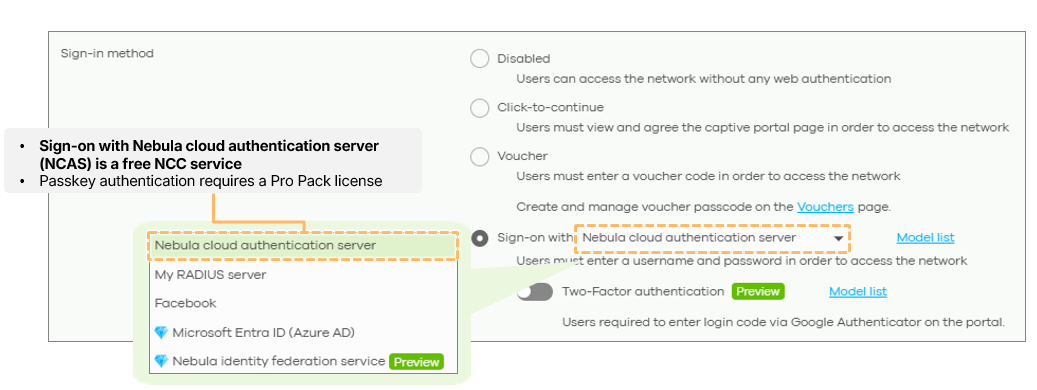
- License Requirement: Utilizing passkey authentication requires a Pro Pack license.
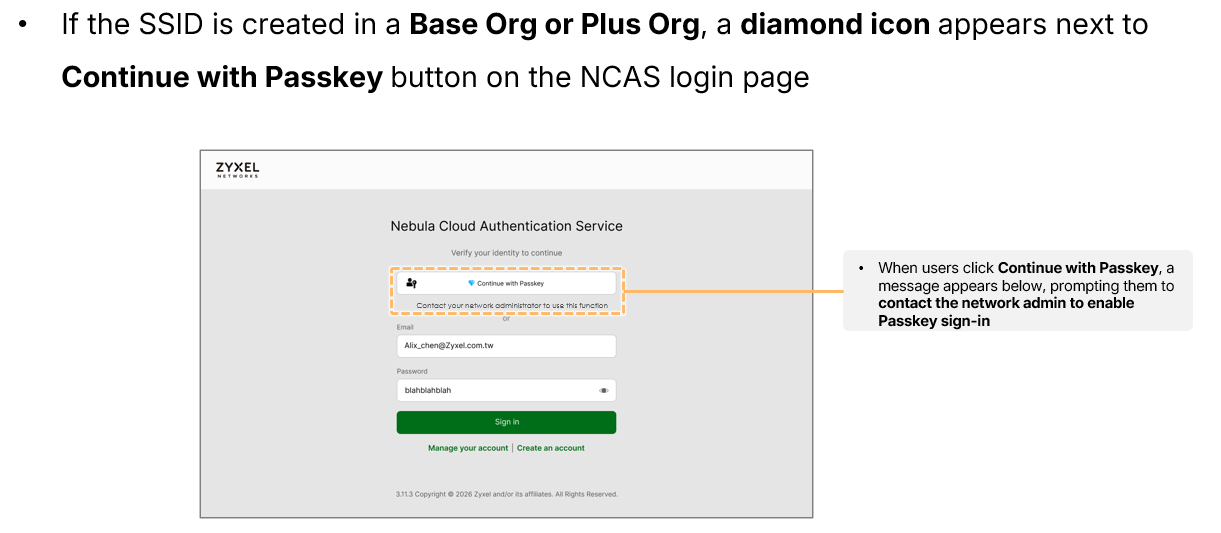
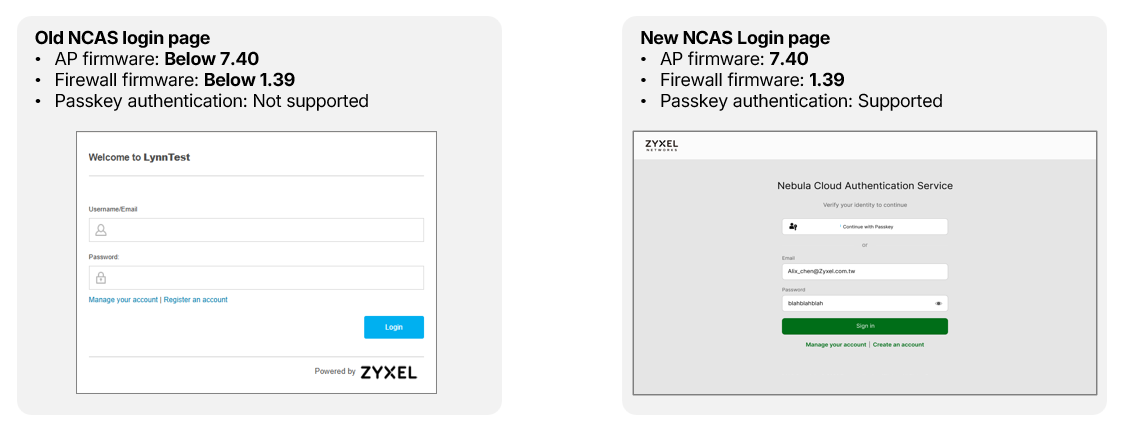
- Firmware Requirements: Devices must be upgraded to at least AP 7.40 or Firewall 1.39 to support the new login page required for passkeys.
Setup and Registration Process
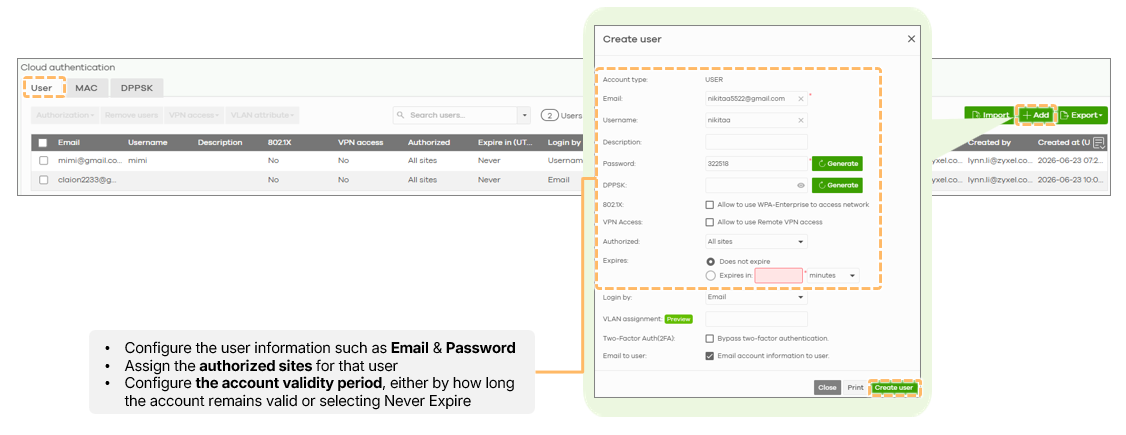
1. Create User: Ensure an NCAS user account exists under Organization-wide manage > Cloud Authentication > Users.
2. SSID Configuration: Set the SSID sign-in method to "Sign-on with Nebula Cloud Authentication Server",
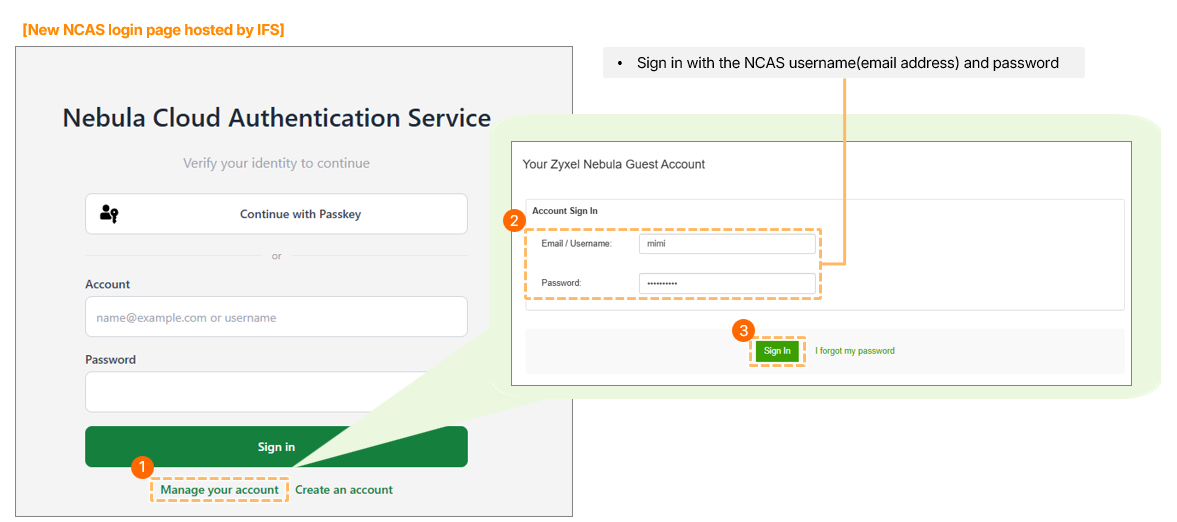
3. First-Time Login: When the captive portal appears, users must click "Manage your account" and log in with their credentials.
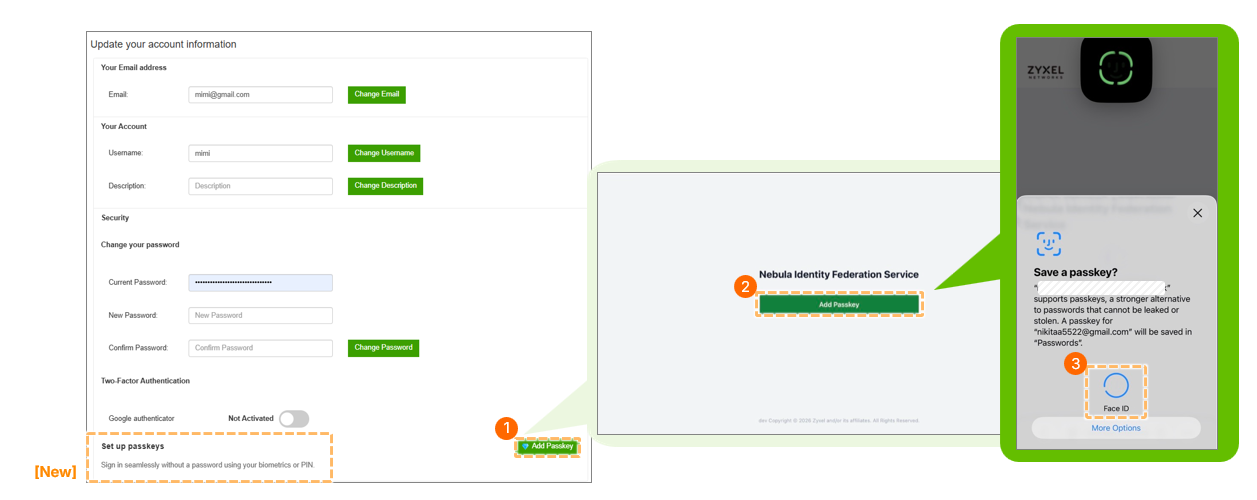
4. Add Passkey: In the account management section, select "Add Passkey" and follow the device prompts to save the biometric information.
Technical Considerations
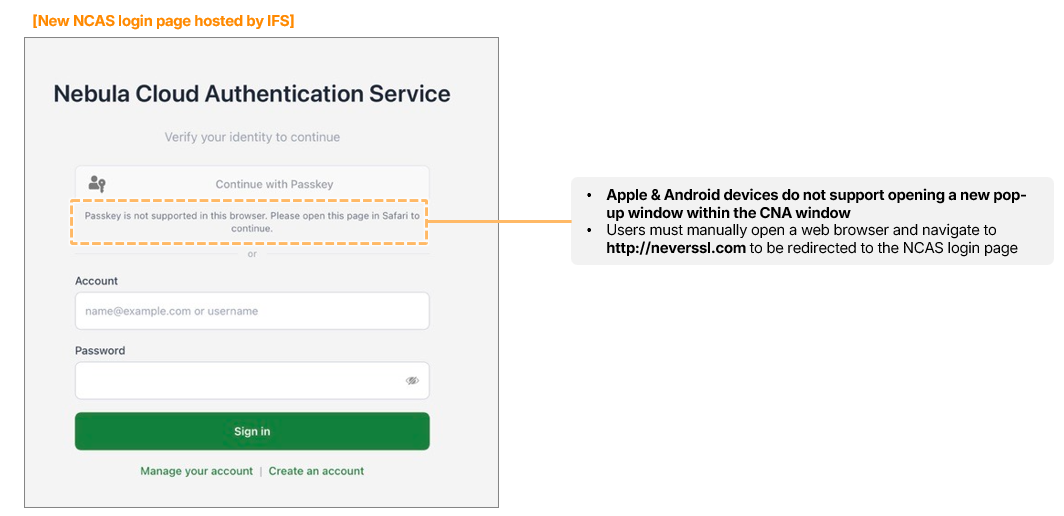
If using an Apple or Android device's "Captive Network Assistant" (CNA) window, registration may fail because the OS might not support pop-ups in that environment. Users should manually open a browser and navigate to a URL like HTTP://NEVERSSL.com to trigger the full login page.
Categories
- All Categories
- 442 Beta Program
- 3.1K Nebula
- 243 Nebula Ideas
- 6.8K Security
- 783 USG FLEX H Series
- 389 Security Ideas
- 1.8K Switch
- 87 Switch Ideas
- 1.5K Wireless
- 58 Wireless Ideas
- 7.2K Consumer Product
- 325 Service & License
- 527 News and Release
- 101 Security Advisories
- 31 Education Center
- 10 [Campaign] Zyxel Network Detective
- 5.3K FAQ
- 34 Documents
- 91 About Community
- 122 Security Highlight