[USG FLEX H] Setup Automated Certificate Management with Let's Encrypt

 Zyxel Employee
This guide walks through configuring a Let's Encrypt certificate on the USG FLEX H, covering prerequisites, the HTTP-01 and DNS-01 challenge methods for automated renew.
Prerequisites
Before you begin, make sure you have:
- A publicly resolvable FQDN (fully qualified domain name), e.g.
flexh.zycamp.com - A DNS record pointing that FQDN to the firewall's public IP address
- A valid, reachable email address (Let's Encrypt uses this for certificate-related notifications)
- If you plan to use DNS-01: a Cloudflare Zone ID and API Token (only Cloudflare DNS is supported for automated DNS-01 validation)
- If you plan to use HTTP-01: confirmation that port 80 is reachable from the public Internet
Note: Let's Encrypt certificates do not support wildcards, and a single certificate can cover up to 5 SANs (Subject Alternative Names).
Step 1: Open the Let's Encrypt Settings Page
Log in to the USG FLEX H web GUI and go to:
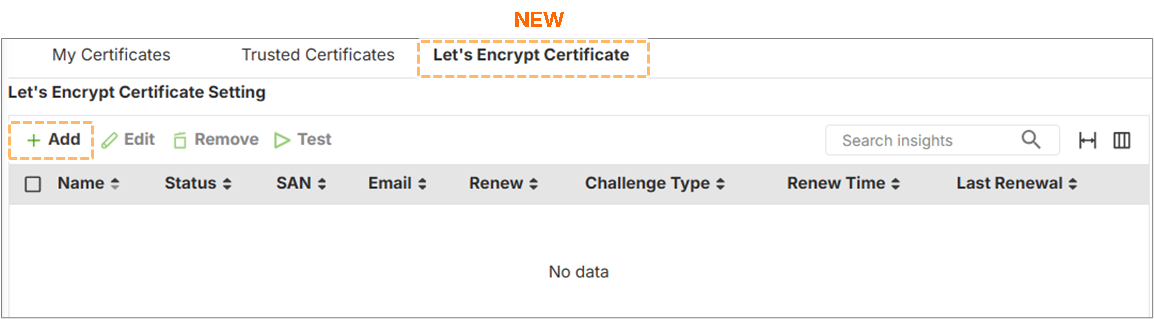
System > Certificate > Let's Encrypt Certificate
Click NEW to create a new Let's Encrypt certificate.
Step 2: Fill in the Certificate Details
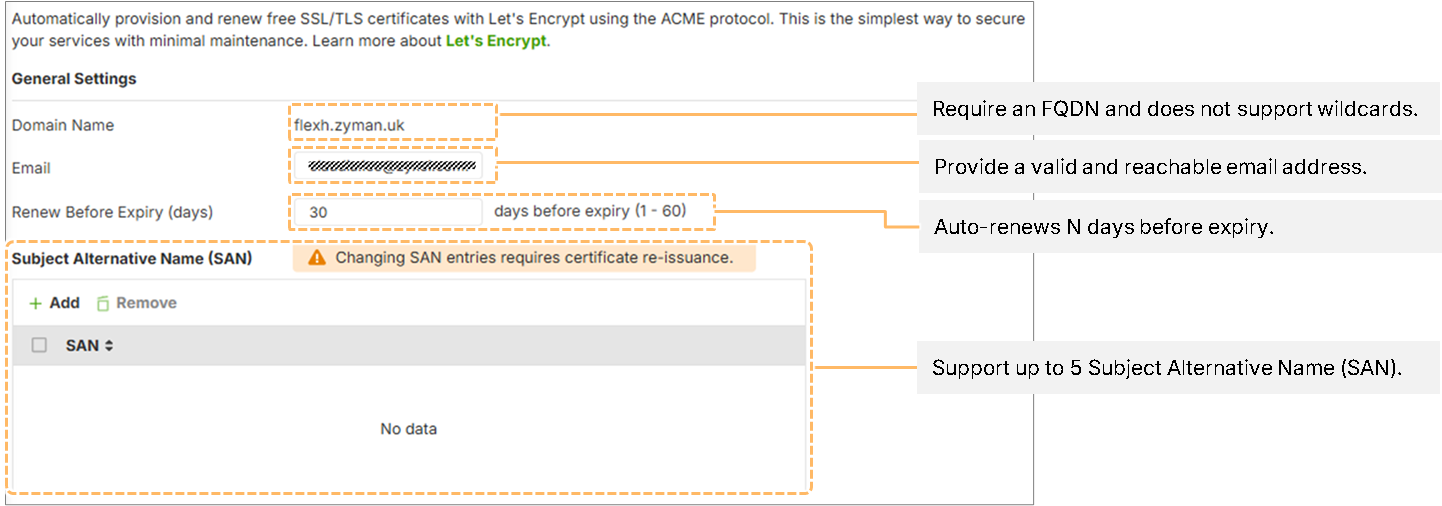
Field | Description |
|---|---|
FQDN | The domain name the certificate will be issued for, e.g. |
A valid, reachable email address | |
SAN (optional) | Add up to 5 additional domain names if one certificate needs to cover multiple domains |
Renewal lead time | Renews 30 days before expiry by default; configurable up to 60 days before expiry |
Step 3: Choose a Challenge Method and Complete Its Setup
Option A: HTTP-01 (Web-based challenge)
Best for: users without DNS management access but with a public IP that can serve port 80 (typical for personal or SOHO deployments).
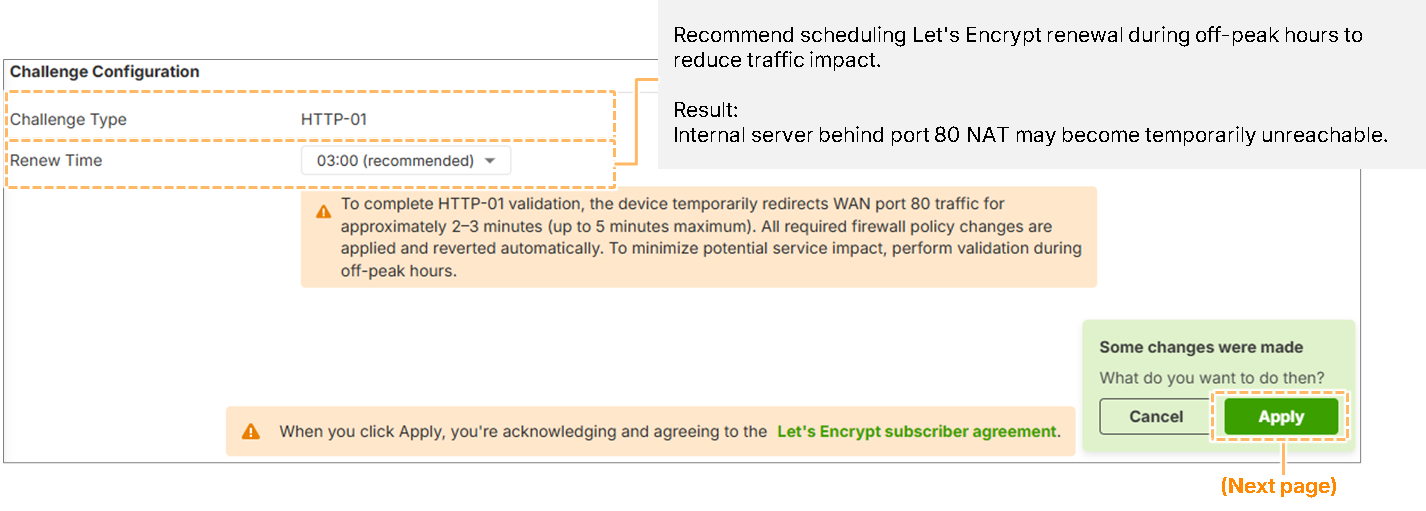
- Select HTTP-01 as the challenge method
- Confirm the firewall can expose port 80 to the public Internet so Let's Encrypt can reach the validation URL
- After applying the settings, you'll be prompted to confirm the issuance schedule — schedule it during off-peak hours, since any internal service reachable via port 80 NAT may become temporarily unreachable during validation
-
-
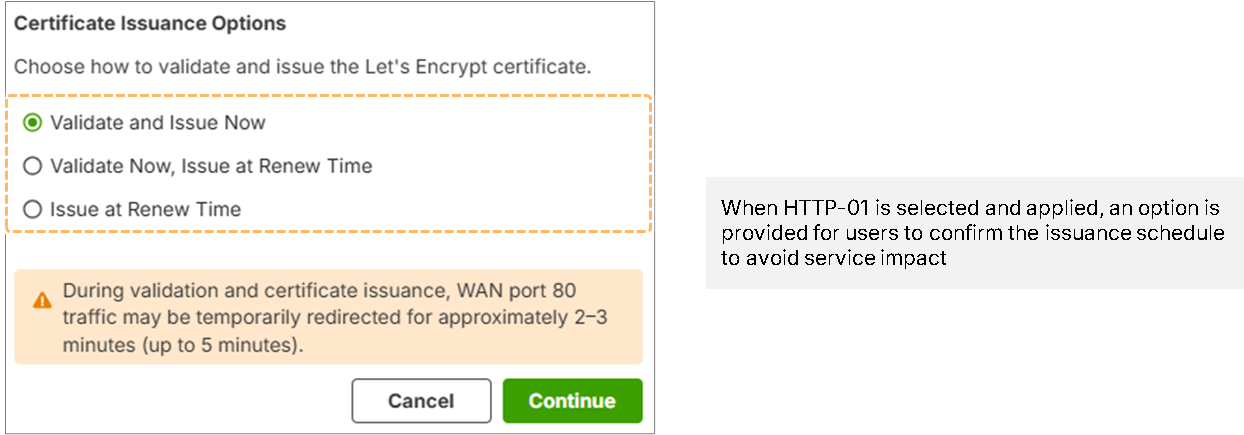
- Once validation completes, the challenge file is deleted and port 80 is closed automatically
Option B: DNS-01 (DNS-based challenge)
Best for: domains managed on Cloudflare DNS (typical for business deployments), and doesn't require a public IP.
- Select DNS-01 as the challenge method
-
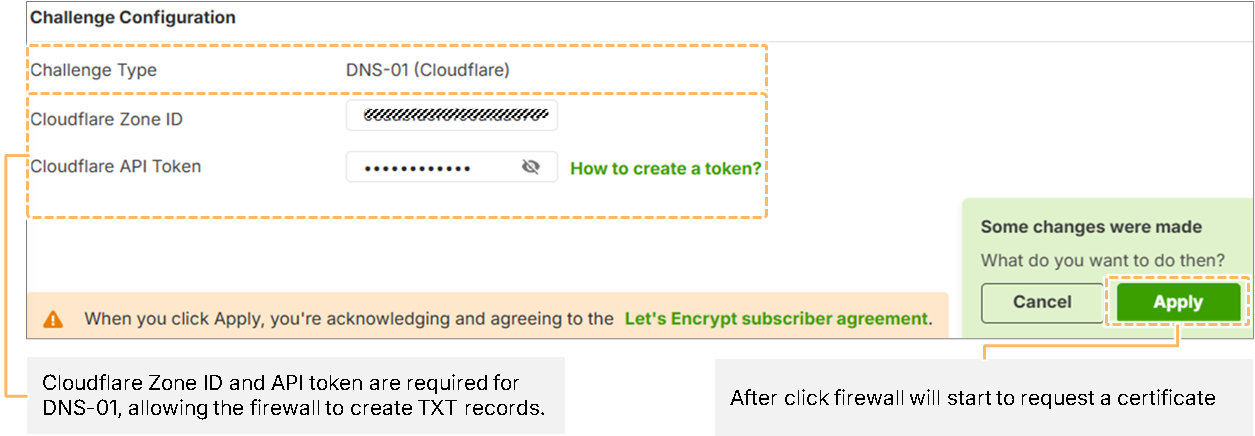 Enter your Cloudflare Zone ID and API Token
 - On submission, the firewall automatically creates a TXT record (
_acme-challenge.<your FQDN>) for Let's Encrypt to query - The TXT record is automatically removed once validation completes
Use this table to decide which method fits your situation:
Customer Segment | Domain Control | Public IP | Recommended Challenge |
|---|---|---|---|
Personal / SOHO | No | Yes | HTTP-01 |
Personal / SOHO | No | No | Validation not possible |
Business (Cloudflare-managed DNS) | Yes | Not required | DNS-01 |
Business (self-managed / third-party DNS) | Yes | Yes | HTTP-01 |
Business (self-managed / third-party DNS) | Yes | No | Validation not possible |
Result:
Once finished, you will see the profile's status in Let's Encrypt Certificate tab:

Status | Definition |
|---|---|
Issuing | Certificate request is in progress and being processed. |
Valid | Certificate has been successfully issue. |
Failed | Certificate issuance failed. |
Scheduled | Certificate issuance is scheduled and waiting to start. |
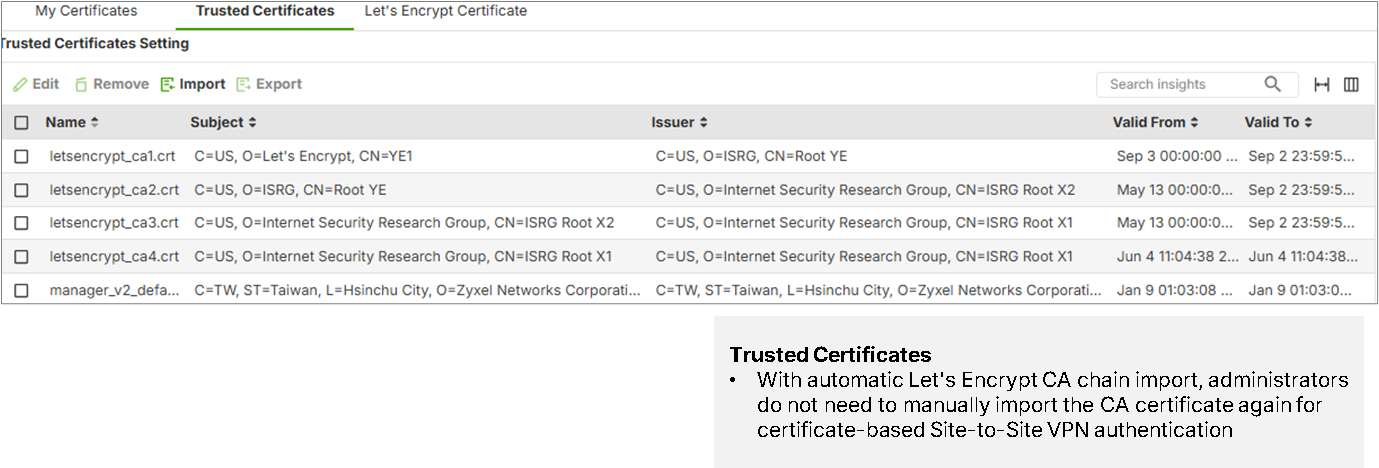
And the certificate will also been trusted in in Trusted Certificates tab. You don't need to manually import it.
Categories
- All Categories
- 442 Beta Program
- 3.1K Nebula
- 243 Nebula Ideas
- 6.8K Security
- 783 USG FLEX H Series
- 389 Security Ideas
- 1.8K Switch
- 87 Switch Ideas
- 1.5K Wireless
- 58 Wireless Ideas
- 7.2K Consumer Product
- 325 Service & License
- 527 News and Release
- 101 Security Advisories
- 31 Education Center
- 10 [Campaign] Zyxel Network Detective
- 5.3K FAQ
- 34 Documents
- 91 About Community
- 122 Security Highlight