[Circle X Nebula] New: Automate Pay As You Go Report and Invoice Delivery



 Zyxel Employee
Managing your monthly Pay As You Go reports just got easier now!
With the new Automated Report and Invoice Delivery feature, you can now have monthly PAYG reports and invoices automatically sent to specified recipients, helping reduce manual downloads and making it easier to keep the right people informed.
✅ No More Manual Downloads Every Month
Previously, PAYG users needed to visit the PAYG management page and manually download their monthly usage reports and invoices whenever they were needed. With Automated Report and Invoice Delivery, you can now set up automatic email delivery and have these documents sent directly to the recipients you specify each month. This can be especially useful when reports or invoices need to be regularly shared with colleagues responsible for purchasing, finance, billing, or PAYG management.
✅ Choose Who Receives the Reports and Invoices
You can specify the recipients who should receive the monthly PAYG documents. The recipients do not need to be limited to PAYG administrators, giving you more flexibility to send the information directly to the people who need it. Once configured, the selected recipients will automatically receive the applicable PAYG reports and invoices through email.
✅ How to Enable Automated Report Delivery
Setting it up only takes a few steps:
Step 1: Go to My Devices, click the On-Cloud tab, and turn on Pay As You Go.
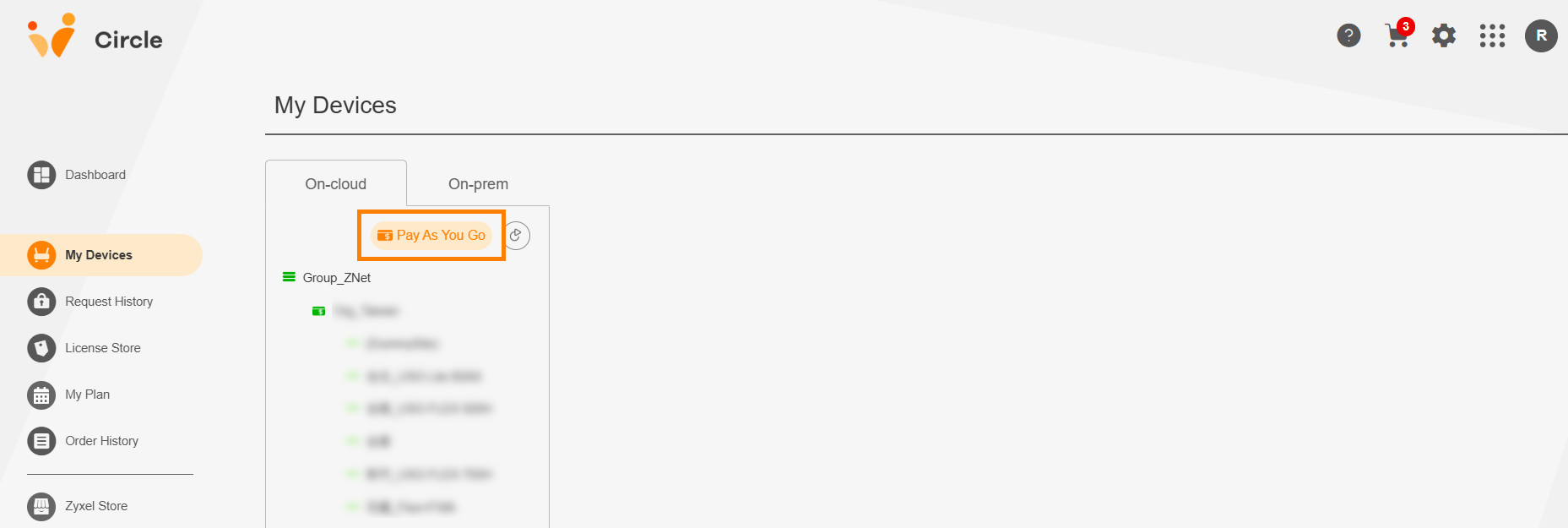
[Screenshot: My Devices > On-Cloud > Pay As You Go]
Step 2: Select the Billing & Order History tab, and edit Automated Report Delivery.
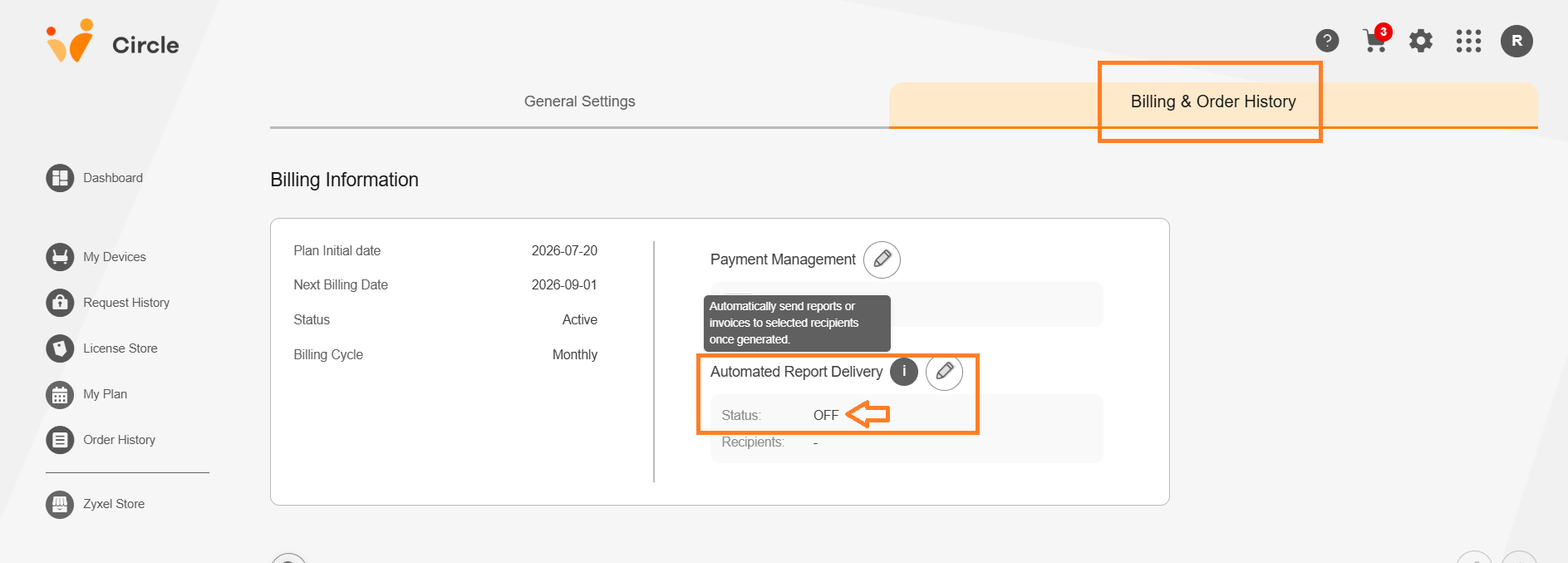
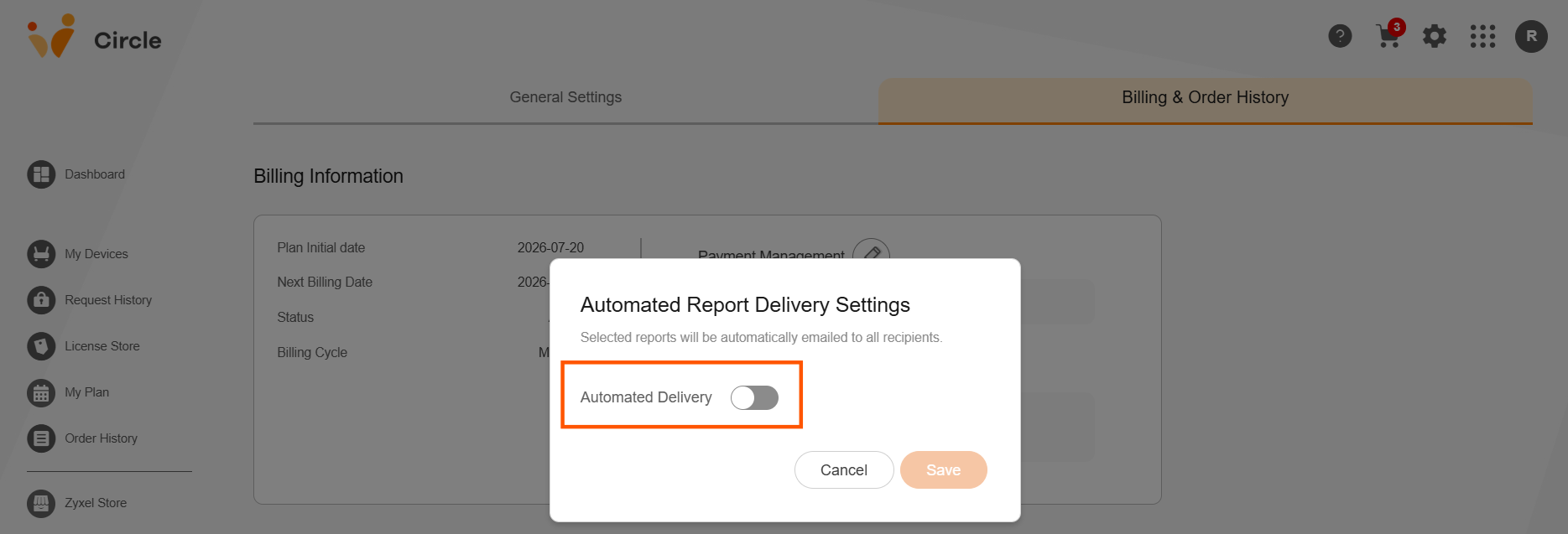
[Screenshot: Automated Report Delivery setting]
Step 3: Specify the recipients who should receive the reports and invoices, then save your settings.
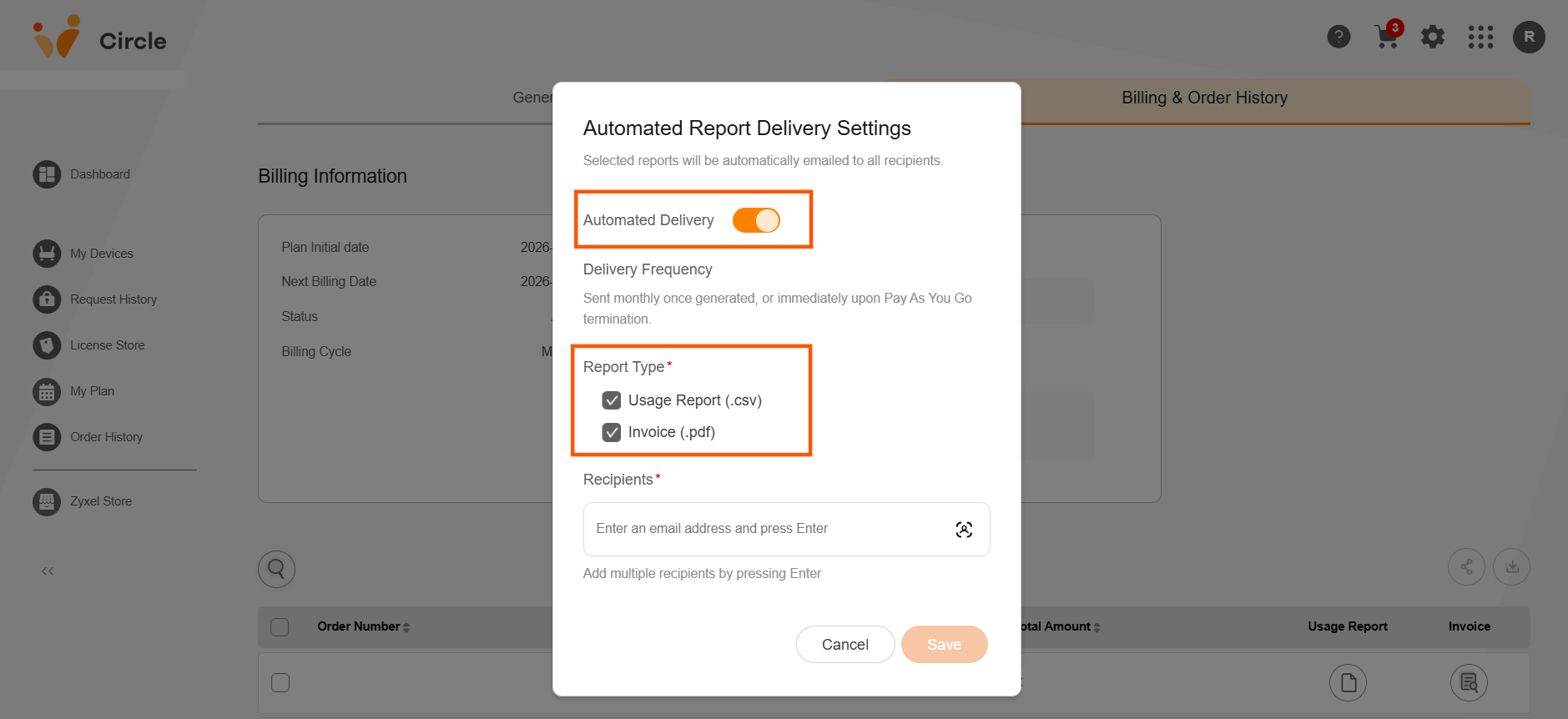
[Screenshot: Click the Report Type You Need and Enter the email of your recipients]
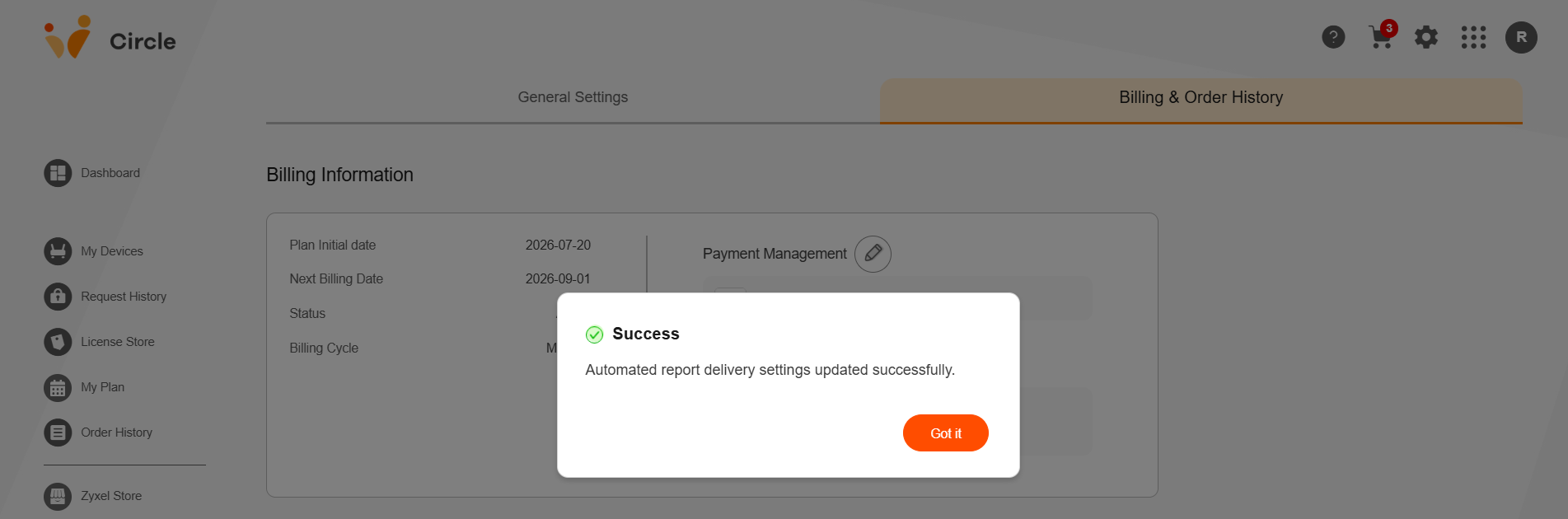
Once enabled, the documents will be delivered automatically based on your configured settings.
Need to Change or Stop the Delivery?
You can return to the Automated Report Delivery settings at any time to:
• Add or remove recipients
• Update the recipient information
• Change the delivery settings
• Turn off Automated Report Delivery
This gives you the flexibility to adjust the recipient list whenever responsibilities or business needs change.
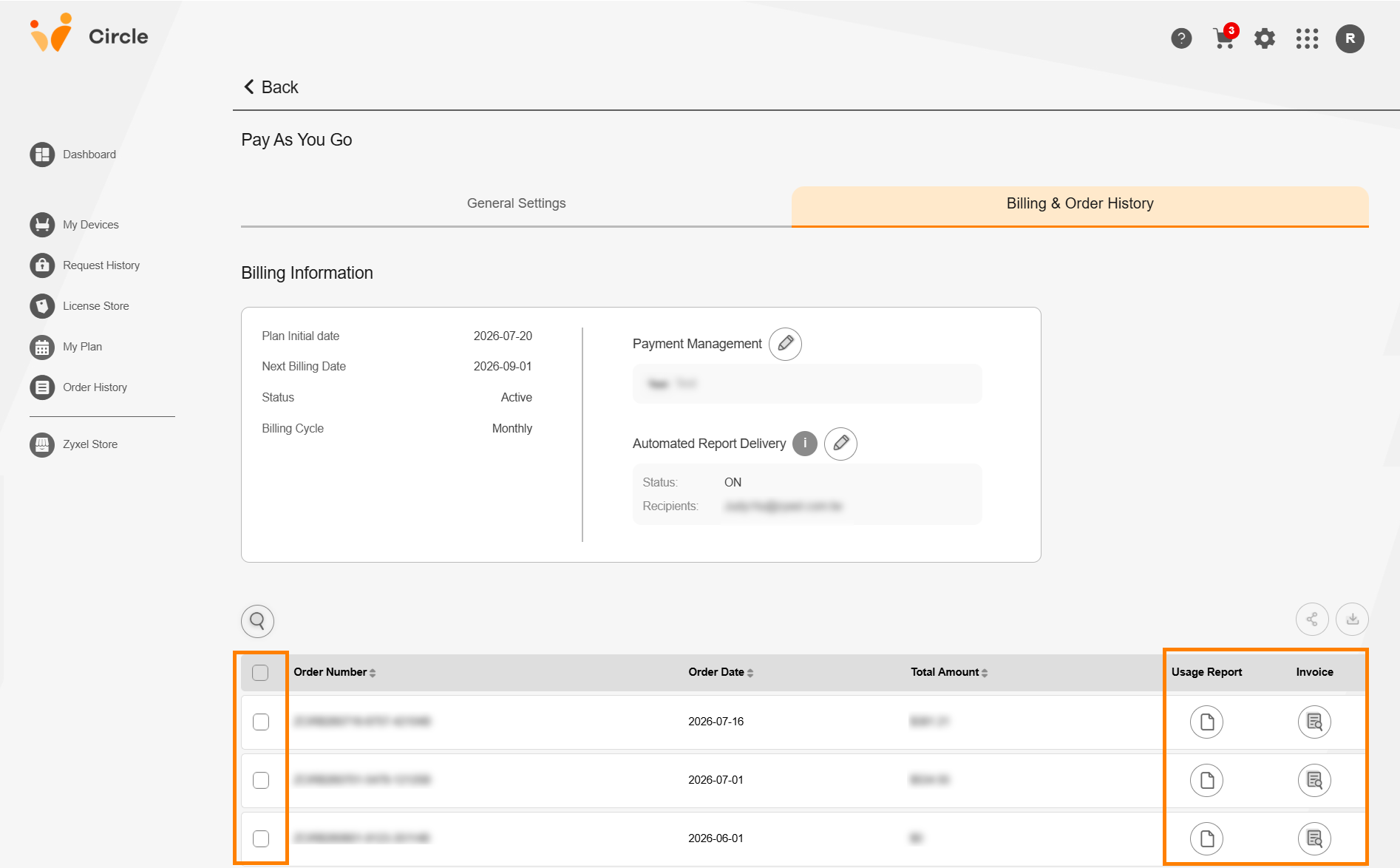
Reports and Invoices Are Still Available on the PAYG Page
Automated delivery does not replace the existing download option. Your PAYG reports and invoices will continue to be available from the PAYG management page, so you can still access and download them manually whenever needed.
You can also select specific orders and share the related reports or invoices as a one-time delivery. This gives you more flexibility when you only need to share documents for selected orders without changing your recurring delivery settings.
[Screenshot: PAYG management page> Billing & Order History> Usage Reports/Invoice Download]
A Few Things to Keep in Mind
- Make sure the recipient information is correct before enabling automated delivery.
- Update the recipient list whenever responsibilities change.
- Turning off automated delivery stops future automatic emails but does not affect documents already available on the PAYG management page.
- You can continue to manually access your reports and invoices from the PAYG management page at any time.
With Automated Report and Invoice Delivery, managing recurring PAYG documents becomes simpler, helping you reduce routine manual work while keeping the right recipients up to date.
💡 Learn more about Pay As You Go> [Link]
👉 Activate Pay As You Go in the Circle Portal> [Link]
✅ Explore common questions and resources> [FAQ] | [Datasheet]
Categories
- All Categories
- 442 Beta Program
- 3.1K Nebula
- 243 Nebula Ideas
- 6.8K Security
- 783 USG FLEX H Series
- 390 Security Ideas
- 1.8K Switch
- 88 Switch Ideas
- 1.5K Wireless
- 58 Wireless Ideas
- 7.3K Consumer Product
- 325 Service & License
- 528 News and Release
- 102 Security Advisories
- 31 Education Center
- 10 [Campaign] Zyxel Network Detective
- 5.4K FAQ
- 34 Documents
- 91 About Community
- 122 Security Highlight