How to connect to the Web GUI (Default IP: 192.168.1.1) and troubleshooting
Options

Zyxel_Luna
Posts: 113



 Zyxel Employee
Zyxel Employee
in Other Topics
To access the web management GUI of a device with the default IP 192.168.1.1, please follow these steps:
- Physical Connection: Connect your PC to the device using a Cat.5 or Cat.5e Ethernet cable.
- Subnet & IP Setup: Ensure your PC is in the same subnet (192.168.1.0/24). You can configure a static IP (e.g., 192.168.1.x/24, where x is between 2 and 254) on your PC, then run a
ping192.168.1.1 command to verify connectivity.
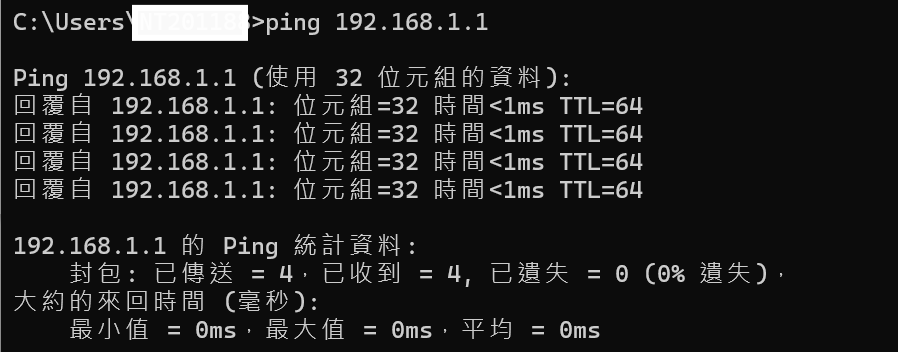
Important Notes:
- No IP Conflicts: Ensure there are no duplicate or overlapping IP addresses in the subnet. If you have other devices that also use the default IP 192.168.1.1, you can use the ZON Utility to modify their IP addresses.
- DHCP Uplink: If there is an upstream DHCP server on the uplink, the device may be assigned a different IP address.
- You can use the ZON Utility to check the current IP or configure it. For details, please refer to this FAQ:
- Nebula Cloud Management: If you intend to manage the device via Nebula, ensure the device has outbound Internet connectivity.
0
Categories
- All Categories
- 442 Beta Program
- 3.1K Nebula
- 243 Nebula Ideas
- 6.8K Security
- 783 USG FLEX H Series
- 389 Security Ideas
- 1.8K Switch
- 87 Switch Ideas
- 1.5K Wireless
- 58 Wireless Ideas
- 7.2K Consumer Product
- 325 Service & License
- 527 News and Release
- 101 Security Advisories
- 31 Education Center
- 10 [Campaign] Zyxel Network Detective
- 5.3K FAQ
- 34 Documents
- 91 About Community
- 122 Security Highlight