Why is the AP LED Blinking Green After Being Removed from Nebula?




 Zyxel Employee
Q. I would like to switch the AP from Nebula cloud management to on-premises (standalone) management, so I removed the AP from the Nebula via [Remove from organization]. However, after rebooting, the AP's LED is blinking green. Why is this happening?
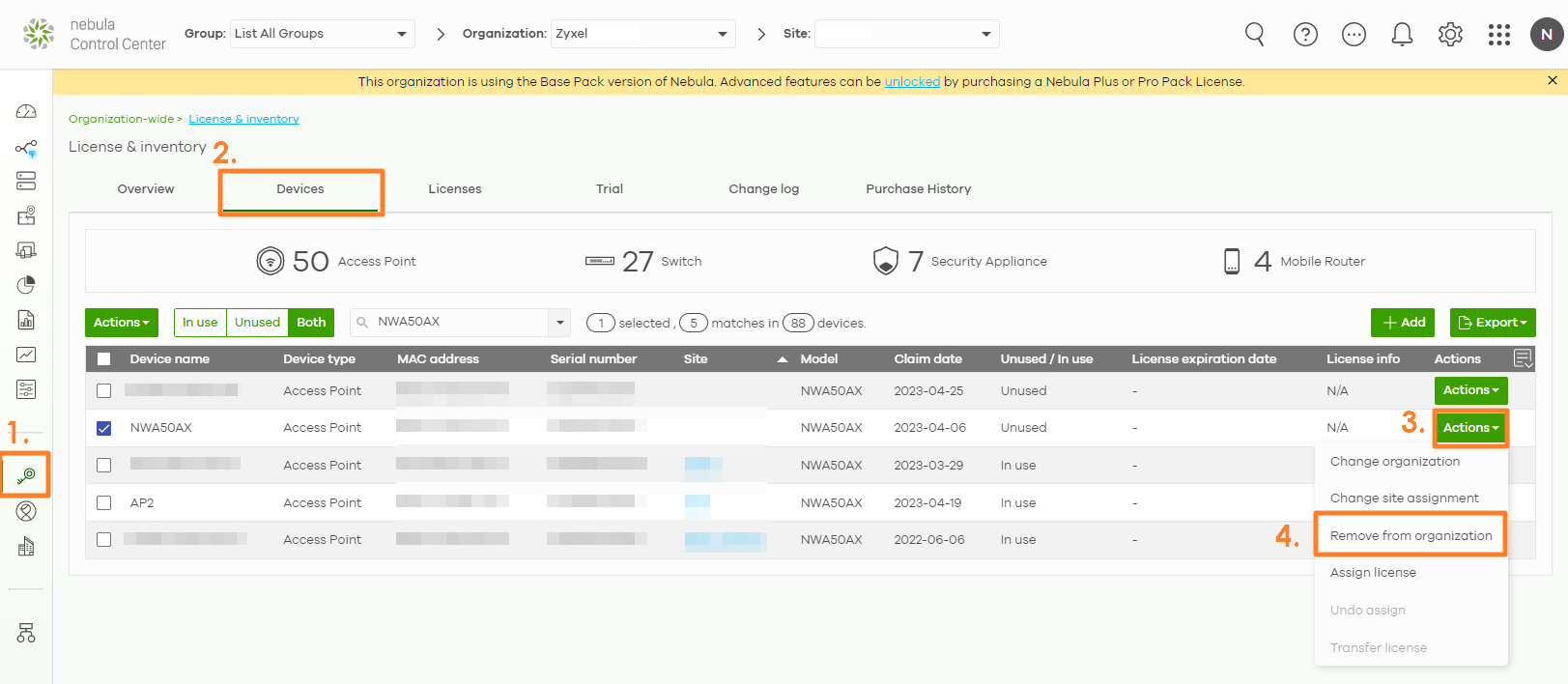
Answer:
A blinking green LED indicates one of the following three conditions:
1. The device is not registered with Nebula (Nebula Discovery is enabled by factory default; therefore, the device attempts to connect to Nebula and detects that it has not been registered).
2. The access point (AP) is using the default wireless settings (the default SSID has not been modified).
3. The wireless module of the Zyxel device is disabled or faulty.
Once the device is unregistered from the organization and site in Nebula, it will automatically revert to factory default settings. To switch to local (standalone) management and stop the LED from blinking green, please follow the steps below:
1.Log in to the local Web GUI using the following credentials:
Username: admin
Password: 1234 or the default password printed on the device label
2. After logging in, select "Standalone" mode so the device will stop attempting to connect to Nebula (Nebula Discovery will be disabled). Then, update your login password and configure your SSID settings.
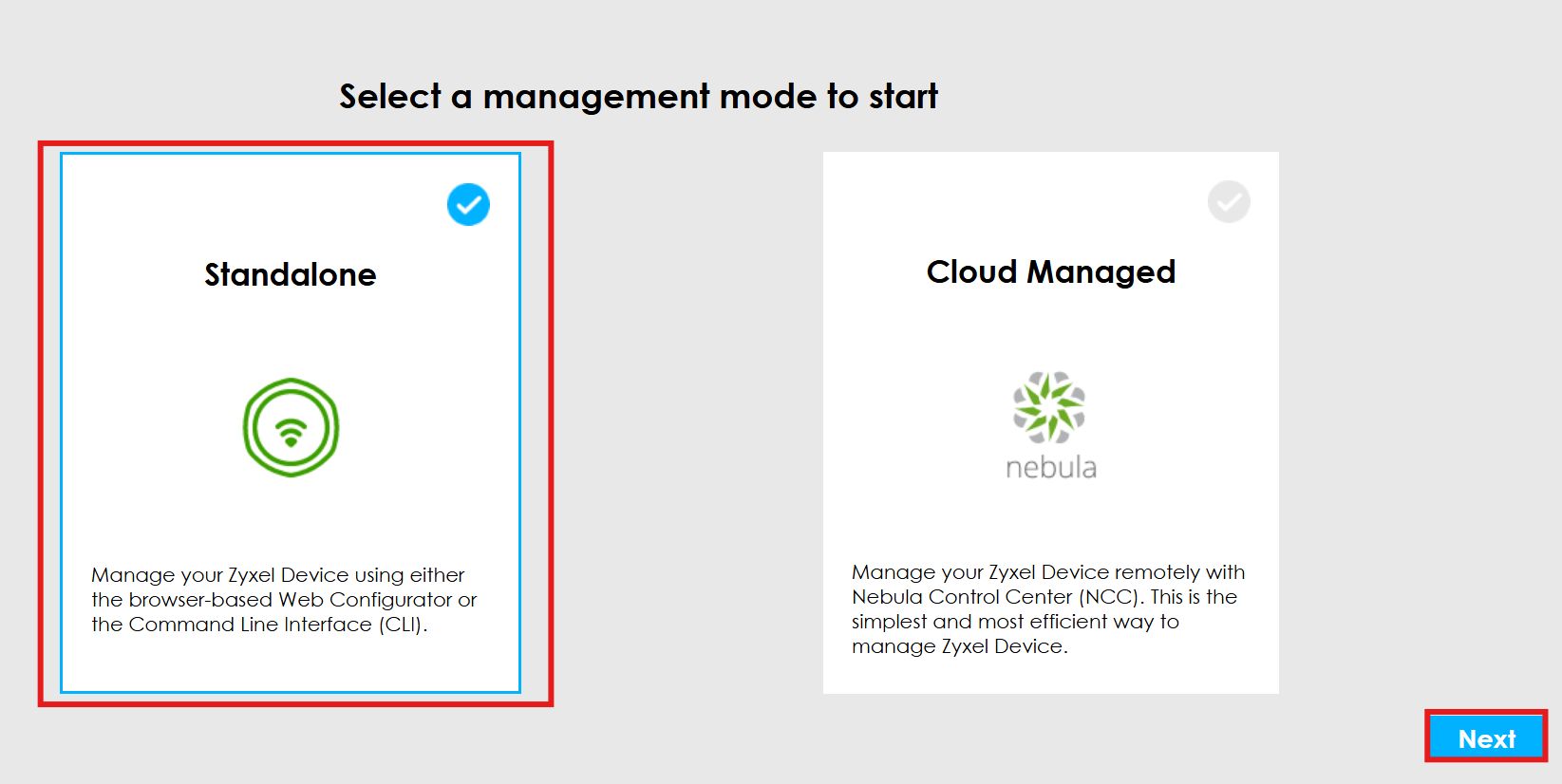
Additional Step:
If the LED indicator continues to flash green after waiting 5 minutes post-configuration, open the ZON Utility, click [NCC/AC], and verify that [Disable NCC Discovery] is checked.
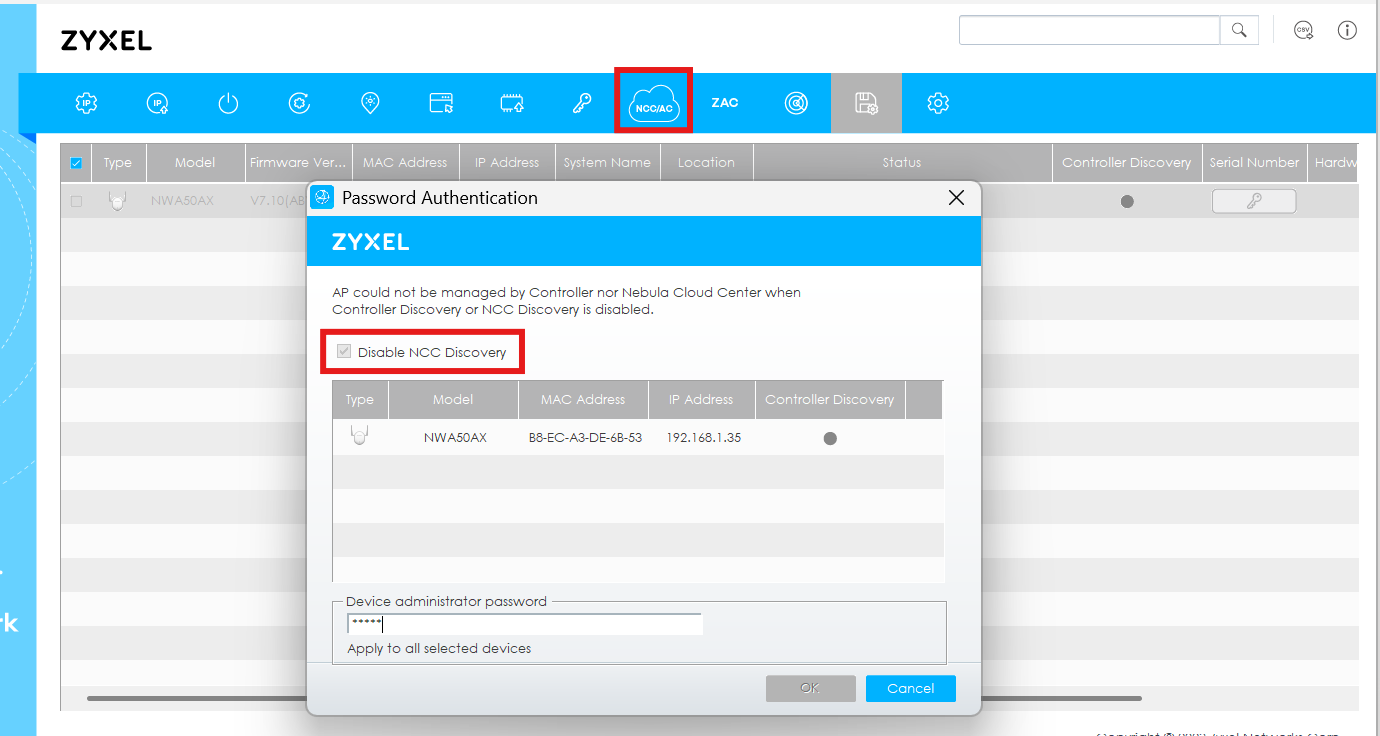
Device administrator password: Same as the local Web GUI password mentioned above.
Note for Offline Devices:
If your device is not connected to Nebula (shown as 'Offline' in Nebula) when performing Removing from organization, the device may fail to recognize that it has been unregistered and should revert to factory default settings. In this case, the login password will not revert to factory default settings. If this happens, we recommend using a pin to press and hold the device's [Reset] button for at least 10 seconds to fully reset the device back to its default state.


Categories
- All Categories
- 442 Beta Program
- 3.1K Nebula
- 243 Nebula Ideas
- 6.8K Security
- 783 USG FLEX H Series
- 389 Security Ideas
- 1.8K Switch
- 87 Switch Ideas
- 1.5K Wireless
- 58 Wireless Ideas
- 7.2K Consumer Product
- 325 Service & License
- 527 News and Release
- 101 Security Advisories
- 31 Education Center
- 10 [Campaign] Zyxel Network Detective
- 5.3K FAQ
- 34 Documents
- 91 About Community
- 122 Security Highlight