NWA55AX PTP Wireless Bridge Deployment – Mesh Troubleshooting (Standalone Mode)


 Zyxel Employee
This guide provides a step-by-step troubleshooting procedure for mesh deployment issues, including cases where a Repeater AP cannot establish a Mesh connection with the Root AP or experiences intermittent disconnections after connecting.
The troubleshooting process focuses on three main areas:
Issue1: WDS link cannot setup
- Step 1: Check the profile settings on both APs to ensure each is configured with the correct AP role and WDS details. By default, the system is designed to be plug-and-play; you only need to modify these configurations if you require a customized profile.
- Step2: check the LED on repeater
Default unbox AP LED behavior

Standalone mode AP LED behavior

- Step3: check the directional, verify AP alignment, antenna orientation, line of sight (LOS), and installation height.
Verify AP Direction
Use a smartphone application, such as Google Maps or a compass app, to identify the approximate direction between the Root AP and Repeater AP.
Align the APs according to their antenna coverage patterns, ideally with a clear line of sight.
If the Mesh connection cannot be established, gradually adjust the horizontal angle of the APs.
Observe whether the Repeater AP can detect and connect to the Root AP after each adjustment.
Verify Installation Height and Fresnel Zone Clearance
For outdoor Mesh deployments, both APs should preferably be installed at suitable heights with a clear wireless propagation path.
Install both APs at approximately the same ground-relative height when terrain conditions permit.
Ensure sufficient clearance from buildings, trees, walls, and other obstacles.
Keep the first Fresnel zone as clear as possible, ideally with at least 60% clearance.
If the APs are installed at different elevations, adjust the vertical tilt to align their antenna coverage.
Make small vertical adjustments and verify the connection after each change.
- Step4: check the logs, Root AP's event logs determine whether the Repeater AP has attempted to establish a Mesh connection.
(Scenario A) Connection Attempts Detected, but Mesh Cannot Be Established
Station: 32:05:77:20:f9:0e blocked by key handshake fail on Channel: 36, SSID: Zyxel_WDS_B770, 5GHz, Signal: -24dBm, Download/Upload: 1KB/0Bytes, reason 15, Interface: wds-2-9
Station: 32:05:77:20:f9:0e deauthenticated by key handshake fail
(Scenario B) Mesh Connection Established, but Intermittent Disconnections Occur
Station: 32:05:77:20:f9:0e connected on Channel: 36, SSID: Zyxel_WDS_B770, 5GHz, Signal: -44dBm, Interface: wds-2-9
Station: 32:05:77:20:f9:0e disconnected by STA reconnect on Channel: 36, SSID: Zyxel_WDS_B770, 5GHz, Signal: -44dBm, Download/Upload: 263KB/1.67MB, reason 108, Interface: wds-2-9
Possible causes may be weak or fluctuating RSSI, high channel utilization or wireless interference, poor alignment or obstacles between APs.
Issue2: WDS link rate / RSSI low
- Step1: check channel health by execute CLI after ssh into the root and repeater, then select the channels with less interference to establish mesh.
By performing the DCS Now on Root AP GUI could achieve the same objective.
Router> _debug wireless_dbg scan_agent_cli scan 2G 50
Router> _debug wireless_dbg scan_agent_cli scan 5G 50
(wait 3-5 mins)
Router> _debug wireless_dbg scan_agent_cli print_scanresult
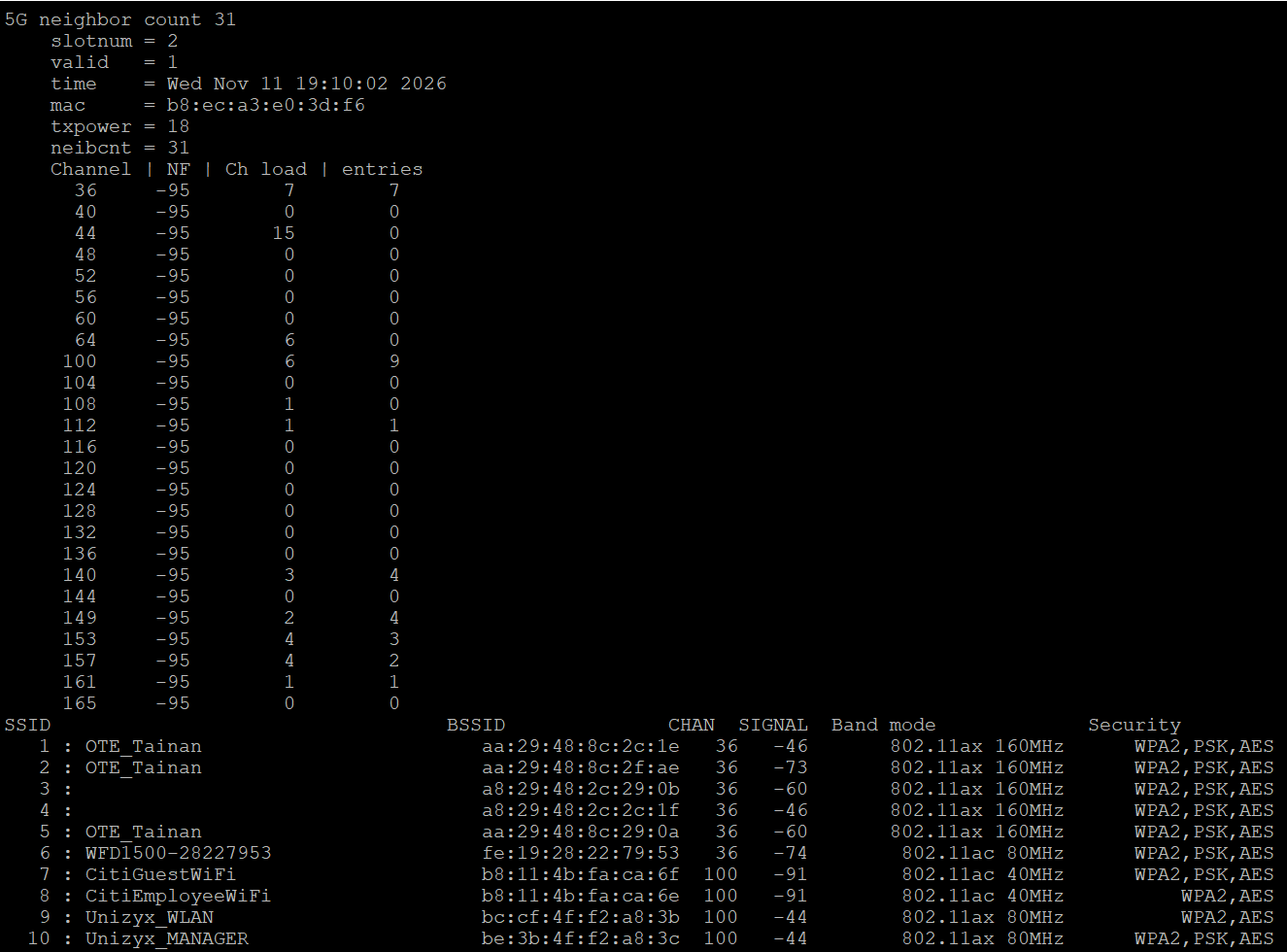
Note: To ensure these commands execute successfully and return meaningful results, the first SSID on both the 2.4 GHz and 5 GHz radios must be enabled, as the AP uses these interfaces to scan the surrounding wireless environment.
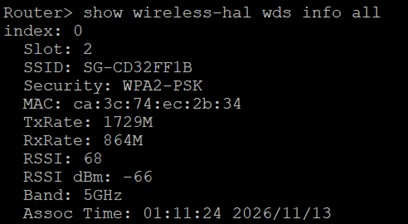
- Step2: adjust the directional (same as above steps), execute CLI to check real time connection link rate:
Router> show wireless-hal wds info all
Issue3: Throughput is bad
- Step1: check channel health (same as above steps) by execute CLI after ssh into the root and repeater, then select the channels with less interference to establish mesh.
By performing the DCS Now on Root AP GUI could achieve the same objective.
- Step2: adjust the channel width (e.g., from 160 MHz to 80 MHz or 40 MHz) to determine whether a narrower bandwidth improves throughput and stability.
Note: In a mesh enabled network, an AP may broadcast a MESH SSID (ZyMesh_AP_A0:A0:A0:A0:A0) when it enters repeater mode and it loses connection with root AP.
The MESH SSID is designed for troubleshooting mesh deployment failures, on-site support agent can connect the SSID and login AP’s local GUI to collect diagnostic for further checking.


Categories
- All Categories
- 442 Beta Program
- 3.1K Nebula
- 244 Nebula Ideas
- 6.9K Security
- 805 USG FLEX H Series
- 392 Security Ideas
- 1.8K Switch
- 88 Switch Ideas
- 1.5K Wireless
- 60 Wireless Ideas
- 7.3K Consumer Product
- 333 Service & License
- 540 News and Release
- 106 Security Advisories
- 31 Education Center
- 10 [Campaign] Zyxel Network Detective
- 5.5K FAQ
- 34 Documents
- 89 About Community
- 124 Security Highlight