NWA50AX remove from Nebula


 Freshman Member
Hi guys,
when trying to set up an WiFi access point NWA50AX I discovered that the device already was connected to Nebula. So I followed tips in this community, basically I registered my own Nebula account and added the device. I got the message that the current association for the device would be replaced with my own. Thereafter the device booted up and the WiFi worked.
And now to the tricky part. As I do not need Nebula I want to remove everything about it and manage the device locally. So I followed the guide in the below link, the result was not as expected because after "Removing from organisation", the AP rebooted but started looking for Nebula but failed (green slow blink). As I understand this procedure should have reverted the device back to factory setting, but it still was looking for Nebula.
I have also tested the ZON utility to disable Disable Nebula Discovery, but that fails due wrong Device Administrator Password. So where is this password? Is it the same password as logging in to Nebula? Or the WiFi password?
https://community.zyxel.com/en/discussion/17872/how-to-remove-your-device-from-nebula-and-administer-it-locally
We'll I'm pretty lost. This Nebula "thing" raises many security concerns.
TIA
All Replies
-
Hi @My_UserName123 ,
Thank you for providing detailed information and sharing the steps you've already tried.
A blinking green LED indicates one of the following three conditions:
1. The device is not registered with Nebula (Nebula Discovery is enabled by factory default; therefore, the device attempts to connect to Nebula and detects that it has not been registered).2. The access point (AP) is using the default wireless settings (the default SSID has not been modified).
3. The wireless module of the Zyxel device is disabled or faulty.
Please try logging in to the local Web GUI at https://{IP address} using the following credentials:
Username: admin
Password: 1234 or the default password printed on the device label
After logging in, select "Standalone" mode, then change the password and SSID settings.
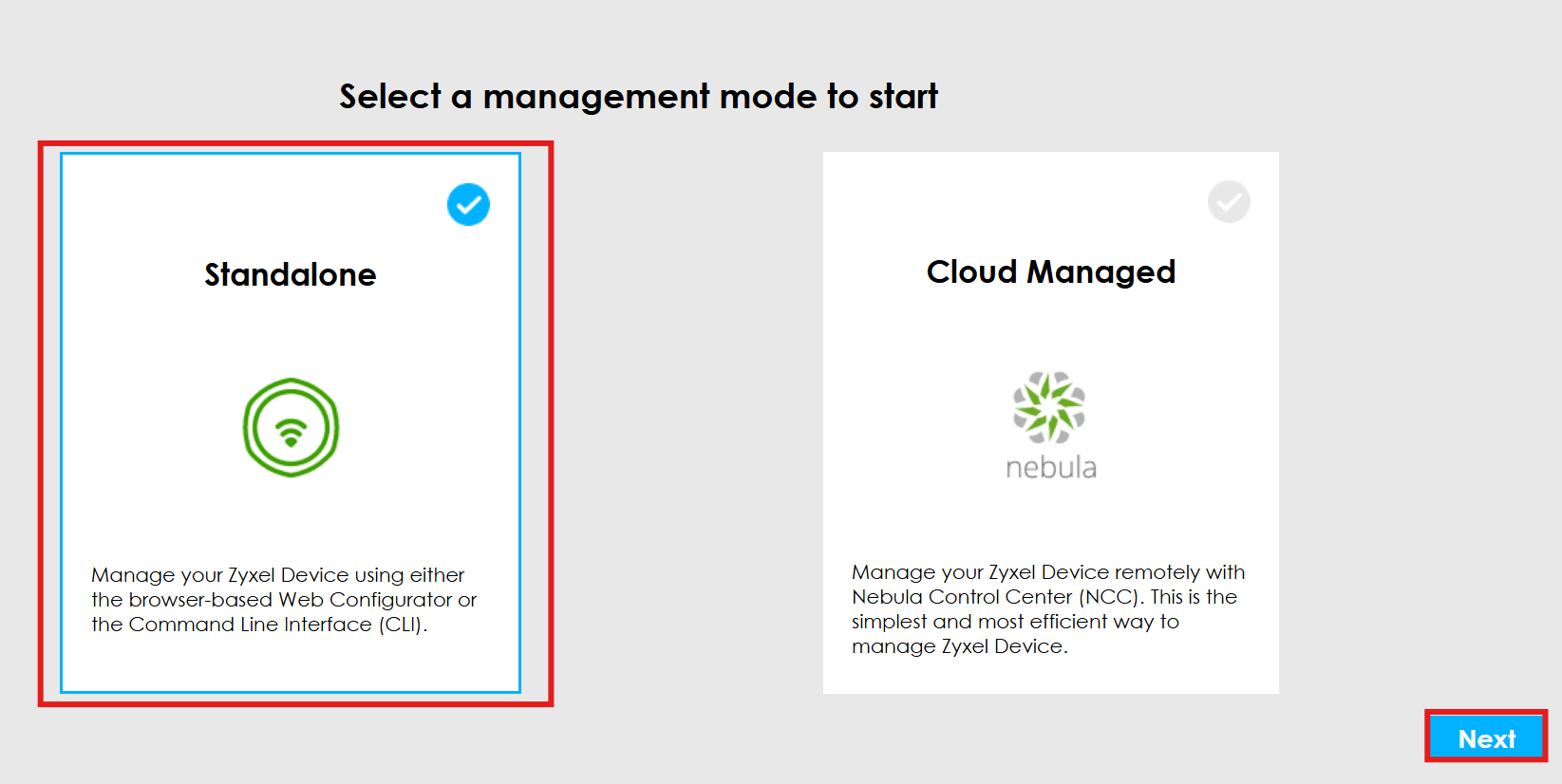
In addition to continuously searching for the Nebula cloud due to standalone mode not being selected, the LED indicator will still blink green if the default password (1234) remains unchanged or the SSID is still set to factory defaults. Therefore, please ensure that both the administrator password and SSID have been updated.
If the LED is still slowly blinking green after completing the settings and waiting for 5 minutes, please go to ZON, click on [NCC/AC], and verify whether [Disable NCC Discovery] is checked.
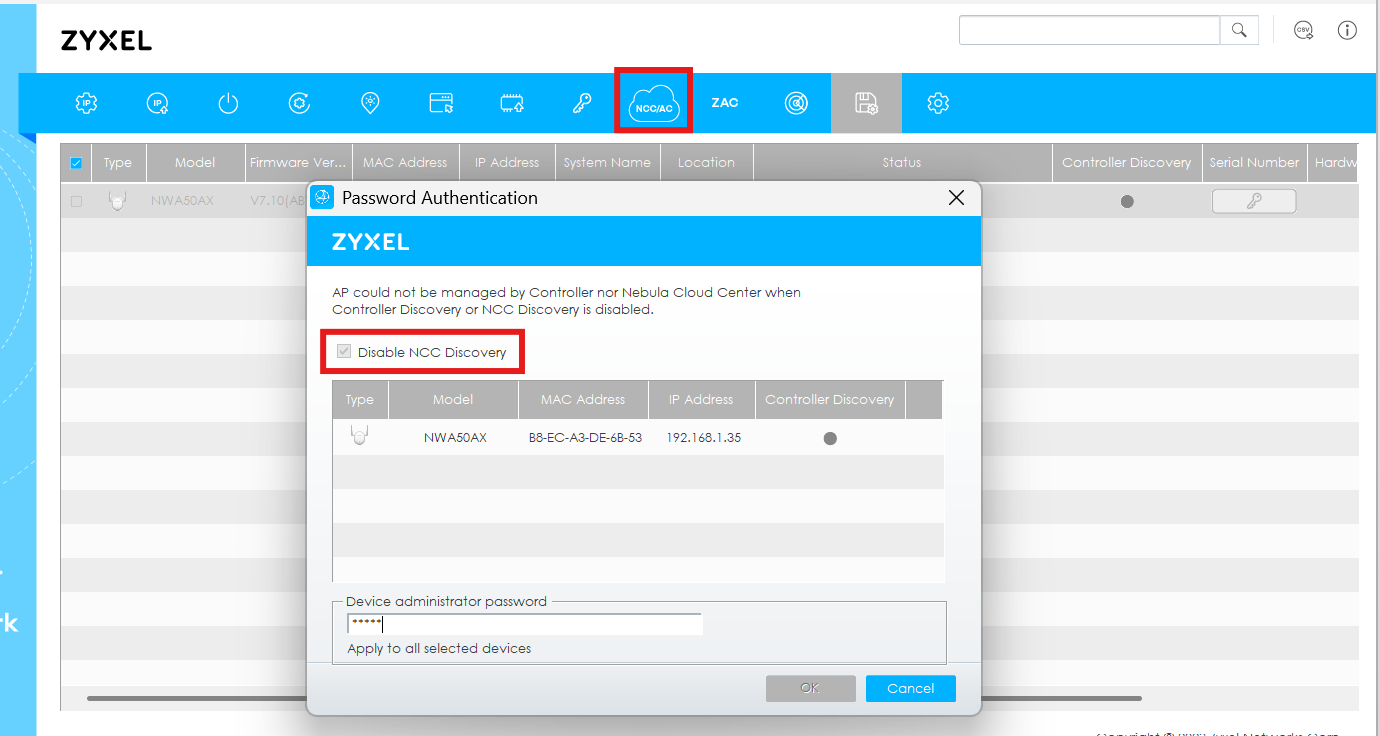
Device dministrator password: Same as the Web GUI password above.
Thank you for choosing Zyxel products and services. Please let us know the results once you have completed the test. If you have any questions, please feel free to contact us with the detailed steps of your previous operation so we can assist you further.
0



 Zyxel Employee
Categories
- All Categories
- 442 Beta Program
- 3.1K Nebula
- 243 Nebula Ideas
- 6.8K Security
- 783 USG FLEX H Series
- 389 Security Ideas
- 1.8K Switch
- 87 Switch Ideas
- 1.5K Wireless
- 58 Wireless Ideas
- 7.2K Consumer Product
- 325 Service & License
- 527 News and Release
- 101 Security Advisories
- 31 Education Center
- 10 [Campaign] Zyxel Network Detective
- 5.3K FAQ
- 34 Documents
- 91 About Community
- 122 Security Highlight