Zyxel USG Flex 200H vs Huawei HG8121H



 Freshman Member
All Replies
-
Some ISP lock you to a single MAC thats detected for most ISP a simple power off of the ISP gear for some minutes that allow locking to a new MAC.
or just copy the WAN MAC of the NSG200 to FLEX H
0 -
Hi @AdminSys,
Based on your description, the Flex 200H’s WAN port stays inactive while the old NSG200 works with the same Huawei HG8121H. This is typically caused by MAC address binding on the ISP side rather than a device incompatibility. Please try the following steps:
1. Check for ISP MAC binding (most likely cause)
Some ISPs authorize Internet access based on the MAC address of the first device connected to the line. In this case, the HG8121H may still be bound to the old NSG200’s WAN MAC address and will not accept the Flex 200H.
- Option A – Clone the NSG200’s WAN MAC address onto the Flex 200H
- Note the WAN MAC address of the old NSG200.
- On the Flex 200H, go to Network > Interface > Interface and edit the WAN interface.
- In the MAC Address section, select Overwrite Default MAC Address and enter the NSG200’s WAN MAC address.
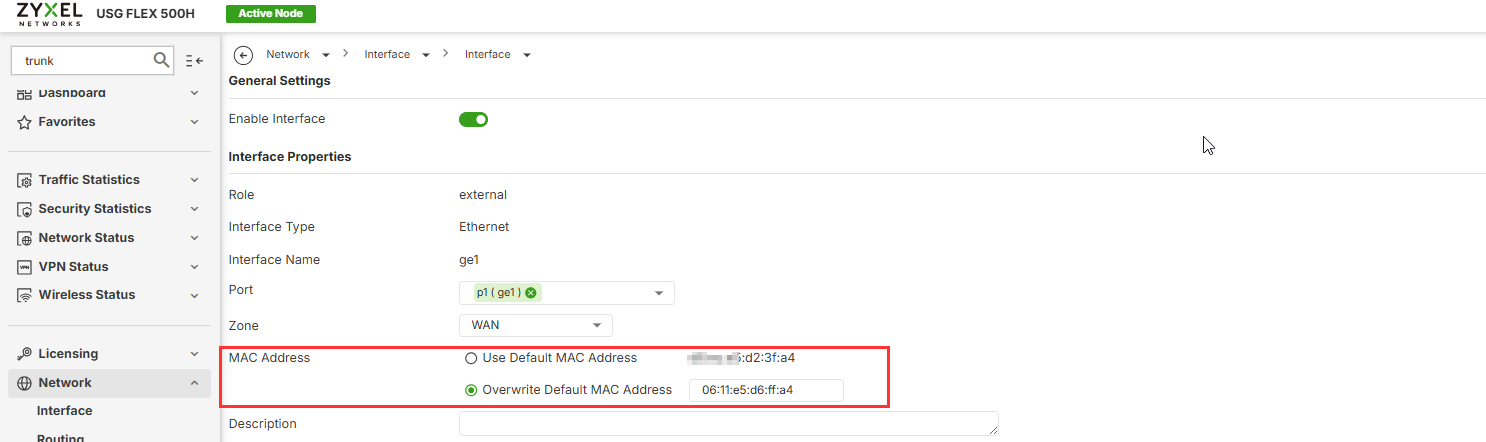
- Click Apply to save the configuration.
- Option B – Reboot the Huawei HG8121H
Power off the HG8121H for a few minutes, then power it back on so it can learn the new device’s MAC address. (Some ISPs allow this, while others do not.)
2. Manually set the WAN port speed
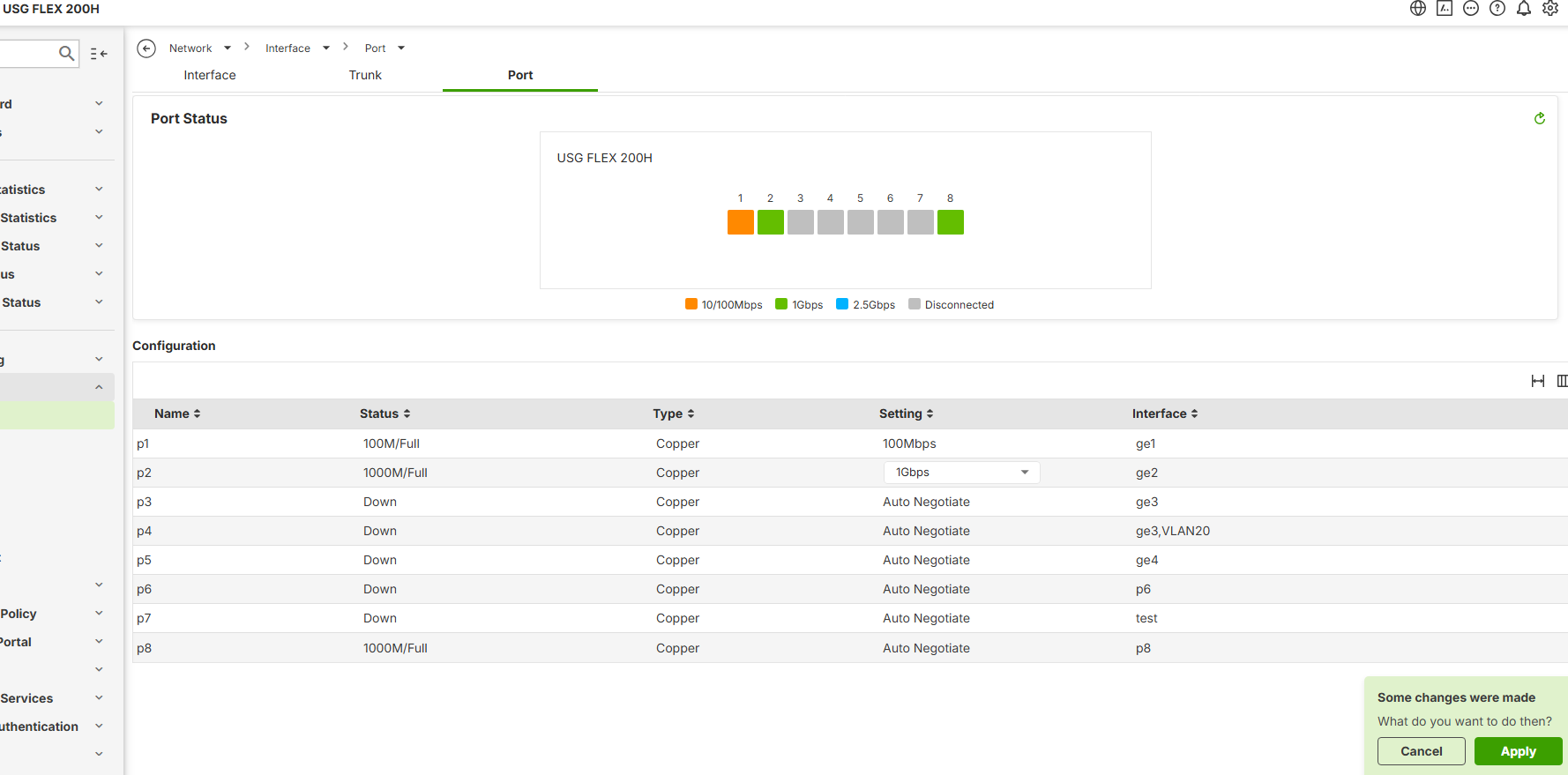
In some cases, auto-negotiation difficulties may occur between the modem and the firewall. On USG FLEX 200H, navigate to Network > Interface > Port and change the port speed to a fixed 1 Gbps instead of leaving it set to Auto Negotiate.
3. Perform a hardware cross-check
To rule out a physical issue with the port:
- Replace the Ethernet cable with a different, known-working cable.
- Connect the Flex 200H’s WAN port to another working device (such as a local switch or a PC) and check whether the port LED lights up.
If the issue persists after performing the above instructions, we recommend contacting your ISP for further investigation.
Zyxel Tina
0 - Option A – Clone the NSG200’s WAN MAC address onto the Flex 200H



 Guru Member

 Zyxel Employee
Categories
- All Categories
- 442 Beta Program
- 3.1K Nebula
- 243 Nebula Ideas
- 6.8K Security
- 783 USG FLEX H Series
- 389 Security Ideas
- 1.8K Switch
- 87 Switch Ideas
- 1.5K Wireless
- 58 Wireless Ideas
- 7.2K Consumer Product
- 325 Service & License
- 527 News and Release
- 101 Security Advisories
- 31 Education Center
- 10 [Campaign] Zyxel Network Detective
- 5.3K FAQ
- 34 Documents
- 91 About Community
- 122 Security Highlight