[What's New] Passwordless, Secure Access - Zyxel Account Now Supports Passkeys

 Zyxel Employee
A Passwordless Future
For decades, we’ve relied on passwords—a string of characters that’s either too simple to be secure or too complex to remember. It’s a game of endless resets, sticky notes, and the constant fear of a data breach.
But what if you could just… stop?
At Zyxel, we understand that strong security is the foundation of a connected world. The weakest link in that foundation has always been the password. That's why we’re proud to bring you Passkeys, a revolutionary step toward simplifying sign-ins and making the internet safer. This isn't just a new feature—it's the future of authentication, and we’re making it available NOW for your Zyxel Account.
What is a Passkey?
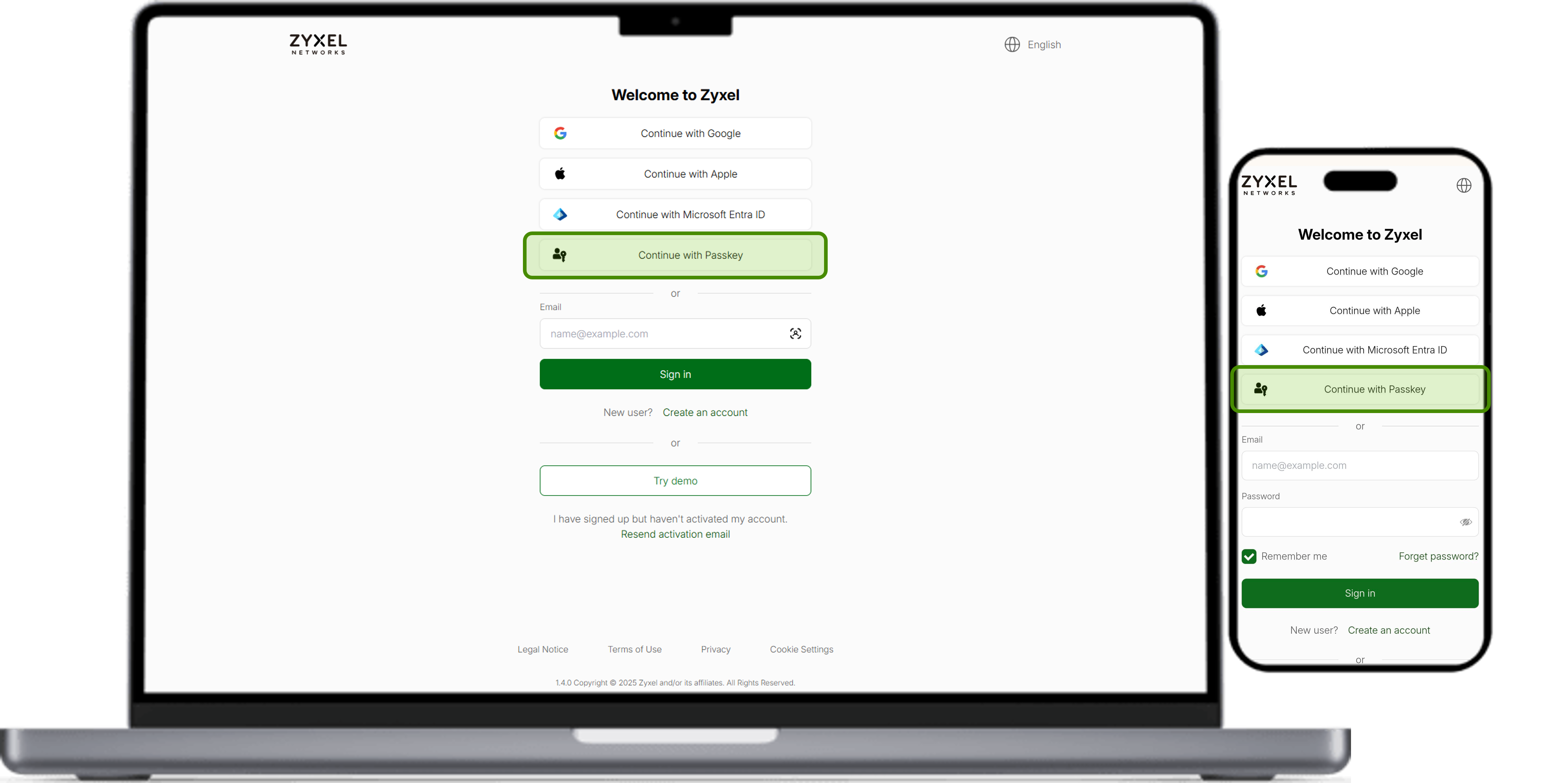
Passkeys are an easier, more secure alternative to passwords. They let you sign in to your Zyxel Account with just your fingerprint, face scan, or screen lock, providing a faster, easier, and more secure way to access Zyxel services.
This allows all users to securely log in to their Zyxel Account, regardless of whether they originally signed up via email, Google, Apple, or Microsoft Entra ID. In addition, Passkeys enable one-tap sign-in, bypassing the interfaces of other service providers.
If you enable cloud sync, your Passkeys will be securely backed up and synced across all your devices, meaning even if you switch or lose a device, you won't lose access to your account.
Why activate a passkey?
We believe that the best security is the kind you don't even have to think about. Passkeys deliver an experience that’s not just safer, but also faster and more convenient.
- Simplicity by Design
Log in with a single tap, a face scan, or a fingerprint—the same way you unlock your phone. You don't need to be remembered or typed. - Secure by Design
Passkeys provide the strongest protection against threats like phishing. Because they’re stored on your local device, they cannot be guessed or reused, which keeps your information secure from attackers. - Private by Design:
Your passkey stays private on your personal device and is never shared with Zyxel or any other third-party partners.
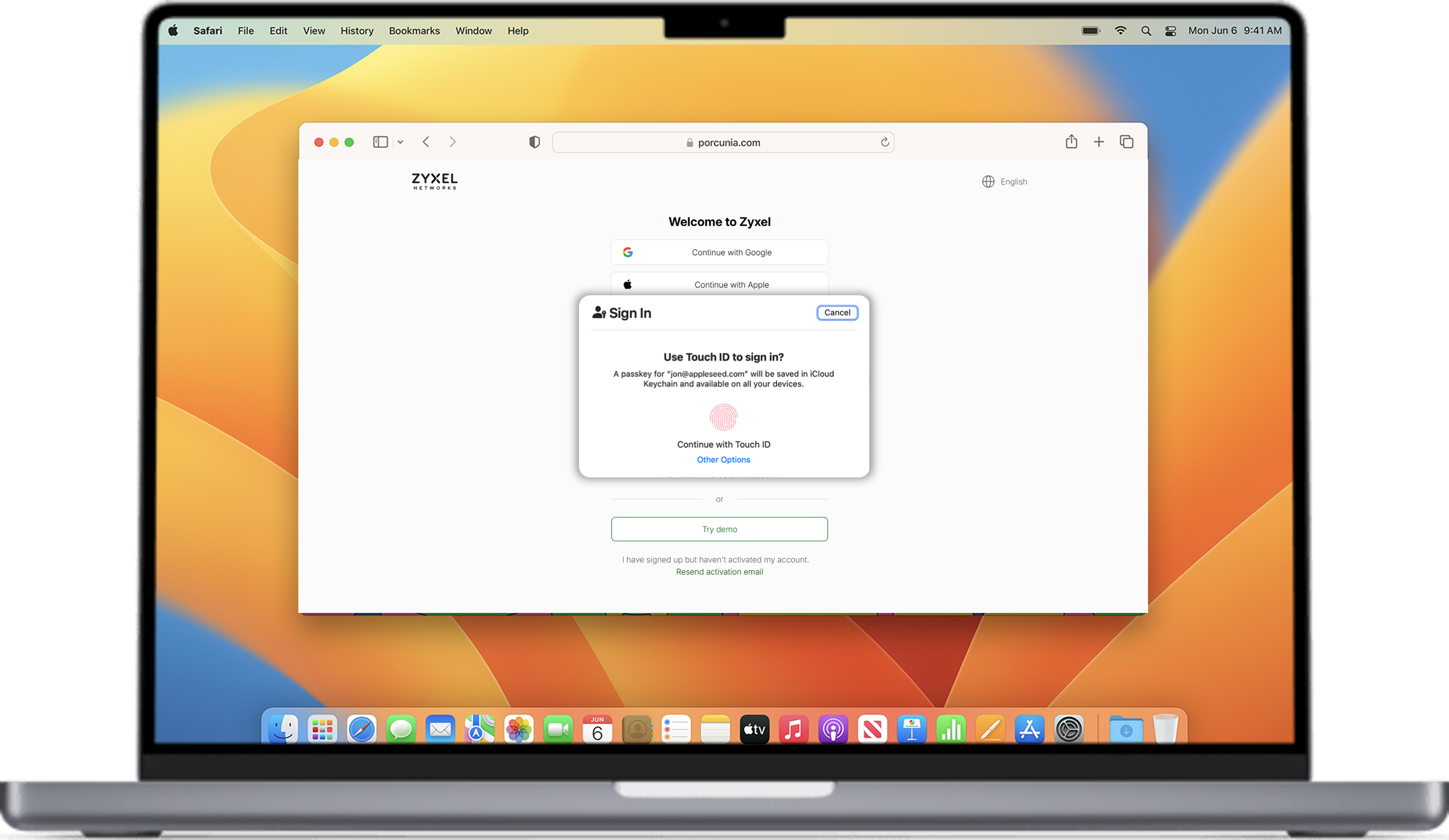
Ready to take control of your digital security? Set up your Passkey today and experience the next generation of authentication.
Comments
-
I just tried the 'passkeys'.
Passkeys are a terrible piece of @#@#°#°§ unstudied stuff, and their implementation is never straightforward or stable or nice. Each and every one makes whatever they think is proper implementation. And anyhow: one ends up again having to type a PIN before each and every connection, so… duh.
- I used chrome browser, on a Win11 with local Hello PIN and TPM enabled, no clouds sync. All Windoze and apps are up to date.
2. Log in to Zyxel username+pwd+MFA
3. Create passkeys, all works fine. Tried it a few times, all good. If you want to use it from another browser, that specific 'passkeys' does not work nor it is asked for- Brave, Firefox, …
4. Now, back to Chrome.
Even if it only a reference, with all the security holes lately in Chrome, one does not want to have any entries in the browser cache. See for yourselves after you set up in:
chrome://settings/passkeys
As soon as that entry in Chrome gets deleted, the entire passkeys functionality is gone. And currently, cannot be fetched back because your Authn dialogue does not even suggest that as an alternative. After deletion of the passkeys entry in Chrome, only this is displayed as options:
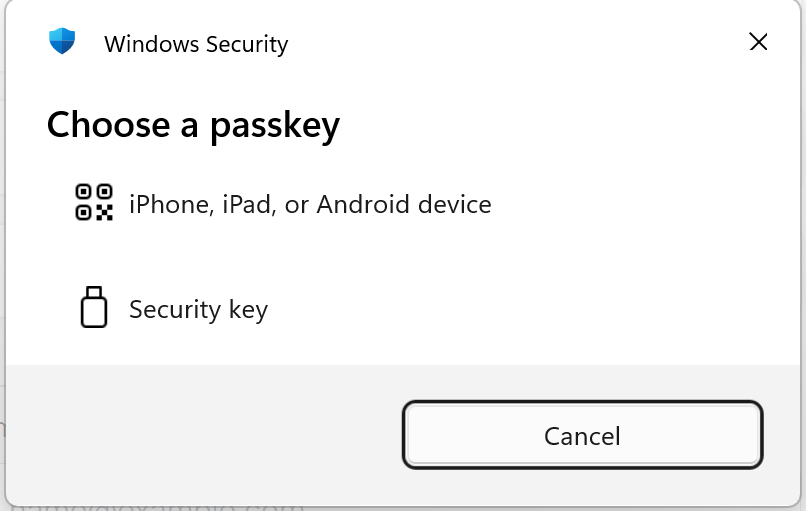
Basically, that passkeys is rendered useless because from your side there is no query for such- if there is no according browser entry.
TPM has securely stored the passkeys locally, but the menu asks only for passkeys from an USB key or from a mobile device, because there is no reference in the current browser and it expects one…. it never goes back to ask/check if there is anything stored in the local WIndoze TPM.
I assume that in your setup, one needs to make a passkeys entry PER each browser used.
Better stay with username+password+MFA…. Other than you have a solution implemented for this flaw.
Meh.
0 -
Hello @Zyxel_USG_User,
Thank you for your detailed feedback. We understand your frustration, and based on the scenario you described, we can pinpoint exactly why the authentication failed after deleting the browser entry.
The issue stems from where the Passkey was actually stored during the creation process.
The Root Cause:
When you see a passkey listed in chrome://settings/passkeys, it indicates that the passkey was stored in Google Password Manager (GPM), not in the local Windows Hello TPM hardware.
Although Chrome asks for your Windows PIN to authorize the use of a GPM passkey (which can be confusing), the key itself resides in Chrome's storage/Google Cloud, not in your computer's TPM chip.
Therefore, when you deleted the entry from Chrome settings, you deleted the actual passkey, not just a browser cache or reference. Since the key was never stored in the TPM, Windows Hello cannot find it, and authentication is no longer possible.
How to achieve what you want (Storing in TPM):
If you wish to store the passkey securely in your local TPM (so it remains valid even if you clear browser data), please follow these steps when registering a new passkey:
1. Initiate the passkey registration on our site.
2. When the browser pop-up appears, do not immediately click "Continue" if it shows a Google/Chrome icon.
3. Look for an option labeled "Save another way" or "Windows Hello".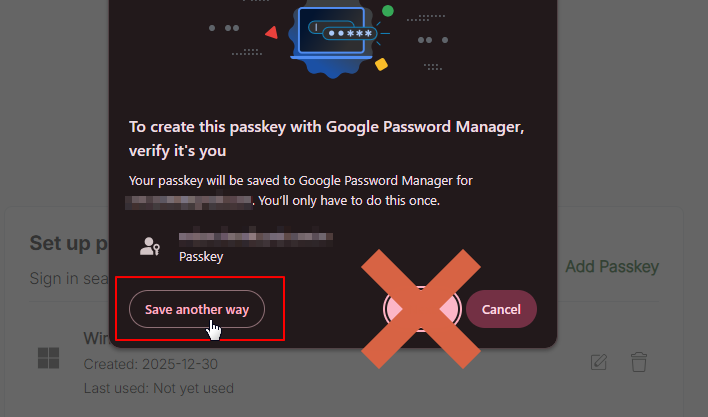
4. Select "Windows Hello".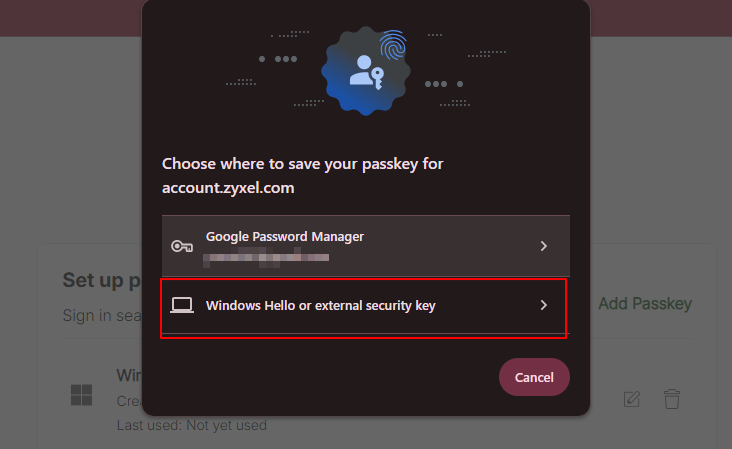
5. Follow the OS prompts to save it to your device.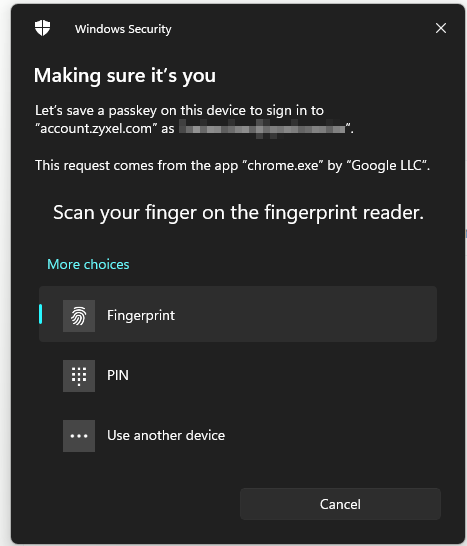
Verification:
Once created this way:
• The passkey will NOT appear in chrome://settings/passkeys.
• It WILL appear in Windows Settings > Accounts > Passkeys.
• Deleting browser data will not affect this key.
We hope this clarifies the behavior of Chrome's passkey management. Please let us know if you need further assistance.1 -
Not entirely correct. The passkey was stored in Windows Hello, see the notification inside Chrome. The passkeys process was finalised using Chrome. Deleting the corresponding entry in the browse seems to break the credibility chain- which makes it very unstable to use. Some will call it 'secure by design' or 'it is not a bug, it is a feature', I call it no-time-to-lose-with-this-immature-system. Passkeys will rem
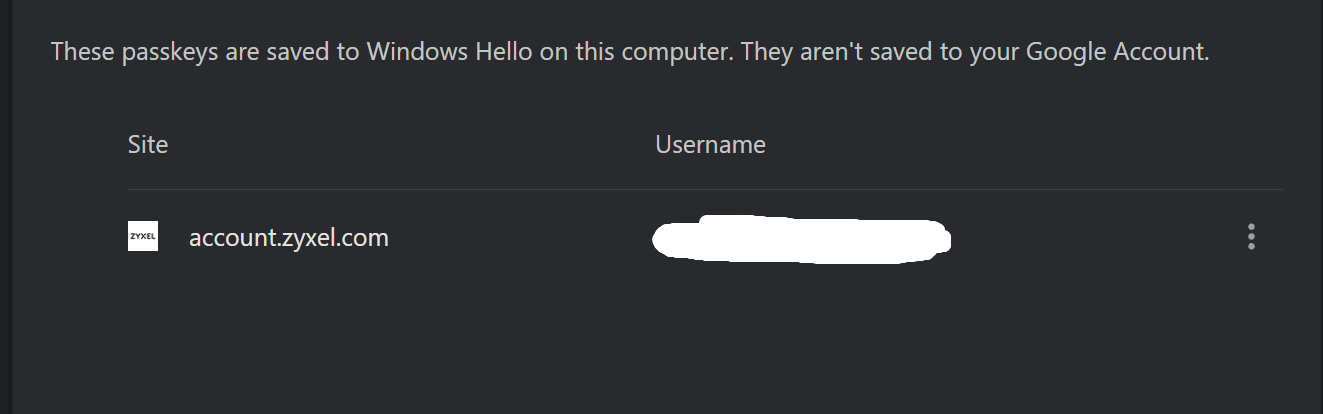
ain a tricky ecosystem when one does not control the entire landscape from System A to System B and everything inbetween. The keys can be stored in multiple places by design, and if one does not control all that, well- have fun then.
0 -
Hello @Zyxel_USG_User,
Thank you for sharing your detailed feedback about your experience with passkeys.You're absolutely correct in your assessment. The behavior you've described is indeed how passkeys are designed to work within the current ecosystem. When a passkey is stored in Windows Hello and the credential chain is broken by deleting browser entries, this can create the instability you've experienced.
We understand this can be frustrating, especially when these design decisions—which some may frame as security features—create practical usability issues in real-world scenarios.
Passkeys are entirely optional. You're welcome to continue using traditional authentication methods that better suit your needs and environment. We support both options, and the choice is completely yours to make based on what works best for your workflow and technical setup.
If you have any questions about alternative authentication methods or need assistance with your account, please don't hesitate to reach out.
Ivan0
 Ally Member







Categories
- All Categories
- 442 Beta Program
- 2.9K Nebula
- 221 Nebula Ideas
- 128 Nebula Status and Incidents
- 6.5K Security
- 609 USG FLEX H Series
- 347 Security Ideas
- 1.7K Switch
- 84 Switch Ideas
- 1.4K Wireless
- 53 Wireless Ideas
- 7K Consumer Product
- 299 Service & License
- 483 News and Release
- 92 Security Advisories
- 31 Education Center
- 10 [Campaign] Zyxel Network Detective
- 4.8K FAQ
- 34 Documents
- 88 About Community
- 105 Security Highlight