How do I move an AP to a different organization?

 Zyxel Employee

If the organizations are registered under the same owner account, you can use the Nebula app to move a device between the organizations.”
What is Nebula Mobile Apps ?
The Nebula Mobile App offers a quick approach to network management. It allows administrators to use the QR code scanner to register a large number of devices on Nebula Control Center all at once. Likewise, it is designed for mobile devices with Responsive Web Design(RWD) such as smart phones. Additionally, it provides an instant view of different sites for the IT staff to monitor the real-time network status.
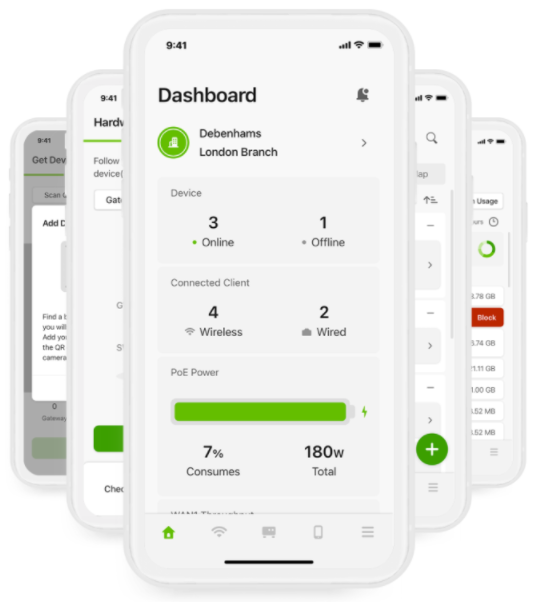
There are four main features:
• Built-in QR code scanner for adding hundreds of devices quickly
• Photo capturing for uploading and recording locations where devices are mounted
• Overview monitoring of APs, switches and gateways
• Quick selection to view different sites
How to use Nebula Mobile Apps on mobile devices ?
1. Install the Nebula Mobile App here: Android / iOS
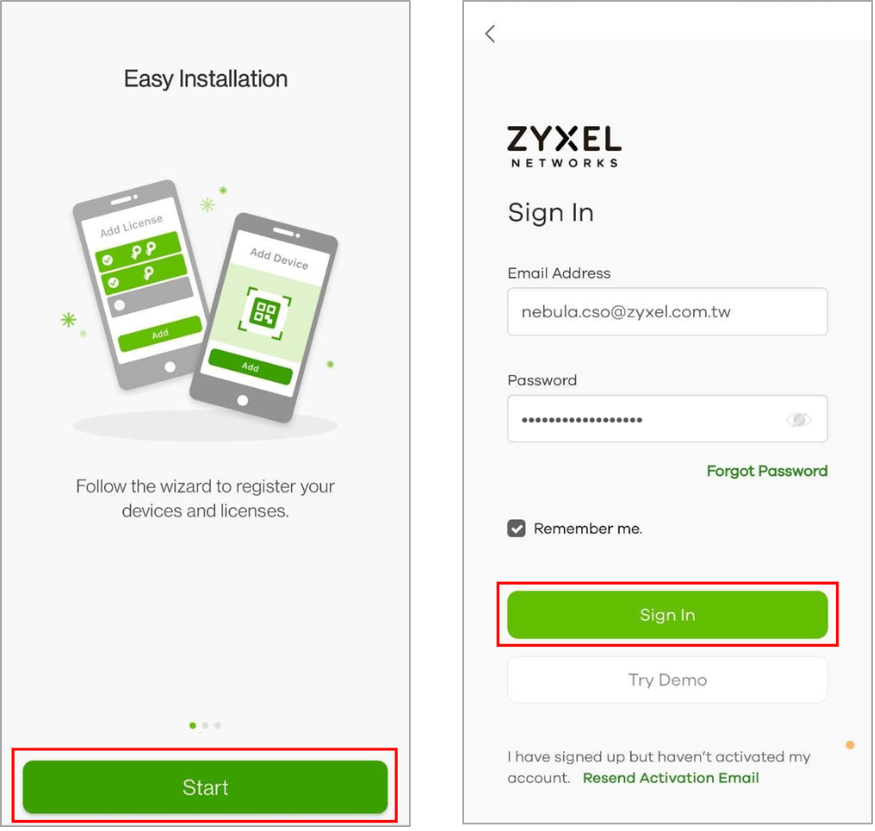
2. Access to Nebula Mobile APP
• Click “Start” button
• Use a registered Zyxel email and password to sign in
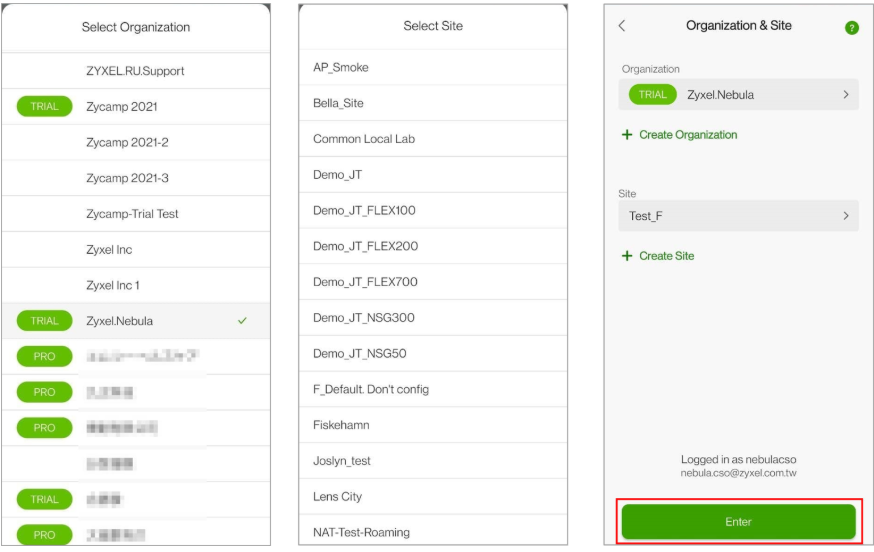
3. Overview of Organization and Site
• Select one organization and one site and click enter to go to Site Overview.
• The dashboard displays the total devices, connected clients, PoE power, WAN throughput and total usage in this site.
• Device: show how many of your devices are online and offline.
• Connected Clients: show how many clients are connected.
• PoE Power: show how much power is used by PDs.
• WAN Throughput: show the throughput of WAN interface.
• WiFi Clients: show which client has connected in the past 24 hours.
• Application: show which application does the clients use in the past 24 hours.
• Usage: show the network usage of firewall/gateway in the past 24 hours.

• Click Devices to display current registered devices with MAC address as your device’s default name.
• Green status is online
• Red status is offline
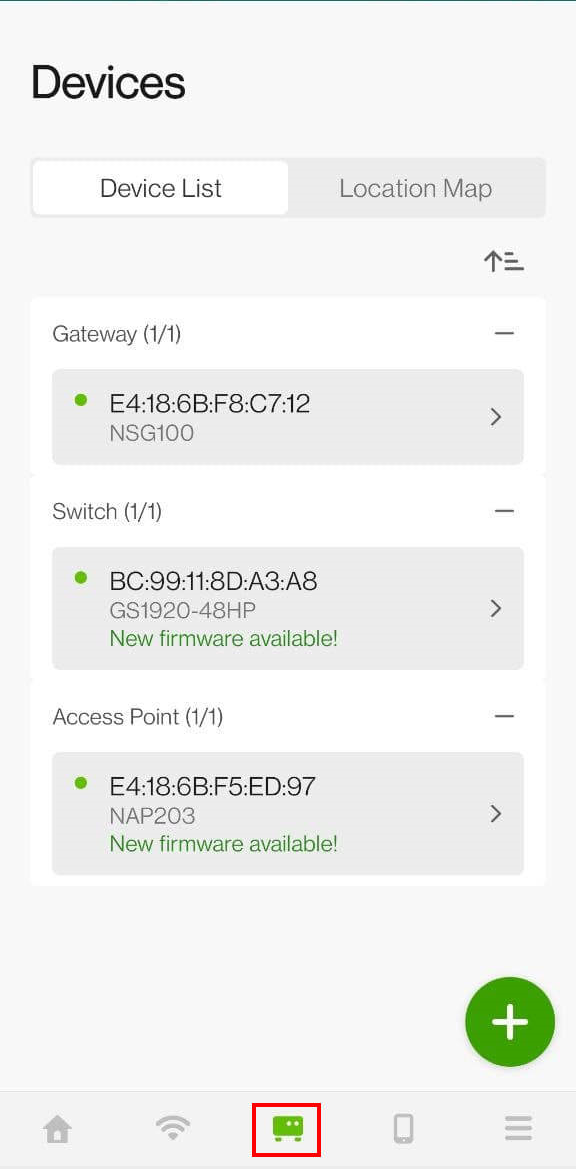
4. How to use QR code for device registration on Nebula Mobile Apps ?
• Go to designated Organization/Site > Devices > click “+” button.
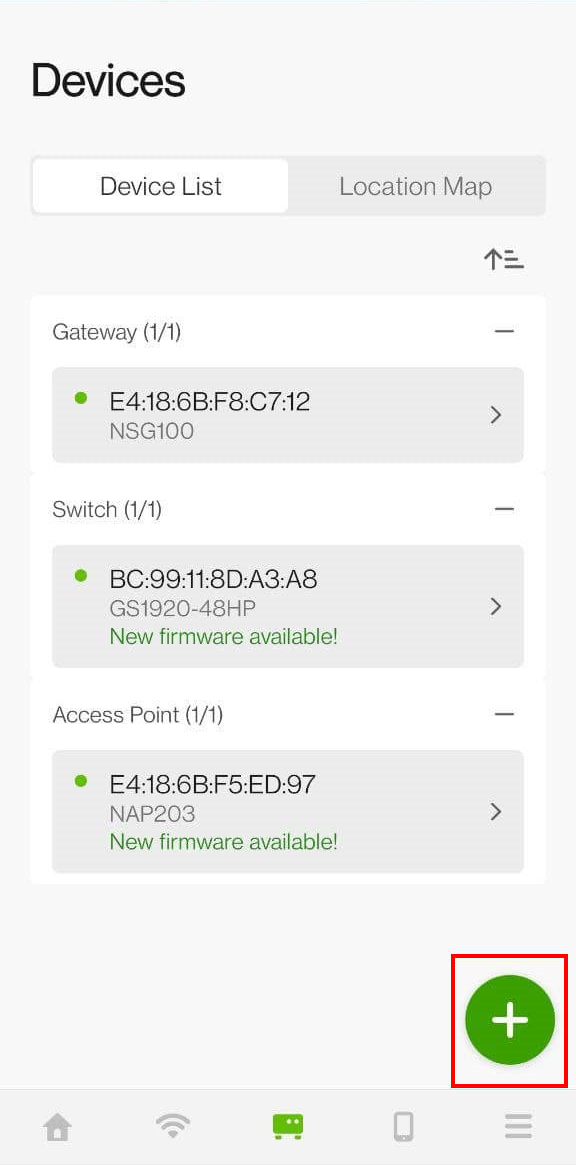
• Scan the QR code on the device or enter manually the device information. Device will be registered on NCC via Nebula Mobile App automatically.
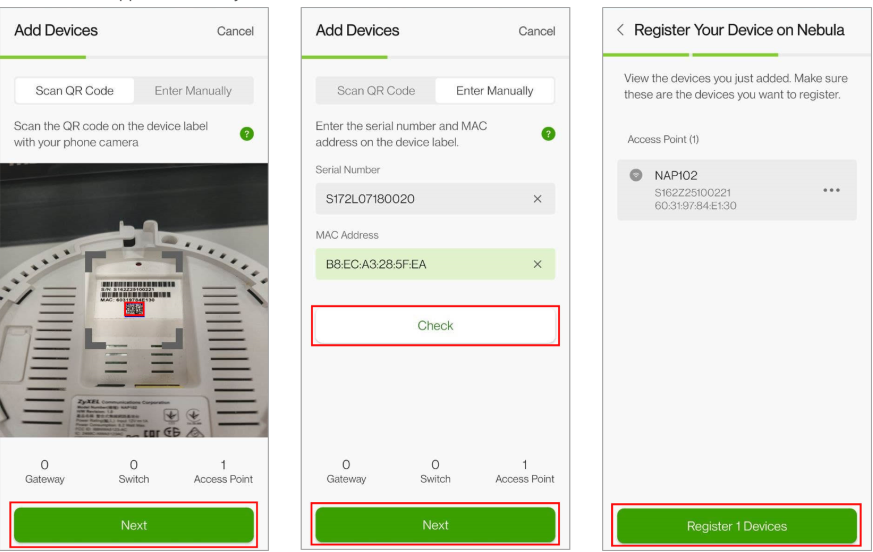
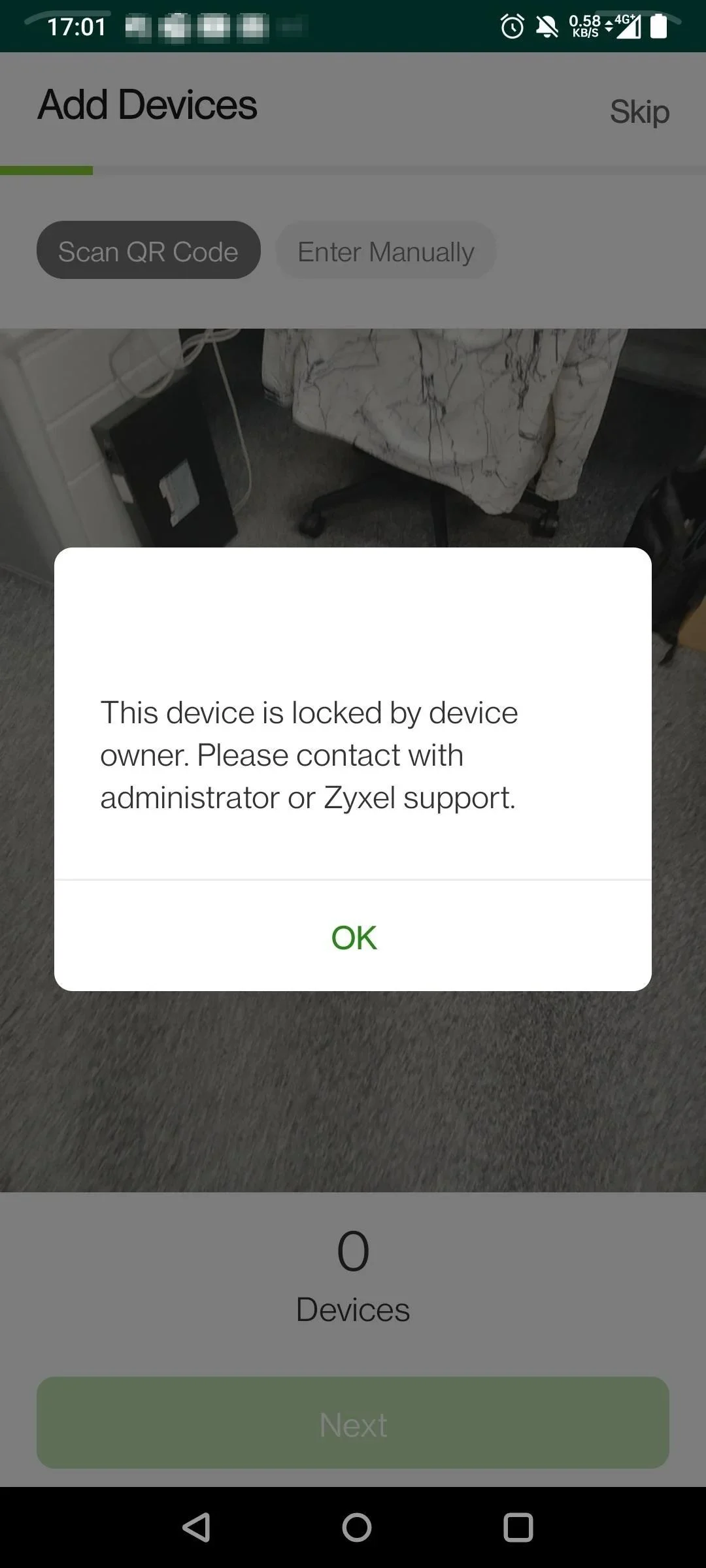
5. How to prevent device ownership override by other user
The NCC devices allow users to complete the registration through the QR Code with the Mobile APP.
If you're the owner, you can follow the steps below to prevent other users from registering your device through the QR Code:
a. Click "Organization-Wide Management", and choose "Organization settings"
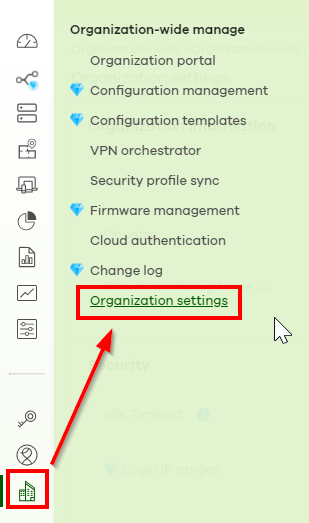
b. Turn on Override device ownership

Once you complete the setting, no one can override your ownership!
Categories
- All Categories
- 442 Beta Program
- 3.1K Nebula
- 234 Nebula Ideas
- 6.7K Security
- 727 USG FLEX H Series
- 372 Security Ideas
- 1.8K Switch
- 87 Switch Ideas
- 1.5K Wireless
- 57 Wireless Ideas
- 7.1K Consumer Product
- 318 Service & License
- 511 News and Release
- 99 Security Advisories
- 31 Education Center
- 10 [Campaign] Zyxel Network Detective
- 5.2K FAQ
- 34 Documents
- 89 About Community
- 116 Security Highlight