How to check the Cloud Control Status when AP is offline on Nebula?



 Zyxel Employee
If your AP is registered and added in the site on Nebula with offline status, please follow below steps to check the Cloud Control Status for troubleshooting.
In the device local Web GUI main dashboard, the Cloud Control Status displays the status of device’s internet and Nebula status. When the AP is online on NCC, three circles are all Green.
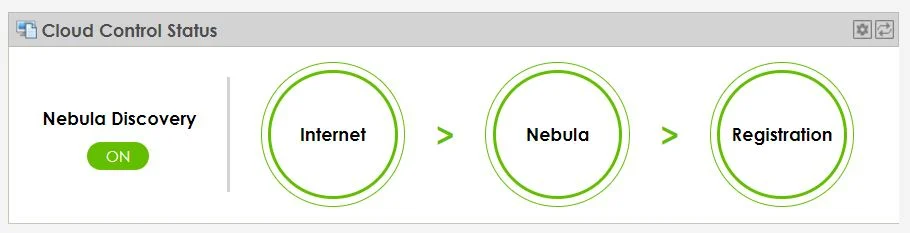
The three circle are Internet, Nebula, Registration, stands for:
*Internet - Internet connection status.
*Nebula - The connection status between the AP and NCC.
*Registration - The AP registration status on NCC.
Firstly, connect a computer under your local network and use a browser to login your device local Web GUI. URL: "http://device IP address"

The ZON utility provides user to scan and check the Zyxel device’s status if you don’t know the device IP address.
How to use ZON to configure Zyxel device basic setting?
Case 1: The AP has never went online on NCC
You’ll see the standalone mode GUI. Please click Standalone Mode then use default credentials (admin/1234) to login.
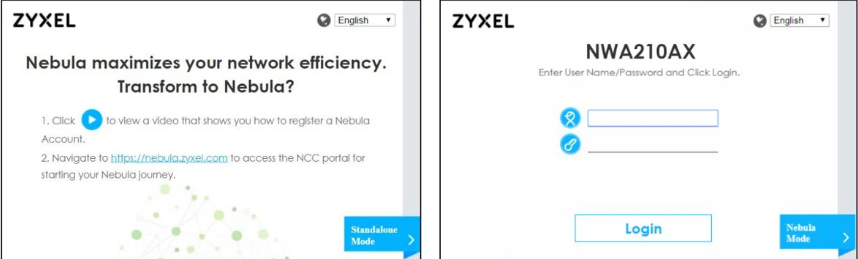
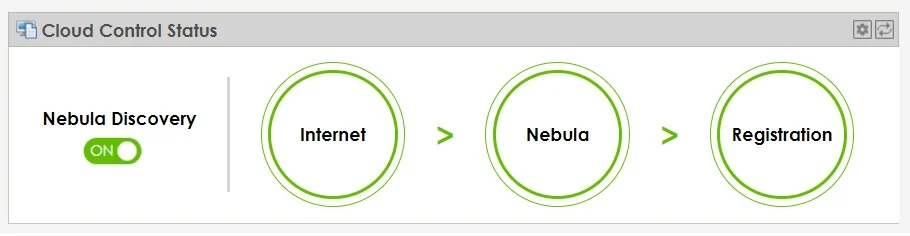
Nebula Discover must have to be turned ON to enable NCC Discovery. The AP will connect to Nebula Control Center and change to cloud mode management if it is connected to the Internet and has been registered on Nebula.
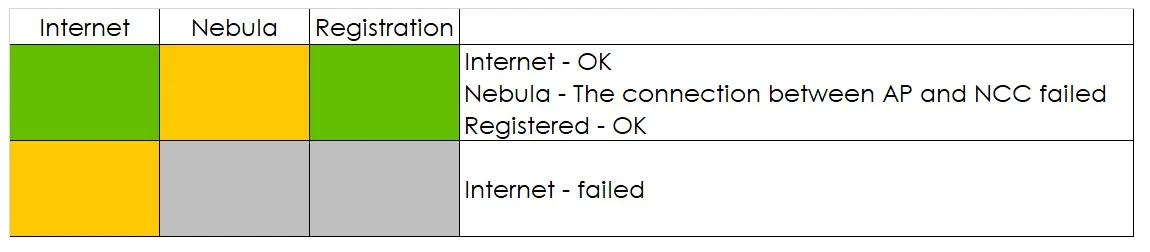
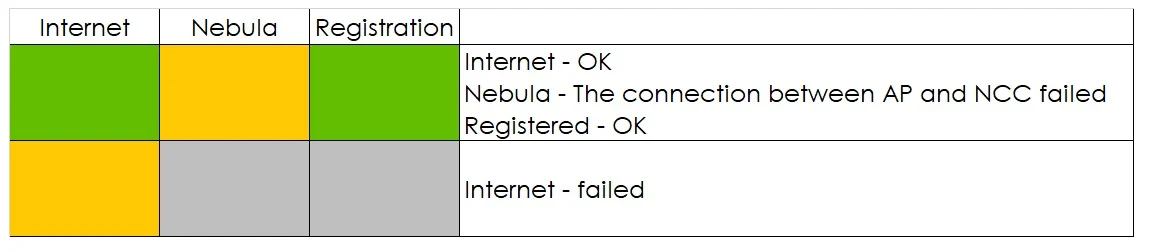
The table displays the description of each circle status.
If the device can’t connect to Internet or NCC, move the mouse over the circle to check the error message. According to the hint to check your local network settings.

Case 2: If the AP is running in cloud mode but went offline on NCC
You’ll see the Note with device is managed by Nebula, use credentials (admin/ Nebula site-wide password) to login.
Nebula site-wide password is at Nebula Website Left sidebar Configure > Site settings > Device configuration > Local credentials > Password
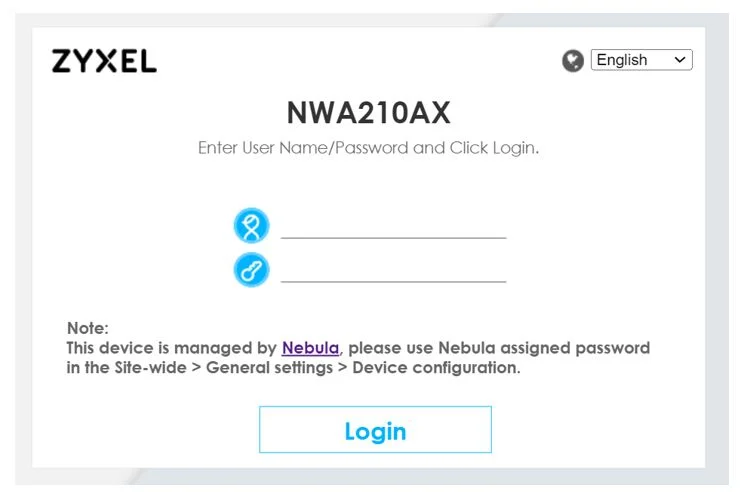
1. In the local Web GUI main dashboard, please check the Cloud Control Status.
Nebula Discover always displays ON when device is cloud mode.
If the device can’t connect to Internet or NCC, mouse over the circle to display detailed information and according to the hint to check your local network settings.

The table displays the description of each circle status.
Here are the failed message of Internet and Nebula circles that provides user to rule out the issue in the network settings.
Internet failed cases are:
- Missing default gateway setting
- Can't get an IP from your DHCP server!
- Gateway unreachable
-IP is conflict with (AA:BB:CC:DD:EE:FF), please check!
- NTP DNS query failed
- NTP update failed
Nebula connection failed cases are:
- Certificate problem
- DNS queries failed
-Proxy authentication failed
-TCP port 4335 blocked
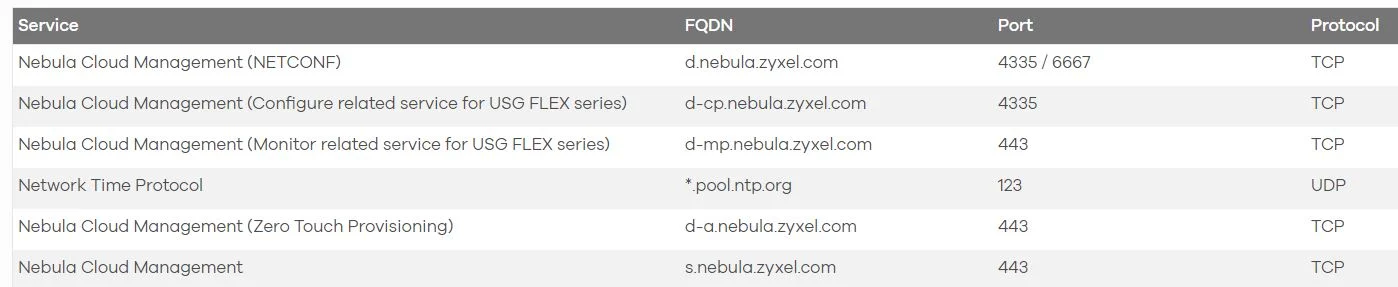
In most cases, it’s the TCP/UDP port being blocked by firewall or ISP. This table is intended to help guide you in creating firewall rules for Nebula, please check your firewall or ISP if they’re blocking them.
We suggest replacing the DNS setting with the static IP address "8.8.8.8" for resolving all domains for Nebula.
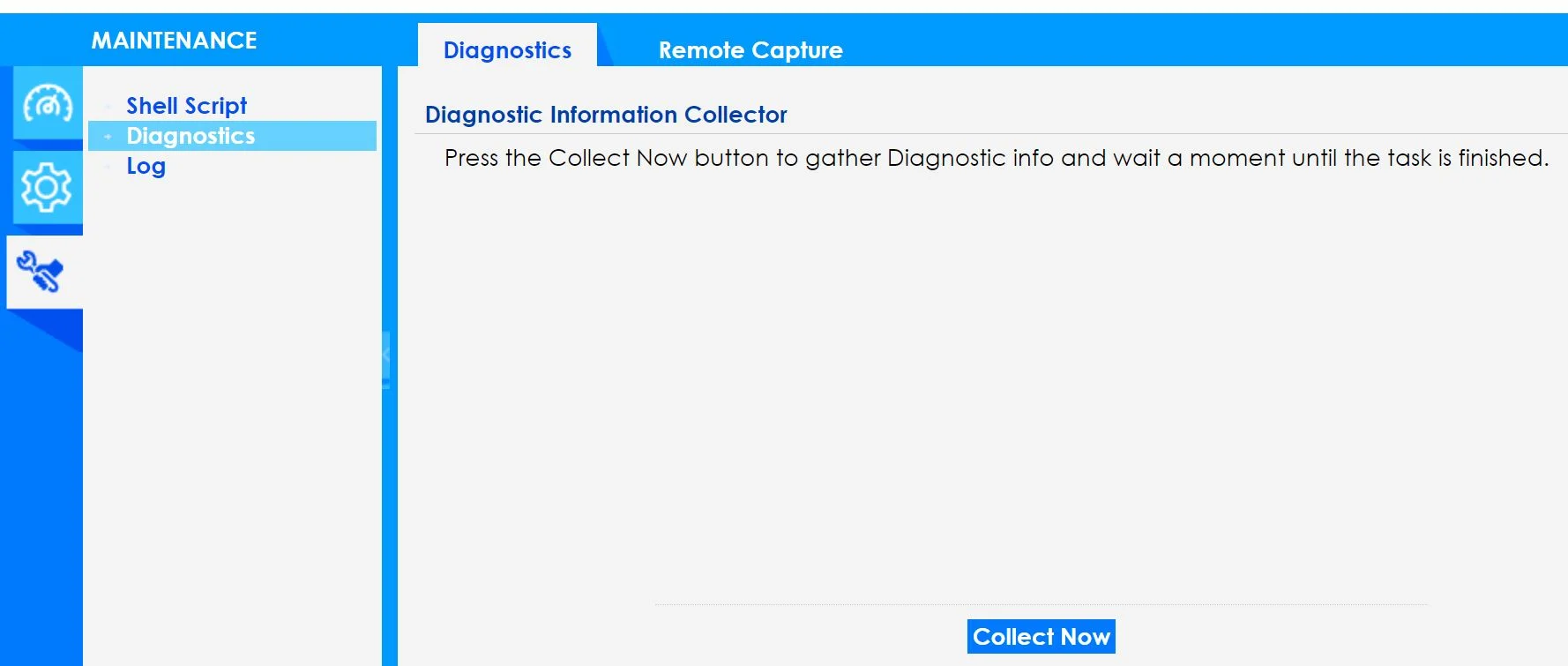
If the AP is still offline after above information confirmed or there is no condition as yours list above, please collect Diagnostics at MAINTENANCE page for Zyxel support.
Please enable the Zyxel support at Help > Support request > Invite Zyxel support as administrator, save the changes for us to check.
[Nebula] How to turn on Zyxel Support Access?
And provide the Org and Site name, thank you.
Categories
- All Categories
- 442 Beta Program
- 3.1K Nebula
- 242 Nebula Ideas
- 6.8K Security
- 779 USG FLEX H Series
- 387 Security Ideas
- 1.8K Switch
- 87 Switch Ideas
- 1.5K Wireless
- 58 Wireless Ideas
- 7.2K Consumer Product
- 324 Service & License
- 526 News and Release
- 101 Security Advisories
- 31 Education Center
- 10 [Campaign] Zyxel Network Detective
- 5.3K FAQ
- 34 Documents
- 91 About Community
- 121 Security Highlight