ATP200 - Impossible to adopt it in Nebula





 Guru Member
Hello everyone,
I justs unboxed a brand new ATP200.
So I went on its 192.168.1.1 to update its firmware and I downloaded it from Zyxel repo.
Then I went again on that page to configure it and I am not able to adopt it via Nebula.
Neither via USB (formatted in FAT and FAT32) via json file.
Neither resetting it.
If I try to login now I see:
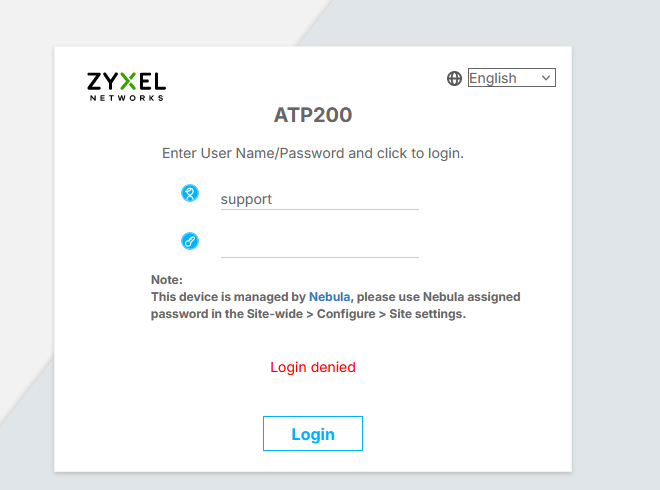
Anyway if I go via Nebula I see this error:
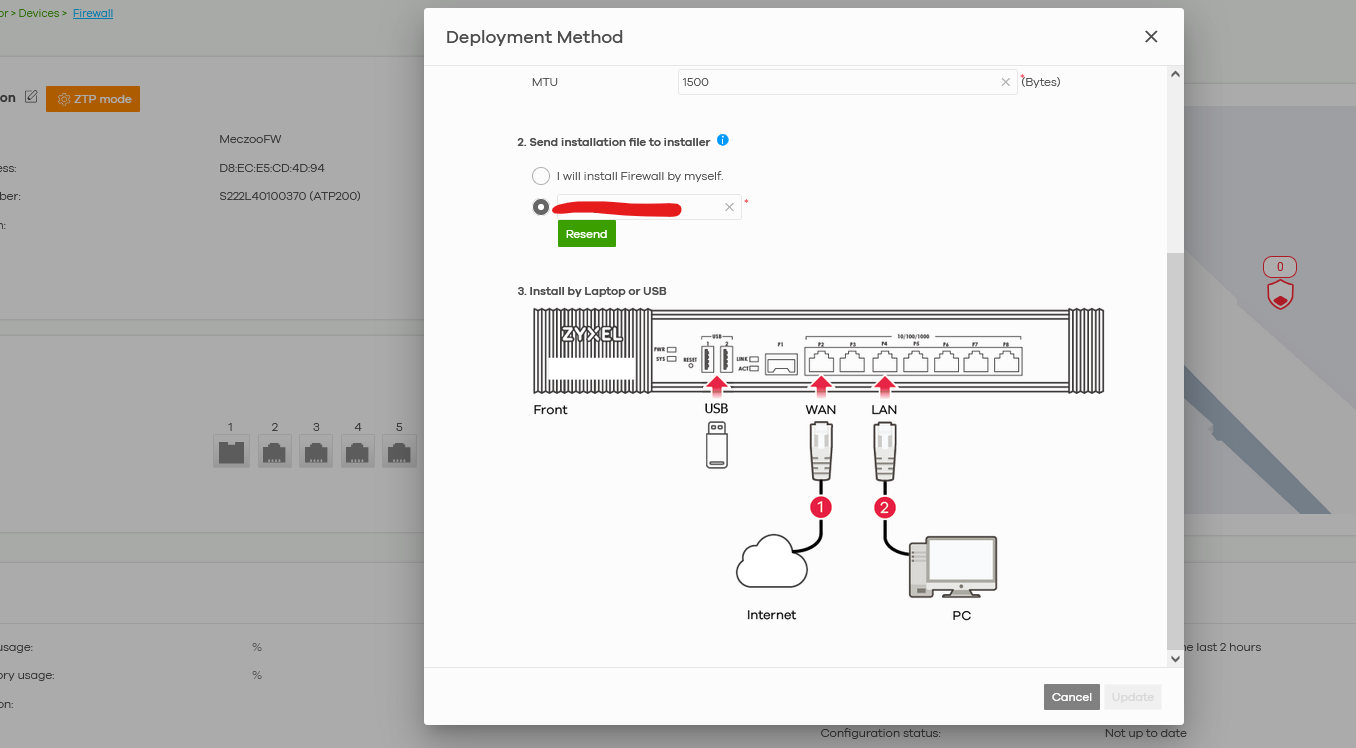
No green button.
Could be possible that there is a conflict on this site because here I have a security router before?
Please give me some ideas… 😎
Accepted Solution
-
Hi @GiuseppeR
Since your device S/N shows it is an old device(by manufacture year), please try to downgrade to 5.37 patch 0(firmware file sent by private message) and start the ZTP process again.
Zyxel Melen0


 Zyxel Employee
All Replies
-
Hi @GiuseppeR,
It appears you're encountering difficulties adopting your new ATP200 into Nebula, with "Login denied" on the local interface and an error during the deployment method in Nebula. This typically indicates the device is either already managed by Nebula or is attempting to enter a Nebula-managed state where local credentials are superseded.
Here's a step-by-step guide to troubleshoot and resolve this:
- Perform a Factory Reset: Since you've just unboxed the device, a thorough factory reset can help clear any lingering configurations. Press and hold the RESET button on the front panel of the ATP200 for at least 10-15 seconds until the SYS LED flashes. Release the button and allow the device to reboot. This ensures the device is in a clean state before Nebula adoption.
- Verify Firmware Version (Downgrade if Necessary): Some firmware versions (e.g., 5.37 P1, 5.37 P2, or 5.38) removed ZTP mode, requiring a downgrade to 5.37 P0 for ZTP deployment. If your ATP200's serial number doesn't start with S23xxxxxxxxxx or S24xxxxxxxxxx, you may need to downgrade the firmware to 5.37 P0 (ABFW.0) before proceeding with Nebula adoption. You can check the firmware version via the local GUI after the reset.
- Use Nebula Native Mode (if applicable): If your device's serial number is S23xxxxxxxxxx or S24xxxxxxxxxx, it should support Nebula Native Mode for deployment. In Nebula Control Center, when adding the device, select "Nebula native mode" instead of ZTP.
- Check Nebula Site-Wide Password: The "Login denied" message with "This device is managed by Nebula" indicates that the local login credentials have been overridden by Nebula's site-wide password. If the device successfully joins Nebula, you'll need to use the password found in Nebula Control Center under
Site-wide > Configure > Site settings > Device configuration > Local credentials > Passwordto access the local GUI.
To further assist you, please provide the following information:
- The full firmware version currently running on your ATP200.
- The first 5 characters of your ATP200's serial number.
- A screenshot of the "Deployment Method" page in Nebula showing the exact error message and what options are greyed out, if any.
- Your Nebula Organization and Site name. To allow our support team to investigate directly, please enable Zyxel Support Access through
Help > Support Requestin your Nebula control panel.
This AI response aims to provide initial troubleshooting steps and identify information needed for further diagnosis. Feel free to share additional details based on the suggestions above — this will help community members offer more targeted assistance.
If you have feedback or idea about this AI assistant, share them in Community Feedback.0 -
Hi @GiuseppeR
It seems like the device change to Nebula mode, but Nebula shows it is offline and/or ZTP is not finished.
May I know the org/site name and enable the support privilege so we can check this further?
Zyxel Melen0 -
Hi @Zyxel_Barry
let me give you the answers.
- done, with no results. I always tried the Nebula native mode after updating the firewall to 5.41
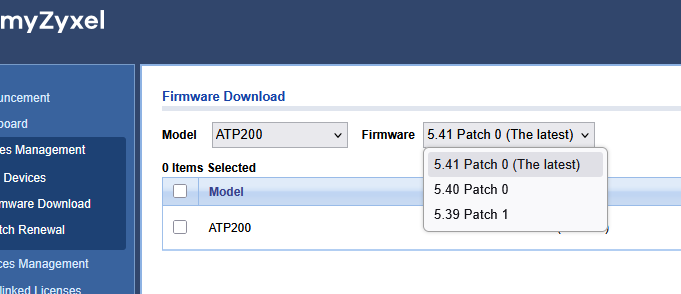
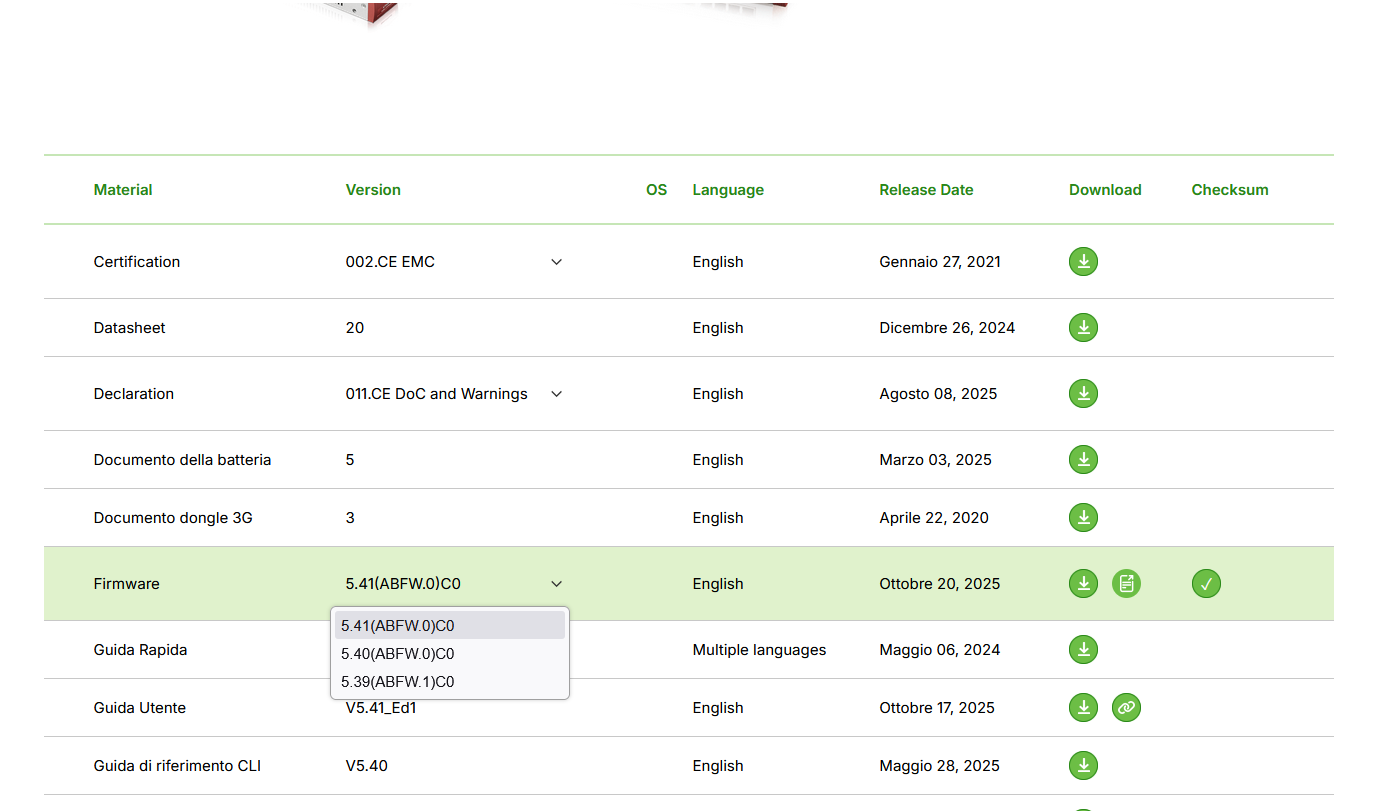
- I have 5.41 onboard, I cannot downgrade to 5.37 as you said (my serial is S222L4xxxxxxx) because Portal Zyxel does not give me this option
- done, all the times since the first boot (also because I need to deploy it via Nebula)
- checked, copied from Nebula NOT working on premise
Portal Zyxel:
Support page:
 0
0 -
Hi @Zyxel_Melen
sent you a PM with details and priviledges, I'm at your disposal.
I see right now that Barry is an AI 😎
0 -
Hi @GiuseppeR
Since your device S/N shows it is an old device(by manufacture year), please try to downgrade to 5.37 patch 0(firmware file sent by private message) and start the ZTP process again.
Zyxel Melen0 -
Hi @Zyxel_Melen
I can confirm this working path:
- reset
- enter the firewall in On-Prem mode
- flash partition 1 with 5.37
- automatic reboot
- flash partition 2
- automatic reboot
- login to check both are 5.37
- reset
- login to 192.168.1.1 and then select Nebula mode
- click on ZTP on Nebula Page
- plugin the pendrive with json
Adopted on Nebula:
 0
0 -
Hi @Zyxel_Melen
I reset this device:

but I was NOT able to adopt it inside Nebula, neither with 5.37 on both partitions
I installed also 5.39 and 5.41 on one of them, no results:

It was just linked to a Nebula site, but it was offline while onsite internet connection was working properly via LAN.
Neither via 5.37p0 on prem:
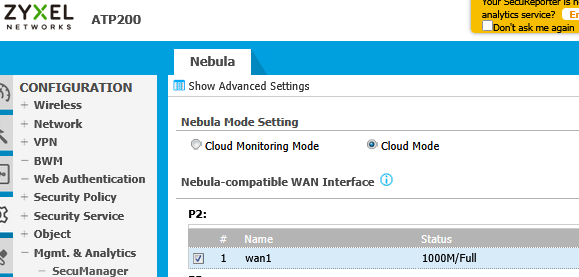
The only working way was to force ZTP again from mobile app.
Was there a quicker way?
0



Categories
- All Categories
- 442 Beta Program
- 3.1K Nebula
- 243 Nebula Ideas
- 6.8K Security
- 781 USG FLEX H Series
- 387 Security Ideas
- 1.8K Switch
- 87 Switch Ideas
- 1.5K Wireless
- 58 Wireless Ideas
- 7.2K Consumer Product
- 324 Service & License
- 527 News and Release
- 101 Security Advisories
- 31 Education Center
- 10 [Campaign] Zyxel Network Detective
- 5.3K FAQ
- 34 Documents
- 91 About Community
- 121 Security Highlight