Firmware Update

 Freshman Member
Best Answers
-
Hi @OAAO,
To update the firmware of your Nebula device, please follow these steps:
- Navigate to Site-wide > Configure > Firmware management in the Nebula portal.
- Choose the device you wish to upgrade and click the "Upgrade now" button.
- A confirmation window will appear; click "OK" to begin the upgrade process.
Alternatively, you can access firmware management under Organization-wide > Organization-wide manage > Firmware management if you have a Plus/Pro Pack.
To help us further investigate and provide more specific guidance, please provide the following information:
- Device Model
- Current Firmware Version
- Organization Name and Site Name in Nebula.
Please also enable Zyxel Support Access by going to Help > Support Request in your Nebula control panel and selecting "Invite Zyxel support as administrator." This will allow our support team to directly view your cloud environment configuration, significantly speeding up troubleshooting.
This AI response aims to provide initial troubleshooting steps and identify information needed for further diagnosis. Feel free to share additional details based on the suggestions above — this will help community members offer more targeted assistance.
If you have feedback or idea about this AI assistant, share them in Community Feedback.0 -
Hi @OAAO,
Thanks for sharing the screenshots! Please allow me to clarify:
- Configuration status: "Up to Date (Requires Upgrade to Latest Firmware)"
- This means your config is current, but certain new features are only available after upgrading to the latest firmware.
- Firmware Availability: "Up to Date (Stable)"
- This indicates your current firmware is stable and suitable for long-term use.
Therefore, it is not a device problem; these are just informational notices. You can choose to upgrade for new features or stay on the stable version. For more details, please check this FAQ.
Zyxel Tina
0 - Configuration status: "Up to Date (Requires Upgrade to Latest Firmware)"

 Zyxel Community Virtual Assistant




All Replies
-
Hi @OAAO,
To update the firmware of your Nebula device, please follow these steps:
- Navigate to Site-wide > Configure > Firmware management in the Nebula portal.
- Choose the device you wish to upgrade and click the "Upgrade now" button.
- A confirmation window will appear; click "OK" to begin the upgrade process.
Alternatively, you can access firmware management under Organization-wide > Organization-wide manage > Firmware management if you have a Plus/Pro Pack.
To help us further investigate and provide more specific guidance, please provide the following information:
- Device Model
- Current Firmware Version
- Organization Name and Site Name in Nebula.
Please also enable Zyxel Support Access by going to Help > Support Request in your Nebula control panel and selecting "Invite Zyxel support as administrator." This will allow our support team to directly view your cloud environment configuration, significantly speeding up troubleshooting.
This AI response aims to provide initial troubleshooting steps and identify information needed for further diagnosis. Feel free to share additional details based on the suggestions above — this will help community members offer more targeted assistance.
If you have feedback or idea about this AI assistant, share them in Community Feedback.0 -
Hi @OAAO,
First of all, welcome to the Zyxel Community!
Following up on our virtual assistant's suggestions from the previous comment, has this resolved your problem?
Zyxel Tina
0 -
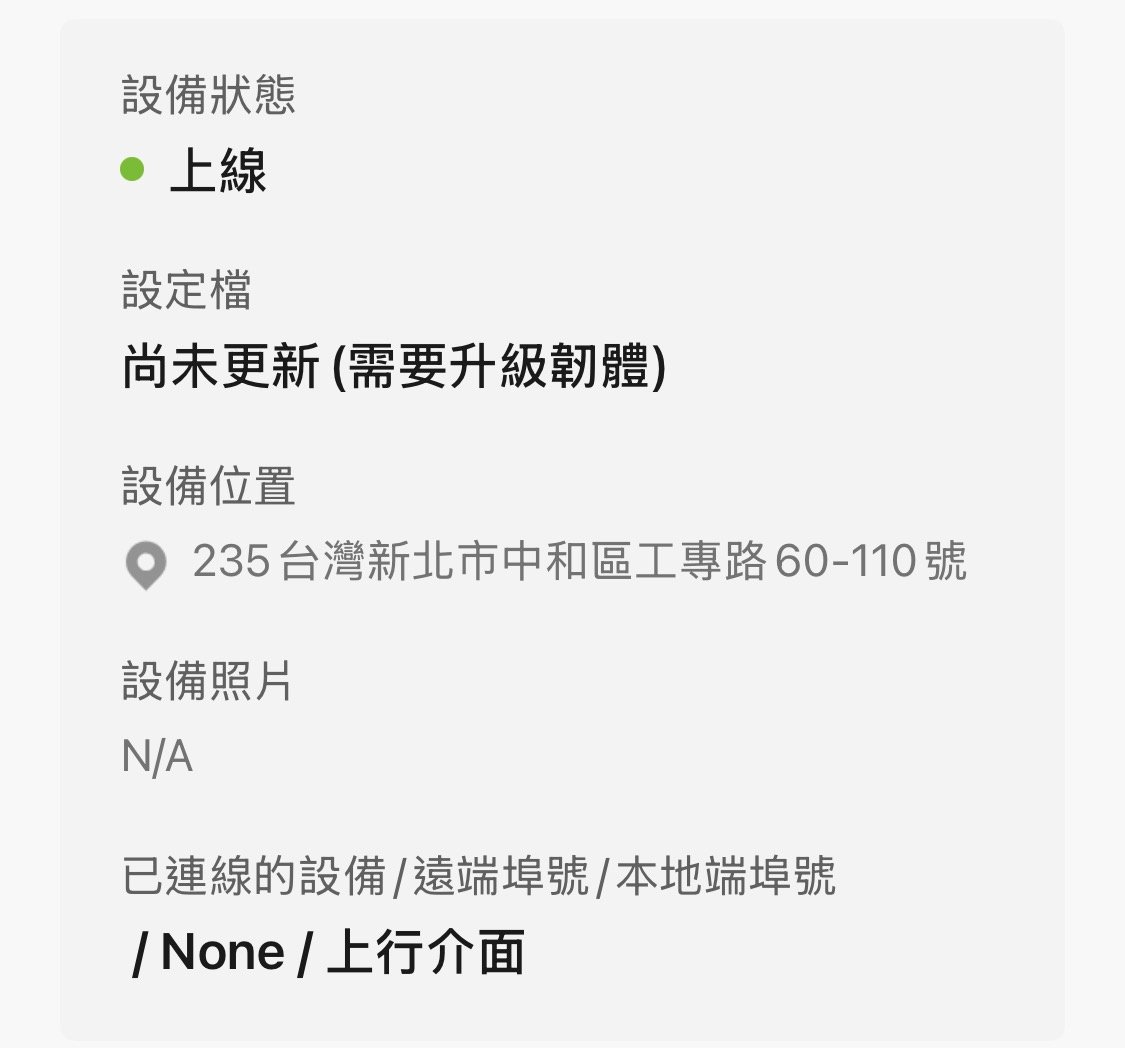
Yes , the status of my device is good. But there are two conflict messages in my Nebula app, please see the attached pictures. Is that a problem? Thank you.
(For safety concerns, Zyxel_Tina removed the screenshots from your comment, as they include the device's MAC and IP addresses.)
0 -
Hi @OAAO,
Thanks for sharing the screenshots! Please allow me to clarify:
- Configuration status: "Up to Date (Requires Upgrade to Latest Firmware)"
- This means your config is current, but certain new features are only available after upgrading to the latest firmware.
- Firmware Availability: "Up to Date (Stable)"
- This indicates your current firmware is stable and suitable for long-term use.
Therefore, it is not a device problem; these are just informational notices. You can choose to upgrade for new features or stay on the stable version. For more details, please check this FAQ.
Zyxel Tina
0 - Configuration status: "Up to Date (Requires Upgrade to Latest Firmware)"
Categories
- All Categories
- 442 Beta Program
- 3.1K Nebula
- 235 Nebula Ideas
- 6.7K Security
- 734 USG FLEX H Series
- 375 Security Ideas
- 1.8K Switch
- 87 Switch Ideas
- 1.5K Wireless
- 58 Wireless Ideas
- 7.1K Consumer Product
- 319 Service & License
- 511 News and Release
- 99 Security Advisories
- 31 Education Center
- 10 [Campaign] Zyxel Network Detective
- 5.2K FAQ
- 34 Documents
- 90 About Community
- 117 Security Highlight