VPN Ike2 + 2fa auth page unreachable

 Ally Member



Hi all, I'm trying to troubleshoot a VPN remote access issue with 2FA. (Google Auth.)
My scenario: 2 Flex500Hs in HA Pro (Fw 1.35) and 30 remote users.
The VPN is an IKE2 remote access + 2FA, and the authentication web page is 192.168.168.1:20443.
The native Windows client is configured on each device.
Issue: Randomly, when remote users try to connect, after entering their credentials, the authentication page results unreachable (ping to 192.168.168.1 fail). So far any other company
On USG VPN Monitor, I see the user connected with it's public IP and local IP provided by USG.
After 3 minutes, the VPN connection drops due to the authentication timeout.
Anyone experienced?
Thanks in advance
Lorenzo
All Replies
-
Hi @Fred_77,
I understand you're experiencing an issue with your IKEv2 remote access VPN with 2FA (Google Authenticator) on your USG FLEX 500H devices in HA Pro. Specifically, remote users are randomly unable to reach the authentication web page (192.168.168.1:20443) after entering their credentials, leading to connection drops due to authentication timeouts.
This sounds like a connectivity issue to the authentication page, even though the VPN tunnel appears to be established initially.
Here are some steps to troubleshoot this:
Verify 2FA Configuration and Authentication Process:
- Ensure that Google Authenticator is correctly set up for the users and that the "Valid Time" for entering the 2FA code is sufficient (default is 3 minutes).
- Confirm that the authentication link URL address and port (default is 8008) are correctly configured in the global 2FA settings on your USG FLEX H Series.
- Since you are using the native Windows client, users will need to manually open a web browser and navigate to the authentication URL (e.g.,
http://yourdeviceip:8008or in your casehttps://192.168.168.1:20443) after establishing the VPN connection to enter the 2FA code. The Zyxel VPN Client (SecuExtender) is designed to automatically open this page, but native clients do not have this built-in functionality.
Check Network Connectivity to the Authentication Page:
- Even though users are connected to the VPN, the ability to reach the internal authentication page (192.168.168.1:20443) needs to be stable. The fact that a ping to this IP fails randomly suggests a potential routing or firewall rule issue within the VPN tunnel or on the USG FLEX H itself.
- Review your firewall rules to ensure traffic from the VPN client's assigned IP subnet to the USG FLEX H's internal IP (192.168.168.1) on port 20443 is consistently allowed.
- If using policy routes, ensure they are correctly configured to direct traffic from the VPN tunnel to the internal network where the authentication page resides.
Examine HA Pro Synchronization and Potential Conflicts:
- With HA Pro, ensure that the configurations, especially those related to VPN and 2FA, are correctly synchronized between both USG FLEX 500H devices. Although firmware 1.35 introduces enhancements for HA communication and session synchronization, issues can still arise.
- Check HA logs for any synchronization errors or conflicts that might randomly affect the active device's ability to serve the authentication page.
Review USG FLEX H Logs and VPN Monitor:
- On the USG FLEX H, navigate to
Monitor > IPsec VPN > Remote Access VPNto verify user sessions and connection details. - Check
Log & Report > Event Logsfor any authentication failures, firewall blocks, or other related error messages around the time the issue occurs. - Consider enabling IPSec VPN debug logging if the issue persists to gather more detailed information about the VPN tunnel and authentication process. You can use the
cmd debug ipsec trace logcommand via SSH.
- On the USG FLEX H, navigate to
To further assist you, please provide the following information:
- Network Topology Map: A diagram illustrating your network setup, including the placement of the USG FLEX 500H devices, the internal network segment hosting the 192.168.168.1 IP, and how remote users connect.
Screenshots of VPN and 2FA Configuration:
- Remote Access VPN configuration (Phase 1 and Phase 2 settings).
- 2FA global settings and user-specific 2FA settings.
- Firewall rules related to VPN traffic and access to 192.168.168.1:20443.
Firmware Version: While you mentioned Fw 1.35, please confirm the exact firmware version running on both USG FLEX 500H devices.
- Error Message Screenshots: If users are seeing specific error messages in their native Windows VPN client or browser when the authentication page is unreachable.
- Zyxel Support Access: If you are managing your devices through Nebula, please enable Zyxel Support Access via
Help > Support Requestin the Nebula console and provide your Organization and Site name. This will allow our support team to view your cloud environment configuration directly, which can significantly shorten troubleshooting time.
This AI response aims to provide initial troubleshooting steps and identify information needed for further diagnosis. Feel free to share additional details based on the suggestions above — this will help community members offer more targeted assistance.
If you have feedback or idea about this AI assistant, share them in Community Feedback.0 -
Hi @Fred_77,
Since this issue occurs on firmware v1.35 and the USG FLEX H series is already at v1.37, we’d first recommend upgrading to the latest firmware. After the upgrade, please test again and let us know if the auth page is still unreachable so we can continue troubleshooting.
Zyxel Tina
0 -
Hi @Zyxel_Tina
My apologies for long delay.
Honestly, looking at new topics regarding uOs 1.37, i'm little reclutant to upgrade.At this moment i'd like to investigate with fw 1.35 (ABZH.0) running.
I ran some lab tests to recreate remote user scenarios using a laptop and 4 different internet service providers; these are the results.
For simplicity's sake, I'm attaching the logs for just one user, but the problem doesn't seem to be related to the user connecting, the device used, OS running (same results with W10 22H2 and W11 25H2), or the isp (mobile hotspot, home connectivity etc..)
In all possible user/device/ISP combinations, the VPN is always established; but the authentication page is sometimes unreachable.
The strangest thing is that if I have the problem today, it might work perfectly tomorrow (same user/device/ISP).
This is very frustrating; I'm starting to think it's due to the weather forecast!?😓
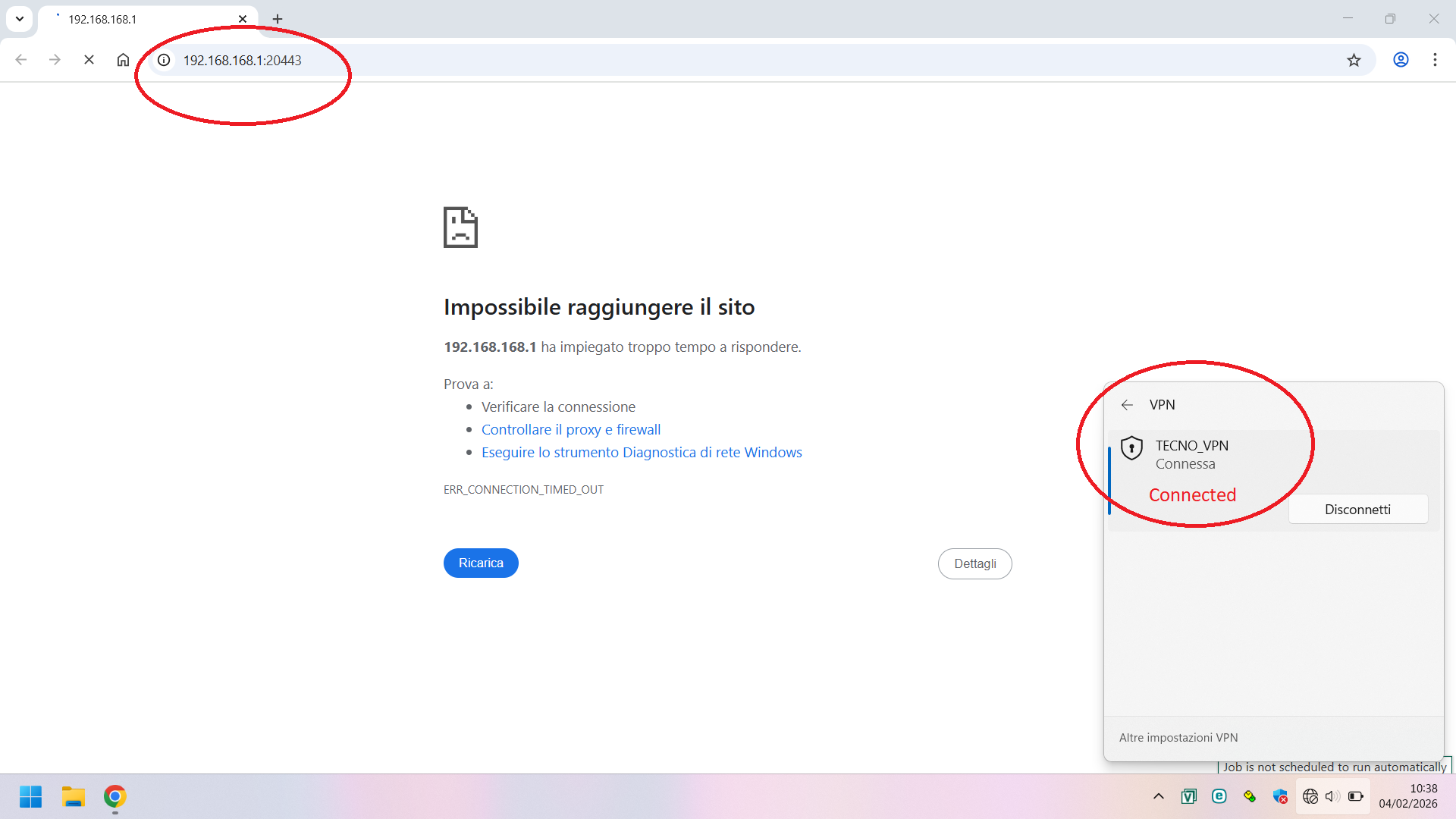
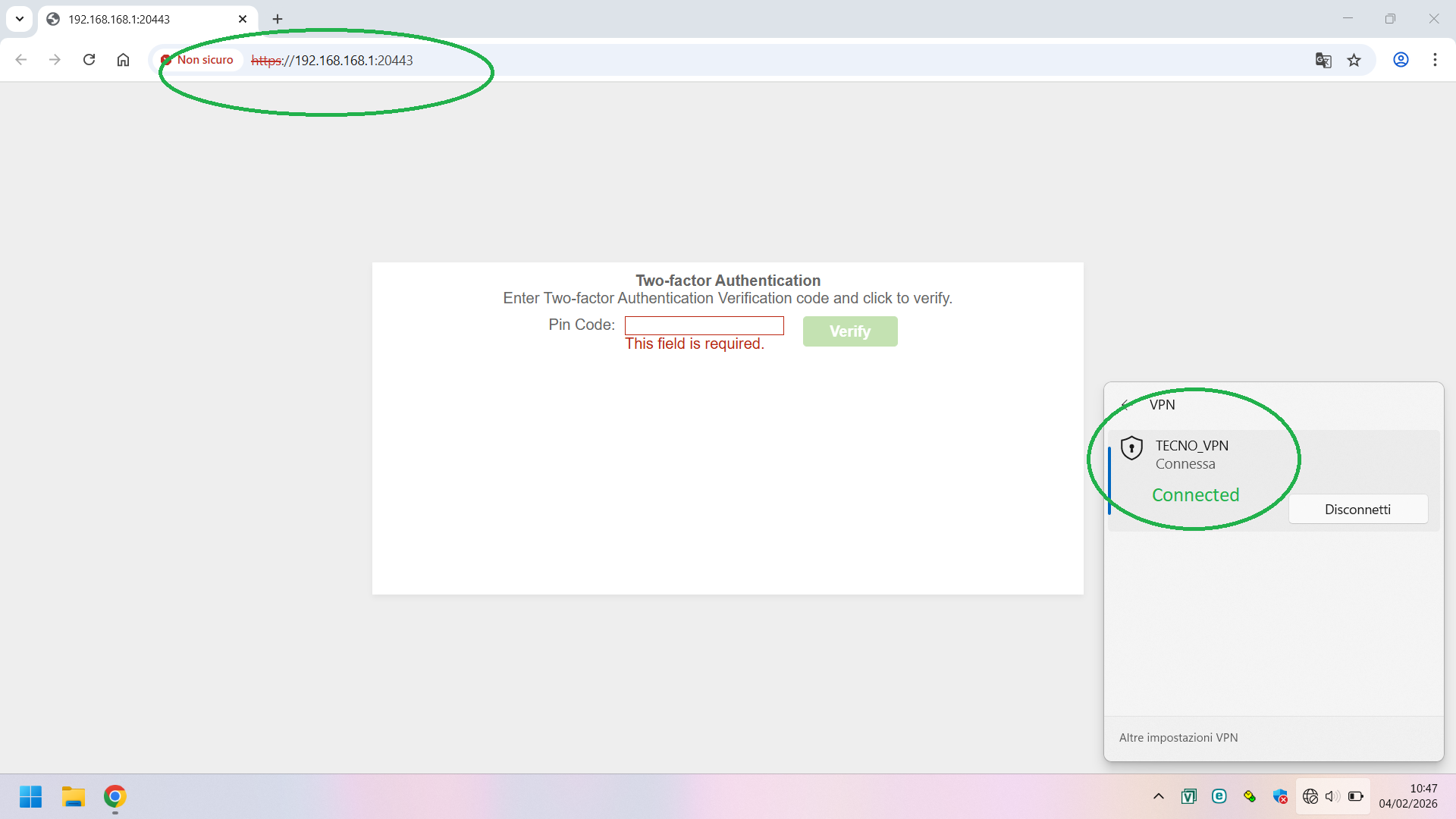
Sent capture file via PM.
Thanks in advance
Lorenzo
0 -
Hi @Fred_77,
Thanks for your feedback and the packet capture files.
Previously, another user faced a similar issue where another device on the same network segment as the firewall caused packet drops, preventing the 2FA auth page from loading properly. To rule out IP conflicts, could you please verify if your network environment has no duplicate IPs 192.168.168.X?
If everything looks fine, could you also help provide the following information for further investigation:
- Could you clarify the scenario for those packet captures? Were they taken during normal operation or when the issue occurred? (Since you provided three Wireshark logs, it would helpful if you could specify for each one.)
- If your firewall is registered to NCC, please enable Zyxel Support Access and share the org/site name with us.
Zyxel Tina
0 -
Hi @Zyxel_Tina
192.168.168.1 exists only as an IP interface on the Flex 500H.
The interface (GE3) is physically disconnected, so I can rule out an IP conflict.
HA is enabled, the only other device with that IP is the other Flex500H in passive state.
Packet capure files were taken when issue occurred.
Support Access Enabled, send org/site via PM
Best Regards
Lorenzo
0 -
Could you disconnect the other Flex500H in passive and see if the issue still happens?
Try another browser.
You say interface (GE3) is disconnected for IP 192.168.168.1 try a another interface IP for 2FA that is active.
0 -
Thanks Peter for your reply; I'll answer you point by point:
Yes, I can turn off the device in passive mode. I sincerely hope the issue isn't HA.
Tried with Chrome, Edge, Firefox, Opera... same result.
I tried with another IP address on the same interface. Nothing changed.
What do you mean by "another active interface?"GE3 is active, but not used as a network scope at the customer site. It's only used as an interface for 2FA. (Basically left at it's default settings)
Are you laughing? It's been raining for a week and one user can't connect... yesterday it was sunny... 2FA worked perfectly! Today it's raining... and it doesn't work anymore.
I told you they have something to do with the weather forecast! 🤣
Enjoy the weekend
Lorenzo
0 -
I was thinking if a interface was unplugged but used as the 2FA it may not work correctly some times?
0 -
Hi @Fred_77,
Thank you for your feedback!
We completely understand your frustration with this intermittent issue and your concern about upgrading to v1.37. However, we need to clarify that firmware v1.35 and the current uOS architecture have structural differences after two major version upgrades. This makes troubleshooting on v1.35 increasingly difficult, as the system environment has evolved considerably.
If you're willing, we can provide the v1.37 weekly firmware for early access to the newest fixes.
Zyxel Tina
0 -
first of all thanks for your support,
Update:
Swapping roles and/or switching off the passive device didn't change anything.
So i arranged for the fw upgrade.I've received positive feedback from some users who have encountered this issue in the past few days.
For clarity, I should point out that the issue occurred about three months after installation.
Meanwhile, two-factor authentication has worked as expected for all users.
In summary: I'm waiting for feedback from all users; however, everything seems fine for now.
Best Regards
Lorenzo
0

 Zyxel Community Virtual Assistant



 Guru Member


Categories
- All Categories
- 442 Beta Program
- 3.1K Nebula
- 237 Nebula Ideas
- 6.8K Security
- 747 USG FLEX H Series
- 377 Security Ideas
- 1.8K Switch
- 87 Switch Ideas
- 1.5K Wireless
- 58 Wireless Ideas
- 7.2K Consumer Product
- 319 Service & License
- 512 News and Release
- 99 Security Advisories
- 31 Education Center
- 10 [Campaign] Zyxel Network Detective
- 5.3K FAQ
- 34 Documents
- 90 About Community
- 119 Security Highlight