[2026 June Tips & Tricks] How to Configure CDR on USG FLEX H Series Firewall


 Zyxel Employee
Network administrators often need to prevent clients from engaging in malicious activities and spreading threats across the network. Collaborative Detection & Response (CDR) is the built-in solution for this. This tutorial demonstrates how to set up CDR on your USG FLEX H series via Nebula.
🚩What is Collaborative Detection & Response (CDR)?
CDR allows you to detect wired and WiFi clients that are sending malicious traffic and then block or quarantine them. While standard secure policies block specific traffic flows, CDR blocks all malicious traffic directly from the sender. It identifies this malicious traffic using a combination of Web Filtering, Anti-Malware, and IPS (IDP) signatures.
⚙️How to Configure CDR on Nebula
- Enable the CDR:
Navigate toSite-wide > Configure > Collaborative Detection & Response
Turn on the feature and set your occurrence, time window, and containment actions.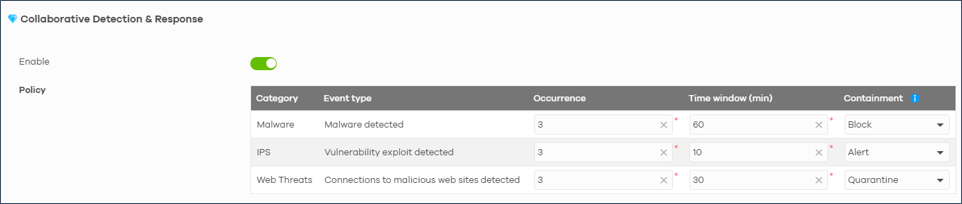
- Choose Your Containment Policy:
- Block: Blocks client traffic on both the Nebula AP and the Firewall, displaying a notification page.
- Alert: Sends an alert email to the recipient.
- Quarantine:
- For Wireless clients: Dynamically assigns them to a Quarantine VLAN after disassociation, redirecting them to a block page on the AP.
(Requires a pre-configured specific VLAN and zone for the quarantine). - For Wired clients: The firewall uses Captive Portal to drop traffic and redirect HTTP/HTTPS requests to a block page. This acts identically to the "Block" action.
- For Wireless clients: Dynamically assigns them to a Quarantine VLAN after disassociation, redirecting them to a block page on the AP.
- General Settings:
- Notification message: It can be edited if you need to modify the default message. Or you want to redirect to an external URL.

- Containment duration: Set it to 60 minutes. Once the client triggers CDR, the host will be blocked for 60 minutes.

- Notification message: It can be edited if you need to modify the default message. Or you want to redirect to an external URL.
- Wireless client block: Another optional setting for wireless clients, if you want to block client association, is to enable “Block wireless client”.

- Configure the Exempt List:
You can add specific IP or MAC addresses to the Exempt list. Devices on this list will never be added to the containment list, though their specific malicious traffic can still be blocked by standard security services.
🛡️Testing the Result
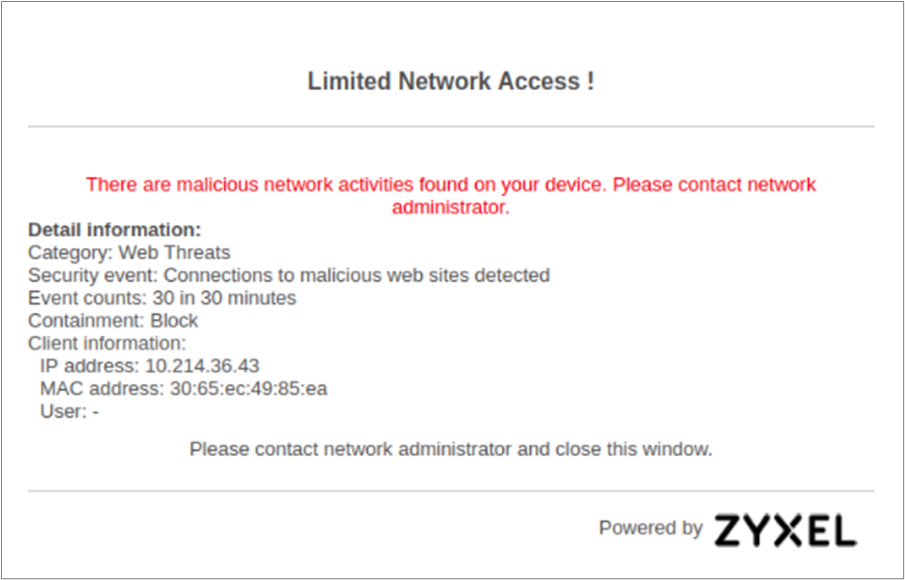
Once a client triggers CDR within the given time window, the host will be blocked for the containment duration (e.g., 60 minutes). If clients access a malicious site, their HTTP/HTTPS traffic will be redirected to a blocked page.
🔗How to Manage and Release Blocked Clients
To view or release blocked clients, navigate to:Site-wide > Monitor > Containment List
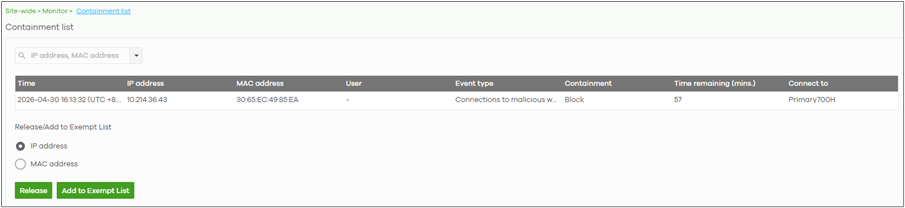
Here, the contained clients will appear. You can simply click the Release button to manually release clients from the containment list.
The CDR log can be seen under Site-wide > Monitor> firewall > event log

💡Pro Tip: DHCP Server Settings
The firewall containment list references the client’s source IP. If the DHCP lease of a contained client expires before the containment period ends, a new device might obtain that blocked IP address. It is strongly recommended to configure the DHCP server leasing time to be greater than 2 times the containment period to avoid accidentally blocking new devices.
💬 We'd Love to Hear From You!
Have you deployed CDR on your USG FLEX H series yet? Share your experiences, or drop any questions you might have in the comments below. Zyxel Community experts are here to help!
Categories
- All Categories
- 442 Beta Program
- 3.1K Nebula
- 243 Nebula Ideas
- 6.8K Security
- 781 USG FLEX H Series
- 387 Security Ideas
- 1.8K Switch
- 87 Switch Ideas
- 1.5K Wireless
- 58 Wireless Ideas
- 7.2K Consumer Product
- 324 Service & License
- 527 News and Release
- 101 Security Advisories
- 31 Education Center
- 10 [Campaign] Zyxel Network Detective
- 5.3K FAQ
- 34 Documents
- 91 About Community
- 121 Security Highlight