Switch XGS1930-28
Options

 Freshman Member
All Replies
-
Hi @spmms,
Willkommen in der Zyxel-Community!
Zunächst einmal stellen Sie bitte beim Zurücksetzen des Switches auf die Werkseinstellungen Folgendes sicher:
- Drücken Sie die RESTORE-Taste mit einer Büroklammer oder einem Stift mit feiner Spitze und halten Sie sie mindestens 7 bis 10 Sekunden lang gedrückt.
- Lassen Sie die Taste los. Der Switch sollte automatisch neu starten und die Werkseinstellungen laden.
Da Sie erwähnt haben, dass das Gerät gebraucht gekauft wurde und die Cloud-LED gelb leuchtet, könnten Sie bitte zunächst bestätigen, in welchem Status es sich aktuell befindet?
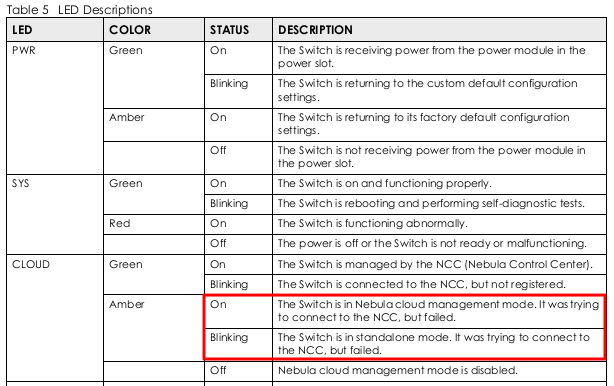
- Falls sich der Switch im Cloud-Management-Modus befindet, verwenden Sie bitte die Nebula Mobile App, um den QR-Code des Geräts zu scannen und es unter Ihrem Konto sowie Ihrer eigenen Organisation und Site zu registrieren. Auf diese Weise wird sichergestellt, dass der Besitz korrekt aktualisiert wird und das Gerät von Ihrer Seite aus verwaltet werden kann. Sollten Sie jedoch während des Scannens des QR-Codes auf Probleme stoßen und das Gerät nicht erfolgreich registrieren können, senden Sie uns bitte eine private Nachricht mit einem Foto des Etiketts, auf dem die MAC- und SN-Informationen des Geräts zu sehen sind, indem Sie auf mein Profil > Nachricht klicken, damit wir dies weiter untersuchen und genaue Unterstützung leisten können.
- Falls sich das Gerät im Standalone-Modus befindet, können Sie nach einem Werksreset über die standardmäßigen Anmeldeinformationen (admin/1234) auf die GUI zugreifen. Um auf die Web-GUI zuzugreifen, stellen Sie bitte sicher, dass Ihre Netzwerkumgebung wie folgt eingerichtet ist:
- Ohne DHCP-Server im Netzwerk: Verbinden Sie Ihren PC direkt mit dem Switch und weisen Sie ihm eine statische IP-Adresse im Bereich
192.168.1.xzu (z. B.192.168.1.100, Subnetzmaske255.255.255.0). Der Switch ist dann standardmäßig unter 192.168.1.1 erreichbar. - Mit DHCP-Server im Netzwerk: Wenn der Switch mit Ihrem lokalen Netzwerk verbunden ist, bezieht er automatisch eine IP-Adresse von Ihrem Router/DHCP-Server. In diesem Fall verwenden Sie bitte das kostenlose Tool Zyxel ONE Network (ZON) Utility oder prüfen Sie die DHCP-Lease-Tabelle Ihres Uplink-Routers/Gateways, um die neue IP-Adresse des Switches zu ermitteln.
- Ohne DHCP-Server im Netzwerk: Verbinden Sie Ihren PC direkt mit dem Switch und weisen Sie ihm eine statische IP-Adresse im Bereich
—
Welcome to the Zyxel Community!
First, regarding resetting the switch to factory settings, please ensure the following:
- Press and hold the RESTORE button with a paperclip or a fine-tipped pen for at least 7 to 10 seconds.
- Release the button. The switch should restart automatically and load the factory settings.
As you mentioned the device was purchased used and the Cloud LED is yellow, could you please first confirm which status it is currently in?
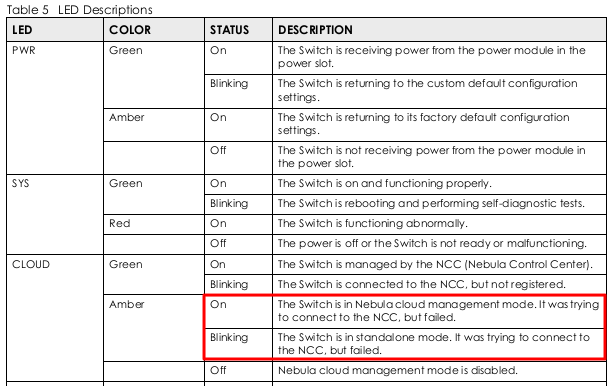
- If the switch is in cloud management mode, please use the Nebula Mobile App to scan the device's QR code and register it under your account, as well as your own Organization and Site. This method ensures that ownership is properly updated and the device can be managed from your side. However, if you encounter any issues during the QR code scanning process and are unable to successfully register the device, please send us with a photo of the label showing the device's MAC and SN information via PM by clicking my profile > Message so we can investigate further and provide accurate assistance.
- If the device is in standalone mode, you can access its GUI by using the default login credentials (admin/1234) after performing a factory reset. To access the Web GUI, please ensure your network environment is set up as follows:
- Without a DHCP server on the network: Connect your PC directly to the switch and assign it a static IP address in the range
192.168.1.x(e.g.,192.168.1.100, subnet mask255.255.255.0). The switch will then be accessible at 192.168.1.1 by default. - With a DHCP server on the network: If the switch is connected to your local network, it will automatically obtain an IP address from your router/DHCP server. In this case, use the free tool Zyxel ONE Network (ZON) Utility or check your uplink router's/gateway's DHCP lease table to determine the switch's new IP address.
- Without a DHCP server on the network: Connect your PC directly to the switch and assign it a static IP address in the range
Zyxel Tina
0



 Zyxel Employee
Categories
- All Categories
- 442 Beta Program
- 3.1K Nebula
- 243 Nebula Ideas
- 6.8K Security
- 783 USG FLEX H Series
- 389 Security Ideas
- 1.8K Switch
- 87 Switch Ideas
- 1.5K Wireless
- 58 Wireless Ideas
- 7.2K Consumer Product
- 325 Service & License
- 527 News and Release
- 101 Security Advisories
- 31 Education Center
- 10 [Campaign] Zyxel Network Detective
- 5.3K FAQ
- 34 Documents
- 91 About Community
- 122 Security Highlight