How to create a profile of Access Control via Multy App?
Options

Zyxel_Support
Posts: 436  Zyxel Employee
Zyxel Employee
Step 1: Open the Multy app which is installed in your mobile device.

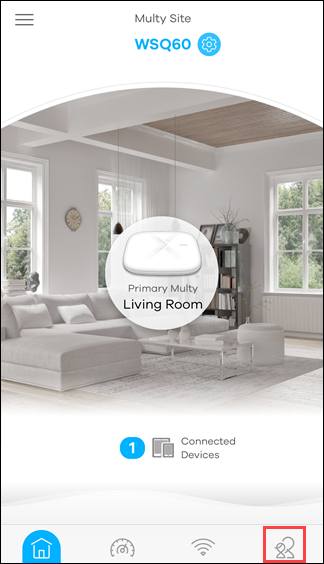
Step 2: Tap the "Access Control" icon.
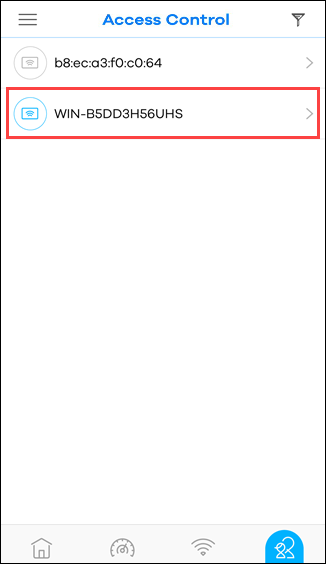
Step 3: Tap the device name from the device list.
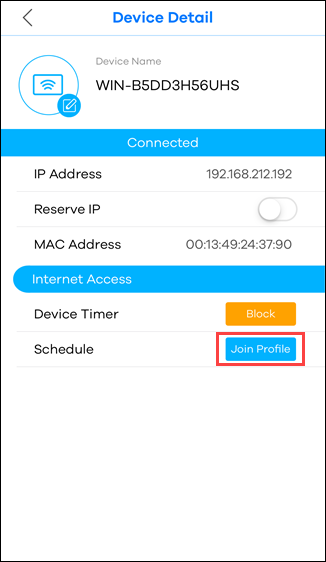
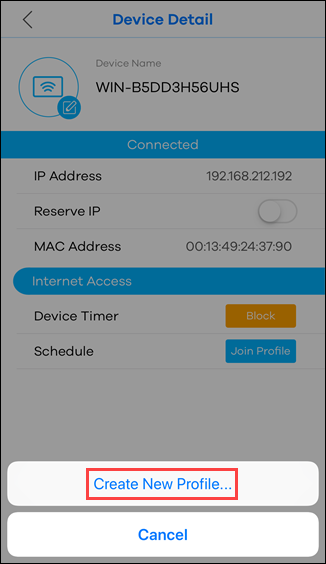
Step 4: Tap the "Join Profile" button to show the option list at the bottom of the screen and choose "Create New Profile...".
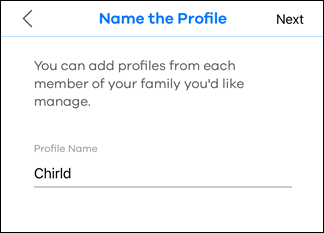
Step 5: Input the name of the new profile and tap "Next".
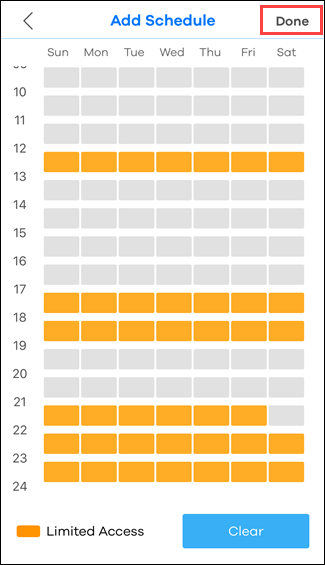
Step 6: Set up the schedule time and tap "Done" to finish the creation.
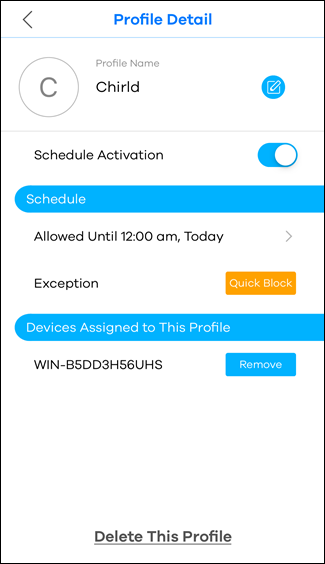
Step 7: After Step6, the new profile is created successfully.
0
Comments
-
Except you have locked this feature behind your AISheild product. Absolutely outrageous behaviour. The Multy app is now next to useless unless I pay! After a significant outlay over a year ago having read about access control in the app and having used it extensively you have handicapped my network, I am apoplectic! Unless this can be resolved I will be writing to Trading Standards here in the UK.0
-
Dear Sir,
Access Control Feature will only transfer to the AiShiled when you activated it, and the Access Control will back to Multy App after the AiShield license expired.
However, you can get many advanced features on AiShiled, such as device usage observation, content filtering, threat detection, etc.
Please refer to below link,
https://homeforum.zyxel.com/discussion/comment/6448#Comment_6448
0

 Freshman Member




Categories
- All Categories
- 442 Beta Program
- 3K Nebula
- 234 Nebula Ideas
- 6.7K Security
- 691 USG FLEX H Series
- 365 Security Ideas
- 1.8K Switch
- 87 Switch Ideas
- 1.4K Wireless
- 56 Wireless Ideas
- 7.1K Consumer Product
- 312 Service & License
- 508 News and Release
- 97 Security Advisories
- 31 Education Center
- 10 [Campaign] Zyxel Network Detective
- 5.1K FAQ
- 34 Documents
- 89 About Community
- 114 Security Highlight
