Remote Access VPN on 500H

 Freshman Member
I am trying to set up a remote access IPSEC VPN on a 500H using Windows VPN. I have turned on the IPSEC VPN server in Nebula and added a cloud authentication user. I have also logged directly into the firewall and downloaded the VPN setup. When I attempt to connect to the VPN, I get a message stating the remote server is not responding. The firewall functions in every other way. Nebula can establish a connection to the firewall. All the documentation I can find tells me it should be that easy.
All Replies
-
Hi @IVS,
I understand you're encountering a "remote server is not responding" error when setting up a remote access IPsec VPN on your USG FLEX 500H using Windows VPN, despite configuring it in Nebula and downloading the setup. This typically indicates an issue with the VPN server's accessibility or configuration.
Here's a step-by-step guide to troubleshoot this:
Verify NAT Traversal Configuration:
- If your USG FLEX 500H is behind a NAT device or ISP gateway (receiving a private IP), you must configure NAT Traversal (NAT-T). Log in to the uOS web interface of your firewall, navigate to
VPN > IPSec VPN > Remote Access VPNsettings, and enter your public IP address or DDNS hostname in the NAT Traversal field. - After enabling NAT-T, redownload the VPN configuration file and verify that the server address shows the public IP or DDNS.
- If your USG FLEX 500H is behind a NAT device or ISP gateway (receiving a private IP), you must configure NAT Traversal (NAT-T). Log in to the uOS web interface of your firewall, navigate to
Check Nebula and Local Configuration Sync:
- Ensure that the configuration on Nebula and your local firewall are in sync. If the download button for the VPN configuration script is greyed out in Nebula, it indicates a synchronization issue.
Review IPsec VPN Settings:
- IKEv2 Requirement: The USG FLEX H series primarily supports IKEv2 for Remote Access VPN.
- Phase 1 & 2 Parameters: For Windows VPN, ensure your Phase 1 and Phase 2 encryption and authentication settings are correctly configured. For USG FLEX H models, configure Phase 1 Encryption and Authentication to AES256/SHA256 DH2/DH14/DH21, and Phase 2 Encryption and Authentication to AES256/SHA256 with Perfect Forward Secrecy (PFS) set to
None. - VPN Zone Security: Ensure the VPN tunnel is correctly integrated into your network's security policies. With uOS version 1.20 and later, you can automatically add the VPN tunnel to its respective security zone during VPN setup.
Security Policy:
- Verify that your firewall security policies allow traffic from the VPN subnet to your internal network. If unsure, temporarily disable related security policies to test connectivity.
User Authentication:
- Confirm that the cloud authentication user you created has VPN access enabled. If you created the user from the Cloud Authentication User Page in Nebula, ensure "Allow user to use Remote Access VPN" is enabled.
To help us further investigate, please provide the following information:
- Firmware Version of your USG FLEX 500H.
- Network Topology Diagram: A simple diagram showing your firewall, ISP connection, and the client attempting to connect.
- Screenshots of your IPsec VPN Remote Access settings in both Nebula and the local GUI, particularly the Phase 1, Phase 2, and NAT Traversal configurations.
- Zyxel Support Access: To enable our support team to directly view your cloud environment configuration and expedite troubleshooting, please enable Zyxel Support Access through the Nebula control panel (
Help > Support Request). Please also provide your Organization and Site name.
This AI response aims to provide initial troubleshooting steps and identify information needed for further diagnosis. Feel free to share additional details based on the suggestions above — this will help community members offer more targeted assistance.
If you have feedback or idea about this AI assistant, share them in Community Feedback.0 -
Hi @IVS,
Just checking back with you — did the suggestions provided by Zyxel_Barry help resolve the Remote Access IPSec VPN issue on your USG FLEX 500H?
If the problem is still occurring, please help us investigate further by providing the following information:
- Check the security policy on the firewall at both the reported site and the remote client site. Ensure UDP ports 500 & 4500 are allowed from WAN to the firewall/ZyWALL.
- Screenshot of the firewall's event log in the IPSec VPN category. Example:
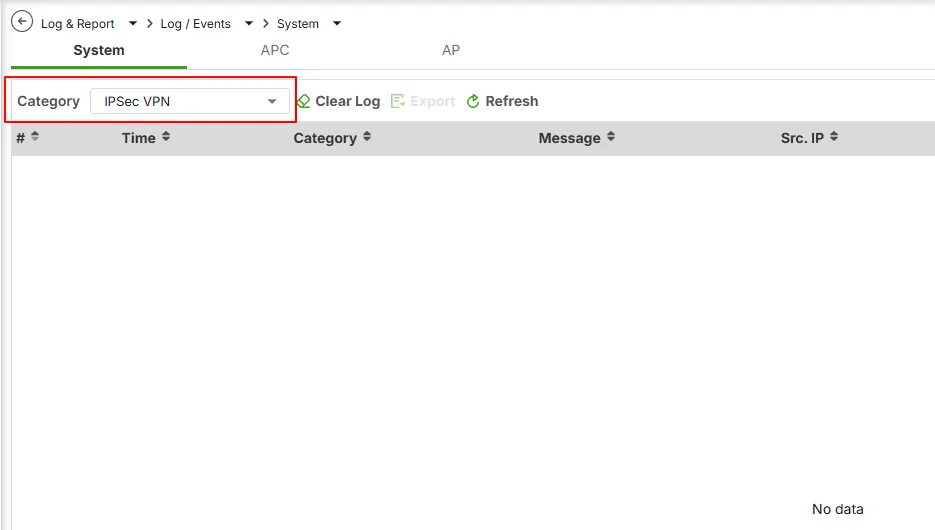
- Please enable Zyxel Support Access and provide your Organization and Site name.
This information will help us better understand the scenario and provide more accurate assistance.
Zyxel Tina
0

 Zyxel Community Virtual Assistant





Categories
- All Categories
- 442 Beta Program
- 3K Nebula
- 222 Nebula Ideas
- 129 Nebula Status and Incidents
- 6.5K Security
- 619 USG FLEX H Series
- 349 Security Ideas
- 1.7K Switch
- 84 Switch Ideas
- 1.4K Wireless
- 53 Wireless Ideas
- 7K Consumer Product
- 298 Service & License
- 485 News and Release
- 92 Security Advisories
- 31 Education Center
- 10 [Campaign] Zyxel Network Detective
- 4.8K FAQ
- 34 Documents
- 88 About Community
- 105 Security Highlight