Fujitsu Scanner IX500 integration into network without WPS

 Freshman Member

All Replies
-
Hi @Tomatoman,
Connecting older devices like your Fujitsu Scanner IX500 that lack WPS or direct SSID setup options to a modern Zyxel Nebula network can be achieved through a few methods. Here's a professional approach:
Dedicated 2.4 GHz SSID for IoT/Legacy Devices: Many older devices, including scanners, often operate best on the 2.4 GHz band. Create a dedicated SSID in your Nebula control center specifically for these types of devices. When configuring this SSID, ensure the following settings are applied:
- Frequency Band: Set to "2.4 GHz only." This prevents the scanner from attempting to connect to a 5 GHz band it may not support.
- Security Mode: Choose "WPA2-Personal" (WPA2-PSK). While WPA3 is more secure, older devices may not be compatible. If WPA2-Personal still causes issues, you might temporarily test with a lower security setting (like WPA-Personal with WPA1 or even "No Security" for testing purposes only) to rule out compatibility problems, but revert to WPA2-Personal as soon as possible for security.
- Band Select/Assisted Roaming: Disable these features for the dedicated SSID. This ensures the device maintains a stable connection on the 2.4 GHz network and isn't prompted to switch bands it cannot use.
Client Bridge Mode with a Zyxel Access Point: If the scanner has an Ethernet port, you can use a Zyxel access point in client bridge mode. This allows the AP to connect wirelessly to your main Nebula network and then provide an Ethernet connection to your scanner. This effectively makes your scanner a wired client on your wireless network. While not all Zyxel APs support wireless bridge functionality, some do.
To help us provide more specific guidance, please provide the following information:
- Zyxel Access Point Model(s): Please provide the model number(s) of the Zyxel Access Point(s) you are currently using in your network.
- Scanner Connectivity: Does your Fujitsu Scanner IX500 have an Ethernet port?
- Nebula Organization/Site Name: Please provide the Organization and Site name from your Nebula Control Center.
- Zyxel Support Access: If you are comfortable, please enable Zyxel Support Access via
Help > Support Requestin your Nebula console. This allows our support team to directly view your cloud environment configuration, significantly shortening troubleshooting time.
This AI response aims to provide initial troubleshooting steps and identify information needed for further diagnosis. Feel free to share additional details based on the suggestions above — this will help community members offer more targeted assistance.
If you have feedback or idea about this AI assistant, share them in Community Feedback.0 -
Hello,
the scanner doesn't have any ethernet port. I do use 2 Zyxel access points NWA50BE.
Nebula Organization/Site Name:Zuhause/Zuhause0 -
Hi @Tomatoman
To connect the ix500, you need to access it and select which SSID to connect. This is the only way to connect.
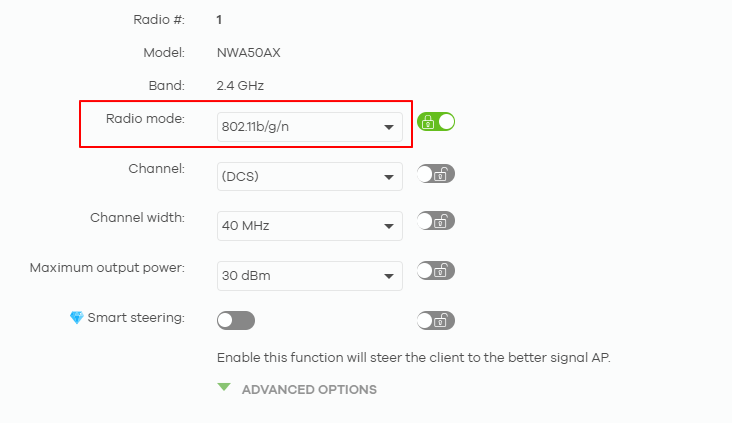
Please note the ix500 support 802.11n only, you need to configure a specific SSID and radio mode for it.
SSID advanced settings:
- Security option: WPA2-Personal
- Advanced settings: Band mode 2.4 GHz band only
Radio mode:
- Go to Configure > Radio settings > per AP Radio settings
 > select one of the nearest AP in 2.4 GHz tab > change the radio mode to 802.11b/g/n.
Zyxel Melen0

 Zyxel Community Virtual Assistant



Categories
- All Categories
- 442 Beta Program
- 3K Nebula
- 222 Nebula Ideas
- 129 Nebula Status and Incidents
- 6.5K Security
- 619 USG FLEX H Series
- 349 Security Ideas
- 1.7K Switch
- 84 Switch Ideas
- 1.4K Wireless
- 53 Wireless Ideas
- 7K Consumer Product
- 298 Service & License
- 485 News and Release
- 92 Security Advisories
- 31 Education Center
- 10 [Campaign] Zyxel Network Detective
- 4.8K FAQ
- 34 Documents
- 88 About Community
- 105 Security Highlight