Nebula - The SNMP is not working on the new device




 Freshman Member
All Replies
-
Hi @nubira ,
Thank you for reaching out. If you have already enabled SNMP at the Site level according to the FAQ [How to activate/enable SNMP on Switch in NCC?], and SNMP is functioning properly on your other switches, the issue is likely specific to the new switch. Please check the following points:
- Configuration Status: In Nebula, ensure the new GS1920-24HP shows as Online and its configuration status is Up to date.
- Firmware Version: Upgrade the new switch to the same firmware version as your other switches via Site-wide > Configure > Firmware management.
- Network Reachability: Verify that your SNMP server can reach the switch's management IP (e.g., via ping), and confirm that UDP port 161 is not blocked by any firewall or ACL along the network path.
If the issue persists, please provide the following details to help us investigate:
- The failure symptom: whether the SNMP server receives no response at all (timeout) or only fails to query specific OIDs.
- A brief overview of your network topology.
- Please enable Remote Support access by following the FAQ below, and send us a private message (PM) with your Org/Site name along with the MAC address or Serial Number (S/N) of the affected switch so we can assist you further:
- [Nebula] How to turn on Zyxel Support Access? — Zyxel Community
Thank you!
0 -
Hi,
All the switches and the SNMP server operate on the same subnet. SNMP works fine on all the GS1920-24HP switches that were purchased previously. However, the newly purchased GS1920-24HPv2 switch is experiencing timeout errors.
All switches are online and their configurations and firmware are up to date. Ping is also working. There is no firewall.Enabling Remote Support is problematic. Are there any other options?
Thank you!
0 -
Hi @nubira,
If possible, please first restart SNMP in NCC under [Site-wide > Configure > Site settings] (disable it -> save -> re-enable it -> save).
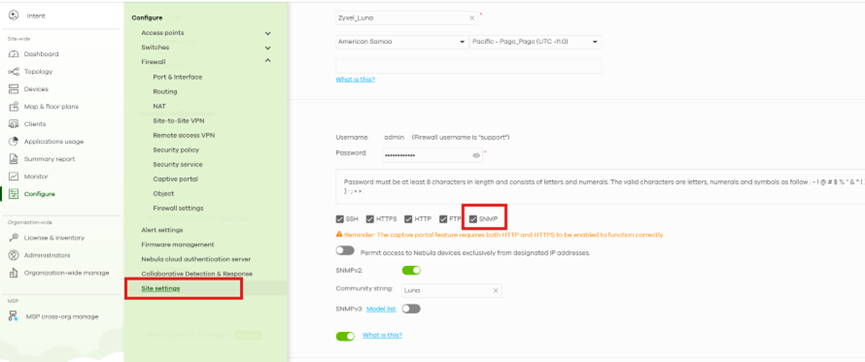
Once the configuration status is Up to date, please try polling/monitoring this switch via SNMP again.

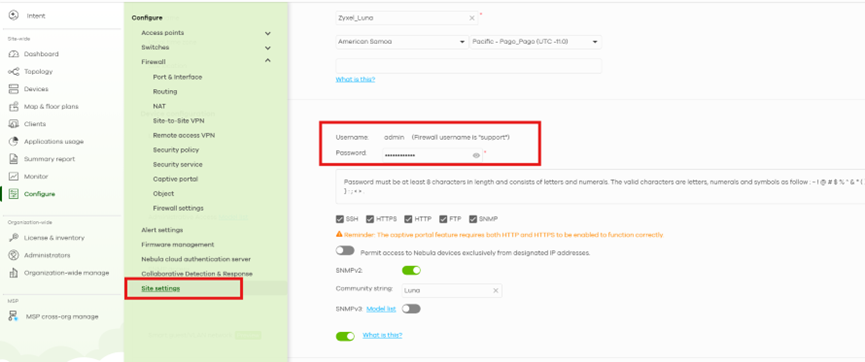
If the SNMP server still receives no response from the switch, please log in to the device's local Web GUI (Username:
admin, Password: the local credentials configured in your Site settings):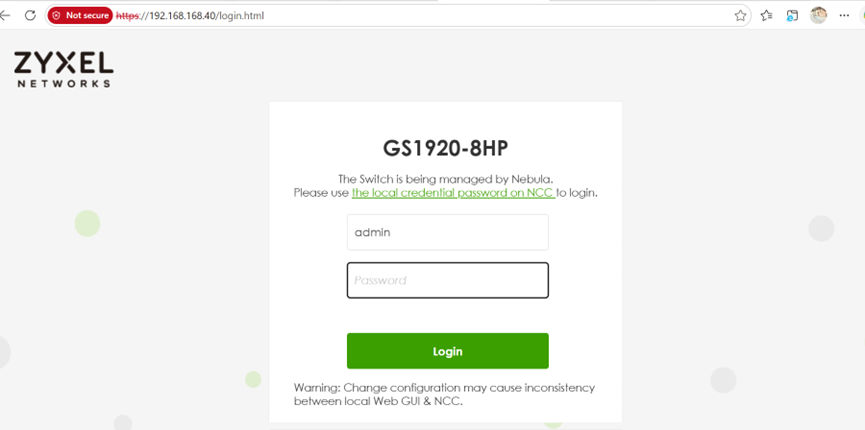
- Check whether the SNMP configuration under [SYSTEM > SNMP] is correct.
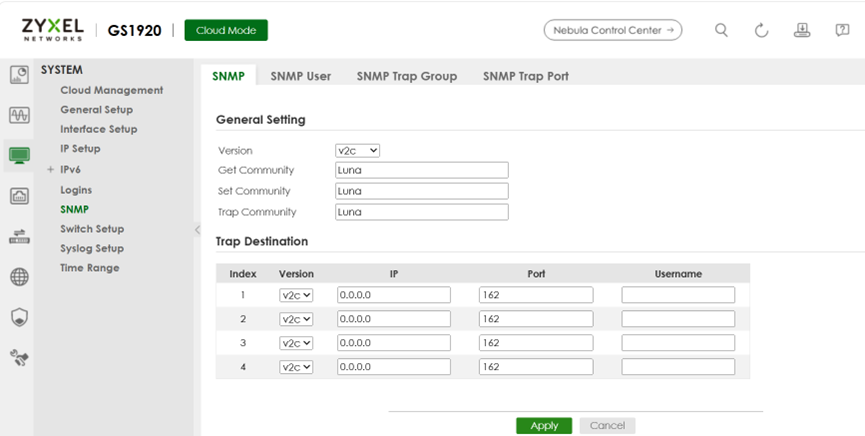
- Ensure SNMP is enabled under [Security > Service Access Control].
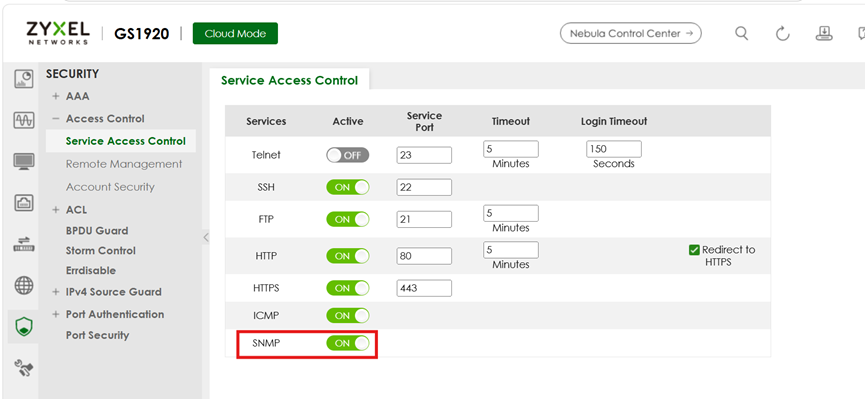
- Finally, verify that the SNMP service status is displayed as enabled on the Dashboard.
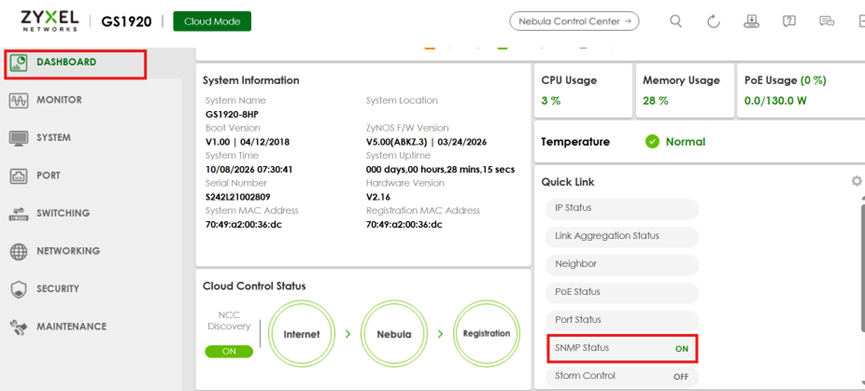
If the SNMP settings on the Web GUI are incorrect (not in sync with the settings in NCC), please go to Site-wide > Devices > Switches > {Device’s name}, then click Live tools > Reprovision.
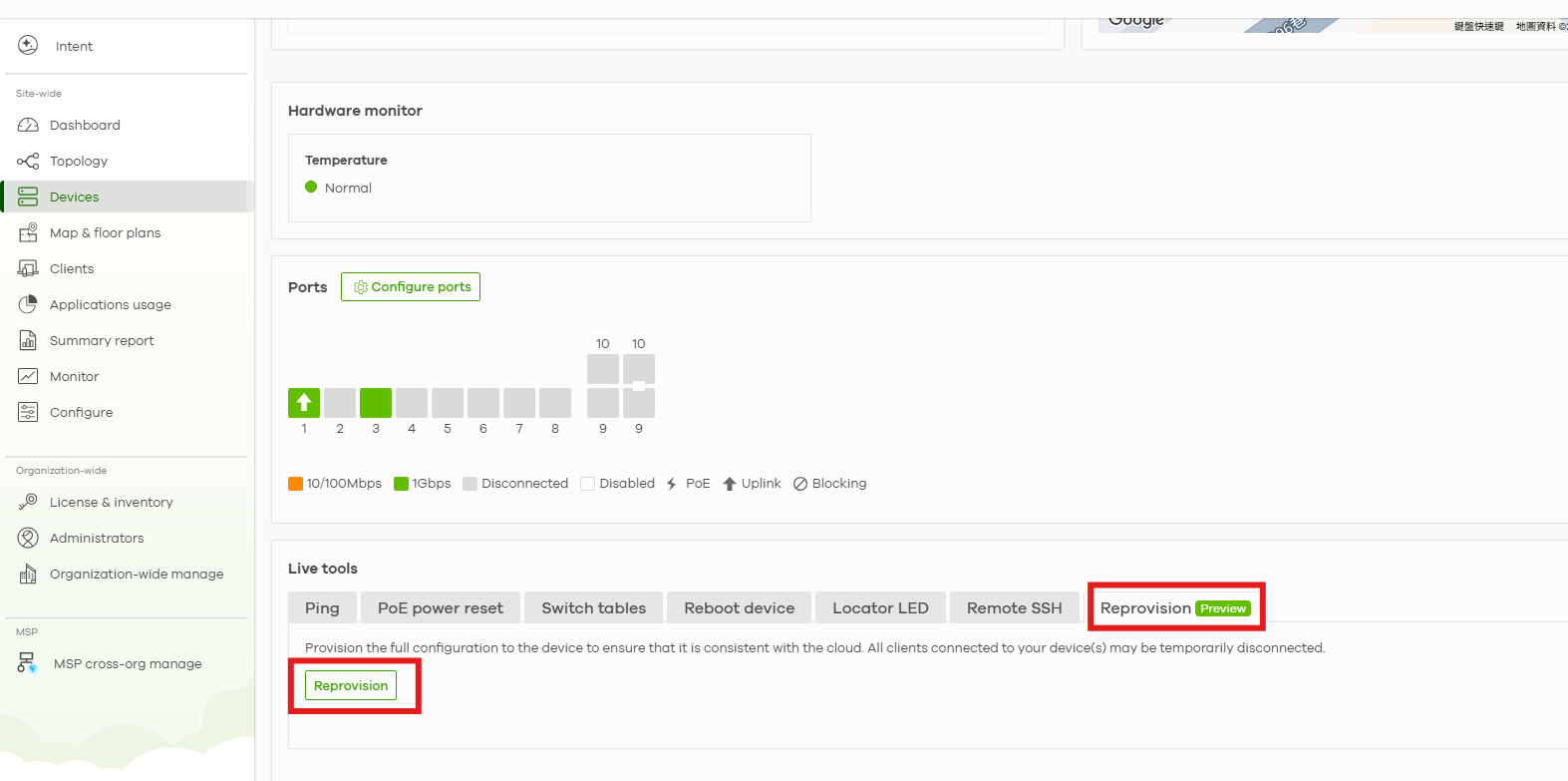
Please feel free to reach out if you have any questions. Thank you.
0 -
Hi @Zyxel_Luna!
Thanks for the suggestions! I checked every single point you mentioned, and everything is OK. I didn't notice any difference between the other switches. I have no idea what the problem is.
Thank you!
0 -
Hi @nubira,
After you disabled and re-enabled SNMP under [Site-wide > Configure > Site settings], is your new GS1920-24HPv2 still unable to be polled by the SNMP management server, while other GS1920-24HPv2 switches in the same site can be polled normally?
If you have confirmed that the settings on the SNMP monitoring server for this switch are all correct (including SNMP v2 and the community string), Would it be possible for us to connect remotely via AnyDesk or TeamViewer to a PC that can reach both your SNMP monitoring server and the new GS1920-24HPv2? This will help us further investigate and troubleshoot the issue for you.
0 -
1
-
Hi @nubira,
Before that, could you please use an SNMP browser (or similar tool) to poll the new GS1920-24HPv2 to verify whether it can be successfully polled? You can refer to the MIB in the attachment [GS1920-24HPv2_18] for the OIDs.
If the switch cannot be polled successfully, please help collect and provide the diagnostic information as follows:
- Step 1: Log in to the switch Web GUI and navigate to MAINTENANCE > Tech-Support.
- Step 2: Click Download All to export the complete technical support file.
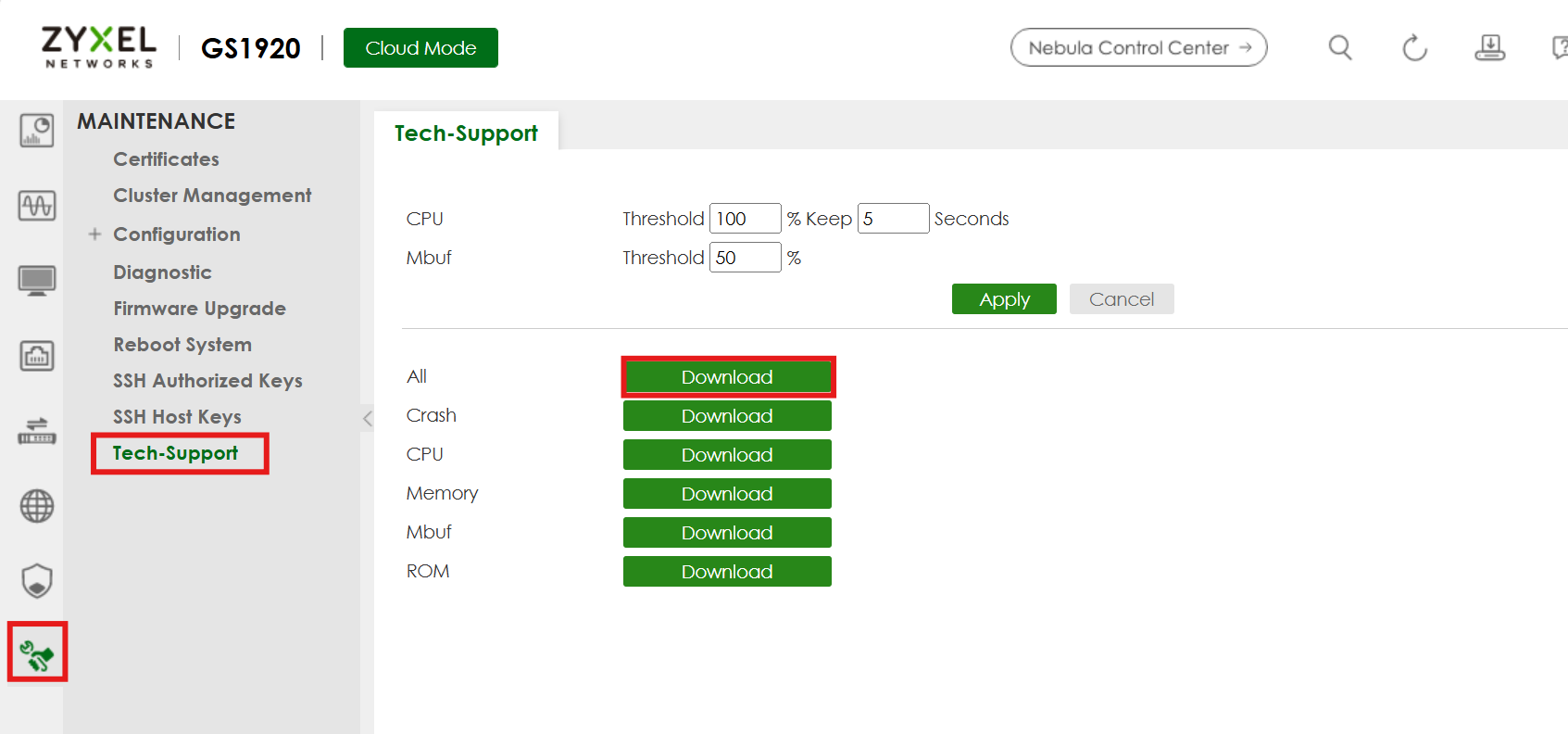
- Step 3: Send the downloaded Tech-Support file to us via Private Message (PM) for further analysis.
Thank you for your support of Zyxel.
0 -
Hi @Zyxel_Luna
Finally, I found the solution! I set the IP address of my SNMP server directly in the Access Control > Remote Management > Secured Client Setup section of the new switch. Monitoring has begun.
Please tell me where I can find this option in Nebula.Thanks!
0


 Zyxel Employee
Categories
- All Categories
- 442 Beta Program
- 3.1K Nebula
- 243 Nebula Ideas
- 6.8K Security
- 781 USG FLEX H Series
- 387 Security Ideas
- 1.8K Switch
- 87 Switch Ideas
- 1.5K Wireless
- 58 Wireless Ideas
- 7.2K Consumer Product
- 324 Service & License
- 527 News and Release
- 101 Security Advisories
- 31 Education Center
- 10 [Campaign] Zyxel Network Detective
- 5.3K FAQ
- 34 Documents
- 91 About Community
- 121 Security Highlight